Sorting in WPF TreeGrid
SfTreeGrid allows you to sort the data against one or more columns either in ascending or descending order. When sorting is applied, the rows are rearranged based on sort criteria. You can allow users to sort the data by touching or clicking the column header using SfTreeGrid.AllowSorting property to true.
<syncfusion:SfTreeGrid Name="treeGrid"
						AllowSorting="True"
						AutoExpandMode="RootNodesExpanded"
						ChildPropertyName="Children"
ItemsSource="{Binding EmployeeDetails}">this.treeGrid.AllowSorting = true;In another way, you can enable or disable the sorting for particular column by setting the TreeGridColumn.AllowSorting property.
<syncfusion:SfTreeGrid Name="treeGrid"
							   AllowSorting="False"
							   AutoGenerateColumns="False"
							   AutoExpandMode="RootNodesExpanded"
							   ChildPropertyName="Children"
							   ItemsSource="{Binding EmployeeDetails}">
	<syncfusion:SfTreeGrid.Columns>
		<syncfusion:TreeGridTextColumn AllowSorting="True" MappingName="FirstName" />
		<syncfusion:TreeGridTextColumn AllowSorting="False" MappingName="LastName" />
		<syncfusion:TreeGridTextColumn  MappingName="Id" />
		<syncfusion:TreeGridNumericColumn MappingName="Salary" />
	</syncfusion:SfTreeGrid.Columns>
</syncfusion:SfTreeGrid>this.treeGrid.Columns["FirstName"].AllowSorting = true;
this.treeGrid.Columns["LastName"].AllowSorting = false;TheTreeGridColumn.AllowSorting takes higher priority than SfTreeGrid.AllowSorting property.
End users can sort the column by clicking column header cell. Once the columns get sorted, the sort indicator will be displayed on the right side of the column header.
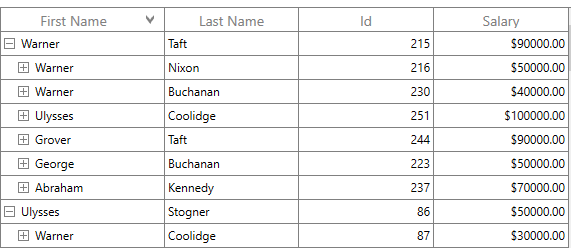
Sort column in double click
By default, column gets sorted when column header clicked. You can change this behavior to sort the column in double click action by setting SfTreeGrid.SortClickAction property to DoubleClick.
<syncfusion:SfTreeGrid Name="treeGrid"
						AllowSorting="True"
						SortClickAction="DoubleClick"
						AutoExpandMode="RootNodesExpanded"
						ChildPropertyName="Children"
ItemsSource="{Binding EmployeeDetails}">this.treeGrid.AllowSorting = true;
this.treeGrid.SortClickAction = SortClickAction.DoubleClick;Sorting order
By default, the data is sorted in ascending or descending order when clicking column header. You can rearrange the data to its initial order from descending, when clicking column header by setting SfTreeGrid.AllowTriStateSorting property.
Following are the sequence of sorting orders when clicking column header,
- Sorts the data in ascending order
- Sorts the data in descending order
- Clears the sorting and records displayed in its initial order
Initial sort direction
By default, when a column is sorted for the first time by clicking its header, the data is arranged in ascending order. You can change this behavior and specify whether a column should sort in ascending or descending order when sorting is applied for the first time by using SfTreeGrid.InitialSortDirection and TreeGridColumn.InitialSortDirection.
The
TreeGridColumn.InitialSortDirectiontakes higher priority thanSfTreeGrid.InitialSortDirectionproperty.
Set initial sort direction at WPF Tree Grid level
Use the SfTreeGrid.InitialSortDirection property to apply the same initial sort direction to all sortable columns.
<syncfusion:SfTreeGrid Name="treeGrid"
					   AllowSorting="True"
					   InitialSortDirection="Descending"
					   AutoExpandMode="RootNodesExpanded"
					   ChildPropertyName="Children"
ItemsSource="{Binding EmployeeDetails}">this.treeGrid.InitialSortDirection = ListSortDirection.Descending;In this example, the first time the user sorts any column, it sorts in descending order.
Set initial sort direction at column level
Use the TreeGridColumn.InitialSortDirection property to define the initial sort direction for a specific column.
<syncfusion:SfTreeGrid Name="treeGrid"
					   AllowSorting="True"
					   AutoGenerateColumns="False"
					   AutoExpandMode="RootNodesExpanded"
					   ChildPropertyName="Children"
					   ItemsSource="{Binding EmployeeDetails}">

	<syncfusion:SfTreeGrid.Columns>
	    <syncfusion:TreeGridTextColumn MappingName="ID" InitialSortDirection="Descending" />
		<syncfusion:TreeGridTextColumn MappingName="FirstName" HeaderText="First Name" InitialSortDirection="Ascending" />
		<syncfusion:TreeGridTextColumn MappingName="LastName" HeaderText="Last Name" />
	</syncfusion:SfTreeGrid.Columns>

</syncfusion:SfTreeGrid>this.treeGrid.Columns["ID"].InitialSortDirection = ListSortDirection.Descending;
this.treeGrid.Columns["FirstName"].InitialSortDirection = ListSortDirection.Ascending;In this example, the ID column starts in descending order when sorted for the first time, the FirstName column starts in ascending order, and the LastName column uses the grid-level default.
Initial sorting sequence
When SfTreeGrid.AllowTriStateSorting is enabled, the sorting sequence includes clear sorting after the ascending and descending states.
The sorting sequence is determined by the value of the InitialSortDirection property.
When InitialSortDirection is set to Descending, the sorting cycle follows:
- Descending
- Ascending
- Clear sorting
When InitialSortDirection is set to Ascending, the sorting cycle follows:
- Ascending
- Descending
- Clear sorting
This property affects the initial sort direction only when a column is sorted for the first time by clicking its header. It does not automatically sort the column when the control is loaded.
Multi column sorting
SfTreeGrid control allows you sort more than one column, where sorting is applied one column against other columns. To apply sorting on multiple columns, user have to click the column header by pressing the Ctrl key.
In the below screen shot, the First Name column sorted. Then the Employee ID column is sorted against the First Name data by clicking column header by pressing Ctrl key. The sorting state of First Name column is preserved and Employee ID column sorted against First Name column.
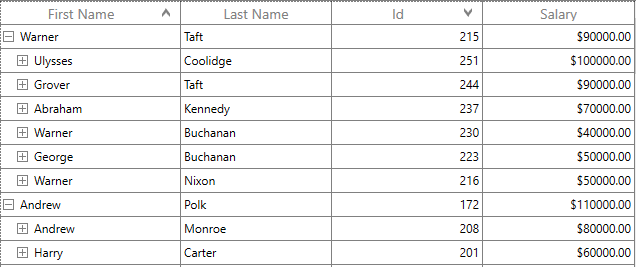
Display sort order
It is also possible to display sorted order of columns in header by setting SfTreeGrid.ShowSortNumbers property to true.
<syncfusion:SfTreeGrid Name="treeGrid"
					AllowSorting="True"
					ShowSortNumbers="True"
					AutoExpandMode="RootNodesExpanded"
					ChildPropertyName="Children"
ItemsSource="{Binding EmployeeDetails}">this.treeGrid.ShowSortNumbers = true;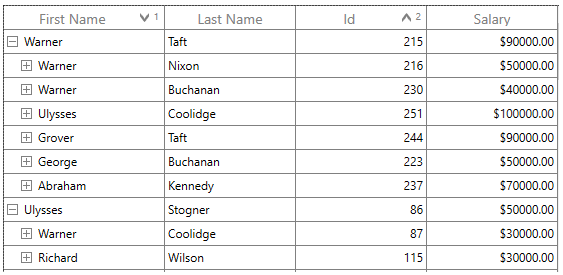
Programmatic Sorting
You can sort the data programmatically by adding or removing the SortColumnDescription in SfTreeGrid.SortColumnDescriptions property.
SfTreeGrid.SortColumnChanging and SfTreeGrid.SortColumnChanged events are not raised when the data sorted programmatically through
SfTreeGrid.SortColumnDescriptions.
Adding sort columns
<syncfusion:SfTreeGrid Name="treeGrid"
						AllowSorting="True"
						AutoExpandMode="RootNodesExpanded"
						ChildPropertyName="Children"
						ItemsSource="{Binding EmployeeDetails}">
			<syncfusion:SfTreeGrid.SortColumnDescriptions>
				<sync:SortColumnDescription ColumnName="FirstName" SortDirection="Ascending" />
				<sync:SortColumnDescription ColumnName="Id" SortDirection="Descending"/>
			</syncfusion:SfTreeGrid.SortColumnDescriptions>
</syncfusion:SfTreeGrid>this.treeGrid.SortColumnDescriptions.Add(new SortColumnDescription() { ColumnName = "FirstName",SortDirection=ListSortDirection.Ascending });
this.treeGrid.SortColumnDescriptions.Add(new SortColumnDescription() { ColumnName = "Id", SortDirection = ListSortDirection.Descending });Removing sort columns
You can unsort the data by removing the corresponding SortColumnDescription from the SfTreeGrid.SortColumnDescriptions property.
var sortColumnDescription = this.treeGrid.SortColumnDescriptions.FirstOrDefault(col => col.ColumnName == "FirstName");

if (sortColumnDescription != null)
    this.treeGrid.SortColumnDescriptions.Remove(sortColumnDescription);
Clear sorting
You can clear sorting, by clearing the SfTreeGrid.SortColumnDescriptions.
this.treeGrid.SortColumnDescriptions.Clear();Custom sorting
SfTreeGrid allows you to sort the columns based on the custom logic. The custom sorting can be applied by adding the SortComparer instance to SfTreeGrid.SortComparers.
The SortComparer have the following properties,
PropertyName - Gets or sets the name of the column to apply custom sorting.
Comparer - Gets or sets the custom comparer in which you can code to compare the data using custom logic.
You can implement ISortDirection interface in comparer to get the sort direction. So you can apply different custom logics for ascending and descending.
Follow the below steps to add custom comparer to sort using custom logic,
Define custom comparer with custom sort logic
In the below code snippet, FirstName property is compared based on its string length, instead of default string comparison.
public class CustomSortComparer : IComparer<object>, ISortDirection
{
	public int Compare(object x, object y)
	{
		var item1 = x as EmployeeInfo;
		var item2 = y as EmployeeInfo;
		var value1 = item1.FirstName;
		var value2 = item2.FirstName;
		int c = 0;

		if (value1 != null && value2 == null)
		{
			c = 1;
		}
		else if (value1 == null && value2 != null)
		{
			c = -1;
		}
		else if (value1 != null && value2 != null)
		{
			c = value1.Length.CompareTo(value2.Length);
		}

		if (SortDirection == ListSortDirection.Descending)
			c = -c;

		return c;
	}

	//Get or Set the SortDirection value
	private ListSortDirection _SortDirection;

	public ListSortDirection SortDirection
	{
		get { return _SortDirection; }
		set { _SortDirection = value; }
	}
}
Adding custom comparer to SfTreeGrid
Custom comparer can be added to SfTreeGrid.SortComparers property. SortComparers maintains custom comparers and the custom comparer gets called when corresponding column gets sorted by clicking column header or programmatically.
xmlns:data="clr-namespace:Syncfusion.Data;assembly=Syncfusion.Data.WPF"

<syncfusion:SfTreeGrid.SortComparers>
	<data:SortComparer Comparer="{StaticResource sortComparer}"  PropertyName="FirstName" />
</syncfusion:SfTreeGrid.SortComparers>this.treeGrid.SortComparers.Add(new SortComparer() { Comparer = new CustomSortComparer(), PropertyName = "FirstName" });Sorting First Name column sorts the data using custom sort comparer available in SfTreeGrid.SortComparers.
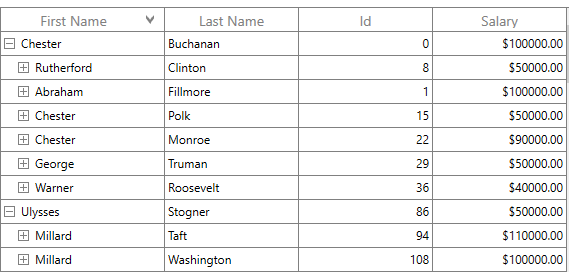
Handling events
SortColumnsChanging event
SfTreeGrid.SortColumnsChanging event occurs while sorting the columns by clicking column header. GridSortColumnsChangingEventArgs has following members which provides information for SortColumnsChanging event.
Action - Gets the action triggered this event.
Cancel - Setting value to true, cancels the triggered action.
AddedItems - Gets the list of new SortColumnDescriptions that are added.
RemovedItems - Gets the list of SortColumnDescriptions that are removed.
CancelScroll - Gets or sets a value that indicates, whether scroll and bring SelectedItem in view after sorting takes place.
You can prevent sorting for the particular column through GridSortColumnsChangingEventArgs.Cancel property of SortColumnsChanging event.
this.treeGrid.SortColumnsChanging += TreeGrid_SortColumnsChanging;

private void TreeGrid_SortColumnsChanging(object sender, GridSortColumnsChangingEventArgs e)
{
	if (e.AddedItems[0].ColumnName == "FirstName")
	{
		e.Cancel = true;
	}
}
SortColumnsChanged event
SfTreeGrid.SortColumnsChanged event occurs when the sorting is applied to the column. GridSortColumnsChangedEventArgs provides information for SortColumnsChanged event.
You can refer to our WPF TreeGrid feature tour page for its groundbreaking feature representations. You can also explore our WPF TreeGrid example to know how to render and configure the treegrid.