Search in WPF TreeGrid
WPF TreeGrid control allows you to search the data displayed in the SfTreeGrid. You can search the data by using SearchController.Search method.
this.treeGrid.SearchController.Search(TextBox.Text);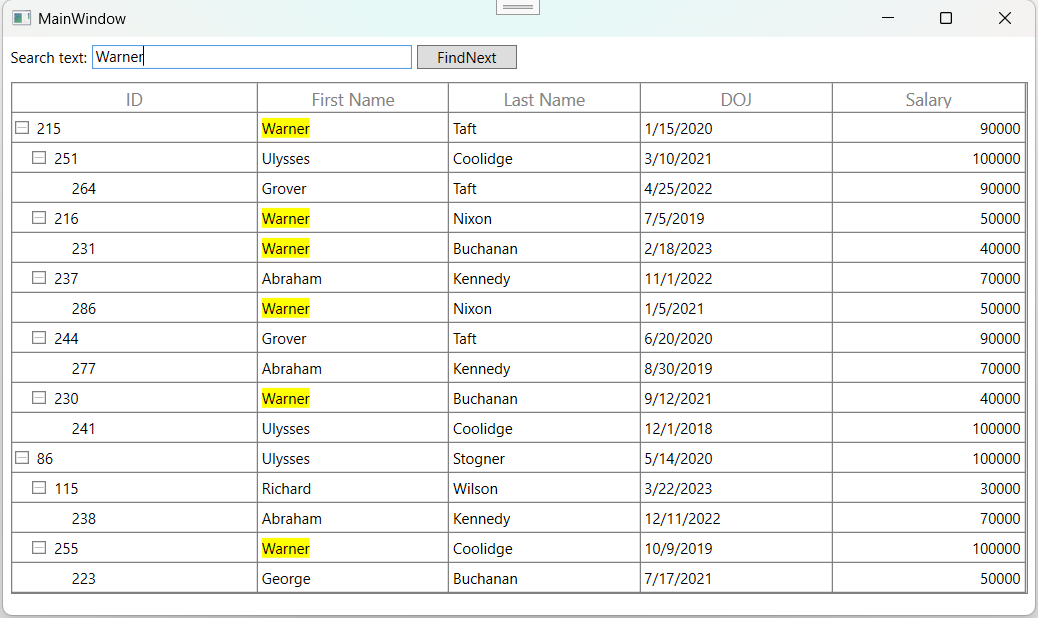
SearchScope
You can control where the search is applied in the SfTreeGrid using the SearchController.SearchScope property. By default SearchScope value set as Both.
-
Both – Search will be applied to both RootNodes and ChildNodes in the SfTreeGrid.
-
RootNodes – Search will be applied only to the RootNodes in the SfTreeGrid.
-
ChildNodes – Search will be applied only to the ChildNodes in the SfTreeGrid.
this.treeGrid.SearchController.SearchScope = SearchScope.ChildNodes;
this.treeGrid.SearchController.Search(TextBox.Text);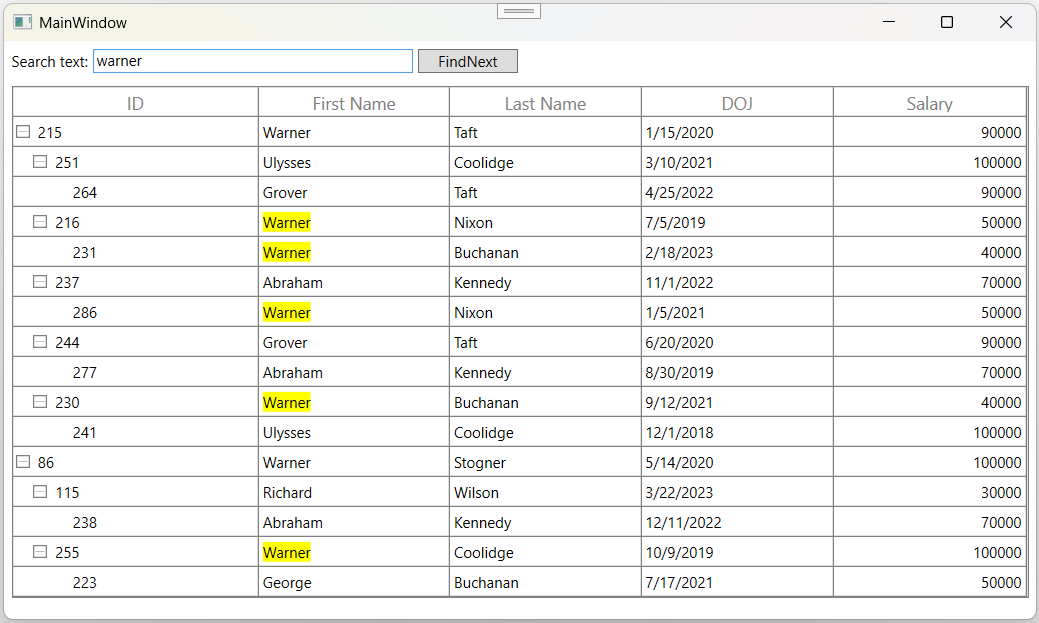
Filtering
You can enable filter based on search by setting SearchController.AllowFiltering property to true.
this.treeGrid.SearchController.AllowFiltering = true;
this.treeGrid.SearchController.Search(TextBox.Text);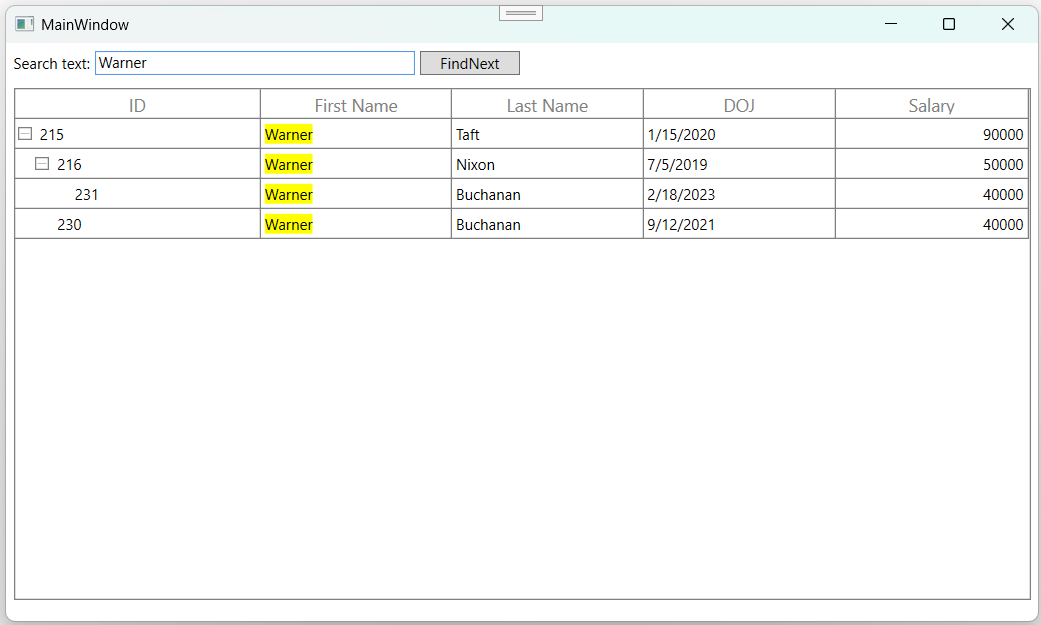
In Search, filtering is applied based on the FilterLevel.
You can search the data with the case-sensitivity by setting SearchController.AllowCaseSensitiveSearch property to true.
this.treeGrid.SearchController.AllowCaseSensitiveSearch = true;
this.treeGrid.SearchController.Search(TextBox.Text);
Changing Search Highlight Background
In WPF TreeGrid (SfTreeGrid), you can change the search text highlighting color by setting SearchController.MatchedCellBackground property
this.treeGrid.SearchController.MatchedCellBackground = Brushes.Green;
this.treeGrid.SearchController.Search(TextBox.Text);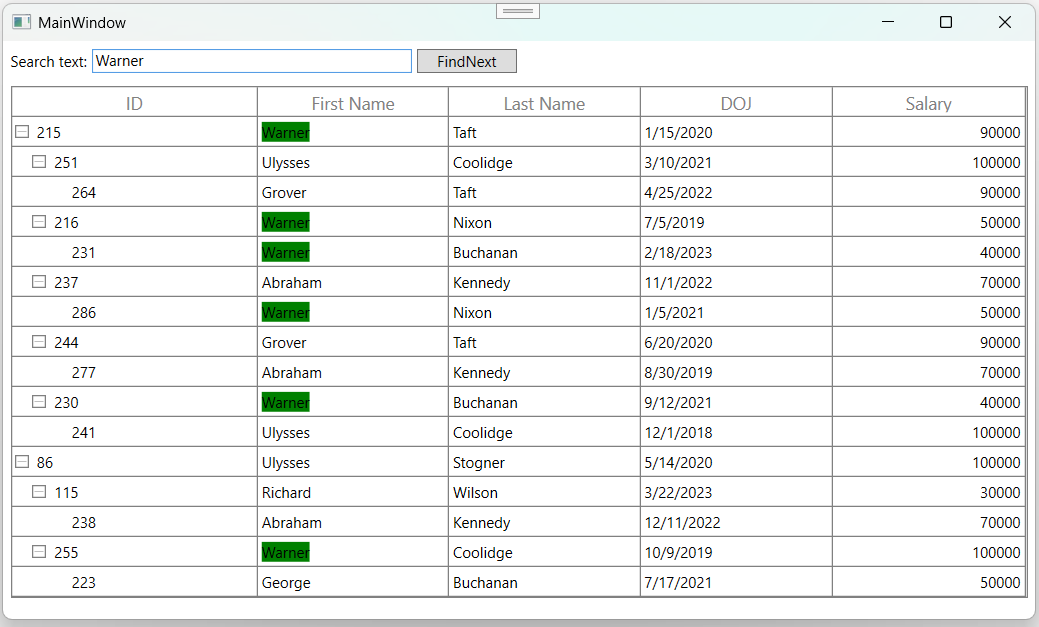
Changing foreground for search highlight
In WPF TreeGrid (SfTreeGrid), you can change the foreground color for search text by setting the SearchController.MatchedCellForeground property.
this.treeGrid.SearchController.MatchedCellForeground = Brushes.Red;
this.treeGrid.SearchController.Search(TextBox.Text);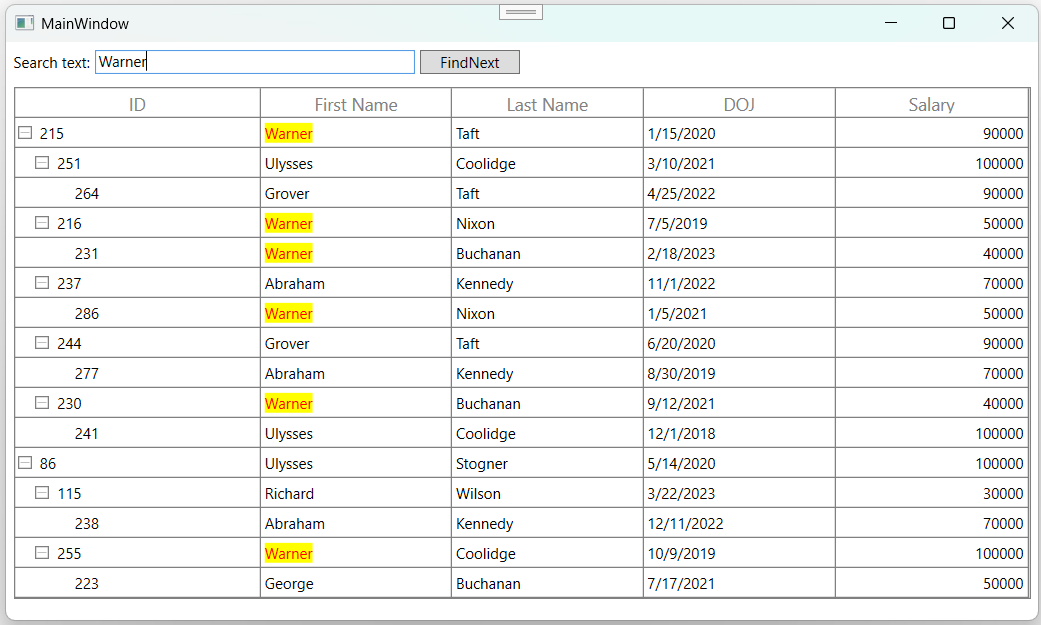
Navigating cells based on search text
You can navigate to the cells contains the SearchText using SearchController.FindNext and SearchController.FindPrevious methods.
this.treeGrid.SearchController.FindNext(TextBox.Text);
this.treeGrid.SearchController.FindPrevious(TextBox.Text);
You can highlight the currently navigated search text using SearchController.CurrentMatchedCellBackground property.
this.treeGrid.SearchController.CurrentMatchedCellBackground = Brushes.Red;
this.treeGrid.SearchController.FindNext(TextBox.Text);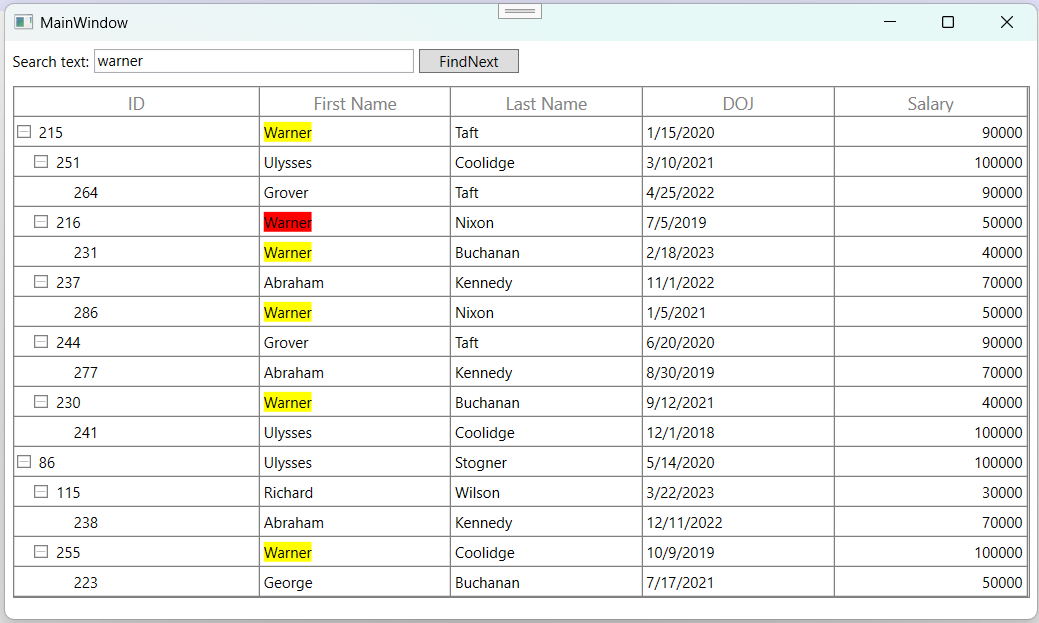
You can highlight the foreground color of current navigated search text by using the SearchController.CurrentMatchedCellForeground property.
this.treeGrid.SearchController.CurrentMatchedCellForeground = Brushes.Red;
this.treeGrid.SearchController.FindNext(TextBox.Text);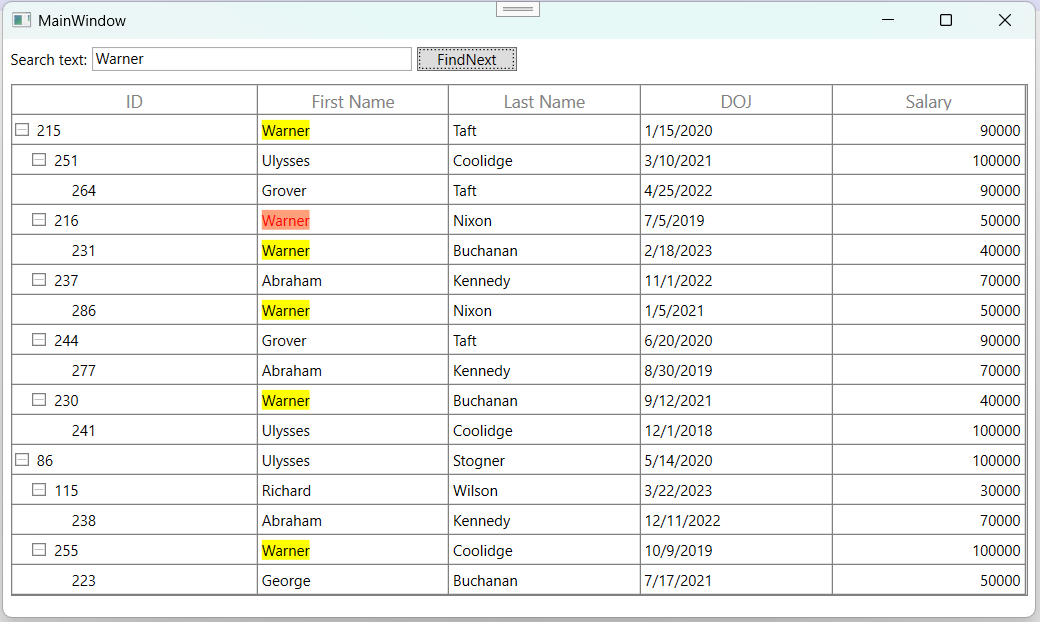
Move CurrentCell when FindNext and FindPrevious
You can move the current cell along with FindNext and FindPrevious operation using MoveCurrentCell method in selection controller.
this.treeGrid.SearchController.FindNext(TextBox.Text);
this.treeGrid.SelectionController.MoveCurrentCell(this.treeGrid.SearchController.CurrentMatchedCellIndex);
Clear Search
You can clear the search by calling the SearchController.Clear method.
this.treeGrid.SearchController.Clear();Search customization
WPF TreeGrid (SfTreeGrid) process the search operations in SearchController class. You can change the default search behaviors by overriding SearchController class and set to SfTreeGrid.SearchController.
this.treeGrid.SearchController = new SearchControllerExt(this.treeGrid);
public class SearchControllerExt : SearchController
{

    public SearchControllerExt(SfTreeGrid treeGrid)
        : base(treeGrid)
    {
    }
}
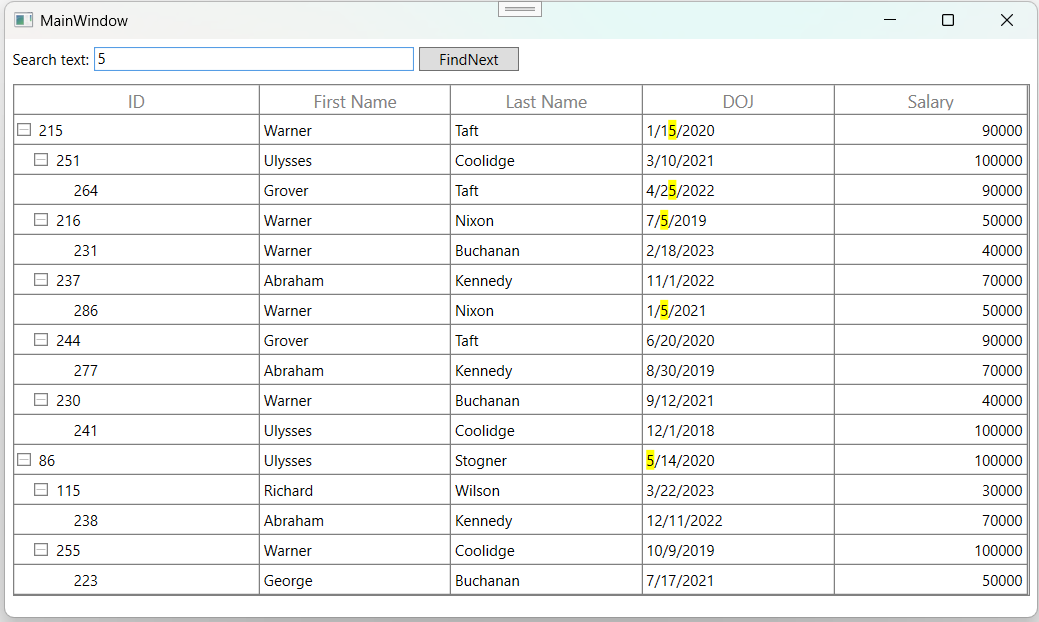
Search only selected columns
You can search only selected columns by overriding SearchCell method of SearchController. In the SearchCell method, based on MappingName you can skip the columns that you don’t want to search.
In the below code, except DOJ column other columns are gets excluded from search.
this.treeGrid.SearchController = new SearchControllerExt(this.treeGrid);
this.treeGrid.SearchController.Search("5");

public class SearchControllerExt : TreeGridSearchController
{

    public SearchControllerExt(SfTreeGrid treeGrid)
        : base(treeGrid)
    {
    }

    protected override bool SearchCell(TreeDataColumnBase column, object record, bool applyCurrentMatchedCellBackground)
    {

        if (column.TreeGridColumn.MappingName == "DOJ")
            return base.SearchCell(column, record, applyCurrentMatchedCellBackground);
        return false;
    }
}
Select the record based on the SearchText
You can select the records which contains the search text by using GetRecords method.
this.treeGrid.SelectedItems.Clear();
this.treeGrid.SearchController.Search(TextBox.Text);
var list = this.treeGrid.SearchController.GetRecords();
int recordIndex = this.treeGrid.ResolveToNodeIndex(this.treeGrid.ResolveToRowIndex(list[1].Record));
this.treeGrid.SelectedIndex = recordIndex;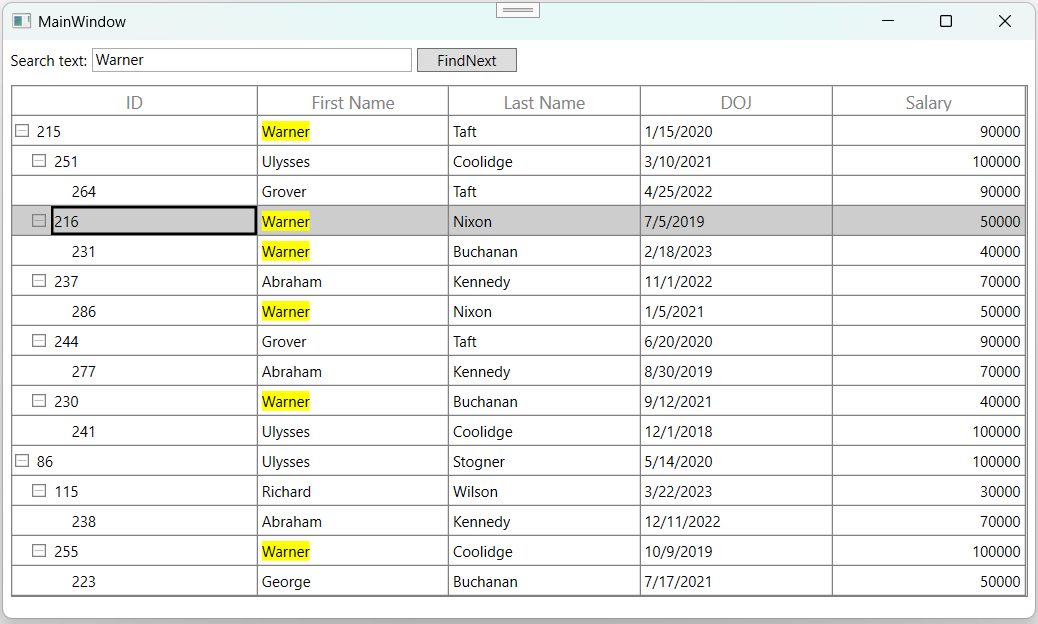
Search with the TreeGridComboBoxColumn
You can search the data in SfTreeGrid with all the TreeGridColumns which loads TextBlock as display element. To perform the search operation in the TreeGridComboBoxColumn you need to customize the TreeGridComboBoxColumn. As it loads the ContentControl in display mode.
public class TreeGridComboBoxColumnExt : TreeGridComboBoxColumn
{

    public TreeGridComboBoxColumnExt()
    {
        SetCellType("TreeGridComboBoxExt");
    }

    protected override Freezable CreateInstanceCore()
    {
        return new TreeGridComboBoxColumnExt();
    }
}
You can change the display element of each column by creating new renderer for the particular column and assign to corresponding cell type in SfTreeGrid.CellRenderers.
public class TreeGridComboBoxRendererExt : TreeGridVirtualizingCellRenderer<TextBlock, ComboBox>
{

    public TreeGridComboBoxRendererExt()
    {
    }

    public override object GetControlValue()
    {

        if (!HasCurrentCellState)
            return null;
        return CurrentCellRendererElement.GetValue(IsInEditing ? Selector.SelectedValueProperty : TextBlock.TextProperty);
    }

    // Creates the binding to the Edit-element

    private void InitializeEditBinding(ComboBox uiElement, TreeGridColumn column)
    {
        var comboBoxColumn = (TreeGridComboBoxColumn)column;
        var source = comboBoxColumn.ValueBinding as Binding;

        // Creates the bind element to the edit-element.
        var bind = new Binding
        {
            Mode = BindingMode.TwoWay,
            Path = source.Path,
            StringFormat = source.StringFormat,
            TargetNullValue = source.TargetNullValue,
            UpdateSourceTrigger = UpdateSourceTrigger.PropertyChanged,
            ValidatesOnExceptions = source.ValidatesOnExceptions,
            AsyncState = source.AsyncState,
            BindingGroupName = source.BindingGroupName,
            IsAsync = source.IsAsync,
            NotifyOnSourceUpdated = source.NotifyOnSourceUpdated,
            NotifyOnTargetUpdated = source.NotifyOnTargetUpdated,
            UpdateSourceExceptionFilter = source.UpdateSourceExceptionFilter,
            XPath = source.XPath
        };

        uiElement.SetBinding(ComboBox.SelectedValueProperty, bind);

        // Binding the ItemSource to the TreeGridComboBox.
        var itemsSourceBinding = new Binding { Path = new PropertyPath("ItemsSource"), Mode = BindingMode.TwoWay, Source = comboBoxColumn };
        uiElement.SetBinding(ComboBox.ItemsSourceProperty, itemsSourceBinding);
        var displayMemberBinding = new Binding { Path = new PropertyPath("DisplayMemberPath"), Mode = BindingMode.TwoWay, Source = comboBoxColumn };
        uiElement.SetBinding(ComboBox.DisplayMemberPathProperty, displayMemberBinding);
        var selectedValuePathBinding = new Binding { Path = new PropertyPath("SelectedValuePath"), Mode = BindingMode.TwoWay, Source = comboBoxColumn };
        uiElement.SetBinding(ComboBox.SelectedValuePathProperty, selectedValuePathBinding);
        var staysOpenOnEditBinding = new Binding { Path = new PropertyPath("StaysOpenOnEdit"), Mode = BindingMode.TwoWay, Source = comboBoxColumn };
        uiElement.SetBinding(ComboBox.StaysOpenOnEditProperty, staysOpenOnEditBinding);
        var isEditableBinding = new Binding { Path = new PropertyPath("IsEditable"), Mode = BindingMode.TwoWay, Source = comboBoxColumn };
        uiElement.SetBinding(ComboBox.IsEditableProperty, isEditableBinding);
        var itemTemplateBinding = new Binding { Path = new PropertyPath("ItemTemplate"), Mode = BindingMode.TwoWay, Source = comboBoxColumn };
        uiElement.SetBinding(ComboBox.ItemTemplateProperty, itemTemplateBinding);
    }

    // This will be invoke when the editing is triggered.

    public override void OnInitializeEditElement(TreeDataColumnBase dataColumn, ComboBox uiElement, object dataContext)
    {
        TreeGridColumn column = dataColumn.TreeGridColumn;
        InitializeEditBinding(uiElement, column);
        var textAlignment = new Binding { Path = new PropertyPath("TextAlignment"), Mode = BindingMode.OneWay, Source = column, Converter = new TextAlignmentToHorizontalAlignmentConverter() };
        uiElement.SetBinding(Control.HorizontalContentAlignmentProperty, textAlignment);
        var verticalAlignment = new Binding { Path = new PropertyPath("VerticalAlignment"), Mode = BindingMode.TwoWay, Source = column };
        uiElement.SetBinding(Control.VerticalContentAlignmentProperty, verticalAlignment);
    }

    // Display Element initialized for required properties

    public override void OnInitializeDisplayElement(TreeDataColumnBase dataColumn, TextBlock uiElement, object dataContext)
    {
        var column = dataColumn.TreeGridColumn;
        var treeGridColumn = column as TreeGridComboBoxColumn;
        uiElement.SetBinding(TextBlock.TextProperty, column.DisplayBinding);
        var textAlignment = new Binding { Path = new PropertyPath("TextAlignment"), Mode = BindingMode.OneWay, Source = column, Converter = new TextAlignmentToHorizontalAlignmentConverter() };
        uiElement.SetBinding(Control.HorizontalAlignmentProperty, textAlignment);
        var verticalAlignment = new Binding { Path = new PropertyPath("VerticalAlignment"), Mode = BindingMode.TwoWay, Source = column };
        uiElement.SetBinding(Control.VerticalAlignmentProperty, verticalAlignment);
        uiElement.Margin = new Thickness(3,0,1,0);
    }

}