WebMethodAdaptor in Control
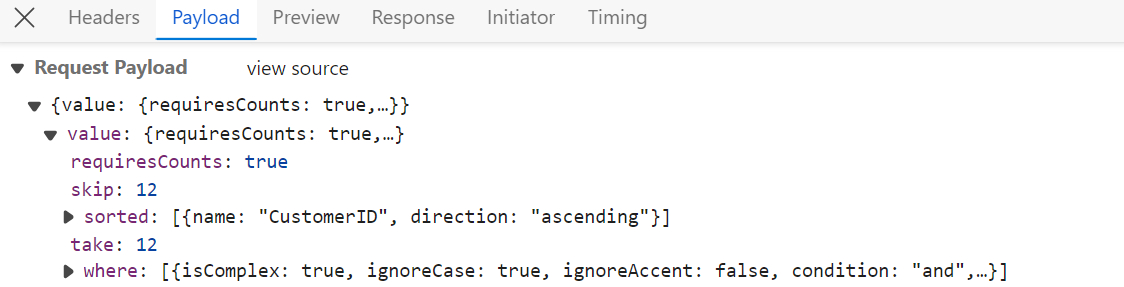
The WebMethodAdaptor in TypeScript Grid facilitates data binding from remote services using web methods. This powerful feature enables efficient communication between the client-side application and the server. The WebMethodAdaptor, like the URL adaptor, sends query parameters encapsulated within an object named value. Within this value object, various datamanager properties such as requiresCounts, skip, take, sorted, and where queries are included.
This section describes a step-by-step process for retrieving data using WebMethodAdaptor, then binding it to the TypeScript Grid control to facilitate data and CRUD operations.
- The Syncfusion® Grid control provides built-in support for handling various data operations such as searching, sorting, filtering, aggregate and paging on the server-side. These operations can be handled using methods such as PerformSearching, PerformFiltering, PerformSorting, PerformTake and PerformSkip available in the
Syncfusion.EJ2.AspNet.Corepackage. Let’s explore how to manage these data operations using theWebMethodAdaptor.- In an API service project, add
Syncfusion.EJ2.AspNet.Coreby opening the NuGet package manager in Visual Studio (Tools → NuGet Package Manager → Manage NuGet Packages for Solution), search and install it.- To access DataManagerRequest and QueryableOperation, import
Syncfusion.EJ2.BaseinGridController.csfile.- In the WebMethodAdaptor configuration, the properties of the DataManager object are encapsulated within an object named value. To access the DataManager properties, a dedicated class is created, representing the value object.
  // Model for handling data manager requests
  public class DataManager
  {
      public required DataManagerRequest Value { get; set; }
  }
Handling searching operation
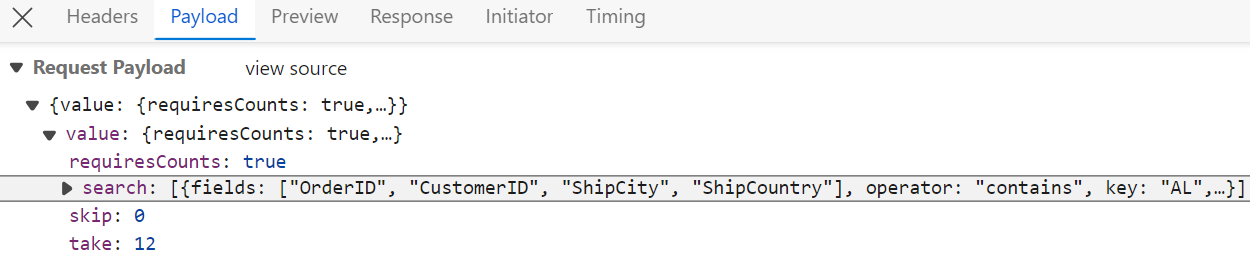
To handle searching operation, ensure that your API endpoint supports custom searching criteria. Implement the searching logic on the server-side using the PerformSearching method from the QueryableOperation class. This allows the custom data source to undergo searching based on the criteria specified in the incoming DataManagerRequest object
[HttpPost]
    public object Post([FromBody] DataManager DataManagerRequest)
    {
        // Retrieve data from the data source (e.g., database)
        IQueryable<OrdersDetails> DataSource = GetOrderData().AsQueryable();

        QueryableOperation queryableOperation = new QueryableOperation(); // Initialize QueryableOperation instance

        // Retrieve data manager value
        DataManagerRequest DataManagerParams = DataManagerRequest.Value;

        // Handling Searching
        if (DataManagerParams.Search != null && DataManagerParams.Search.Count > 0)
        {
        DataSource = queryableOperation.PerformSearching(DataSource, DataManagerParams.Search);
        }
        // Get the total records count
        int totalRecordsCount = DataSource.Count();

        // Return data based on the request
        return new { result = DataSource, count = totalRecordsCount };
    }

    // Model for handling data manager requests
    public class DataManager
    {
        public required DataManagerRequest Value { get; set; }
    }
Handling filtering operation
To handle filtering operation, ensure that your API endpoint supports custom filtering criteria. Implement the filtering logic on the server-side using the PerformFiltering method from the QueryableOperation class. This allows the custom data source to undergo filtering based on the criteria specified in the incoming DataManagerRequest object.
Single column filtering

Multi column filtering

[HttpPost]
public object Post([FromBody] DataManager DataManagerRequest)
{
    // Retrieve data from the data source (e.g., database)
    IQueryable<OrdersDetails> DataSource = GetOrderData().AsQueryable();

    QueryableOperation queryableOperation = new QueryableOperation(); // Initialize QueryableOperation instance

    // Retrieve data manager value
    DataManagerRequest DataManagerParams = DataManagerRequest.Value;

    if (DataManagerParams.Where != null && DataManagerParams.Where.Count > 0)
    {
        // Handling filtering operation
        foreach (var condition in DataManagerParams.Where)
        {
            foreach (var predicate in condition.predicates)
            {
                DataSource = queryableOperation.PerformFiltering(DataSource, DataManagerParams.Where, predicate.Operator);
            }
        }
    }
    // Get the total records count
    int totalRecordsCount = DataSource.Count();

    // Return data based on the request
    return new { result = DataSource, count = totalRecordsCount };
}

// Model for handling data manager requests
public class DataManager
{
    public required DataManagerRequest Value { get; set; }
}
Handling sorting operation
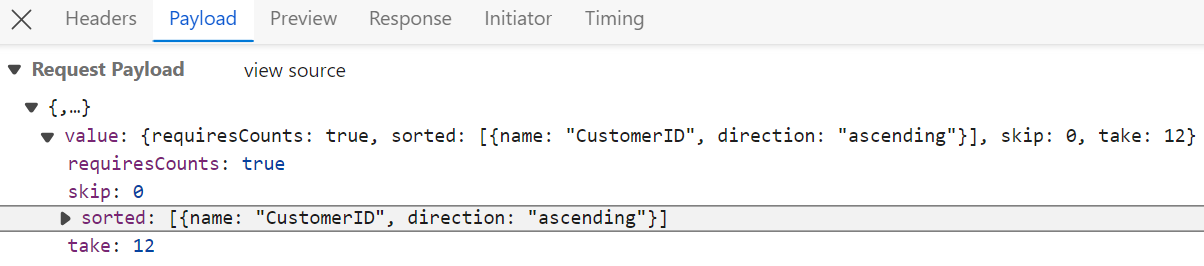
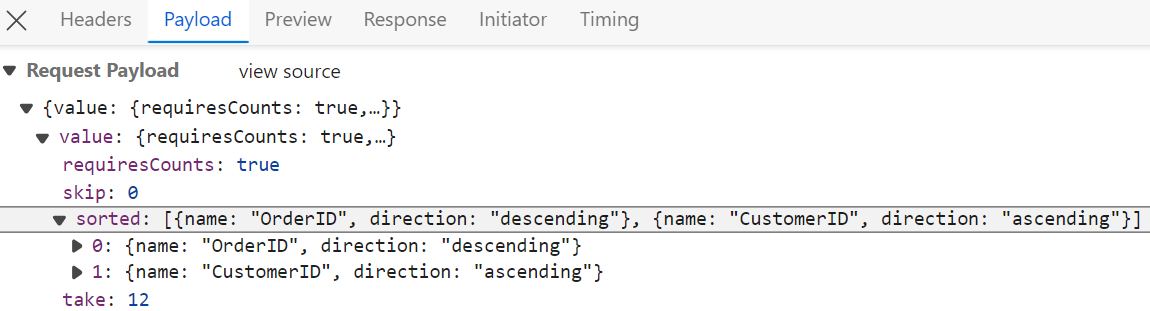
To handle sorting operation, ensure that your API endpoint supports custom sorting criteria. Implement the sorting logic on the server-side using the PerformSorting method from the QueryableOperation class. This allows the custom data source to undergo sorting based on the criteria specified in the incoming DataManagerRequest object.
Single column sorting
Multi column sorting
[HttpPost]
public object Post([FromBody] DataManager DataManagerRequest)
{
    // Retrieve data from the data source (e.g., database)
    IQueryable<OrdersDetails> DataSource = GetOrderData().AsQueryable();

    QueryableOperation queryableOperation = new QueryableOperation(); // Initialize QueryableOperation instance

    // Retrieve data manager value
    DataManagerRequest DataManagerParams = DataManagerRequest.Value;

    // Handling Sorting operation
    if (DataManagerParams.Sorted != null && DataManagerParams.Sorted.Count > 0)
    {
        DataSource = queryableOperation.PerformSorting(DataSource, DataManagerParams.Sorted);
    }

    // Get the total count of records
    int totalRecordsCount = DataSource.Count();

    // Return data based on the request
    return new { result = DataSource, count = totalRecordsCount };
}

// Model for handling data manager requests
public class DataManager
{
    public required DataManagerRequest Value { get; set; }
}
Handling paging operation
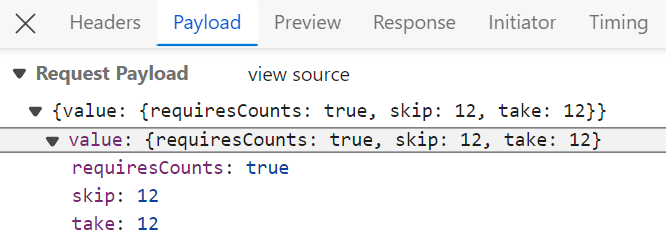
To handle paging operation, ensure that your API endpoint supports custom paging criteria. Implement the paging logic on the server-side using the PerformTake and PerformSkip method from the QueryableOperation class. This allows the custom data source to undergo paging based on the criteria specified in the incoming DataManagerRequest object.
[HttpPost]
public object Post([FromBody] DataManager DataManagerRequest)
{
    // Retrieve data from the data source (e.g., database)
    IQueryable<OrdersDetails> DataSource = GetOrderData().AsQueryable();

    // Get the total records count
    int totalRecordsCount = DataSource.Count();

    QueryableOperation queryableOperation = new QueryableOperation(); // Initialize QueryableOperation instance

    // Retrieve data manager value
    DataManagerRequest DataManagerParams = DataManagerRequest.Value;

    // Handling paging operation.
    if (DataManagerParams.Skip != 0)
    {
        // Paging
        DataSource = queryableOperation.PerformSkip(DataSource, DataManagerParams.Skip);
    }
    if (DataManagerParams.Take != 0)
    {
        DataSource = queryableOperation.PerformTake(DataSource, DataManagerParams.Take);
    }

    // Return data based on the request
    return new { result = DataSource, count = totalRecordsCount };
}

// Model for handling data manager requests
public class DataManager
{
    public required DataManagerRequest Value { get; set; }
}
Handling CRUD operations
The TypeScript Grid Control seamlessly integrates CRUD (Create, Read, Update, Delete) operations with server-side controller actions through specific properties: insertUrl, removeUrl, updateUrl, crudUrl, and batchUrl. These properties enable the grid to communicate with the data service for every grid action, facilitating server-side operations.
CRUD Operations Mapping
CRUD operations within the grid can be mapped to server-side controller actions using specific properties:
- insertUrl: Specifies the URL for inserting new data.
- removeUrl: Specifies the URL for removing existing data.
- updateUrl: Specifies the URL for updating existing data.
- crudUrl: Specifies a single URL for all CRUD operations.
- batchUrl: Specifies the URL for batch editing.
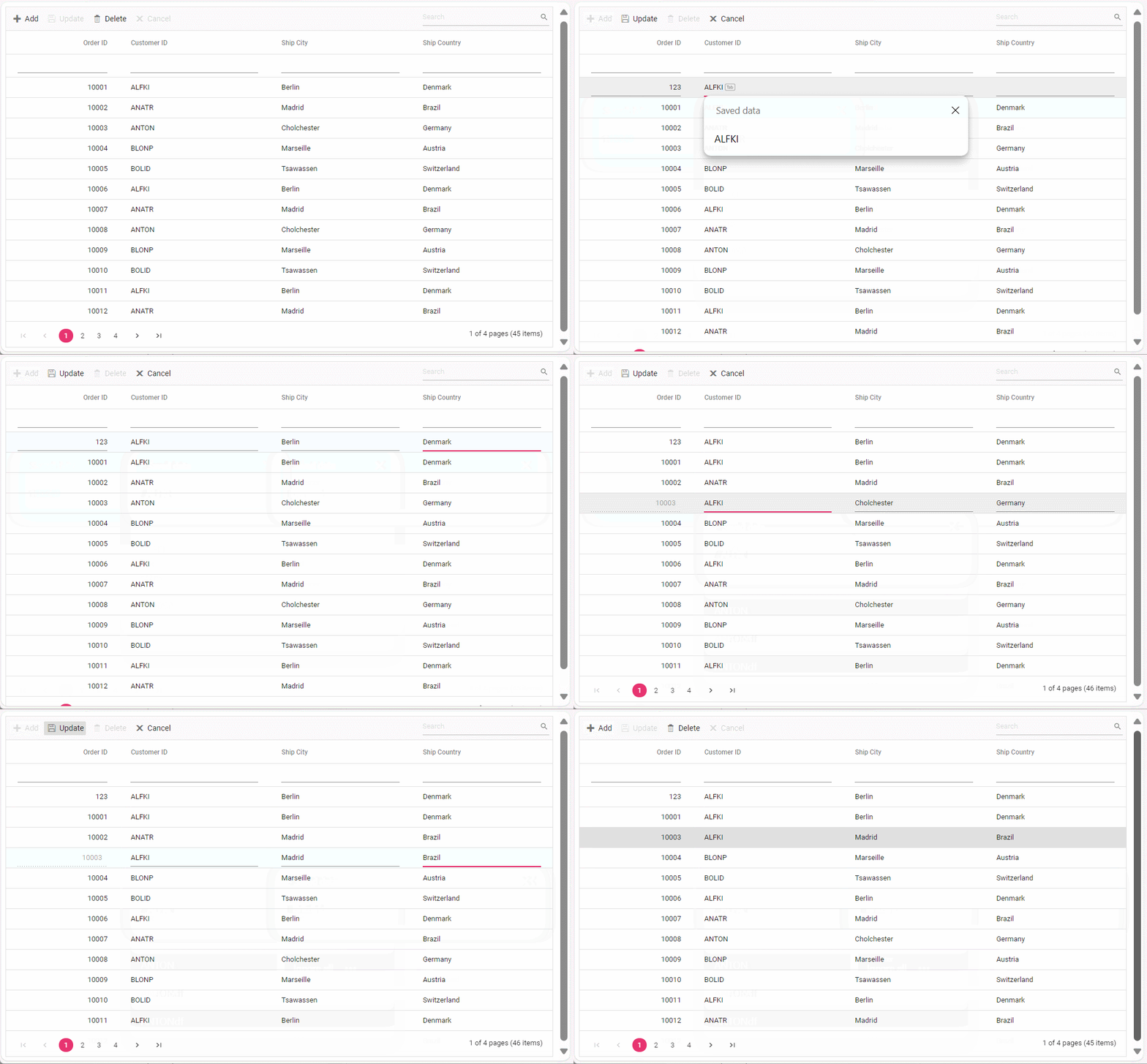
To enable editing in TypeScript Grid control, refer to the editing documentation. In the below example, the inline edit mode is enabled and toolbar property is configured to display toolbar items for editing purposes.
Normal/Inline editing is the default edit mode for the Grid control. To enable CRUD operations, ensure that the isPrimaryKey property is set to true for a specific Grid column, ensuring that its value is unique.
The below class is used to structure data sent during CRUD operations.
public class CRUDModel<T> where T : class
{
  public string? action { get; set; }
  public string? keyColumn { get; set; }
  public object? key { get; set; }
  public T? value { get; set; }
  public List<T>? added { get; set; }
  public List<T>? changed { get; set; }
  public List<T>? deleted { get; set; }
  public IDictionary<string, object>? @params { get; set; }
}
Insert operation:
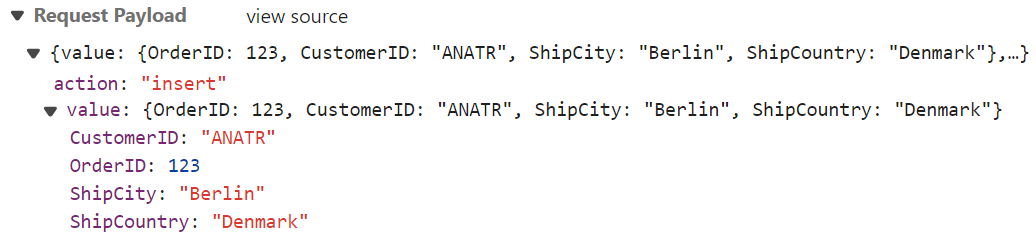
To insert a new record, utilize the insertUrl property to specify the controller action mapping URL for the insert operation. The newly added record details are bound to the newRecord parameter.
/// <summary>
/// Inserts a new data item into the data collection.
/// </summary>
/// <param name="newRecord">It contains the new record detail which is need to be inserted.</param>
/// <returns>Returns void</returns>
[HttpPost]
[Route("api/[controller]/Insert")]
public void Insert([FromBody] CRUDModel<OrdersDetails> newRecord)
{
    // Check if new record is not null
    if (newRecord.value != null)
    {
        // Insert new record
        OrdersDetails.GetAllRecords().Insert(0, newRecord.value);
    }
}
Update operation:
For updating existing records, utilize the updateUrl property to specify the controller action mapping URL for the update operation. The updated record details are bound to the updatedRecord parameter.

/// <summary>
/// Update a existing data item from the data collection.
/// </summary>
/// <param name="updatedRecord">It contains the updated record detail which is need to be updated.</param>
/// <returns>Returns void</returns>
[HttpPost]
[Route("api/[controller]/Update")]
public void Update([FromBody] CRUDModel<OrdersDetails> updatedRecord)
{
    // Retrieve updated order
    var updatedOrder = updatedRecord.value;
    if (updatedOrder != null)
    {
        // Find existing record
        var data = OrdersDetails.GetAllRecords().FirstOrDefault(or => or.OrderID == updatedOrder.OrderID);
        if (data != null)
        {
            // Update existing record
            data.OrderID = updatedOrder.OrderID;
            data.CustomerID = updatedOrder.CustomerID;
            data.ShipCity = updatedOrder.ShipCity;
            data.ShipCountry = updatedOrder.ShipCountry;
            // Update other properties similarly
        }
    }
}
Delete operation
To delete existing records, use the removeUrl property to specify the controller action mapping URL for the delete operation. The primary key value of the deleted record is bound to the deletedRecord parameter.

/// <summary>
/// Remove a specific data item from the data collection.
/// </summary>
/// <param name="deletedRecord">It contains the specific record detail which is need to be removed.</param>
/// <return>Returns void</return>
[HttpPost]
[Route("api/[controller]/Remove")]
public void Remove([FromBody] CRUDModel<OrdersDetails> deletedRecord)
{
    int orderId = int.Parse(deletedRecord.key.ToString()); // get key value from the deletedRecord
    var data = OrdersDetails.GetAllRecords().FirstOrDefault(orderData => orderData.OrderID == orderId);
    if (data != null)
    {
        // Remove the record from the data collection
        OrdersDetails.GetAllRecords().Remove(data);
    }
}
Single method for performing all CRUD operations
Using the crudUrl property, the controller action mapping URL can be specified to perform all the CRUD operation at server-side using a single method instead of specifying separate controller action method for CRUD (insert, update and delete) operations.
The following code example describes the above behavior.
[HttpPost]
[Route("api/[controller]/CrudUpdate")]
public void CrudUpdate([FromBody] CRUDModel<OrdersDetails> request)
{
  // perform update operation
  if (request.action == "update")
  {
    var orderValue = request.value;
    OrdersDetails existingRecord = OrdersDetails.GetAllRecords().Where(or => or.OrderID == orderValue.OrderID).FirstOrDefault();
    existingRecord.OrderID = orderValue.OrderID;
    existingRecord.CustomerID = orderValue.CustomerID;
    existingRecord.ShipCity = orderValue.ShipCity;
  }
  // perform insert operation
  else if (request.action == "insert")
  {
    OrdersDetails.GetAllRecords().Insert(0, request.value);
  }
  // perform remove operation
  else if (request.action == "remove")
  {
    OrdersDetails.GetAllRecords().Remove(OrdersDetails.GetAllRecords().Where(or => or.OrderID == int.Parse(request.key.ToString())).FirstOrDefault());
  }
}
Batch operation
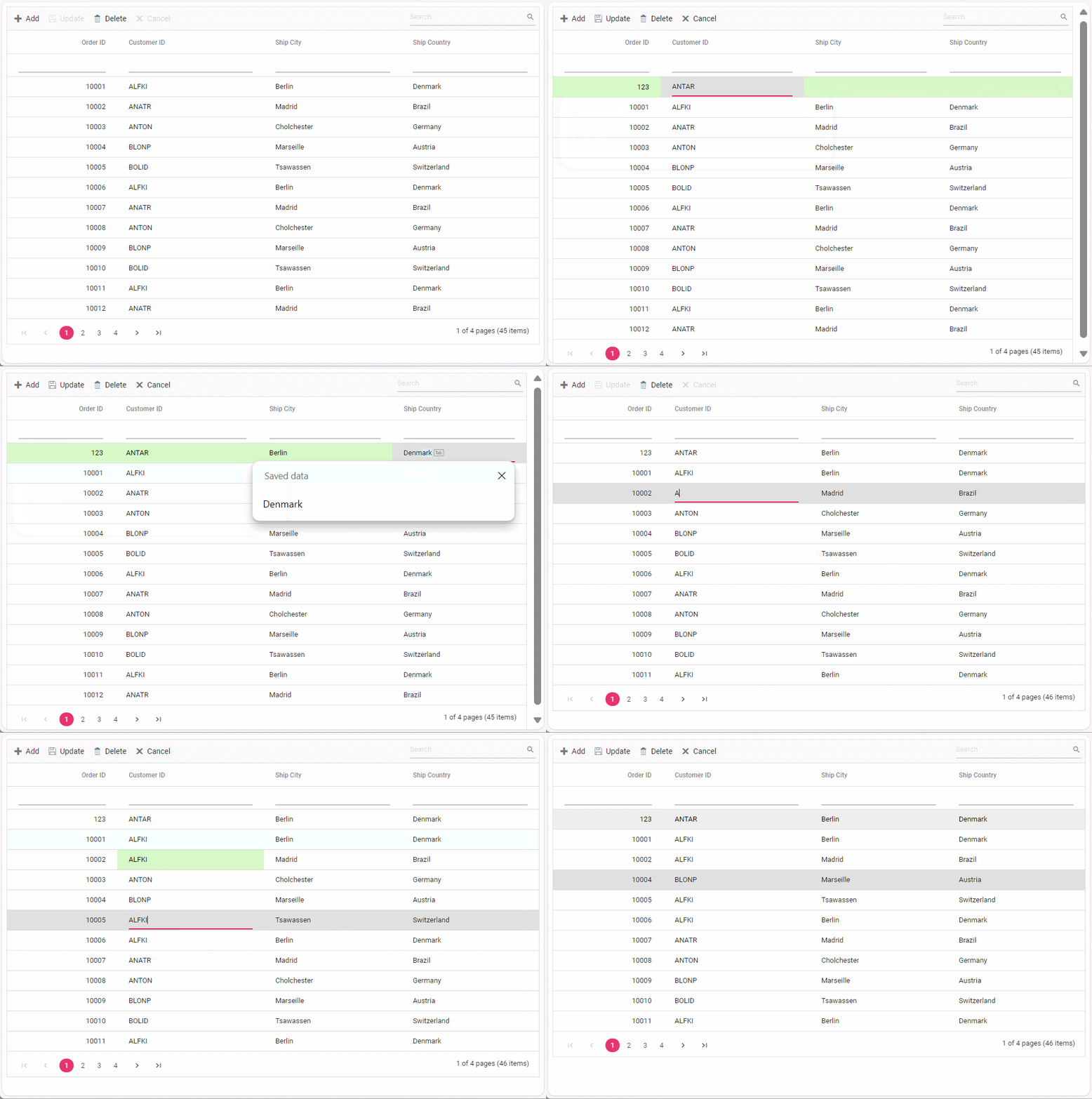
To perform batch operation, define the edit mode as Batch and specify the batchUrl property in the DataManager. Use the Add toolbar button to insert new row in batch editing mode. To edit a cell, double-click the desired cell and update the value as required. To delete a record, simply select the record and press the Delete toolbar button. Now, all CRUD operations will be executed in single request. Clicking the Update toolbar button will update the newly added, edited, or deleted records from the OrdersDetails table using a single API POST request.
[HttpPost]
[Route("api/[controller]/BatchUpdate")]
public IActionResult BatchUpdate([FromBody] CRUDModel<OrdersDetails> batchOperation)
{
  if (batchOperation.added != null)
  {
    foreach (var addedOrder in batchOperation.added)
    {
      OrdersDetails.GetAllRecords().Insert(0, addedOrder);
    }
  }
 if (batchOperation.changed != null)
  {
    foreach (var changedOrder in batchOperation.changed)
    {
      var existingOrder = OrdersDetails.GetAllRecords().FirstOrDefault(or => or.OrderID == changedOrder.OrderID);
      if (existingOrder != null)
      {
        existingOrder.CustomerID = changedOrder.CustomerID;
        existingOrder.ShipCity = changedOrder.ShipCity;
        // Update other properties as needed
      }
    }
  }
if (batchOperation.deleted != null)
  {
    foreach (var deletedOrder in batchOperation.deleted)
    {
      var orderToDelete = OrdersDetails.GetAllRecords().FirstOrDefault(or => or.OrderID == deletedOrder.OrderID);
      if (orderToDelete != null)
      {
        OrdersDetails.GetAllRecords().Remove(orderToDelete);
      }
    }
  }
  return Json(batchOperation);
}