URL Adaptor in Blazor Pivot Table
The UrlAdaptor serves as the base adaptor for facilitating communication between remote data services and the Blazor Pivot Table component. It enables seamless data binding and interaction with custom API services or any remote service through URLs. The UrlAdaptor is particularly useful in scenarios where a custom API service with unique logic for handling data and CRUD operations is in place. This approach allows for custom handling of data, with the resultant data returned in the result and count format for display in the Blazor Pivot Table.
This section describes a step-by-step process for retrieving data using the UrlAdaptor and binding it to the Blazor Pivot Table to facilitate data and CRUD operations.
Creating an API Service
To configure a server with the Blazor Pivot Table, follow these steps:
1. Create a Blazor web app
This documentation targets .NET 8+ and the Blazor Web App project template with Interactive Server render mode. Earlier .NET versions (Blazor Server / Blazor WebAssembly) follow a different setup and are out of scope here.
You can create a Blazor Web App using Visual Studio 2022, either via Microsoft Templates or the Syncfusion® Blazor Extension. Make sure to configure the appropriate interactive render mode and interactivity location.
2. Create a model class
Create a new folder named Models. Then, add a model class named OrdersDetails.cs in the Models folder to represent the order data for the Pivot Table.
namespace URLAdaptor.Models
{
    public class OrdersDetails
    {
        // Static list to hold order data.
        public static List<OrdersDetails> order = new List<OrdersDetails>();

        // Default constructor.
        public OrdersDetails() { }

        // Parameterized constructor to initialize order details.
        public OrdersDetails(int OrderID, string CustomerId, int EmployeeId, double Freight, bool Verified, DateTime OrderDate, string ShipCity, string ShipName, string ShipCountry, DateTime ShippedDate, string ShipAddress)
        {
            this.OrderID = OrderID;
            this.CustomerID = CustomerId;
            this.EmployeeID = EmployeeId;
            this.Freight = Freight;
            this.ShipCity = ShipCity;
            this.Verified = Verified;
            this.OrderDate = OrderDate;
            this.ShipName = ShipName;
            this.ShipCountry = ShipCountry;
            this.ShippedDate = ShippedDate;
            this.ShipAddress = ShipAddress;
        }

        // Method to generate sample order records.
        public static List<OrdersDetails> GetAllRecords()
        {
            if (order.Count() == 0)
            {
                int code = 10000;
                for (int i = 1; i < 10; i++)
                {
                    order.Add(new OrdersDetails(code + 1, "ALFKI", i + 0, 2.3 * i, false, new DateTime(1991, 05, 15), "Berlin", "Simons bistro", "Denmark", new DateTime(1996, 7, 16), "Kirchgasse 6"));
                    order.Add(new OrdersDetails(code + 2, "ANATR", i + 2, 3.3 * i, true, new DateTime(1990, 04, 04), "Madrid", "Queen Cozinha", "Brazil", new DateTime(1996, 9, 11), "Avda. Azteca 123"));
                    order.Add(new OrdersDetails(code + 3, "ANTON", i + 1, 4.3 * i, true, new DateTime(1957, 11, 30), "Cholchester", "Frankenversand", "Germany", new DateTime(1996, 10, 7), "Carrera 52 con Ave. Bolívar #65-98 Llano Largo"));
                    order.Add(new OrdersDetails(code + 4, "BLONP", i + 3, 5.3 * i, false, new DateTime(1930, 10, 22), "Marseille", "Ernst Handel", "Austria", new DateTime(1996, 12, 30), "Magazinweg 7"));
                    order.Add(new OrdersDetails(code + 5, "BOLID", i + 4, 6.3 * i, true, new DateTime(1953, 02, 18), "Tsawassen", "Hanari Carnes", "Switzerland", new DateTime(1997, 12, 3), "1029 - 12th Ave. S."));
                    code += 5;
                }
            }
            return order;
        }

        // Properties representing order details.
        public int? OrderID { get; set; }
        public string? CustomerID { get; set; }
        public int? EmployeeID { get; set; }
        public double? Freight { get; set; }
        public string? ShipCity { get; set; }
        public bool? Verified { get; set; }
        public DateTime OrderDate { get; set; }
        public string? ShipName { get; set; }
        public string? ShipCountry { get; set; }
        public DateTime ShippedDate { get; set; }
        public string? ShipAddress { get; set; }
    }
}
3. Create an API controller
Prerequisite: The controller references
Syncfusion.Blazor.DataandSyncfusion.Blazor, so install the Syncfusion.Blazor.PivotTable and Syncfusion.Blazor.Themes NuGet packages first (see the install steps in the “Connecting Blazor Pivot Table to an API service” section below).
Create an API controller (i.e., OrdersController.cs) file under Controllers folder that helps to establish data communication with the Blazor Pivot Table. This controller includes endpoints for reading data and performing CRUD operations (Insert, Update, Delete) in the editing popup.
using Microsoft.AspNetCore.Mvc;
using Syncfusion.Blazor.Data;
using Syncfusion.Blazor;
using URLAdaptor.Models;

namespace URLAdaptor.Controllers
{
    [ApiController]
    public class OrdersController : ControllerBase
    {
        /// <summary>
        /// Retrieve data from the data source.
        /// </summary>
        /// <returns>Returns a list of ordersdetails records.</returns>
        [HttpGet]
        [Route("api/[controller]")]
        public List<OrdersDetails> GetOrderData()
        {
            return OrdersDetails.GetAllRecords().ToList();
        }

        /// <summary>
        /// Retrieves the raw data records consumed by the Pivot Table for aggregation.
        /// </summary>
        /// <param name="DataManagerRequest">The request object for the data read.</param>
        /// <returns>Returns a response containing all data records and the total record count.</returns>
        [HttpPost]
        [Route("api/[controller]")]
        public object Post([FromBody] DataManagerRequest DataManagerRequest)
        {
            // Retrieve data from the data source.
            IQueryable<OrdersDetails> DataSource = GetOrderData().AsQueryable();

            // Get the total records count.
            int totalRecordsCount = DataSource.Count();

            // Return data and count.
            return new { result = DataSource, count = totalRecordsCount };
        }

        /// <summary>
        /// Inserts a new data item into the data collection.
        /// </summary>
        /// <param name="newRecord">It contains the new record detail which is need to be inserted.</param>
        /// <returns>Returns void.</returns>
        [HttpPost]
        [Route("api/[controller]/Insert")]
        public void Insert([FromBody] CRUDModel<OrdersDetails> newRecord)
        {
            if (newRecord.value != null)
            {
                // Add the new record to the data collection.
                OrdersDetails.GetAllRecords().Insert(0, newRecord.value);
            }
        }

        /// <summary>
        /// Updates an existing data item in the data collection.
        /// </summary>
        /// <param name="updatedRecord">It contains the updated record detail which is need to be updated.</param>
        /// <returns>Returns void.</returns>
        [HttpPost]
        [Route("api/[controller]/Update")]
        public void Update([FromBody] CRUDModel<OrdersDetails> updatedRecord)
        {
            var updatedOrder = updatedRecord.value;
            if (updatedOrder != null)
            {
                var data = OrdersDetails.GetAllRecords().FirstOrDefault(or => or.OrderID == updatedOrder.OrderID);
                if (data != null)
                {
                    // Update the existing record.
                    data.OrderID = updatedOrder.OrderID;
                    data.CustomerID = updatedOrder.CustomerID;
                    data.EmployeeID = updatedOrder.EmployeeID;
                    data.Freight = updatedOrder.Freight;
                    data.ShipCity = updatedOrder.ShipCity;
                    data.Verified = updatedOrder.Verified;
                    data.OrderDate = updatedOrder.OrderDate;
                    data.ShipName = updatedOrder.ShipName;
                    data.ShipCountry = updatedOrder.ShipCountry;
                    data.ShippedDate = updatedOrder.ShippedDate;
                    data.ShipAddress = updatedOrder.ShipAddress;
                }
            }
        }

        /// <summary>
        /// Removes a specific data item from the data collection.
        /// </summary>
        /// <param name="deletedRecord">It contains the specific record detail which is need to be removed.</param>
        /// <returns>Returns void.</returns>
        [HttpPost]
        [Route("api/[controller]/Remove")]
        public void Remove([FromBody] CRUDModel<OrdersDetails> deletedRecord)
        {
            // Get the key value from the deletedRecord.
            int orderId = int.Parse(deletedRecord.key?.ToString() ?? "0");
            var data = OrdersDetails.GetAllRecords().FirstOrDefault(orderData => orderData.OrderID == orderId);
            if (data != null)
            {
                // Remove the record from the data collection.
                OrdersDetails.GetAllRecords().Remove(data);
            }
        }

        /// <summary>
        /// CRUD Model for handling data operations.
        /// </summary>
        public class CRUDModel<T> where T : class
        {
            public string? action { get; set; }
            public string? keyColumn { get; set; }
            public object? key { get; set; }
            public T? value { get; set; }
            public List<T>? added { get; set; }
            public List<T>? changed { get; set; }
            public List<T>? deleted { get; set; }
            public IDictionary<string, object>? @params { get; set; }
        }
    }
}
The GetOrderData method retrieves sample order data. Replace it with your custom logic to fetch data from a database or other sources.
4. Register controllers in Program.cs
Add the following lines in the Program.cs file to register controllers:
// Register controllers in the service container.
builder.Services.AddControllers();

// Map controller routes.
app.MapControllers();
The complete Program.cs file should look like this:
using URLAdaptor.Components;
using Syncfusion.Blazor;

var builder = WebApplication.CreateBuilder(args);
builder.Services.AddSyncfusionBlazor();

// Add services to the container.
builder.Services.AddRazorComponents()
    .AddInteractiveServerComponents();

builder.Services.AddControllers();

var app = builder.Build();

// Configure the HTTP request pipeline.
if (!app.Environment.IsDevelopment())
{
    app.UseExceptionHandler("/Error", createScopeForErrors: true);
    // The default HSTS value is 30 days. You may want to change this for production scenarios, see https://aka.ms/aspnetcore-hsts.
    app.UseHsts();
}

app.UseHttpsRedirection();
app.MapControllers();

app.UseAntiforgery();

app.MapStaticAssets();
app.MapRazorComponents<App>()
    .AddInteractiveServerRenderMode();

app.Run();
5. Run the application
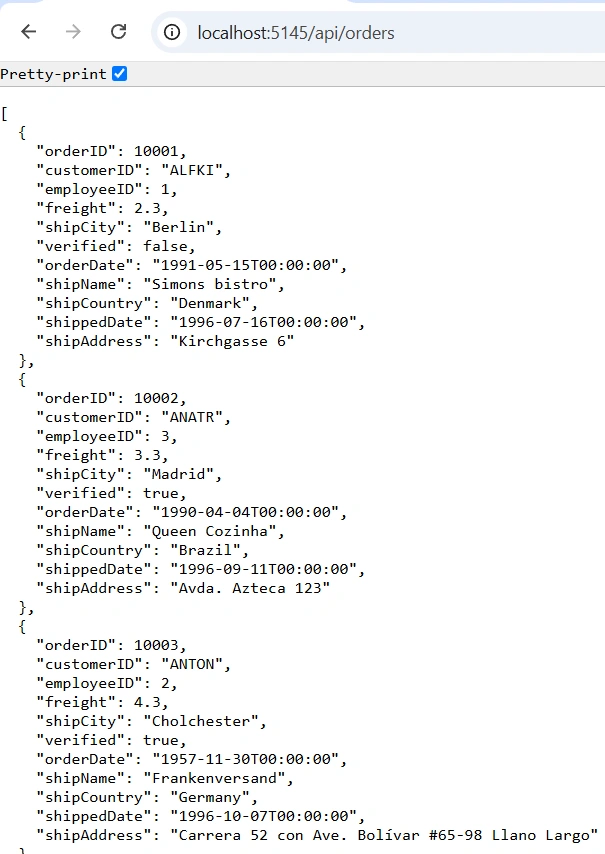
Run the application in Visual Studio. The API will be accessible at the URL configured in Properties/launchSettings.json (for the default HTTP profile: http://localhost:5145/api/orders, or for the HTTPS profile: https://localhost:7169/api/orders). Verify that the API returns the order data.
Connecting Blazor Pivot Table to an API service
To integrate the Blazor Pivot Table into your project using Visual Studio, follow the below steps:
1. Install Blazor Pivot Table and Themes NuGet packages
To add the Blazor Pivot Table in the app, open the NuGet Package Manager in Visual Studio (Tools → NuGet Package Manager → Manage NuGet Packages for Solution), search and install Syncfusion.Blazor.PivotTable and Syncfusion.Blazor.Themes.
Replace
35.1.37with the latest Syncfusion Blazor package version from nuget.org.
Alternatively, use the following Package Manager commands:
Install-Package Syncfusion.Blazor.PivotTable -Version 35.1.37
Install-Package Syncfusion.Blazor.Themes -Version 35.1.37
Blazor components are available on nuget.org. Refer to the NuGet packages topic for a complete list of available packages.
2. Register Blazor service
- Open the ~/_Imports.razor file and import the required namespaces.
@using Syncfusion.Blazor
@using Syncfusion.Blazor.PivotView
@using Syncfusion.Blazor.Data
The
Index.razorexamples below also reference@using URLAdaptor.Models. Add this line to_Imports.razor(or toIndex.razordirectly) so theOrdersDetailstype is resolvable. ReplaceURLAdaptorwith your actual project’s root namespace if you named the project differently.
- Register the Blazor service in the ~/Program.cs file.
using Syncfusion.Blazor;

builder.Services.AddSyncfusionBlazor();
3. Add stylesheet and script resources
Include the theme stylesheet and script references in the ~/Components/App.razor file. The App.razor file in the .NET 8+ Blazor Web App template also requires the render mode to be applied to the <HeadOutlet> and <Routes> components for the Pivot Table to function correctly.
<head>
    ....
    <link href="_content/Syncfusion.Blazor.Themes/bootstrap5.css" rel="stylesheet" />
</head>
....
<body>
    ....
    <script src="_framework/blazor.web.js"></script>
    <script src="_content/Syncfusion.Blazor.Core/scripts/syncfusion-blazor.min.js" type="text/javascript"></script>
</body>
- Refer to the Blazor Themes topic for various methods to include themes (e.g., Static Web Assets, CDN, or CRG).
- Set the render mode to InteractiveServer or InteractiveAuto in your Blazor Web App configuration.
4. Add Blazor Pivot Table and Configure with Server
To connect the Blazor Pivot Table to a hosted API, use the Url property of SfDataManager. Update the Index.razor file as follows.
The SfDataManager offers multiple adaptor options to connect with remote database based on an API service. Below is an example of the UrlAdaptor configuration where an API service is set up to return the resulting data in the result and count format.
Note: The controller excerpt shown in the second tab below is read-only and illustrative — it only contains the
GETandPOSTactions. To enable CRUD operations later, append theInsert,Update, andRemoveactions from the full controller in Step 3 of “Creating an API Service”.
@page "/"
@using Syncfusion.Blazor.Data
@using Syncfusion.Blazor.PivotView
@using URLAdaptor.Models

<SfPivotView TValue="OrdersDetails" Width="1000" Height="300" ShowFieldList="true">
    <PivotViewDataSourceSettings TValue="OrdersDetails" ExpandAll=false EnableSorting=true>
        <SfDataManager Url="http://localhost:5145/api/orders" Adaptor="Adaptors.UrlAdaptor"></SfDataManager>
        <PivotViewColumns>
            <PivotViewColumn Name="OrderID"></PivotViewColumn>
        </PivotViewColumns>
        <PivotViewRows>
            <PivotViewRow Name="CustomerID"></PivotViewRow>
        </PivotViewRows>
        <PivotViewValues>
            <PivotViewValue Name="Freight" Caption="Freight"></PivotViewValue>
        </PivotViewValues>
    </PivotViewDataSourceSettings>
    <PivotViewGridSettings ColumnWidth="120"></PivotViewGridSettings>
</SfPivotView>
using Microsoft.AspNetCore.Mvc;
using Syncfusion.Blazor.Data;
using Syncfusion.Blazor;
using URLAdaptor.Models;
namespace URLAdaptor.Controllers
{
[ApiController]
public class OrdersController : ControllerBase
{
/// <summary>
/// Retrieve data from the data source.
/// </summary>
/// <returns>Returns a list of ordersdetails records.</returns>
[HttpGet]
[Route("api/[controller]")]
public List<OrdersDetails> GetOrderData()
{
return OrdersDetails.GetAllRecords().ToList();
}
/// <summary>
/// Retrieves the raw data records consumed by the Pivot Table for aggregation.
/// </summary>
/// <param name="DataManagerRequest">The request object for the data read.</param>
/// <returns>Returns a response containing all data records and the total record count.</returns>
[HttpPost]
[Route("api/[controller]")]
public object Post([FromBody] DataManagerRequest DataManagerRequest)
{
// Retrieve data from the data source.
IQueryable<OrdersDetails> DataSource = GetOrderData().AsQueryable();
// Get total records count.
int totalRecordsCount = DataSource.Count();
// Return data and count.
return new { result = DataSource, count = totalRecordsCount };
}
}
}Replace
http://localhost:5145/api/orderswith the actual URL of your API endpoint that provides the data in a consumable format (e.g., JSON). The default port comes from thehttpprofile inProperties/launchSettings.json; if you change it, update theUrlproperty inIndex.razorto match.Troubleshooting: If the Pivot Table shows no data, check the following:
- Port mismatch: The
Urlvalue inIndex.razormust match the actual port inProperties/launchSettings.json.- CORS: If the API and the Blazor app run on different ports (HTTP vs. HTTPS), enable CORS in
Program.cs(builder.Services.AddCors(); ... app.UseCors();).- Anti-forgery: A 400 Bad Request on POST
/api/ordersis often caused by anti-forgery token validation; ensure[IgnoreAntiforgeryToken]is applied to the controller or the Post/Insert/Update/Remove actions.- 404 on /api/orders: Verify
builder.Services.AddControllers();andapp.MapControllers();are present inProgram.cs.
5. Run the application
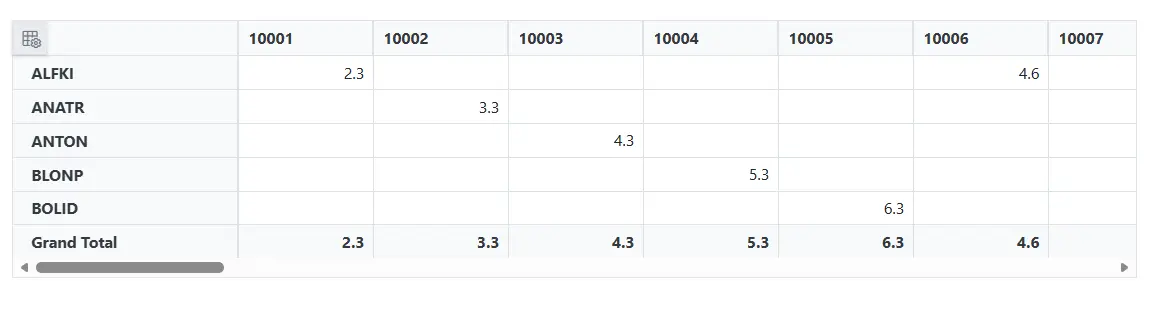
When you run the application, the Blazor Pivot Table will display data fetched from the API.
See Understanding the Data Flow for the detailed request/response payloads exchanged between the Pivot Table,
SfDataManager, and the API controller.
Handling CRUD operations
The Blazor Pivot Table seamlessly integrates CRUD (Create, Read, Update, and Delete) operations with server-side controller actions through specific properties: InsertUrl, RemoveUrl, and UpdateUrl. These properties let the Pivot Table send each CRUD action to the data service, where the corresponding controller action mutates the underlying records. (Aggregation, filtering, sorting, and paging of the pivot itself remain client-side; only record-level Create/Update/Delete round-trip to the server.)
CRUD Operations Mapping
CRUD operations within the Pivot Table can be mapped to server-side controller actions using specific properties:
- InsertUrl: Specifies the URL for inserting new data.
- RemoveUrl: Specifies the URL for removing existing data.
- UpdateUrl: Specifies the URL for updating existing data.
Edit Modes Available
The Pivot Table supports different edit modes for handling data modifications in the editing popup. The edit mode is configured through the Mode property of PivotViewCellEditSettings:
- EditMode.Normal (Inline Editing): Edits occur directly in the grid cells. This is the default and recommended mode for quick edits.
- EditMode.Dialog (Modal Editing): Opens a modal dialog for editing record details. Useful for forms with many fields.
- EditMode.Batch (Bulk Editing): Allows editing multiple records before saving all changes at once through a batch operation. Refer to the batch editing documentation for details.
To enable editing in the Blazor Pivot Table, refer to the editing documentation. The example below demonstrates inline edit mode (Normal mode), which is the default and most common approach for CRUD operations in the editing popup. CRUD URLs are configured for managing data operations on the server side.
Edit Mode: Normal (Inline Editing)
In Normal edit mode, users can edit data directly within the grid cells of the editing popup. This mode is ideal for quick edits and single-field updates.
@page "/"
@using Syncfusion.Blazor.Data
@using Syncfusion.Blazor.PivotView
@using URLAdaptor.Models

<SfPivotView TValue="OrdersDetails" Width="1000" Height="300" ShowFieldList="true">
    <PivotViewDataSourceSettings TValue="OrdersDetails" ExpandAll=false EnableSorting=true>
        <SfDataManager Url="http://localhost:5145/api/orders" InsertUrl="http://localhost:5145/api/orders/Insert" UpdateUrl="http://localhost:5145/api/orders/Update" RemoveUrl="http://localhost:5145/api/orders/Remove" Adaptor="Adaptors.UrlAdaptor"></SfDataManager>
        <PivotViewColumns>
            <PivotViewColumn Name="OrderID"></PivotViewColumn>
        </PivotViewColumns>
        <PivotViewRows>
            <PivotViewRow Name="CustomerID"></PivotViewRow>
        </PivotViewRows>
        <PivotViewValues>
            <PivotViewValue Name="Freight" Caption="Freight"></PivotViewValue>
        </PivotViewValues>
    </PivotViewDataSourceSettings>
    <PivotViewGridSettings ColumnWidth="120"></PivotViewGridSettings>
    <PivotViewEvents TValue="OrdersDetails" BeginDrillThrough="beginDrillThrough"></PivotViewEvents>
    <PivotViewCellEditSettings AllowEditing=true AllowAdding=true AllowDeleting=true Mode=Syncfusion.Blazor.PivotView.EditMode.Normal></PivotViewCellEditSettings>
</SfPivotView>

@code{
    private void beginDrillThrough(BeginDrillThroughEventArgs args)
    {
        // Configure beginDrillThrough event to set the primary key for CRUD operations
        // Iterate through all columns in the editing popup grid
        for (int i = 0; i < args.GridObj.Columns.Count; i++)
        {
            // Check if the current column is the primary key column
            if (args.GridObj.Columns[i].Field == "OrderID")
            {
                // Mark this column as the primary key
                // This tells DataManager to use this column's value to uniquely identify records
                args.GridObj.Columns[i].IsPrimaryKey = true;
            }
        }
    }
}
To enable CRUD operations, ensure that the primary key is properly configured in the editing popup event handler. The example above wires the
BeginDrillThroughevent so theOrderIDcolumn is marked as the primary key on the editing popup grid; without this, Insert, Update, and Delete operations in the editing popup will not be able to uniquely identify records.
The CRUDModel<T> class used to structure data sent during CRUD operations is defined inside the OrdersController in the Create an API controller step earlier in this documentation. Each operation sample below references it via CRUDModel<OrdersDetails>.
Insert operation
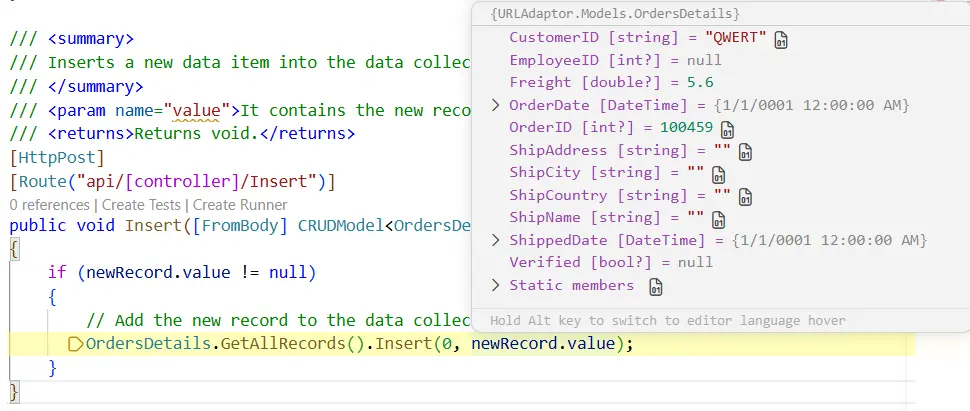
To insert a new record, use the InsertUrl property to specify the controller action mapping URL for the insert operation. The details of the newly added record are passed to the newRecord parameter.
/// <summary>
/// Inserts a new data item into the data collection.
/// </summary>
/// <param name="newRecord">It contains the new record detail which is need to be inserted.</param>
/// <returns>Returns void.</returns>
[HttpPost]
[Route("api/[controller]/Insert")]
public void Insert([FromBody] CRUDModel<OrdersDetails> newRecord)
{
    if (newRecord.value != null)
    {
        // Add the new record to the data collection.
        OrdersDetails.GetAllRecords().Insert(0, newRecord.value);
    }
}
Update operation
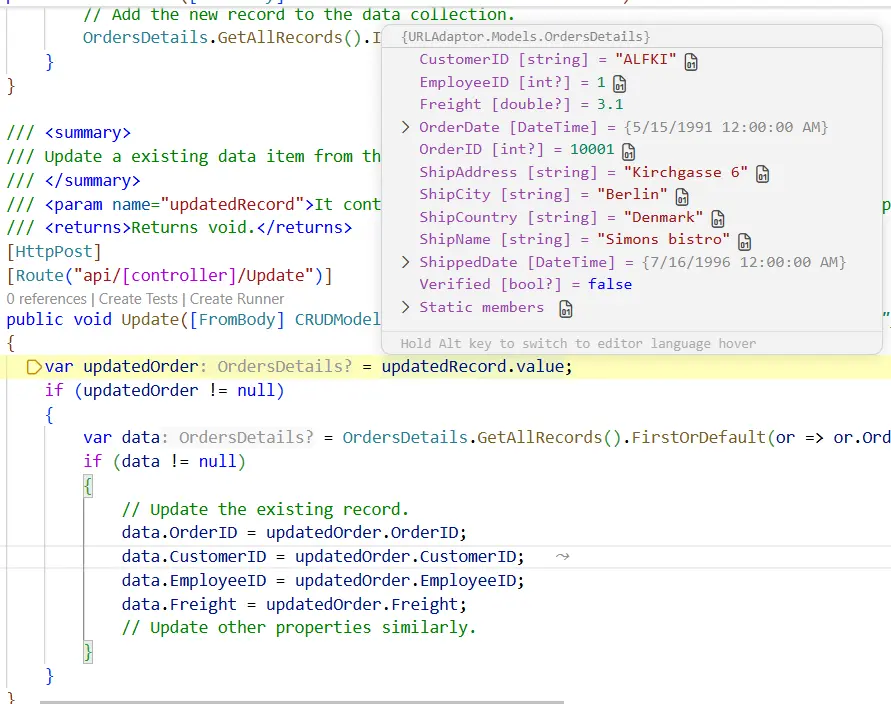
For updating existing records, use the UpdateUrl property to specify the controller action mapping URL for the update operation. The details of the updated record are passed to the updatedRecord parameter.
/// <summary>
/// Updates an existing data item in the data collection.
/// </summary>
/// <param name="updatedRecord">It contains the updated record detail which is need to be updated.</param>
/// <returns>Returns void.</returns>
[HttpPost]
[Route("api/[controller]/Update")]
public void Update([FromBody] CRUDModel<OrdersDetails> updatedRecord)
{
    var updatedOrder = updatedRecord.value;
    if (updatedOrder != null)
    {
        var data = OrdersDetails.GetAllRecords().FirstOrDefault(or => or.OrderID == updatedOrder.OrderID);
        if (data != null)
        {
            // Update the existing record.
            data.OrderID = updatedOrder.OrderID;
            data.CustomerID = updatedOrder.CustomerID;
            data.EmployeeID = updatedOrder.EmployeeID;
            data.Freight = updatedOrder.Freight;
            data.ShipCity = updatedOrder.ShipCity;
            data.Verified = updatedOrder.Verified;
            data.OrderDate = updatedOrder.OrderDate;
            data.ShipName = updatedOrder.ShipName;
            data.ShipCountry = updatedOrder.ShipCountry;
            data.ShippedDate = updatedOrder.ShippedDate;
            data.ShipAddress = updatedOrder.ShipAddress;
        }
    }
}
Delete operation
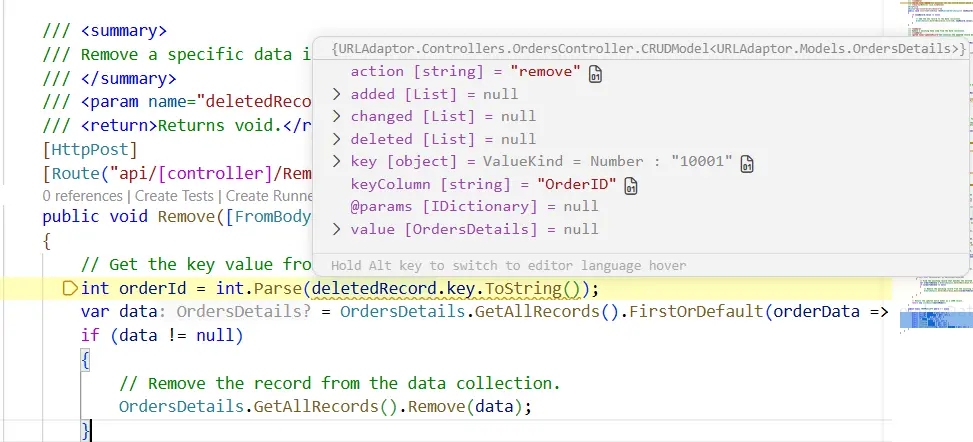
To delete existing records, use the RemoveUrl property to specify the controller action mapping URL for the delete operation. The primary key value of the deleted record is passed to the deletedRecord parameter.
/// <summary>
/// Removes a specific data item from the data collection.
/// </summary>
/// <param name="deletedRecord">It contains the specific record detail which is need to be removed.</param>
/// <returns>Returns void.</returns>
[HttpPost]
[Route("api/[controller]/Remove")]
public void Remove([FromBody] CRUDModel<OrdersDetails> deletedRecord)
{
    // Get the key value from the deletedRecord.
    int orderId = int.Parse(deletedRecord.key?.ToString() ?? "0");
    var data = OrdersDetails.GetAllRecords().FirstOrDefault(orderData => orderData.OrderID == orderId);
    if (data != null)
    {
        // Remove the record from the data collection.
        OrdersDetails.GetAllRecords().Remove(data);
    }
}
Handling CRUD Events
The Pivot Table provides several events to handle CRUD operations:
| Event | Purpose |
|---|---|
| BeginDrillThrough | Fired before the editing popup grid is rendered. Configure the primary key here (see Configuring Primary Key for CRUD Operations). |
| ActionBegin | Fired before a CRUD action starts (add, edit, delete). |
| ActionComplete | Fired after a CRUD operation completes successfully. |
| ActionFailure | Fired when a CRUD operation fails. Use for error handling. |
Example: Handling ActionComplete Event
The event argument types
[PivotActionCompleteEventArgs](https://help.syncfusion.com/cr/blazor/Syncfusion.Blazor.PivotView.PivotActionCompleteEventArgs-1.html),[PivotActionFailureEventArgs](https://help.syncfusion.com/cr/blazor/Syncfusion.Blazor.PivotView.PivotActionFailureEventArgs.html), and[BeginDrillThroughEventArgs](https://help.syncfusion.com/cr/blazor/Syncfusion.Blazor.PivotView.BeginDrillThroughEventArgs.html)live in theSyncfusion.Blazor.PivotViewnamespace, which is already imported via_Imports.razor.
<SfPivotView TValue="OrdersDetails" Width="1000" Height="300" ShowFieldList="true">
    <PivotViewEvents TValue="OrdersDetails"
        BeginDrillThrough="beginDrillThrough"
        ActionComplete="OnActionComplete"
        ActionFailure="OnActionFailure">
    </PivotViewEvents>
    <!-- Other settings -->
</SfPivotView>

@code{
    private void OnActionComplete(PivotActionCompleteEventArgs args)
    {
        if (args.ActionType == PivotActionType.Insert)
        {
            // Handle successful insert
            Console.WriteLine("Record inserted successfully");
        }
    }

    private void OnActionFailure(PivotActionFailureEventArgs args)
    {
        // Handle error
        Console.WriteLine($"Error: {args.Error}");
    }
}
Configuring Primary Key for CRUD Operations
For CRUD operations to function correctly in the editing popup of the Pivot Table, you must configure the primary key column. This is done by handling the BeginDrillThrough event and marking the primary key column before the editing popup grid is rendered.
The complete Index.razor configuration (including PivotViewCellEditSettings, SfDataManager CRUD URLs, and the BeginDrillThrough handler) was shown in the Edit Mode: Normal (Inline Editing) example above. The essential handler snippet is reproduced here for quick reference:
@code{
    private void beginDrillThrough(BeginDrillThroughEventArgs args)
    {
        // Iterate through all columns in the editing popup grid.
        for (int i = 0; i < args.GridObj.Columns.Count; i++)
        {
            // Mark the OrderID column as the primary key so the DataManager
            // can uniquely identify records during insert/update/delete.
            if (args.GridObj.Columns[i].Field == "OrderID")
            {
                args.GridObj.Columns[i].IsPrimaryKey = true;
            }
        }
    }
}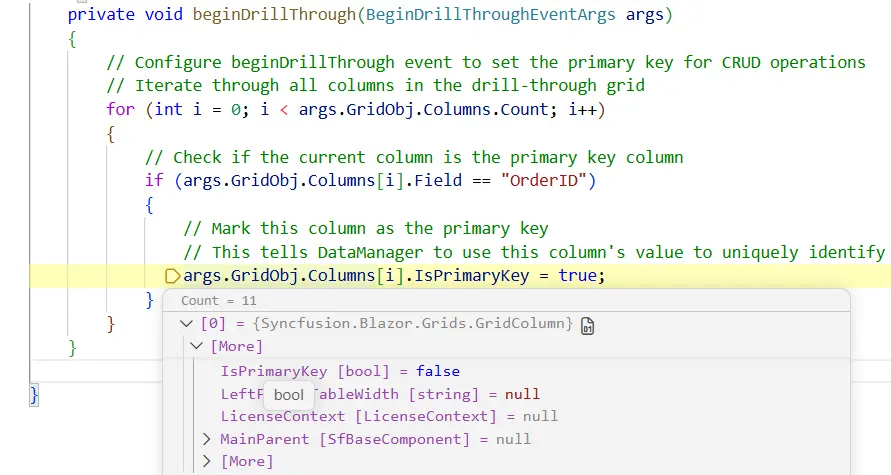
The
BeginDrillThroughevent is triggered when the editing popup opens. This is where you configure the primary key column for the editing popup grid, which is essential for CRUD operations to work correctly.
Edit Mode: Dialog (Modal Form Editing)
In Dialog edit mode, a modal dialog form appears when users add or edit records. This mode is ideal for complex forms with multiple fields or when you need better control over data entry validation.
@page "/"
@using Syncfusion.Blazor.Data
@using Syncfusion.Blazor.PivotView
@using URLAdaptor.Models

<SfPivotView TValue="OrdersDetails" Width="1000" Height="300" ShowFieldList="true">
    <PivotViewDataSourceSettings TValue="OrdersDetails" ExpandAll=false EnableSorting=true>
        <SfDataManager Url="http://localhost:5145/api/orders" InsertUrl="http://localhost:5145/api/orders/Insert" UpdateUrl="http://localhost:5145/api/orders/Update" RemoveUrl="http://localhost:5145/api/orders/Remove" Adaptor="Adaptors.UrlAdaptor"></SfDataManager>
        <PivotViewColumns>
            <PivotViewColumn Name="OrderID"></PivotViewColumn>
        </PivotViewColumns>
        <PivotViewRows>
            <PivotViewRow Name="CustomerID"></PivotViewRow>
        </PivotViewRows>
        <PivotViewValues>
            <PivotViewValue Name="Freight" Caption="Freight"></PivotViewValue>
        </PivotViewValues>
    </PivotViewDataSourceSettings>
    <PivotViewGridSettings ColumnWidth="120"></PivotViewGridSettings>
    <PivotViewEvents TValue="OrdersDetails" BeginDrillThrough="beginDrillThrough"></PivotViewEvents>
    <!-- Dialog edit mode -->
    <PivotViewCellEditSettings AllowEditing=true AllowAdding=true AllowDeleting=true Mode=Syncfusion.Blazor.PivotView.EditMode.Dialog></PivotViewCellEditSettings>
</SfPivotView>

@code{
    private void beginDrillThrough(BeginDrillThroughEventArgs args)
    {
        for (int i = 0; i < args.GridObj.Columns.Count; i++)
        {
            if (args.GridObj.Columns[i].Field == "OrderID")
            {
                args.GridObj.Columns[i].IsPrimaryKey = true;
            }
        }
    }
}
In Dialog mode, a form dialog appears for adding or editing records, which provides a better UX for complex data entry scenarios.
Understanding the Data Flow
The request and response flow between the Blazor Pivot Table, SfDataManager, UrlAdaptor, Controller, and data source follows this pattern:
1. Initial Data Load (Read Operation)
- The Blazor Pivot Table with
UrlAdaptorsends an HTTP POST request to the API endpoint specified in theUrlproperty. - The request includes a DataManagerRequest object to retrieve all data records.
- The Controller’s
Postmethod processes the request and returns a response object containing:-
result: The data records to be displayed in the Pivot Table -
count: The total number of records
-
Example Request:
POST http://localhost:5145/api/orders
Content-Type: application/json

{}
Example Response:
{
  "result": [
    {
      "OrderID": 10001,
      "CustomerID": "ALFKI",
      "EmployeeID": 1,
      "Freight": 2.3,
      "ShipCity": "Berlin",
      "Verified": false,
      "OrderDate": "1991-05-15T00:00:00",
      "ShipName": "Simons bistro",
      "ShipCountry": "Denmark",
      "ShippedDate": "1996-07-16T00:00:00",
      "ShipAddress": "Kirchgasse 6"
    },
    {
      "OrderID": 10002,
      "CustomerID": "ANATR",
      "EmployeeID": 2,
      "Freight": 3.3,
      "ShipCity": "Madrid",
      "Verified": true,
      "OrderDate": "1990-04-04T00:00:00",
      "ShipName": "Queen Cozinha",
      "ShipCountry": "Brazil",
      "ShippedDate": "1996-09-11T00:00:00",
      "ShipAddress": "Avda. Azteca 123"
    }
  ],
  "count": 45
}
2. CRUD Operations (Insert, Update, Delete)
- When a user performs an insert, update, or delete operation in the Pivot Table’s editing popup, the
SfDataManagersends a request to the appropriate URL (InsertUrl, UpdateUrl, or RemoveUrl). - The request includes a CRUDModel object containing:
-
action: The CRUD operation type (e.g., “insert”, “update”, “remove”). Optional for insert/update/remove requests via dedicatedInsertUrl/UpdateUrl/RemoveUrlendpoints; required only for the generic batch (SaveChanges) flow. -
key: The primary key value of the record -
value: The complete record data -
keyColumn: The name of the primary key column
-
Example Insert Request:
POST http://localhost:5145/api/orders/Insert
Content-Type: application/json

{
  "value": {
    "OrderID": 10050,
    "CustomerID": "NEWCUST",
    "EmployeeID": 5,
    "Freight": 10.5,
    "ShipCity": "NewCity",
    "Verified": true,
    "OrderDate": "2024-01-15T00:00:00",
    "ShipName": "New Ship",
    "ShipCountry": "NewCountry",
    "ShippedDate": "2024-01-20T00:00:00",
    "ShipAddress": "123 New Street"
  }
}
The field values shown above (for example,
"CustomerID": "NEWCUST","ShipAddress": "123 New Street") are illustrative. The actual values depend on the customer data being inserted by the end user.
Example Update Request:
POST http://localhost:5145/api/orders/Update
Content-Type: application/json

{
  "key": 10001,
  "keyColumn": "OrderID",
  "value": {
    "OrderID": 10001,
    "CustomerID": "ALFKI",
    "EmployeeID": 2,
    "Freight": 5.5,
    "ShipCity": "Berlin",
    "Verified": false,
    "OrderDate": "1991-05-15T00:00:00",
    "ShipName": "Simons bistro",
    "ShipCountry": "Denmark",
    "ShippedDate": "1996-07-16T00:00:00",
    "ShipAddress": "Kirchgasse 6"
  }
}
Example Delete Request:
POST http://localhost:5145/api/orders/Remove
Content-Type: application/json

{
  "key": 10001,
  "keyColumn": "OrderID"
}
API Endpoint Reference
GET /api/orders
Retrieves the complete list of order records from the data source. This endpoint is intended for manual testing or external tools (such as Postman or Swagger) and is not called by the Pivot Table at runtime; the Pivot Table always uses POST /api/orders.
Response:
[
  {
    "OrderID": 10001,
    "CustomerID": "ALFKI",
    "EmployeeID": 1,
    "Freight": 2.3,
    ...
  }
]
POST /api/orders
Retrieves all data records for the Pivot Table based on the incoming DataManagerRequest.
Request Body:
{}Response:
{
  "result": [
    {
      "OrderID": 10001,
      "CustomerID": "ALFKI",
      "EmployeeID": 1,
      "Freight": 2.3,
      ...
    },
    {
      "OrderID": 10002,
      "CustomerID": "ANATR",
      ...
    }
  ],
  "count": 45
}
POST /api/orders/Insert
Inserts a new record into the data collection.
Request Body:
{
  "value": {
    "OrderID": 10050,
    "CustomerID": "NEWCUST",
    "EmployeeID": 5,
    "Freight": 10.5,
    "ShipCity": "NewCity",
    "Verified": true,
    "OrderDate": "2024-01-15T00:00:00",
    "ShipName": "New Ship",
    "ShipCountry": "NewCountry",
    "ShippedDate": "2024-01-20T00:00:00",
    "ShipAddress": "123 New Street"
  }
}
POST /api/orders/Update
Updates an existing record in the data collection.
Request Body:
{
  "key": 10001,
  "keyColumn": "OrderID",
  "value": {
    "OrderID": 10001,
    "CustomerID": "ALFKI",
    ...
  }
}
POST /api/orders/Remove
Deletes a record from the data collection.
Request Body:
{
  "key": 10001,
  "keyColumn": "OrderID"
}
Configuration Summary
The following configurations (detailed earlier in the “Creating an API Service” and “Connecting Blazor Pivot Table to an API service” sections) must be present in Program.cs for the UrlAdaptor to work:
-
builder.Services.AddSyncfusionBlazor();— enables Syncfusion Blazor components. -
builder.Services.AddRazorComponents().AddInteractiveServerComponents();— server-side rendering with the .NET 8+ Interactive Server render mode. -
builder.Services.AddControllers();— registers the API controllers (e.g.,OrdersController). -
app.MapControllers();— maps the controller routes (api/orders,api/orders/Insert, etc.).
API Response Format
All read endpoints return data in the standardized { result, count } shape consumed by the UrlAdaptor:
new { result = DataSource, count = totalRecordsCount }The
countvalue is used by theUrlAdaptorfor record-count tracking. The Pivot Table performs aggregation, sorting, filtering, and paging client-side over the raw records returned by this endpoint — the server only needs to return the full data set (result) and a total recordcount. Do not apply server-sideSkip/TakeorDataOperationsfiltering/sorting here; the Pivot Table expects the complete underlying record set so it can compute the cross-tab correctly.
Summary
Key points covered in this documentation:
-
Remote Data Binding: Connect the Blazor Pivot Table to any API service using the
Urlproperty ofSfDataManagerwithAdaptors.UrlAdaptor. -
CRUD Operations: Perform Insert, Update, and Delete operations through dedicated API endpoints in the editing popup via
InsertUrl,UpdateUrl, andRemoveUrl. -
Primary Key Configuration: Use the
BeginDrillThroughevent to mark the primary key column so theDataManagercan uniquely identify records during edits. -
Standardized Request/Response Format: Use
DataManagerRequestfor read operations andCRUDModel<T>for write operations. -
In-Memory Sample Data: The
OrdersDetails.GetAllRecords()method seeds an in-memory list that resets on application restart; replace it with your own data-access logic for production scenarios
By following the steps outlined in this documentation, you can successfully implement a Blazor Pivot Table application that communicates with a remote API service using the UrlAdaptor, enabling full CRUD functionality within the editing popup.
Complete Sample Repository
A complete, working sample implementation is available in the GitHub repository.