Dapper in Blazor Pivot Table
The Blazor Pivot Table can be connected to a Microsoft SQL Server database using the lightweight Dapper micro-ORM. This approach provides a simple way to execute SQL statements while keeping the data access layer minimal and efficient.
What is Dapper?
Dapper is a lightweight, high-performance ORM that provides a minimal abstraction over ADO.NET. It maps query results directly to C# objects with very low overhead, making it well suited for applications that need direct SQL control and fast data access.
Key Benefits of Dapper
- High Performance: Minimal overhead with direct ADO.NET access for fast execution.
- SQL Control: Write direct SQL queries when needed, with full control over database operations.
- Simple and Lightweight: Requires minimal configuration and a small learning curve.
- Flexible Mapping: Maps query results to C# objects automatically using property names.
- Built-in Security: Parameterized queries help prevent SQL injection.
Prerequisites
Ensure the following software and packages are installed before proceeding:
| Software/Package | Version | Purpose |
|---|---|---|
| Visual Studio 2022 / VS Code | Latest | Development environment with the Blazor workload |
| .NET SDK | .NET 10 SDK or compatible | Runtime and build tools |
| SQL Server | 2019 or later | Database server |
| Syncfusion.Blazor.PivotTable | 35.1.37 |
Pivot Table UI component |
| Syncfusion.Blazor.Themes | 35.1.37 |
Styling for Pivot Table components |
| Microsoft.Data.SqlClient | 6.1.1 | SQL Server ADO.NET provider |
| Dapper | 2.1.79 | Lightweight ORM and object mapper |
Architecture and Data Flow
The sample follows a remote data binding architecture where the Blazor Pivot Table does not communicate with SQL Server directly.
Blazor Pivot Table
       ↓
ASP.NET Core Controller
       ↓
Dapper
       ↓
Microsoft.Data.SqlClient
       ↓
SQL Server
The request flow is as follows:
- The Pivot Table sends data requests through the URL adaptor.
- The ASP.NET Core controller receives the request and prepares the appropriate SQL statement.
- Dapper executes the query against SQL Server using Microsoft.Data.SqlClient.
- The returned rows are mapped to C# objects and sent back to the Pivot Table.
Setting Up the SQL Server Environment with Dapper
Step 1: Create the database and table in SQL Server
Create a database named OrderDB and an Orders table for the sample application. Run the following SQL script in SQL Server Management Studio, Azure Data Studio, or another SQL client connected with database creation permissions:
CREATE DATABASE OrderDB;
GO

USE OrderDB;
GO

CREATE TABLE Orders
(
    OrderID        INT IDENTITY(1, 1) PRIMARY KEY,
    CustomerName   VARCHAR(100) NULL,
    EmployeeID     INT NULL,
    ShipCity       VARCHAR(100) NULL,
    Freight        DECIMAL(10, 2) NULL
);
GO
Optional sample data:
INSERT INTO Orders (CustomerName, EmployeeID, ShipCity, Freight) VALUES
('Toms',   1, 'New York',  35.30),
('Ravi',   2, 'London',    80.20),
('Sven',   1, 'Berlin',    52.10),
('Sara',   3, 'Madrid',    18.40),
('Paul',   2, 'Tokyo',     64.75);
GO
Step 2: Create the Blazor Web App and install packages
Create a Blazor Web App with interactive server rendering:
dotnet new blazor -n PivotTableMSSQLDapper -int Server
cd PivotTableMSSQLDapper
Install the required NuGet packages:
dotnet add package Syncfusion.Blazor.PivotTable --version 35.1.37
dotnet add package Syncfusion.Blazor.Themes --version 35.1.37
dotnet add package Microsoft.Data.SqlClient --version 6.1.1
dotnet add package Dapper --version 2.1.79
Step 3: Configure the connection string
The connection string is stored in appsettings.json under the ConnectionStrings section.
{
  "ConnectionStrings": {
    "SQLServer": "Server=<SERVER_NAME>;Database=OrderDB;User Id=<USER_ID>;Password=<PASSWORD>;TrustServerCertificate=True;"
  },
  "Logging": {
    "LogLevel": {
      "Default": "Information",
      "Microsoft.AspNetCore": "Warning"
    }
  },
  "AllowedHosts": "*"
}
Replace the placeholder values with the values that match your SQL Server environment:
-
Server: SQL Server host name or instance name. -
Database: Database name, such asOrderDB. -
User Id: SQL Server login name. -
Password: SQL Server login password. -
TrustServerCertificate: Set toTruefor local development scenarios when needed.
For Windows authentication, use a connection string such as:
"SQLServer": "Server=<SERVER_NAME>;Database=OrderDB;Integrated Security=True;TrustServerCertificate=True;"Step 4: Create the controller with Dapper
The Pivot Table sample uses an ASP.NET Core controller to expose REST endpoints for the Pivot Table. The controller uses Dapper to open a SQL connection and execute queries against the SQL Server database.
Create a controller named OrderController in the Controllers folder with the following implementation:
using System.ComponentModel.DataAnnotations;
using System.Text.Json.Serialization;
using Dapper;
using Microsoft.AspNetCore.Mvc;
using Microsoft.Data.SqlClient;
using Syncfusion.Blazor.Data;

namespace PivotTableMSSQLDapper.Controllers
{
    [ApiController]
    [Route("api/[controller]")]
    public class OrderController : ControllerBase
    {
        private readonly string connectionString;

        public OrderController(IConfiguration configuration)
        {
            connectionString = configuration.GetConnectionString("SQLServer")
                ?? throw new InvalidOperationException(
                    "The SQL Server connection string is not configured.");
        }

        [HttpPost]
        public object Post([FromBody] DataManagerRequest request)
        {
            _ = request;

            List<Order> orders = GetOrderData();

            return new
            {
                result = orders,
                count = orders.Count
            };
        }

        private List<Order> GetOrderData()
        {
            const string query = @"
                SELECT
                    OrderID,
                    CustomerName,
                    EmployeeID,
                    Freight,
                    ShipCity
                FROM Orders
                ORDER BY OrderID";

            using SqlConnection connection = new(connectionString);

            return connection.Query<Order>(query).ToList();
        }

        [HttpPost("Insert")]
        public IActionResult Insert([FromBody] CRUDModel<Order> value)
        {
            if (value.Value is not Order order)
            {
                return BadRequest();
            }

            const string query = @"
                INSERT INTO Orders
                (
                    CustomerName,
                    EmployeeID,
                    Freight,
                    ShipCity
                )
                OUTPUT INSERTED.OrderID
                VALUES
                (
                    @CustomerName,
                    @EmployeeID,
                    @Freight,
                    @ShipCity
                );";

            using SqlConnection connection = new(connectionString);

            order.OrderID = connection.ExecuteScalar<int>(query, order);

            return Ok(order);
        }

        [HttpPost("Update")]
        public IActionResult Update([FromBody] CRUDModel<Order> value)
        {
            if (value.Value is not Order order ||
                !order.OrderID.HasValue)
            {
                return BadRequest();
            }

            const string query = @"
                UPDATE Orders
                SET
                    CustomerName = @CustomerName,
                    EmployeeID = @EmployeeID,
                    Freight = @Freight,
                    ShipCity = @ShipCity
                WHERE OrderID = @OrderID";

            using SqlConnection connection = new(connectionString);

            int rowsAffected = connection.Execute(query, order);

            return rowsAffected == 0
                ? NotFound()
                : Ok(order);
        }

        [HttpPost("Delete")]
        public IActionResult Delete([FromBody] CRUDModel<Order> value)
        {
            if (!int.TryParse(value.Key?.ToString(), out int orderId))
            {
                return BadRequest();
            }

            const string query = @"
                DELETE FROM Orders
                WHERE OrderID = @OrderID";

            using SqlConnection connection = new(connectionString);

            int rowsAffected = connection.Execute(
                query,
                new { OrderID = orderId });

            return rowsAffected == 0
                ? NotFound()
                : NoContent();
        }

        public class Order
        {
            [Key]
            public int? OrderID { get; set; }

            public string? CustomerName { get; set; }

            public int? EmployeeID { get; set; }

            public decimal? Freight { get; set; }

            public string? ShipCity { get; set; }
        }

        public class CRUDModel<T> where T : class
        {
            [JsonPropertyName("action")]
            public string? Action { get; set; }

            [JsonPropertyName("keyColumn")]
            public string? KeyColumn { get; set; }

            [JsonPropertyName("key")]
            public object? Key { get; set; }

            [JsonPropertyName("value")]
            public T? Value { get; set; }

            [JsonPropertyName("added")]
            public List<T>? Added { get; set; }

            [JsonPropertyName("changed")]
            public List<T>? Changed { get; set; }

            [JsonPropertyName("deleted")]
            public List<T>? Deleted { get; set; }

            [JsonPropertyName("params")]
            public IDictionary<string, object>? Params { get; set; }
        }
    }
}
The read endpoint returns all records. The sample ignores sorting, filtering, paging, and grouping values from DataManagerRequest; add server-side query handling if the data set is large.
Dapper performs object mapping by matching SQL column names to C# property names. The OrderID, CustomerName, EmployeeID, Freight, and ShipCity columns map directly to the matching properties on the Order class.
Step 5: Register services and assets
Update Program.cs to register Syncfusion services. If your project uses a Syncfusion license key, register it before builder.Build().
using PivotTableMSSQLDapper.Components;
using Syncfusion.Blazor;
using Syncfusion.Licensing;

var builder = WebApplication.CreateBuilder(args);

// SyncfusionLicenseProvider.RegisterLicense("YOUR LICENSE KEY");
builder.Services.AddSyncfusionBlazor();
builder.Services.AddRazorComponents()
    .AddInteractiveServerComponents();
builder.Services.AddControllers();

var app = builder.Build();

if (!app.Environment.IsDevelopment())
{
    app.UseExceptionHandler("/Error", createScopeForErrors: true);
    app.UseHsts();
}

app.UseHttpsRedirection();
app.MapControllers();
app.UseAntiforgery();
app.MapStaticAssets();
app.MapRazorComponents<App>()
    .AddInteractiveServerRenderMode();

app.Run();
Add the Syncfusion theme and script references to Components/App.razor inside the document <head> and <body>:
<link href="_content/Syncfusion.Blazor.Themes/bootstrap5.css" rel="stylesheet" />
<script src="_content/Syncfusion.Blazor.Core/scripts/syncfusion-blazor.min.js" type="text/javascript"></script>
Step 6: Configure the Pivot Table with the URL adaptor
The pivot table binds to the SQL Server-backed API through the SfDataManager configured with Adaptors.UrlAdaptor. The Url, InsertUrl, UpdateUrl, and RemoveUrl properties point at the controller actions created in the previous step.
Open Components/Pages/Home.razor and replace its contents with the following markup:
@page "/"
@rendermode InteractiveServer
@using Syncfusion.Blazor.Data
@using Syncfusion.Blazor.PivotView

<SfPivotView TValue="Order" Width="1000" Height="300" ShowFieldList="true">
    <PivotViewDataSourceSettings TValue="Order" ExpandAll="false" EnableSorting="true">
        <SfDataManager Url="/api/Order"
                       InsertUrl="/api/Order/Insert"
                       UpdateUrl="/api/Order/Update"
                       RemoveUrl="/api/Order/Delete"
                       Adaptor="Adaptors.UrlAdaptor">
        </SfDataManager>
        <PivotViewColumns>
            <PivotViewColumn Name="EmployeeID"></PivotViewColumn>
        </PivotViewColumns>
        <PivotViewRows>
            <PivotViewRow Name="CustomerName"></PivotViewRow>
        </PivotViewRows>
        <PivotViewValues>
            <PivotViewValue Name="Freight" Caption="Freight"></PivotViewValue>
        </PivotViewValues>
    </PivotViewDataSourceSettings>
    <PivotViewGridSettings ColumnWidth="120"></PivotViewGridSettings>
    <PivotViewEvents TValue="Order" BeginDrillThrough="BeginDrillThrough"></PivotViewEvents>
    <PivotViewCellEditSettings AllowEditing="true" AllowAdding="true" AllowDeleting="true"
                               Mode="Syncfusion.Blazor.PivotView.EditMode.Normal">
    </PivotViewCellEditSettings>
</SfPivotView>

@code {
    private void BeginDrillThrough(BeginDrillThroughEventArgs args)
    {
        for (int i = 0; i < args.GridObj.Columns.Count; i++)
        {
            if (args.GridObj.Columns[i].Field == "OrderID")
            {
                args.GridObj.Columns[i].IsPrimaryKey = true;
            }
            else
            {
                args.GridObj.Columns[i].Visible = true;
            }
        }
    }

    public class Order
    {
        public int OrderID { get; set; }

        public string CustomerName { get; set; } = string.Empty;

        public int EmployeeID { get; set; }

        public decimal Freight { get; set; }

        public string ShipCity { get; set; } = string.Empty;
    }
}
The BeginDrillThrough event marks OrderID as the edit dialog grid’s primary key. This is required so update and delete requests include the key value expected by the controller.
Relative API URLs are used so the adaptor follows the current scheme, host, and port. If you use absolute URLs, make sure they match the URL in Properties/launchSettings.json.
URL Adaptor Configuration
The URL Adaptor is the contract between the Blazor Pivot Table and the SQL Server-backed API. It works as follows:
- The Pivot Table serializes its current data state into a
DataManagerRequest. - The
SfDataManagerposts that object to theUrlendpoint. - The controller deserializes the request, queries SQL Server through Dapper, and returns
{ result, count }. - For write operations, the Pivot Table posts a
CRUDModel<Order>payload to the matching insert, update, or remove endpoint.
<SfDataManager Url="/api/Order"
               InsertUrl="/api/Order/Insert"
               UpdateUrl="/api/Order/Update"
               RemoveUrl="/api/Order/Delete"
               Adaptor="Adaptors.UrlAdaptor">
</SfDataManager>| Property | Purpose | Controller Action |
|---|---|---|
Url |
Reads data from the server | POST /api/Order |
InsertUrl |
Adds a new record | POST /api/Order/Insert |
UpdateUrl |
Updates an existing record | POST /api/Order/Update |
RemoveUrl |
Deletes a record | POST /api/Order/Delete |
API Endpoints
The OrderController exposes the following REST endpoints:
| Method | Route | Payload | Description |
|---|---|---|---|
POST |
/api/Order |
DataManagerRequest |
Returns all order records as { result, count }. |
POST |
/api/Order/Insert |
CRUDModel<Order> with value
|
Inserts a new order into the Orders table and returns the generated OrderID. |
POST |
/api/Order/Update |
CRUDModel<Order> with value.OrderID
|
Updates an existing order filtered by OrderID. |
POST |
/api/Order/Delete |
CRUDModel<Order> with key
|
Deletes an order using the numeric key. |
Sample read response:
{
  "result": [
    { "orderID": 1, "customerName": "Toms", "employeeID": 1, "shipCity": "New York", "freight": 35.30 },
    { "orderID": 2, "customerName": "Ravi", "employeeID": 2, "shipCity": "London", "freight": 80.20 }
  ],
  "count": 2
}
Sample insert request:
{
  "action": "insert",
  "value": {
    "customerName": "Maria",
    "employeeID": 4,
    "shipCity": "Paris",
    "freight": 42.75
  }
}
Sample update request:
{
  "action": "update",
  "value": {
    "orderID": 1,
    "customerName": "Toms",
    "employeeID": 1,
    "shipCity": "New York",
    "freight": 39.50
  }
}
Sample delete request:
{
  "action": "remove",
  "key": 1,
  "keyColumn": "OrderID"
}
CRUD Operations
The Pivot Table performs CRUD operations through the edit dialog and cell editing. Each operation calls the corresponding controller endpoint, which executes the appropriate SQL command through Dapper.
Data Retrieval Operation
The read operation loads the SQL Server rows into the Pivot Table so the summarized view can render. The controller receives the request from the URL Adaptor and executes a Dapper Query<T>() call against the Orders table.
return connection.Query<Order>(query).ToList();Insert Operation
The insert action receives the new row through the value property of the CRUDModel<Order>. The controller uses a parameterized INSERT statement and returns the identity value generated by SQL Server.
order.OrderID = connection.ExecuteScalar<int>(query, order);
return Ok(order);
Update Operation
The update action uses value.OrderID to identify the existing record. It returns NotFound when the update affects zero rows.
int rowsAffected = connection.Execute(query, order);
return rowsAffected == 0 ? NotFound() : Ok(order);
Delete Operation
The delete action receives the primary key in the key property of the CRUDModel<Order>. It returns NoContent() when the removal succeeds and NotFound when no matching row exists.
int rowsAffected = connection.Execute(query, new { OrderID = orderId });
return rowsAffected == 0 ? NotFound() : NoContent();
Run the Application
Build and run the application:
dotnet restore
dotnet build
dotnet run
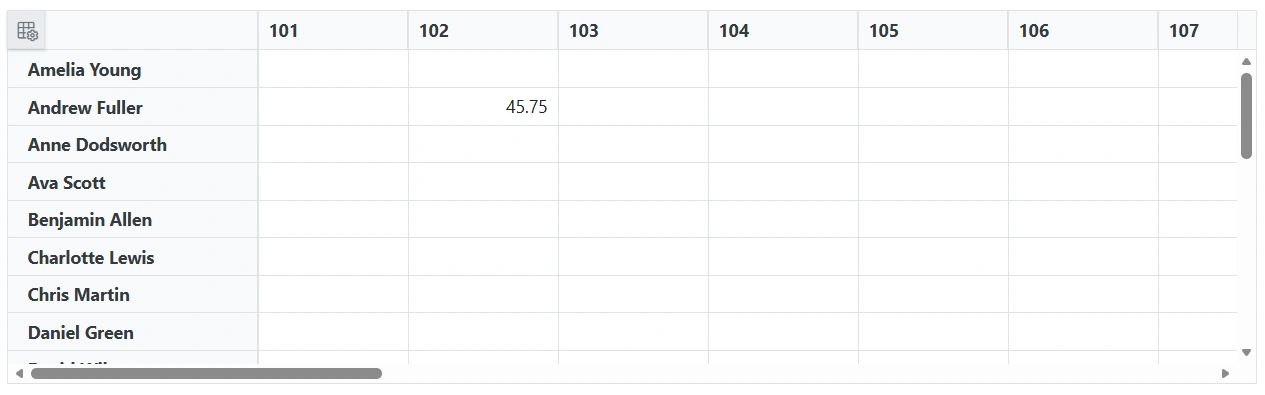
Open the URL shown in the terminal output. The Pivot Table loads SQL Server data through the controller and Dapper.
Troubleshooting
| Symptom | Likely Cause | Resolution |
|---|---|---|
| Pivot Table shows no data | Controller not reachable or API returned an error | Verify the application is running and inspect the browser network panel. |
405 Method Not Allowed on read |
The POST /api/Order action is missing or routed incorrectly |
Confirm OrderController has [ApiController], the Post action has [HttpPost], and AddControllers() plus MapControllers() are present in Program.cs. |
SqlException or Cannot connect to server
|
SQL Server is not running or configuration is wrong | Start SQL Server and confirm the connection string values. |
Invalid object name 'Orders' |
Table not created or wrong database | Run the SQL script in Step 1 against the OrderDB database. |
| Insert/Update/Delete does nothing | The edit dialog does not send a valid primary key | Confirm OrderID is present in the payload and set as IsPrimaryKey in BeginDrillThrough. |
Insert returns a record without OrderID
|
The insert query does not return the generated identity value | Use OUTPUT INSERTED.OrderID and assign the result to order.OrderID. |
| CRUD changes do not persist | Validation or database command failed | Inspect the API response and server logs; verify required fields and table permissions. |
Login failed for user '<USER_ID>' |
SQL Server login not mapped to a database user, or wrong credentials | Verify the SQL Server login exists and has the required permissions on OrderDB.Orders. |
Implementation Recap
The implementation uses:
- A SQL Server
OrderDBdatabase with anOrderstable. - A Blazor Web App with interactive server rendering.
- Syncfusion Blazor Pivot Table and URL adaptor packages.
- An
appsettings.jsonconnection string read throughIConfiguration. - An
OrderControllerwith read and CRUD endpoints using Dapper. -
SfDataManagerconfigured with relative API URLs.
Complete Sample Repository
A complete sample implementation is available in the GitHub repository.
Summary
This guide demonstrates how to create a SQL Server-backed Syncfusion Blazor Pivot Table using Dapper, URL adaptor remote binding, and CRUD endpoints.