Sorting in ASP.NET Core TreeGrid
Sorting enables you to sort data in Ascending or Descending order. To sort a column, click the column header.
To sort multiple columns, press and hold the CTRL key and click the column header. You can clear sorting of any one of the multi-sorted columns by pressing and holding the SHIFT key and clicking the specific column header.
To enable sorting in the TreeGrid, set the allowSorting property to true. Sorting options can be configured through the SortSettings tag helper.
<ejs-treegrid id="TreeGrid" allowSorting="true" dataSource="@ViewBag.datasource" height="315" childMapping="subTasks" treeColumnIndex="1" allowPaging="true">
    <e-treegrid-columns>
        <e-treegrid-column field="category" headerText="Category" width="90"></e-treegrid-column>
        <e-treegrid-column field="orderName" headerText="Order Name" width="180"></e-treegrid-column>
        <e-treegrid-column field="orderDate" headerText="Order Date" textAlign="Right" format="yMd" width="90"></e-treegrid-column>
        <e-treegrid-column field="units" headerText="Units" textAlign="Right" width="80"></e-treegrid-column>
    </e-treegrid-columns>
</ejs-treegrid>
public IActionResult Index()
{
var tree = TreeData.GetDefaultData();
ViewBag.datasource = tree;
return View();
}TreeGrid columns are sorted in the Ascending order. If you click the already sorted column, the sort direction toggles.
You can apply and clear sorting by invoking sortColumn and clearSorting methods.
To disable sorting for a particular column, set theallowSortingproperty ofe-treegrid-columntag helper to false.
Initial sort
To sort at initial rendering, set the field and direction in the columns property of SortSettings tag helper.
@{
    List<object> cols = new List<object>();
    cols.Add(new { field = "category", direction = "Ascending" });
    cols.Add(new { field = "orderName", direction = "Descending" });
}

<ejs-treegrid id="TreeGrid" allowSorting="true" dataSource="@ViewBag.datasource" height="315" childMapping="subTasks" treeColumnIndex="1">
    <e-treegrid-sortsettings columns="cols"></e-treegrid-sortsettings>
    <e-treegrid-columns>
        <e-treegrid-column field="category" headerText="Category" width="90"></e-treegrid-column>
        <e-treegrid-column field="orderName" headerText="Order Name" width="180"></e-treegrid-column>
        <e-treegrid-column field="orderDate" headerText="Order Date" textAlign="Right" format="yMd" width="90"></e-treegrid-column>
        <e-treegrid-column field="units" headerText="Units" textAlign="Right" width="80"></e-treegrid-column>
    </e-treegrid-columns>
</ejs-treegrid>
public IActionResult Index()
{
var tree = TreeData.GetDefaultData();
ViewBag.datasource = tree;
return View();
}Sorting events
During the sort action, the treegrid component triggers two events. The actionBegin event triggers before the sort action starts, and the actionComplete event triggers after the sort action is completed. Using these events you can perform the needed actions.
<ejs-treegrid id="TreeGrid" allowSorting="true" dataSource="@ViewBag.datasource" height="315" childMapping="subTasks" actionBegin="actionHandler" actionComplete="actionHandler" treeColumnIndex="1">
    <e-treegrid-columns>
        <e-treegrid-column field="category" headerText="Category" width="90"></e-treegrid-column>
        <e-treegrid-column field="orderName" headerText="Order Name" width="180"></e-treegrid-column>
        <e-treegrid-column field="orderDate" headerText="Order Date" textAlign="Right" format="yMd" width="90"></e-treegrid-column>
        <e-treegrid-column field="units" headerText="Units" textAlign="Right" width="80"></e-treegrid-column>
    </e-treegrid-columns>
</ejs-treegrid>

<script>
    function actionHandler(args) {
        alert(args.requestType + ' ' + args.type); //custom Action
    }
</script>
public IActionResult Index()
{
var tree = TreeData.GetDefaultData();
ViewBag.datasource = tree;
return View();
}The args.requestType is the current action name. For example, in sorting the args.requestType value is sorting.
Touch interaction
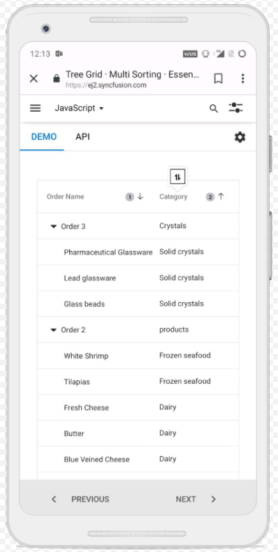
When you tap the treegrid header on touchscreen devices, the selected column header is sorted. A popup  is displayed for multi-column sorting. To sort multiple columns, tap the popup
 , and then tap the desired treegrid headers.
The following screenshot shows treegrid touch sorting.
You can refer to our
ASP.NET Core Tree Gridfeature tour page for its groundbreaking feature representations. You can also explore our ASP.NET Core Tree Grid exampleASP.NET Core Tree Grid exampleto knows how to present and manipulate data.