Column resizing in Vue Gantt Chart Component
18 Nov 201811 minutes to read
Column width can be adjusted by clicking and dragging the right edge of a column header. While dragging, the column width updates immediately. Each column can also be auto‑resized by double‑clicking the right edge of the column header, which adjusts the width to fit the widest cell content.
To enable column resizing, set the columns.allowResizing property to true. The following example shows how to enable the column resizing feature in the Gantt Chart component.
To use column resizing, inject the Resize module in the provide section.
<template>
    <div>
        <ejs-gantt ref='gantt' id="GanttContainer" :dataSource="data" :taskFields="taskFields" :height="height"
            :columns="columns" :splitterSettings="splitterSettings" :allowResizing='true'></ejs-gantt>
    </div>
</template>
<script setup>
import { provide } from "vue";

import { GanttComponent as EjsGantt, Resize } from "@syncfusion/ej2-vue-gantt";
import { editingData } from './data-source.js';
const data = editingData;
const taskFields = {
    id: 'TaskID',
    name: 'TaskName',
    startDate: 'StartDate',
    duration: 'Duration',
    progress: 'Progress',
    child: 'subtasks',
};
const splitterSettings = {
    columnIndex: 4
};
const height = '450px';
const columns = [
    { field: 'TaskID', headerText: 'Task ID', textAlign: 'Left', width: '100' },
    { field: 'TaskName', headerText: 'Task Name', width: '150' },
    { field: 'StartDate', headerText: 'Start Date', width: '150' },
    { field: 'Duration', headerText: 'Duration', width: '150' },
    { field: 'Progress', headerText: 'Progress', width: '150' },
];
provide('gantt', [Resize]);
</script><template>
<div>
<ejs-gantt ref='gantt' id="GanttContainer" :dataSource="data" :taskFields = "taskFields" :height = "height" :columns = "columns" :splitterSettings = "splitterSettings" :allowResizing = 'true'></ejs-gantt>
</div>
</template>
<script>
import { GanttComponent, Resize } from "@syncfusion/ej2-vue-gantt";
import { editingData } from './data-source.js';
export default {
name: "App",
components: {
"ejs-gantt":GanttComponent
},
data: function() {
return{
data: editingData,
taskFields: {
id: 'TaskID',
name: 'TaskName',
startDate: 'StartDate',
duration: 'Duration',
progress: 'Progress',
child: 'subtasks',
},
splitterSettings:{
columnIndex:4
},
height:'450px',
columns: [
{ field: 'TaskID', headerText: 'Task ID', textAlign: 'Left', width: '100' },
{ field: 'TaskName', headerText: 'Task Name', width: '150' },
{ field: 'StartDate', headerText: 'Start Date', width: '150' },
{ field: 'Duration', headerText: 'Duration', width: '150' },
{ field: 'Progress', headerText: 'Progress', width: '150' },
]
};
},
provide: {
gantt: [Resize]
}
};
</script>You can disable resizing for a specific column by setting the columns.allowResizing property to
false.
Defining minimum and maximum column width
Column resizing can be restricted between minimum and maximum widths using the columns.minWidth and columns.maxWidth properties.
In the following example, the minimum and maximum widths are defined for the Duration and Task Name columns.
<template>
    <div>
        <ejs-gantt ref='gantt' id="GanttContainer" :dataSource="data" :taskFields="taskFields" :height="height"
            :columns="columns" :splitterSettings="splitterSettings" :allowResizing='true'></ejs-gantt>
    </div>
</template>
<script setup>
import { provide } from "vue";
import { GanttComponent as EjsGantt, Resize } from "@syncfusion/ej2-vue-gantt";
import { editingData } from './data-source.js';
const data = editingData;
const taskFields = {
    id: 'TaskID',
    name: 'TaskName',
    startDate: 'StartDate',
    duration: 'Duration',
    progress: 'Progress',
    child: 'subtasks',
};
const height = '450px';
const columns = [
    { field: 'TaskID', headerText: 'Task ID', textAlign: 'Left', width: '100' },
    { field: 'TaskName', headerText: 'Task Name', width: '200', minWidth: '150', maxWidth: '250', },
    { field: 'Duration', headerText: 'Duration', width: '100', minWidth: '50', maxWidth: '200' },
    { field: 'StartDate', headerText: 'Start Date', width: '150' },
    { field: 'Progress', headerText: 'Progress', width: '150' },
];
const splitterSettings = {
    columnIndex: 4
}
provide('gantt', [Resize]);
</script><template>
<div>
<ejs-gantt ref='gantt' id="GanttContainer" :dataSource="data" :taskFields = "taskFields" :height = "height" :columns = "columns" :splitterSettings="splitterSettings" :allowResizing = 'true'></ejs-gantt>
</div>
</template>
<script>
import { GanttComponent, Resize } from "@syncfusion/ej2-vue-gantt";
import { editingData } from './data-source.js';
export default {
name: "App",
components: {
"ejs-gantt":GanttComponent
},
data: function() {
return{
data: editingData,
taskFields: {
id: 'TaskID',
name: 'TaskName',
startDate: 'StartDate',
duration: 'Duration',
progress: 'Progress',
child: 'subtasks',
},
height:'450px',
columns: [
{ field: 'TaskID', headerText: 'Task ID', textAlign: 'Left', width: '100' },
{ field: 'TaskName', headerText: 'Task Name', width: '200',minWidth: '150' ,maxWidth: '250',},
{ field: 'Duration', headerText: 'Duration', width: '100',minWidth: '50' ,maxWidth: '200' },
{ field: 'StartDate', headerText: 'Start Date', width: '150' },
{ field: 'Progress', headerText: 'Progress', width: '150' },
],
splitterSettings:{
columnIndex:4
},
};
},
provide: {
gantt: [Resize]
}
};
</script>Touch interaction
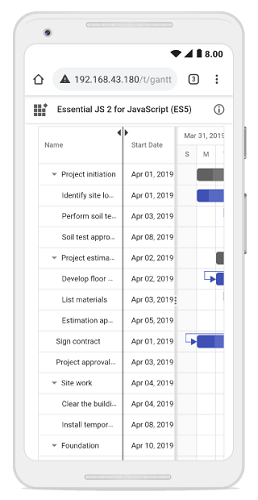
When the right edge of a column header cell is tapped, a floating handler appears above the right border of the column. To resize the column, drag the floating handler as needed.
The following screenshot represents column resizing in the Gantt Chart component on a touch device.