Task Constraints in Blazor Gantt Chart
Task constraints define rules that restrict when an automatically scheduled task can start or finish. They support fixed-date activities, deadline-driven planning, milestone enforcement, and controlled task movement while preserving task dependencies and working-calendar rules.
Task constraints are useful for activities such as contract-controlled work, regulatory submissions, product launches, audits, and procurement milestones. Constraint values can be loaded from a task collection, edited through the task dialog, or updated programmatically.
Task constraints are evaluated only for auto-scheduled tasks. Constraint values on manually scheduled tasks are informational until the task is changed to auto scheduling.
Task Constraints Configuration
Task model configuration
The following model includes the fields required to demonstrate task constraints:
public class TaskData
{
    public int TaskId { get; set; }
    public string? TaskName { get; set; }
    public DateTime StartDate { get; set; }
    public DateTime? EndDate { get; set; }
    public string? Duration { get; set; }
    public int Progress { get; set; }
    public string? Predecessor { get; set; }
    public int? ParentId { get; set; }
    public TaskConstraintType ConstraintType { get; set; }
    public DateTime? ConstraintDate { get; set; }
}
Constraint type mapping
Map the task model property that contains the constraint type through the ConstraintType property of GanttTaskFields. Values must correspond to the TaskConstraintType enumeration and identify the specific scheduling rule for the task, such as AsSoonAsPossible, AsLateAsPossible, MustStartOn, MustFinishOn, StartNoEarlierThan, StartNoLaterThan, FinishNoEarlierThan, or FinishNoLaterThan.
Constraint date mapping
Map the task model property that contains the constraint date through the ConstraintDate property of GanttTaskFields. This mapping must point to a nullable DateTime field in the task model that stores the reference date used by a date-based constraint. AsSoonAsPossible and AsLateAsPossible do not require a ConstraintDate field. Keep the field available for date-aware constraints and leave it empty for no-date constraints.
The task model should keep ConstraintType so the scheduling engine can validate the selected constraint rule and the related date consistently during dependency propagation, dialog editing, taskbar updates, and programmatic changes.
GanttTaskFields configuration
The following example maps task identity, scheduling, dependency, and constraint fields. The Design approval task is fixed to April 8, 2026, and the Release validation task must finish on or before April 20, 2026. These constraints demonstrate how dependency propagation and taskbar movement are validated against the configured scheduling rules.
@using Syncfusion.Blazor.Gantt

<SfGantt TValue="TaskData" DataSource="@TaskCollection" Height="450px" Width="100%"
         ProjectStartDate="@ProjectStartDate" ProjectEndDate="@ProjectEndDate"
         Toolbar="@(new List<string>() { "Add", "Edit", "Update", "Delete", "Cancel" })">
    <GanttTaskFields Id="TaskId" Name="TaskName" StartDate="StartDate" EndDate="EndDate"
                     Duration="Duration" Progress="Progress" Dependency="Predecessor"
                     ParentID="ParentId" ConstraintType="ConstraintType" ConstraintDate="ConstraintDate">
    </GanttTaskFields>
    <GanttEditSettings AllowAdding="true" AllowEditing="true" AllowDeleting="true" AllowTaskbarEditing="true">
    </GanttEditSettings>
</SfGantt>

@code {
     public List<TaskData> TaskCollection { get; set; } = new()
    {
        new TaskData { TaskId = 1, TaskName = "Product release", StartDate = new DateTime(2026, 4, 6) },
        new TaskData { TaskId = 2, TaskName = "Design approval", StartDate = new DateTime(2026, 4, 6), Duration = "3", ParentId = 1,
            ConstraintType = TaskConstraintType.MustStartOn, ConstraintDate = new DateTime(2026, 4, 8) },
        new TaskData { TaskId = 3, TaskName = "Implementation", StartDate = new DateTime(2026, 4, 9), Duration = "5", ParentId = 1,
            Predecessor = "2FS" },
        new TaskData { TaskId = 4, TaskName = "Release validation", StartDate = new DateTime(2026, 4, 16), Duration = "2", ParentId = 1,
            ConstraintType = TaskConstraintType.FinishNoLaterThan, ConstraintDate = new DateTime(2026, 4, 20) }
    };

    public DateTime ProjectStartDate { get; set; } = new DateTime(2026, 4, 6);
    public DateTime ProjectEndDate { get; set; } = new DateTime(2026, 4, 30);

    public class TaskData
    {
        public int TaskId { get; set; }
        public string? TaskName { get; set; }
        public DateTime StartDate { get; set; }
        public DateTime? EndDate { get; set; }
        public string? Duration { get; set; }
        public int Progress { get; set; }
        public string? Predecessor { get; set; }
        public int? ParentId { get; set; }
        public TaskConstraintType ConstraintType { get; set; }
        public DateTime? ConstraintDate { get; set; }
    }
}Supported constraint types
The TaskConstraintType enumeration defines the supported scheduling rules. The following values are available for child tasks:
| Constraint type | Enum value | Scheduling behavior |
|---|---|---|
| As Soon As Possible (ASAP) | AsSoonAsPossible |
Starts at the earliest valid date based on dependencies, project settings, and the calendar. |
| As Late As Possible (ALAP) | AsLateAsPossible |
Starts as late as possible without delaying successor tasks or the project finish. |
| Must Start On (MSO) | MustStartOn |
Starts exactly on ConstraintDate. |
| Must Finish On (MFO) | MustFinishOn |
Finishes exactly on ConstraintDate. |
| Start No Earlier Than (SNET) | StartNoEarlierThan |
Cannot start before ConstraintDate. |
| Finish No Earlier Than (FNET) | FinishNoEarlierThan |
Cannot finish before ConstraintDate. |
| Start No Later Than (SNLT) | StartNoLaterThan |
Must start on or before ConstraintDate. |
| Finish No Later Than (FNLT) | FinishNoLaterThan |
Must finish on or before ConstraintDate. |
- A date-based constraint should provide a non-null
ConstraintDate.- ASAP does not require a constraint date.
- Parent tasks support only
AsSoonAsPossible,StartNoEarlierThan, andFinishNoLaterThan. Unsupported parent constraint values are converted toAsSoonAsPossibleduring data binding.
Default constraint behavior
When no constraint is supplied, auto-scheduled tasks use ASAP behavior. Manual tasks retain their bound dates and treat constraint values as informational data.
Manual-to-auto transition
When a manually scheduled task changes to auto scheduling, its existing constraint values become active. The task is evaluated through the constraint pipeline, and an invalid result follows the standard conflict-resolution workflow.
Editing support
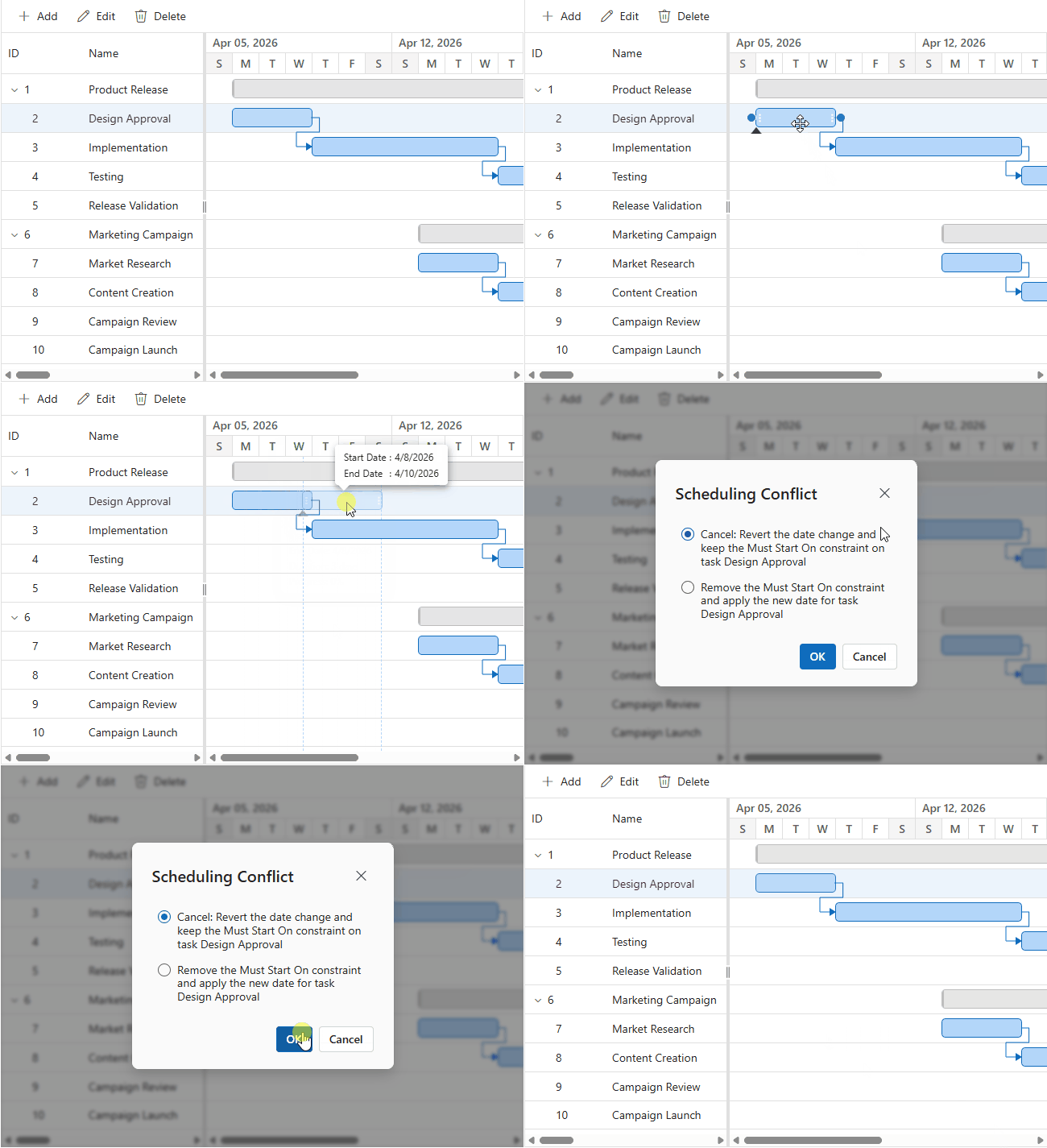
When a task is edited and a changed date violates the selected constraint rule, the Scheduling Conflict dialog is displayed through the editing workflow so the task date and the related ConstraintType or ConstraintDate values can be reviewed and resolved. For example, a MustStartOn conflict can be resolved by cancelling the date change and keeping the constraint, or by removing the constraint and applying the new date. Existing ConstraintType and ConstraintDate values are not changed by a drag or resize action unless the constraint is explicitly removed through the conflict resolution dialog.
Cell editing
Cell editing validates changes to start date, end date, duration, work and assigned resources, ConstraintType, and ConstraintDate. For tasks configured with work and resource mappings, editing the work value or the assigned resource and resource units recalculates the task duration and end date according to the configured TaskType. The recalculated end date is then evaluated against the task constraint. An invalid field value is rejected immediately, and the previous valid value is restored. If the edited date or the recalculated end date violates the constraint, the Scheduling Conflict dialog is displayed with options to cancel the change and preserve the constraint or remove the conflicting constraint and apply the edit.
Dialog editing
Dialog editing validates the complete transaction before saving. The default edit dialog displays the Advanced tab for the constraint type and constraint date fields. The dialog field collection components GanttEditDialogFields and GanttAddDialogFields are used to customize the rendered dialog, including the sequence of tabs and the fields that are displayed for each tab. They can arrange the rendering order of the General, Dependency, and Advanced sections before the dialog is shown, and they can also control which input elements or field definitions are rendered in a tab.
<GanttEditDialogFields>
    <GanttEditDialogField Type="GanttDialogFieldType.General" HeaderText="General"></GanttEditDialogField>
    <GanttEditDialogField Type="GanttDialogFieldType.Dependency"></GanttEditDialogField>
    <GanttEditDialogField Type="GanttDialogFieldType.Advanced" HeaderText="Advanced"></GanttEditDialogField>
</GanttEditDialogFields>

<GanttAddDialogFields>
    <GanttAddDialogField Type="GanttDialogFieldType.General" HeaderText="General"></GanttAddDialogField>
    <GanttAddDialogField Type="GanttDialogFieldType.Dependency"></GanttAddDialogField>
    <GanttAddDialogField Type="GanttDialogFieldType.Advanced" HeaderText="Advanced"></GanttAddDialogField>
</GanttAddDialogFields>
Taskbar editing
Taskbar drag and resize operations calculate the proposed dates before constraint validation. When a change violates a constraint, the Scheduling Conflict dialog displays the available resolution options.
Handle constraint events
The GanttEvents component exposes OnTaskConstraint for custom constraint handling. The GanttTaskConstraintEventArgs argument contains the affected task and the IsRespectConstraint setting. This setting determines whether a violated constraint must be respected without displaying the Scheduling Conflict dialog. By default, IsRespectConstraint is set to false, which allows the Scheduling Conflict dialog to be displayed when a constraint violation occurs and the schedule can be adjusted.
Set IsRespectConstraint to true to respect the constraint, suppress the dialog, and revert the scheduling action to the original valid state. Set it to false to display the Scheduling Conflict dialog when the operation can be resolved by cancelling the date change, removing the violated constraint, or applying an allowed schedule adjustment.
@using Syncfusion.Blazor.Gantt

<SfGantt TValue="TaskData" DataSource="@TaskCollection" Height="450px">
    <GanttTaskFields Id="TaskId" Name="TaskName" StartDate="StartDate" EndDate="EndDate"
                     Duration="Duration" Dependency="Predecessor"
                     ConstraintType="ConstraintType" ConstraintDate="ConstraintDate">
    </GanttTaskFields>
    <GanttEvents OnTaskConstraint="TaskConstraintHandler" TValue="TaskData"></GanttEvents>
</SfGantt>

@code {
    private List<TaskData> TaskCollection { get; set; } = new();

    private async Task TaskConstraintHandler(GanttTaskConstraintEventArgs<TaskData> args)
    {
        if (args.Data.ConstraintType == TaskConstraintType.MustStartOn)
        {
            // Revert the change without displaying the Scheduling Conflict dialog.
            args.IsRespectConstraint = true;
        }
        await Task.CompletedTask;
    }

    public class TaskData
    {
        public int TaskId { get; set; }
        public string? TaskName { get; set; }
        public DateTime StartDate { get; set; }
        public DateTime? EndDate { get; set; }
        public string? Duration { get; set; }
        public string? Predecessor { get; set; }
        public TaskConstraintType ConstraintType { get; set; }
        public DateTime? ConstraintDate { get; set; }
    }
}
Constraint interaction with dependencies and calendar settings
Dependencies
Finish-to-Start, Start-to-Start, Finish-to-Finish, and Start-to-Finish dependency relationships are evaluated before constraint validation. When a task edit changes a dependency relationship, the connected successor or predecessor task may be shifted automatically as the dependency offset is recalculated. If that connected task contains a constraint such as MustStartOn, MustFinishOn, or another date-based rule, a constraint violation dialog is displayed for that related task. In this workflow, the action can be cancelled to revert the complete edit transaction, or continued to allow the dependency offset to be applied while the constrained task remains fixed to its original constraint definition.
The same dependency evaluation can be controlled through predecessor validation and predecessor offset recalculation. The EnablePredecessorValidation property of the Gantt component enables or disables predecessor date validation and therefore suppresses the dependency conflict and validation dialog when it is set to false. The AutoUpdatePredecessorOffset property controls whether the dependency offset is recalculated automatically. When this property is set to false, the offset values are not updated automatically during validation. The dependency relationship continues to exist, but the offset is not adjusted by the scheduler when a constraint conflict is resolved through the edit workflow.
Project start date
The project start date provides the earliest scheduling reference for ASAP and other start-based calculations. When a proposed task date occurs before the project start date, the Scheduling Conflict dialog provides the following options:
- Cancel the date change and keep the task within the project start date.
- Move the task to the first valid working date within the project schedule.
- Continue with the proposed date even though it is earlier than the project start date, when the operation permits that resolution.
Working time calendars
The ConstraintDate value is updated through the same working-time calendar logic that is used for task start and finish dates. Day working time, weekends, holidays, and the configured working periods are considered when a constraint date is validated. If the selected date falls on a non-working day, the scheduler evaluates the next valid working period.
Best practices
- Use ASAP for ordinary dependency-driven work and reserve exact constraints for dates that are externally controlled.
- Provide
ConstraintDatewhenever a selected constraint requires a reference date. - Keep parent constraints limited to ASAP, SNET, and FNLT.
- Configure working time, weekends, and holidays before validating date-based constraints.
- Handle
OnTaskConstraintfor programmatic workflows that need custom conflict decisions. - Test constrained tasks with taskbar drag, resize, dialog editing, cell editing, undo, redo, and dependency updates.
- Avoid applying unnecessary hard constraints to large task networks because they can increase conflict resolution and recalculation work.
Limitations
- Task constraints apply only to auto-scheduled tasks.
- Initial data binding renders bound dates without enforcing conflicting constraints. Validation begins when a scheduling operation is performed.