Column Sorting with Multi-Sort in ASP.NET Core Gantt Chart
Sorting enables you to sort data in the ascending or descending order. To sort a column, click the column header.
To sort multiple columns, press and hold the CTRL key and click the column header. You can clear sorting of any one of the multi-sorted columns by pressing and holding the SHIFT key and clicking the specific column header.
To enable sorting in the Gantt control, set the AllowSorting property to true. Sorting options can be configured through the SortSettings property.
<ejs-gantt id='Gantt' dataSource="ViewBag.dataSource" height="450px" allowSorting="true">
        <e-gantt-taskfields id="TaskId" name="TaskName" startDate="StartDate"
            endDate="EndDate" duration="Duration" progress="Progress" child="SubTasks">
        </e-gantt-taskfields>
 </ejs-gantt>
public IActionResult Index()
{
ViewBag.DataSource = GanttData.ProjectNewData();
return View();
}The following screenshot shows the output of multicolumn sorting in Gantt control.
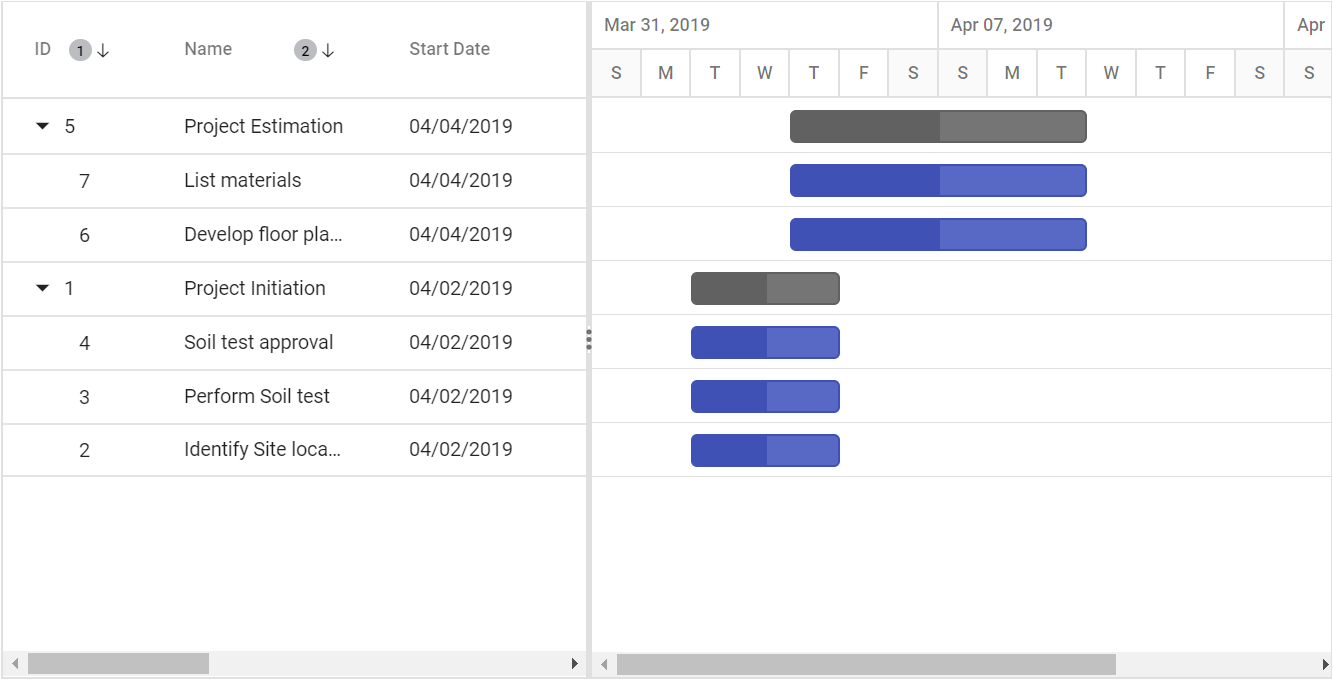
- Gantt columns are sorted in the ascending order. If you click the already sorted column, the sort direction toggles.
* To disable sorting for a particular column, set theColumns.AllowSortingproperty to false.
Sorting column on Gantt initialization
The Gantt control can be rendered with sorted columns initially, and this can be achieved by using the SortSettings property. You can add columns that are sorted initially in the SortSettings.Columns collection defined with Field and Direction properties. The following code example shows how to add the sorted column to Gantt initialization.
@{
                     List<GanttSortDescriptor> cols = new List<GanttSortDescriptor>();
                     cols.Add(new GanttSortDescriptor {  Field = "TaskId", Direction =Syncfusion.EJ2.Gantt.SortDirection.Descending  });
                     cols.Add(new GanttSortDescriptor { Field = "TaskName", Direction = Syncfusion.EJ2.Gantt.SortDirection.Ascending });
                  }


				<ejs-gantt id='Gantt' dataSource="ViewBag.dataSource" height="450px" allowSorting="true">
                    <e-gantt-taskfields id="TaskId" name="TaskName" startDate="StartDate"
                          endDate="EndDate" duration="Duration" progress="Progress" child="SubTasks">
                    </e-gantt-taskfields>
                    <e-gantt-sortsettings columns="cols"></e-gantt-sortsettings>
                </ejs-gantt>
public IActionResult Index()
{
ViewBag.DataSource = GanttData.ProjectNewData();
return View();
}Sorting column dynamically
Columns in the Gantt control can be sorted dynamically using the sortColumn method. The following code example demonstrates how to invoke the sortColumn method by clicking the custom button.
<ejs-button id="Sort" content="Sort TaskId Column" cssClass="e-primary"></ejs-button>

        <ejs-gantt id='Gantt' dataSource="ViewBag.dataSource" height="450px" allowSorting="true">
            <e-gantt-taskfields id="TaskId" name="TaskName" startDate="StartDate"
                endDate="EndDate" duration="Duration" progress="Progress" child="SubTasks">
            </e-gantt-taskfields>
        </ejs-gantt>

<script>
        document.getElementById('Sort').addEventListener('click', function (args) {
            var ganttObj = document.getElementById('Gantt').ej2_instances[0];
            ganttObj.sortModule.sortColumn('TaskId', "Descending", false)
        });
    </script>
public IActionResult Index()
{
ViewBag.DataSource = GanttData.ProjectNewData();
return View();
}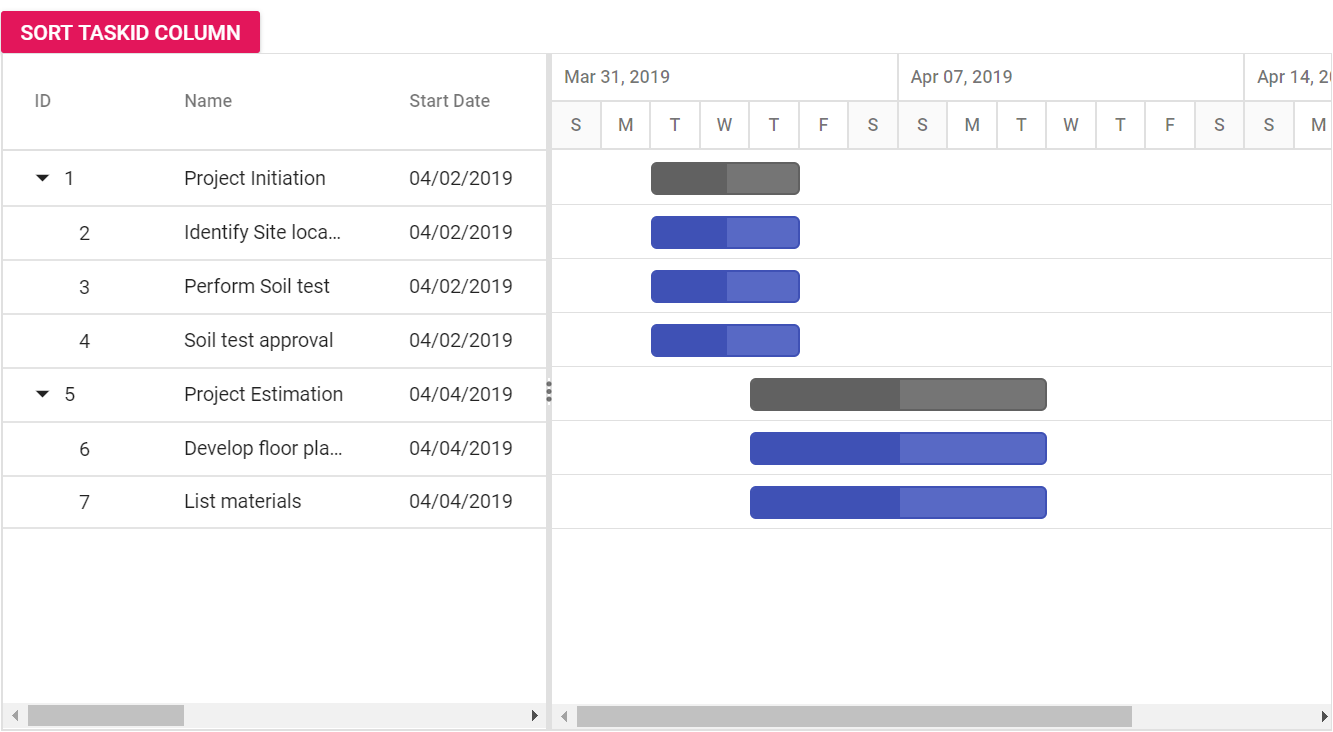
Before Sorting
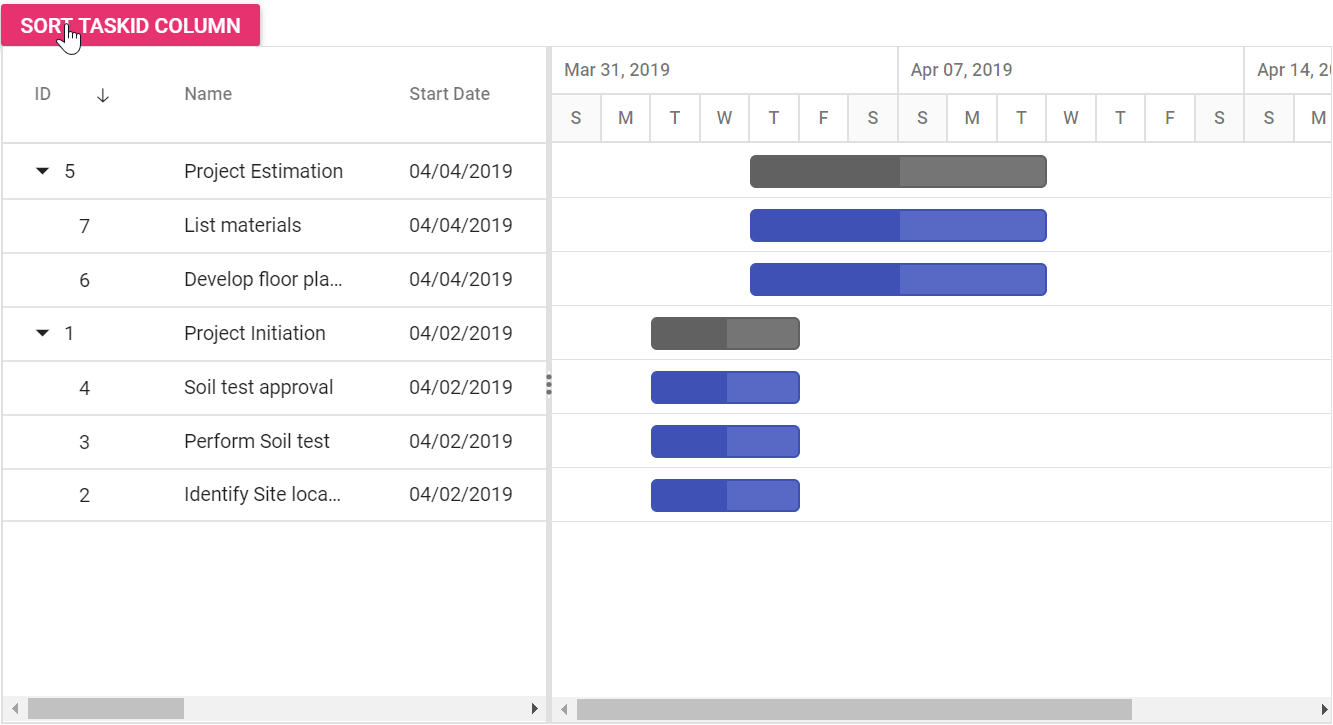
After Sorting
Clear all the sorted columns dynamically
In the Gantt control, you can clear all the sorted columns and return to previous position using the clearSorting public method. The following code snippet shows how to clear all the sorted columns by clicking the custom button.
<ejs-button id="clearSort" content="Clear Sorting" cssClass="e-primary"></ejs-button>

                <ejs-gantt id='Gantt' dataSource="ViewBag.dataSource" height="450px" allowSorting="true">
                    <e-gantt-taskfields id="TaskId" name="TaskName" startDate="StartDate"
                       endDate="EndDate" duration="Duration" progress="Progress" child="SubTasks">
                    </e-gantt-taskfields>
                </ejs-gantt>

 <script>
        document.getElementById('clearSort').addEventListener('click', function (args) {
            var ganttObj = document.getElementById('Gantt').ej2_instances[0];
            ganttObj.clearSorting();
        });
</script>
public IActionResult Index()
{
ViewBag.DataSource = GanttData.ProjectNewData();
return View();
}Sorting events
During the sort action, the Gantt control triggers two events. The ActionBegin event triggers before the sort action starts, and the ActionComplete event triggers after the sort action is completed.
<ejs-gantt id='Gantt' dataSource="ViewBag.dataSource" height="450px" allowSorting="true" actionBegin="actionHandler" actionComplete="actionHandler">
                    <e-gantt-taskfields id="TaskId" name="TaskName" startDate="StartDate"
                       endDate="EndDate" duration="Duration" progress="Progress" child="SubTasks">
                    </e-gantt-taskfields>
    </ejs-gantt>

<script>
    function actionHandler(args) {
       alert(args.requestType + ' ' + args.type);
    }
</script>
public IActionResult Index()
{
ViewBag.DataSource = GanttData.ProjectNewData();
return View();
}The
args.requestTypeis the current action name. For example, for sorting theargs.requestType, value is sorting.
Sorting custom columns
In Gantt, you can sort custom columns of different types like string, numeric, etc., By adding the custom column in the column collection, you can perform initial sort using the sortSettings or you can also sort the column dynamically by a button click.
The following code snippets explains how to achieve this.
<ejs-button id="Sort" content="Sort Custom Column" cssClass="e-primary"></ejs-button>

        <ejs-gantt id='Gantt' dataSource="ViewBag.dataSource" height="450px" allowSorting="true">
            <e-gantt-taskfields id="TaskId" name="TaskName" startDate="StartDate"
                endDate="EndDate" duration="Duration" progress="Progress" child="SubTasks">
            </e-gantt-taskfields>
            <e-gantt-columns>
                <e-gantt-column field="TaskId" width="150"> </e-gantt-column>
                <e-gantt-column field="TaskName" headerText="Job Name"></e-gantt-column>
                <e-gantt-column field="StartDate" headerText="Start Date"></e-gantt-column>
                <e-gantt-column field="Duration" headerText="Duration"></e-gantt-column>
                <e-gantt-column field="Progress" headerText="Progress></e-gantt-column>
                <e-gantt-column field="CustomColumn" headerText="Custom Column"></e-gantt-column>
            </e-gantt-columns>
        </ejs-gantt>

<script>
        document.getElementById('Sort').addEventListener('click', function (args) {
            var ganttObj = document.getElementById('Gantt').ej2_instances[0];
            ganttObj.sortModule.sortColumn('CustomColumn', "Ascending", false)
        });
    </script>
public IActionResult Index()
{
ViewBag.DataSource = ganttData();
return View();
}
public static List<GanttDataSource> ganttData()
{
List<GanttDataSource> GanttDataSourceCollection = new List<GanttDataSource>();
GanttDataSource Record1 = new GanttDataSource()
{
TaskId = 1,
TaskName = "Project initiation",
StartDate = new DateTime(2019, 04, 02),
EndDate = new DateTime(2019, 04, 21),
SubTasks = new List<GanttDataSource>(),
};
GanttDataSource Child1 = new GanttDataSource()
{
TaskId = 2,
TaskName = "Identify site location",
StartDate = new DateTime(2019, 04, 02),
Duration = 4,
Progress = 70,
CustomColumn= 2
};
GanttDataSource Child2 = new GanttDataSource()
{
TaskId = 3,
TaskName = "Perform soil test",
StartDate = new DateTime(2019, 04, 02),
Duration = 4,
Progress = 50,
CustomColumn= 3
};
GanttDataSource Child3 = new GanttDataSource()
{
TaskId = 4,
TaskName = "Soil test approval",
StartDate = new DateTime(2019, 04, 02),
Duration = 4,
Progress = 50,
CustomColumn= 1
};
Record1.SubTasks.Add(Child1);
Record1.SubTasks.Add(Child2);
Record1.SubTasks.Add(Child3);
GanttDataSource Record2 = new GanttDataSource()
{
TaskId = 5,
TaskName = "Project estimation",
StartDate = new DateTime(2019, 04, 02),
EndDate = new DateTime(2019, 04, 21),
SubTasks = new List<GanttDataSource>()
};
GanttDataSource Child4 = new GanttDataSource()
{
TaskId = 6,
TaskName = "Develop floor plan for estimation",
StartDate = new DateTime(2019, 04, 04),
Duration = 3,
Progress = 70,
CustomColumn= 5
};
GanttDataSource Child5 = new GanttDataSource()
{
TaskId = 7,
TaskName = "List materials",
StartDate = new DateTime(2019, 04, 04),
Duration = 3,
Progress = 50,
CustomColumn= 4
};
Record2.SubTasks.Add(Child4);
Record2.SubTasks.Add(Child5);
GanttDataSourceCollection.Add(Record1);
GanttDataSourceCollection.Add(Record2);
return GanttDataSourceCollection;
}
public class GanttDataSource
{
public int TaskId { get; set; }
public string TaskName { get; set; }
public DateTime StartDate { get; set; }
public DateTime EndDate { get; set; }
public int? Duration { get; set; }
public int Progress { get; set; }
public int CustomColumn { get; set;}
public List<GanttDataSource> SubTasks { get; set; }
}Touch interaction
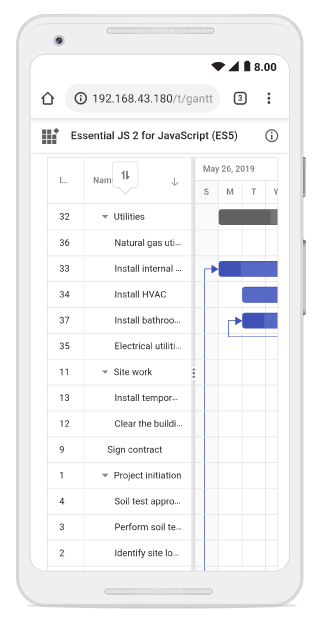
To perform tap action on a column header, trigger sorting operation to the selected column. A popup is displayed for multi-column sorting. To sort multiple columns, tap the popup, and then tap the desired column headers.
The following screenshot shows Gantt touch sorting,