Project-Wide Timeline Markers in ASP.NET Core Gantt Chart
Event markers highlight significant project events by displaying vertical timeline indicators that span across the entire Gantt chart. These markers identify critical dates, milestones, deadlines, or important project events that affect multiple tasks or the overall project timeline, providing visual reference points for project-wide activities.
Understanding event markers implementation enables effective visualization of project-critical dates and enhances timeline awareness across all project phases.
Event markers utilize specific properties to define their positioning, appearance, and identification within the project timeline:
Date positioning: The Day property establishes the exact timeline date where the marker appears. This date value determines marker placement across the entire vertical timeline, ensuring accurate project event representation.
Descriptive labeling: The Label property provides descriptive text that identifies the marker’s purpose or significance. Labels enhance user understanding by clearly indicating what project event the marker represents.
Visual customization: The CssClass property enables custom styling through CSS class applications. This property allows distinctive visual treatment for different marker types, supporting color coding, styling variations, and brand consistency.
Vertical adjustment: The Top property specifies the vertical offset (in pixels) of the marker from the top of the chart pane’s content area. This property helps prevent visual overlap when multiple markers share the same date, ensuring clear and organized marker placement.
Event marker configuration
Event markers render as vertical lines positioned at specific dates across the entire Gantt timeline, distinguishing them from data markers which appear within individual task rows. This project-wide visibility ensures critical dates remain prominent regardless of the current view or task focus.
Timeline integration: Event markers integrate seamlessly with the Gantt timeline, appearing as vertical indicators that extend from the top to the bottom of the chart area. This comprehensive visibility ensures important dates remain visible during scrolling, zooming, or filtering operations.
Configuration requirements: Event markers can be initialized using the EventMarkers property of the Gantt control to enable rendering functionality. This property manages marker positioning, styling, and timeline integration logic.
Multiple marker support: The control supports multiple event markers simultaneously, allowing comprehensive tracking of various project-critical dates within the same timeline view. Each marker maintains independent configuration while sharing the common timeline space.
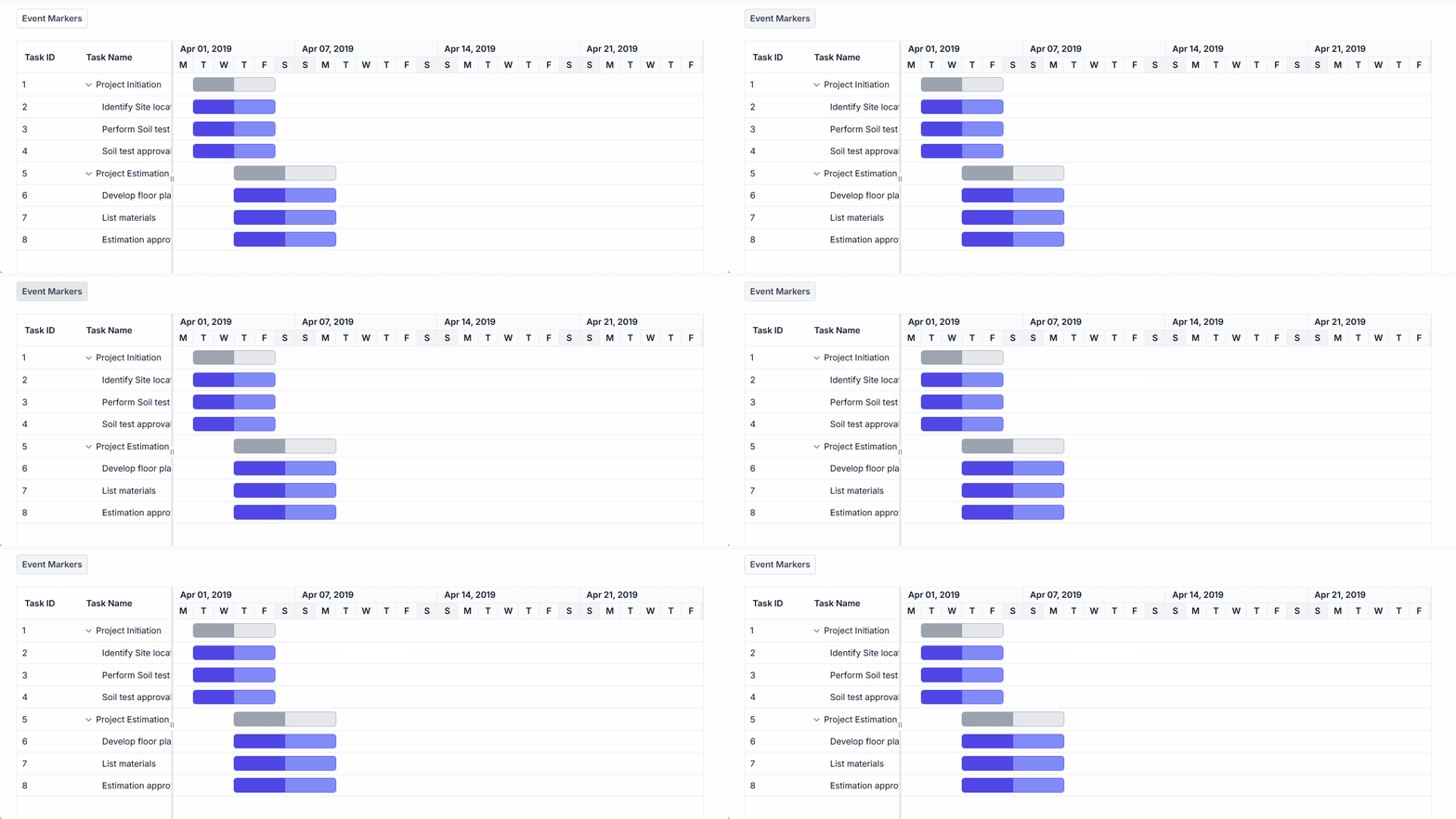
The following implementation demonstrates event marker integration within a Gantt chart, showcasing timeline-wide event highlighting:
@page
@model IndexModel

    <style>
      .e-gantt .e-gantt-chart .e-custom-event-marker {
          width: 1px;
          border-left: 2px green dotted;
        }
    </style>

	<ejs-gantt id='Gantt' dataSource="@Model.GanttDataSourceCollection" height="450px">
        <e-gantt-taskfields id="TaskId" name="TaskName" startDate="StartDate"
                endDate="EndDate" duration="Duration" progress="Progress" parentId="ParentId">
        </e-gantt-taskfields>
        <e-gantt-eventmarkers>
            <e-gantt-eventmarker day="04/10/2019" label="Project approval and kick-off" cssClass="e-custom-event-marker"></e-gantt-eventmarker>
        </e-gantt-eventmarkers>
    </ejs-gantt>
using Microsoft.AspNetCore.Mvc.RazorPages;
namespace CoreSamples.Pages
{
public class IndexModel : PageModel
{
public List<GanttDataSource> GanttDataSourceCollection { get; set; }
public void OnGet()
{
GanttDataSourceCollection = GetTaskCollection();
}
private List<GanttDataSource> GetTaskCollection()
{
return new List<GanttDataSource>()
{
new GanttDataSource
{
TaskId = 1,
TaskName = "Project Initiation",
StartDate = new DateTime(2019, 4, 2),
EndDate = new DateTime(2019, 4, 21)
},
new GanttDataSource
{
TaskId = 2,
TaskName = "Identify Site location",
StartDate = new DateTime(2019, 4, 2),
Duration = 4,
Progress = 50,
ParentId = 1
},
new GanttDataSource
{
TaskId = 3,
TaskName = "Perform Soil test",
StartDate = new DateTime(2019, 4, 2),
Duration = 4,
Progress = 50,
ParentId = 1
},
new GanttDataSource
{
TaskId = 4,
TaskName = "Soil test approval",
StartDate = new DateTime(2019, 4, 2),
Duration = 4,
Progress = 50,
ParentId = 1
},
new GanttDataSource
{
TaskId = 5,
TaskName = "Project Estimation",
StartDate = new DateTime(2019, 4, 2),
EndDate = new DateTime(2019, 4, 21)
},
new GanttDataSource
{
TaskId = 6,
TaskName = "Develop floor plan for estimation",
StartDate = new DateTime(2019, 4, 4),
Duration = 3,
Progress = 50,
ParentId = 5
},
new GanttDataSource
{
TaskId = 7,
TaskName = "List materials",
StartDate = new DateTime(2019, 4, 4),
Duration = 3,
Progress = 50,
ParentId = 5
},
new GanttDataSource
{
TaskId = 8,
TaskName = "Estimation approval",
StartDate = new DateTime(2019, 4, 4),
Duration = 3,
Progress = 50,
ParentId = 5
}
};
}
}
public class GanttDataSource
{
public int TaskId { get; set; }
public string TaskName { get; set; }
public DateTime? StartDate { get; set; }
public DateTime? EndDate { get; set; }
public int? Duration { get; set; }
public int? Progress { get; set; }
public int? ParentId { get; set; }
}
}
Programmatically show and hide event markers
You can programmatically show or hide event markers in the Gantt Chart by updating the EventMarkers property from script using the Gantt instance.
@page
@model CoreSamples.Pages.IndexModel
@using Syncfusion.EJ2.Gantt

@{
    ViewData["Title"] = "Home page";

    var eventMarkers = new List<GanttEventMarker>()
    {
        new GanttEventMarker() { Day = "04/09/2019", Label = "Research phase" },
        new GanttEventMarker() { Day = "04/30/2019", Label = "Design phase" },
        new GanttEventMarker() { Day = "05/23/2019", Label = "Production phase" },
        new GanttEventMarker() { Day = "06/20/2019", Label = "Sales and marketing phase" }
    };
}

<div style="margin-bottom:20px">
    <ejs-button id="toggleMarkers" content="Event Markers"></ejs-button>
</div>

<ejs-gantt id="Gantt"
           dataSource="@Model.GanttDataSourceCollection"
           height="450px"
           treeColumnIndex="1"
           eventMarkers="eventMarkers">

    <e-gantt-taskfields id="TaskId"
                        name="TaskName"
                        startDate="StartDate"
                        endDate="EndDate"
                        duration="Duration"
                        progress="Progress"
                        parentID="ParentId">
    </e-gantt-taskfields>

    <e-gantt-columns>
        <e-gantt-column field="TaskId" headerText="Task ID" width="100"></e-gantt-column>
        <e-gantt-column field="TaskName" headerText="Task Name" width="250"></e-gantt-column>
        <e-gantt-column field="Progress" headerText="Progress" width="120"></e-gantt-column>
    </e-gantt-columns>

</ejs-gantt>

<script>
    document.getElementById('toggleMarkers').addEventListener('click', function() {
        var gantt = document.getElementById('Gantt').ej2_instances[0];

        if (gantt.eventMarkers && gantt.eventMarkers.length > 0) {
            gantt.eventMarkers = [];
        } else {
            gantt.eventMarkers = [
                { day: '04/09/2019', label: 'Research phase' },
                { day: '04/30/2019', label: 'Design phase' },
                { day: '05/23/2019', label: 'Production phase' },
                { day: '06/20/2019', label: 'Sales and marketing phase' }
            ];
        }

        gantt.refresh();
    });
</script>
using Microsoft.AspNetCore.Mvc.RazorPages;
namespace CoreSamples.Pages
{
public class IndexModel : PageModel
{
public List<GanttDataSource> GanttDataSourceCollection { get; set; }
public void OnGet()
{
GanttDataSourceCollection = GetTaskCollection();
}
private List<GanttDataSource> GetTaskCollection()
{
return new List<GanttDataSource>()
{
new GanttDataSource
{
TaskId = 1,
TaskName = "Project Initiation",
StartDate = new DateTime(2019, 4, 2),
EndDate = new DateTime(2019, 4, 21)
},
new GanttDataSource
{
TaskId = 2,
TaskName = "Identify Site location",
StartDate = new DateTime(2019, 4, 2),
Duration = 4,
Progress = 50,
Verified = true,
ParentId = 1
},
new GanttDataSource
{
TaskId = 3,
TaskName = "Perform Soil test",
StartDate = new DateTime(2019, 4, 2),
Duration = 4,
Progress = 50,
ParentId = 1
},
new GanttDataSource
{
TaskId = 4,
TaskName = "Soil test approval",
StartDate = new DateTime(2019, 4, 2),
Duration = 4,
Progress = 50,
Verified = true,
ParentId = 1
},
new GanttDataSource
{
TaskId = 5,
TaskName = "Project Estimation",
StartDate = new DateTime(2019, 4, 2),
EndDate = new DateTime(2019, 4, 21)
},
new GanttDataSource
{
TaskId = 6,
TaskName = "Develop floor plan for estimation",
StartDate = new DateTime(2019, 4, 4),
Duration = 3,
Progress = 50,
ParentId = 5
},
new GanttDataSource
{
TaskId = 7,
TaskName = "List materials",
StartDate = new DateTime(2019, 4, 4),
Duration = 3,
Progress = 50,
Verified = true,
ParentId = 5
},
new GanttDataSource
{
TaskId = 8,
TaskName = "Estimation approval",
StartDate = new DateTime(2019, 4, 4),
Duration = 3,
Progress = 50,
Verified = true,
ParentId = 5
}
};
}
}
public class GanttDataSource
{
public int TaskId { get; set; }
public string TaskName { get; set; }
public DateTime? StartDate { get; set; }
public DateTime? EndDate { get; set; }
public int? Duration { get; set; }
public int? Progress { get; set; }
public bool Verified { get; set; }
public int? ParentId { get; set; }
}
}