Placeholder in Flutter AI AssistView (SfAIAssistView)
18 Nov 201813 minutes to read
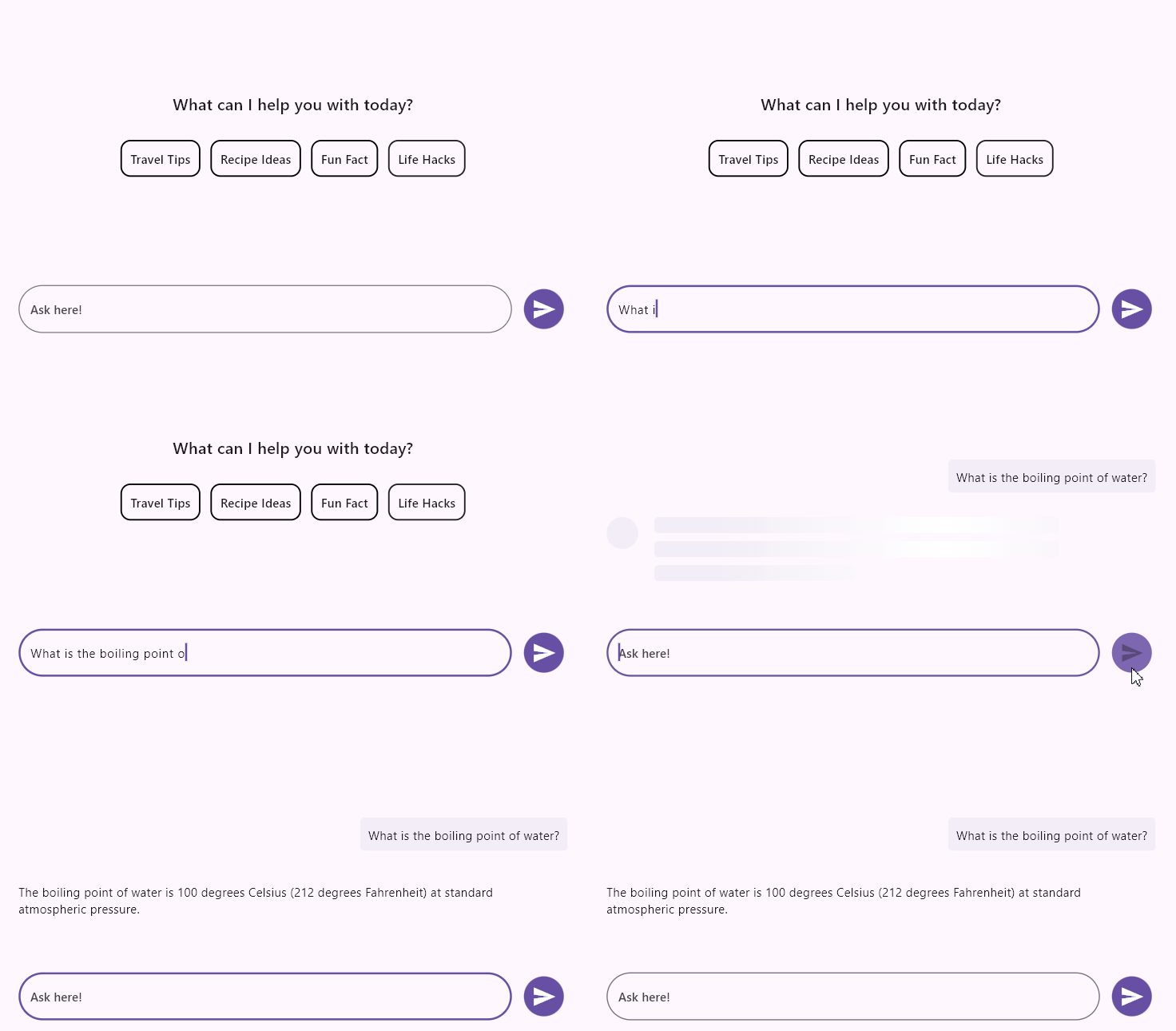
Define a custom placeholder widget to display when there are no messages in the AI AssistView. You can use the placeholderBehavior property to control whether the placeholder is hidden when a message is added or scrolls along with the messages. By default, placeholderBehavior is set to AssistPlaceholderBehavior.hideOnMessage.
Hide on message
Configure the placeholder to become visible when there are no messages in the AI AssistView and to be hidden when a new message is added.
import 'package:flutter/material.dart';
import 'package:syncfusion_flutter_chat/assist_view.dart';

class HideOnMessageExample extends StatefulWidget {
  @override
  State<HideOnMessageExample> createState() => _HideOnMessageExampleState();
}

class _HideOnMessageExampleState extends State<HideOnMessageExample> {
  final List<AssistMessage> _messages = <AssistMessage>[];

  void _generativeResponse(String data) async {
    final String response = await _getAIResponse(data);
    setState(() {
      _messages.add(AssistMessage.response(data: response));
    });
  }

  Future<String> _getAIResponse(String data) async {
    String response = '';
    // Connect with your preferred AI to generate a response to the request.
    return response;
  }

  @override
  Widget build(BuildContext context) {
    return Scaffold(
      body: SfAIAssistView(
        messages: _messages,
        actionButton: AssistActionButton(
          onPressed: (String data) {
            setState(() {
              _messages.add(AssistMessage.request(data: data));
              _generativeResponse(data);
            });
          },
        ),
        placeholderBuilder: (BuildContext context) {
          return Center(
            child: Column(
              mainAxisSize: MainAxisSize.min,
              children: [
                const Text(
                  'What can I help you with today?',
                ),
                const SizedBox(height: 25),
                Row(
                  mainAxisAlignment: MainAxisAlignment.center,
                  children: [
                    DecoratedBox(
                      decoration: BoxDecoration(
                        border: Border.all(
                          color: Colors.black,
                          width: 1.5,
                        ),
                        borderRadius: BorderRadius.circular(10),
                      ),
                      child: const Padding(
                        padding: EdgeInsets.all(10.0),
                        child: Text(
                          'Travel Tips',
                        ),
                      ),
                    ),
                    const SizedBox(width: 10),
                    DecoratedBox(
                      decoration: BoxDecoration(
                        border: Border.all(
                          color: Colors.black,
                          width: 1.5,
                        ),
                        borderRadius: BorderRadius.circular(10),
                      ),
                      child: const Padding(
                        padding: EdgeInsets.all(10.0),
                        child: Text(
                          'Recipe Ideas',
                        ),
                      ),
                    ),
                    const SizedBox(width: 10),
                    DecoratedBox(
                      decoration: BoxDecoration(
                        border: Border.all(
                          color: Colors.black,
                          width: 1.5,
                        ),
                        borderRadius: BorderRadius.circular(10),
                      ),
                      child: const Padding(
                        padding: EdgeInsets.all(10.0),
                        child: Text(
                          'Fun Fact',
                        ),
                      ),
                    ),
                    const SizedBox(width: 10),
                    DecoratedBox(
                      decoration: BoxDecoration(
                        border: Border.all(
                          color: Colors.black,
                          width: 1.5,
                        ),
                        borderRadius: BorderRadius.circular(10),
                      ),
                      child: const Padding(
                        padding: EdgeInsets.all(10.0),
                        child: Text(
                          'Life Hacks',
                        ),
                      ),
                    ),
                  ],
                ),
              ],
            ),
          );
        },
        placeholderBehavior: AssistPlaceholderBehavior.hideOnMessage,
      ),
    );
  }
}
Scroll with message
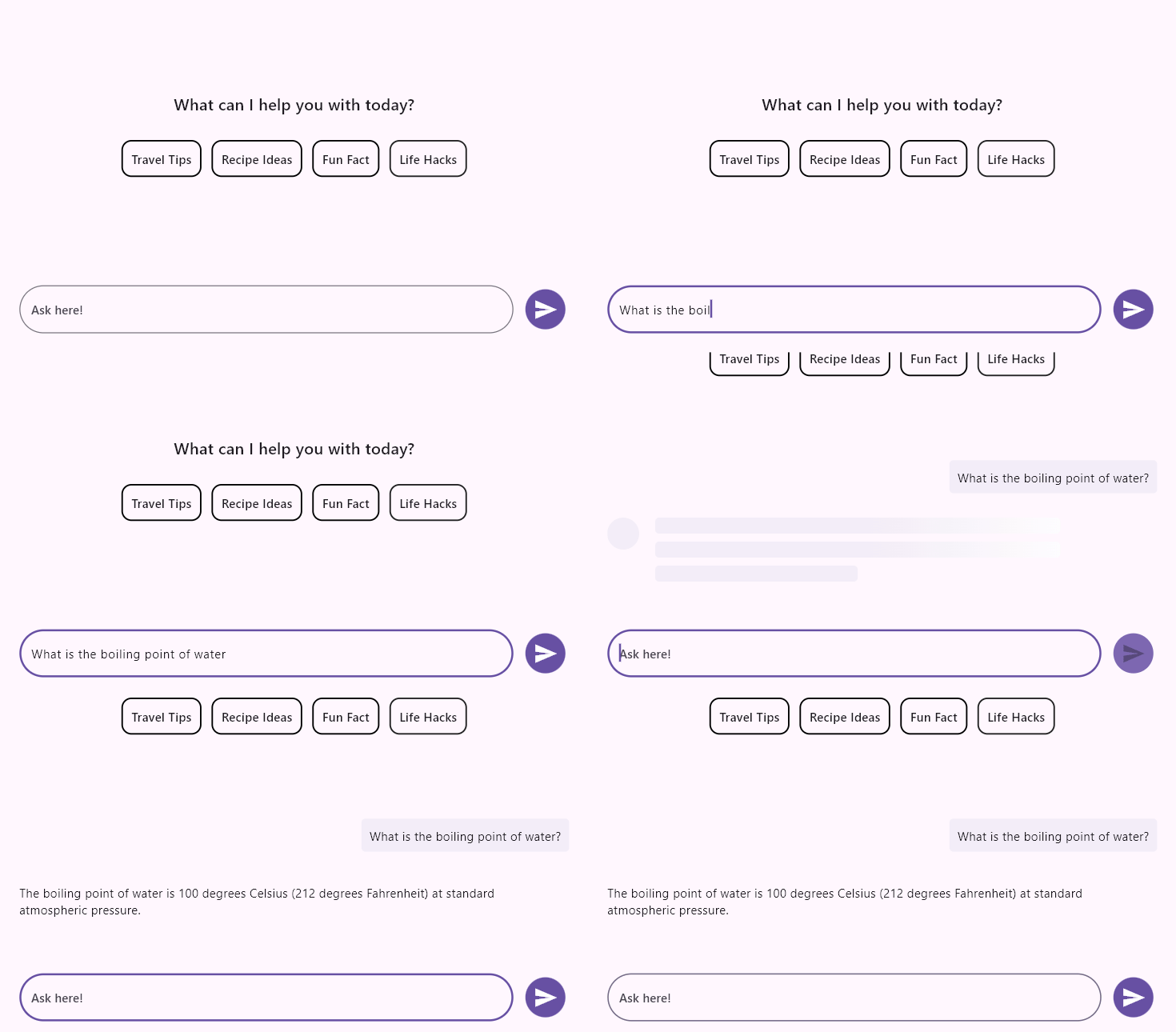
The placeholder can scroll along with messages. This behavior is identical to the previous sample, with the placeholderBehavior set to AssistPlaceholderBehavior.scrollWithMessage.
// Replace the placeholderBehavior value in the previous sample to
  // make the placeholder scroll along with messages.
  placeholderBehavior: AssistPlaceholderBehavior.scrollWithMessage,
      ),
    );
  }
You can refer to our Flutter AI AssistView feature tour page for its groundbreaking feature representations. You can also explore our Flutter AI AssistView example which demonstrates interaction between users and AI services in a fully customizable layout and shows how to easily configure the AI AssistView with built-in support for creating stunning visual effects.