Composer in Flutter AI AssistView (SfAIAssistView)
18 Nov 201819 minutes to read
This section explains the customization options available in AssistComposer, including the option to add any type of widget as a composer.
Default Composer
The default composer is a rounded rectangular text editor that allows users to compose request messages. You can customize its appearance by adding hint text, borders, prefix icons, suffix icons, and more.
When the composer is null, no default text field is added to the AI AssistView widget.
Minimum and maximum lines
-
minLinesspecifies the minimum number of lines in the text span, which affects the height of the text field. -
maxLinesdefines the maximum number of lines for the text, determining how many lines are visible when the text wraps.
The default value for minLines is 1, and the default value for maxLines is 6.
import 'package:flutter/material.dart';
import 'package:syncfusion_flutter_chat/assist_view.dart';

class MinMaxLinesExample extends StatelessWidget {
  const MinMaxLinesExample({super.key});

  final List<AssistMessage> _messages = const <AssistMessage>[];

  @override
  Widget build(BuildContext context) {
    return Scaffold(
      body: SfAIAssistView(
        messages: _messages,
        composer: const AssistComposer(
          minLines: 2,
          maxLines: 3,
        ),
      ),
    );
  }
}
Decoration
The decoration property customizes the visual attributes of the message input field, such as hint text, borders, and internal padding, using an InputDecoration.
The InputDecoration class enhances the composer by utilizing its properties, such as borders, labels, icons, and styles.
The following are the major features available in InputDecoration for decorating the composer:
All other properties of
InputDecorationare also supported.
Enabled
The enabled property defines whether the compose feature is in an enabled or disabled state. By default, it is set to true. If set to false, the compose feature will be disabled, and the default action button will also be disabled.
Border
The border property defines the shape of the border that is drawn around the text field. By default, an OutlineInputBorder is used.
import 'package:flutter/material.dart';
import 'package:syncfusion_flutter_chat/assist_view.dart';

class BorderExample extends StatelessWidget {
  const BorderExample({super.key});

  final List<AssistMessage> _messages = const <AssistMessage>[];

  @override
  Widget build(BuildContext context) {
    return Scaffold(
      body: SfAIAssistView(
        messages: _messages,
        composer: AssistComposer(
          decoration: InputDecoration(
            border: OutlineInputBorder(
              borderRadius: BorderRadius.circular(10),
            ),
          ),
        ),
      ),
    );
  }
}
Content padding
The contentPadding property defines the padding surrounding the text added inside the text field. By default, the contentPadding is set to EdgeInsets.symmetric(horizontal: 16.0, vertical: 18.0).
import 'package:flutter/material.dart';
import 'package:syncfusion_flutter_chat/assist_view.dart';

class ContentPaddingExample extends StatelessWidget {
  const ContentPaddingExample({super.key});

  final List<AssistMessage> _messages = const <AssistMessage>[];

  @override
  Widget build(BuildContext context) {
    return Scaffold(
      body: SfAIAssistView(
        messages: _messages,
        composer: const AssistComposer(
          decoration: InputDecoration(
            hintText: 'Ask here!',
            contentPadding: EdgeInsets.all(30),
          ),
        ),
      ),
    );
  }
}
Hint text
The hintText property sets the placeholder text for the text field. By default, it is set to null.
import 'package:flutter/material.dart';
import 'package:syncfusion_flutter_chat/assist_view.dart';

class HintTextExample extends StatelessWidget {
  const HintTextExample({super.key});

  final List<AssistMessage> _messages = const <AssistMessage>[];

  @override
  Widget build(BuildContext context) {
    return Scaffold(
      body: SfAIAssistView(
        messages: _messages,
        composer: const AssistComposer(
          decoration: InputDecoration(
            hintText: 'Ask here',
          ),
        ),
      ),
    );
  }
}
Hint text style
The hintStyle property refers to the text style of the hint text.
import 'package:flutter/material.dart';
import 'package:syncfusion_flutter_chat/assist_view.dart';

class HintTextStyleExample extends StatelessWidget {
  const HintTextStyleExample({super.key});

  final List<AssistMessage> _messages = const <AssistMessage>[];

  @override
  Widget build(BuildContext context) {
    return Scaffold(
      body: SfAIAssistView(
        messages: _messages,
        composer: const AssistComposer(
          decoration: InputDecoration(
            hintText: 'Ask here',
            hintStyle: TextStyle(
              color: Colors.blue,
              fontSize: 16,
              fontStyle: FontStyle.italic,
            ),
          ),
        ),
      ),
    );
  }
}
Prefix and suffix icons
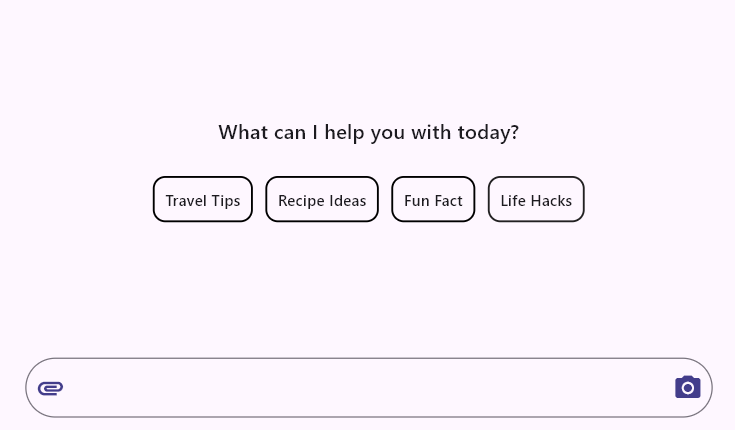
The prefixIcon and suffixIcon properties are used to add icons at the beginning and end of the text field, respectively.
import 'package:flutter/material.dart';
import 'package:syncfusion_flutter_chat/assist_view.dart';

class PrefixSuffixIconExample extends StatelessWidget {
  const PrefixSuffixIconExample({super.key});

  final List<AssistMessage> _messages = const <AssistMessage>[];

  @override
  Widget build(BuildContext context) {
    return Scaffold(
      body: SfAIAssistView(
        messages: _messages,
        composer: const AssistComposer(
          decoration: InputDecoration(
            prefixIcon: Icon(
              Icons.attachment,
              color: Color(0xFF433D8B),
            ),
            suffixIcon: Icon(
              Icons.camera_alt,
              color: Color(0xFF433D8B),
            ),
          ),
        ),
      ),
    );
  }
}
Margin
The margin property defines the space around the text field, which is used to create space between the conversation area and the text field.
By default, the top margin is set to 16.
import 'package:flutter/material.dart';
import 'package:syncfusion_flutter_chat/assist_view.dart';

class ComposerMarginExample extends StatelessWidget {
  const ComposerMarginExample({super.key});

  final List<AssistMessage> _messages = const <AssistMessage>[];

  @override
  Widget build(BuildContext context) {
    return Scaffold(
      body: SfAIAssistView(
        messages: _messages,
        composer: const AssistComposer(
          margin: EdgeInsets.fromLTRB(10, 30, 10, 20),
        ),
      ),
    );
  }
}
Text style
The textStyle property is used to set the style for the default AssistComposer text.
The specified text style will be merged with the bodyMedium and editorTextStyle text styles.
import 'package:flutter/material.dart';
import 'package:syncfusion_flutter_chat/assist_view.dart';

class TextStyleExample extends StatelessWidget {
  const TextStyleExample({super.key});

  final List<AssistMessage> _messages = const <AssistMessage>[];

  @override
  Widget build(BuildContext context) {
    return Scaffold(
      body: SfAIAssistView(
        messages: _messages,
        composer: const AssistComposer(
          textStyle: TextStyle(
            color: Color(0xFF433D8B),
          ),
        ),
      ),
    );
  }
}
Builder
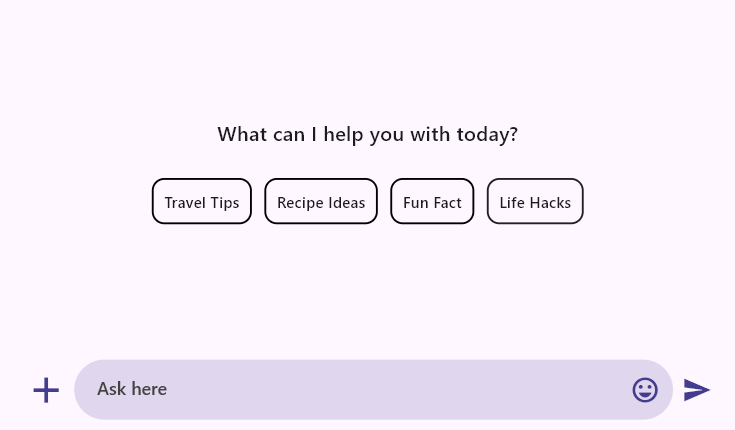
The AssistComposer.builder is used to specify a custom widget for the composer, allowing you to enable multiple options for composing messages, such as text, voice, and image messages.
If AssistComposer.builder is used, the action button will always be enabled. Since the action button’s onPressed receives an empty string when using a custom builder, the composed text should be retrieved directly from the composer (for example, via a TextEditingController). After the message is sent, call _controller.clear() to clear the input field.
import 'package:flutter/material.dart';
import 'package:syncfusion_flutter_chat/assist_view.dart';

class ComposerBuilderExample extends StatefulWidget {
  @override
  State<ComposerBuilderExample> createState() => _ComposerBuilderExampleState();
}

class _ComposerBuilderExampleState extends State<ComposerBuilderExample> {
  final List<AssistMessage> _messages = <AssistMessage>[];
  late TextEditingController _controller;

  @override
  void initState() {
    _controller = TextEditingController();
    super.initState();
  }

  @override
  Widget build(BuildContext context) {
    return Scaffold(
      body: SfAIAssistView(
        messages: _messages,
        composer: builderComposer(),
        actionButton: AssistActionButton(
          onPressed: (String data) {
            final String composedText = _controller.text;
            if (composedText.trim().isEmpty) {
              return;
            }
            setState(() {
              _messages.add(AssistMessage.request(data: composedText));
              _controller.clear();
            });
          },
        ),
      ),
    );
  }

  @override
  void dispose() {
    _controller.dispose();
    super.dispose();
  }

  AssistComposer builderComposer() {
    return AssistComposer.builder(
      builder: (context) {
        return Row(
          children: [
            const Icon(
              Icons.add,
              size: 35,
              color: Color(0xFF433D8B),
            ),
            const SizedBox(width: 5),
            Expanded(
              child: Container(
                decoration: BoxDecoration(
                  color: Theme.of(context).colorScheme.primary.withValues(alpha: 0.2),
                  borderRadius: BorderRadius.circular(25),
                ),
                child: TextField(
                  minLines: 1,
                  maxLines: 6,
                  controller: _controller,
                  decoration: InputDecoration(
                    contentPadding: const EdgeInsets.symmetric(
                      vertical: 10,
                      horizontal: 18,
                    ),
                    hintText: 'Ask here',
                    hintStyle: TextStyle(
                      color: Colors.grey.shade800,
                      fontSize: 14,
                      fontWeight: FontWeight.w500,
                    ),
                    suffixIcon: const Padding(
                      padding: EdgeInsets.only(right: 5.0),
                      child: Icon(
                        Icons.emoji_emotions_outlined,
                        color: Color(0xFF433D8B),
                      ),
                    ),
                    border: InputBorder.none,
                  ),
                ),
              ),
            ),
            const SizedBox(width: 7),
            const Icon(
              Icons.send,
              color: Color(0xFF433D8B),
            ),
          ],
        );
      },
    );
  }
}
You can refer to our Flutter AI AssistView feature tour page for its groundbreaking feature representations. You can also explore our Flutter AI AssistView example which demonstrates interaction between users and AI services in a fully customizable layout and shows how to easily configure the AI AssistView with built-in support for creating stunning visual effects.