Essential® UI Kit for .NET MAUI
13 May 20262 minutes to read
This guide explains how to integrate Syncfusion® MAUI UI Kit templates into a .NET MAUI project using JetBrains Rider, providing ready-to-use XAML pages along with corresponding View and ViewModel classes, resource files, and all necessary Syncfusion® NuGet package references.
NOTE
Before using the Essential® UI Kit for .NET MAUI - Syncfusion®, ensure that the plugin is installed in JetBrains Rider. To check, go to Settings > Plugin >Installed . If the plugin is not installed, follow the steps in the download and installation help guide to install it.
Add UI Kit templates to a .NET MAUI project
-
Open your .NET MAUI project in Rider and right‑click the project and choose
Tools→Essential UI Kit for .NET MAUI.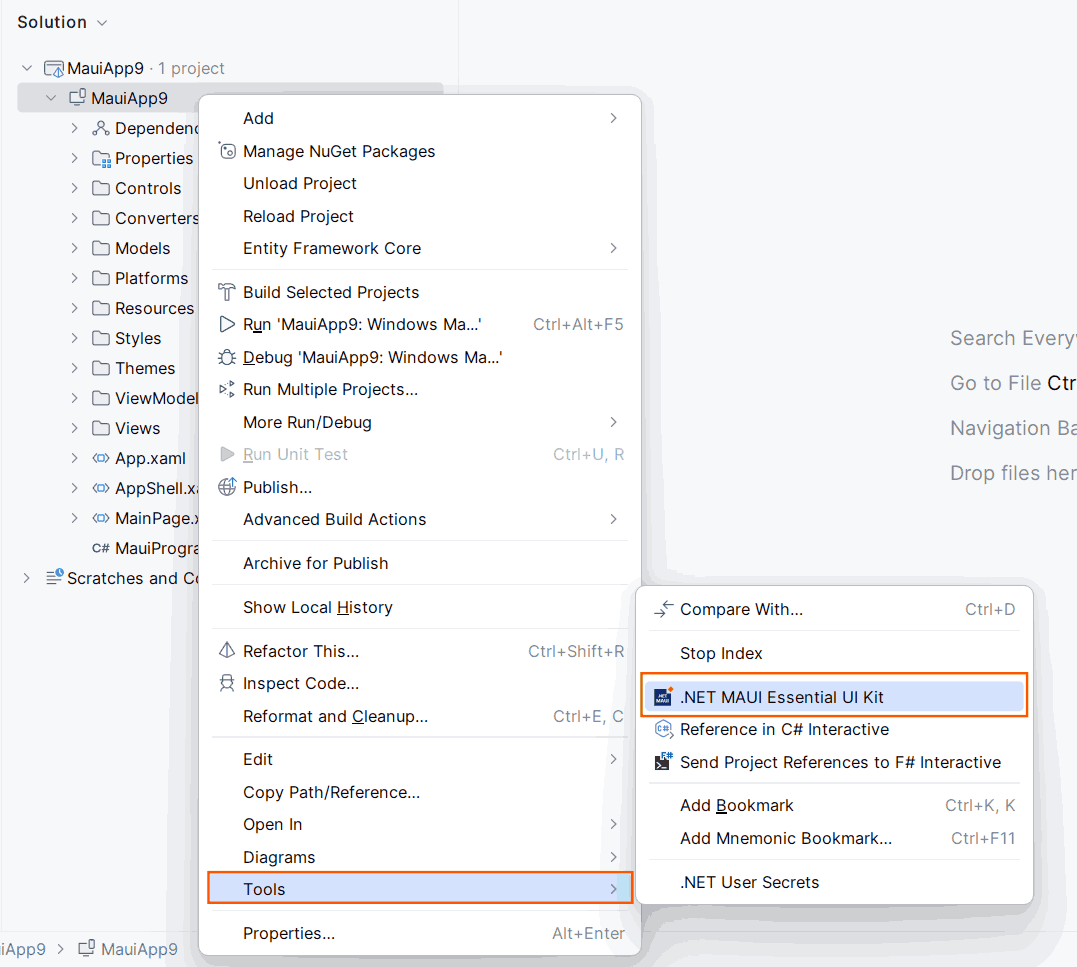
-
The category dialogue wizard will open with pre-defined templates.
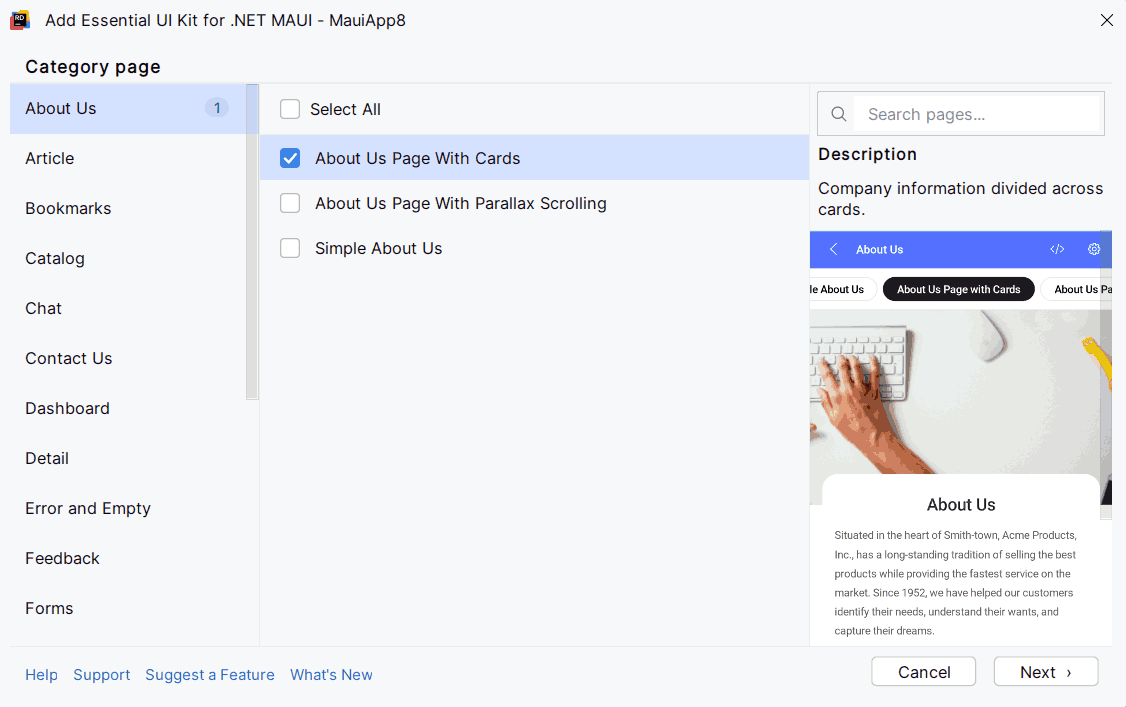
-
Choose one or more page templates (for example,
About Us Page With Cards), then clickNext. -
Enter a name for the new page and click
Addto scaffold the XAML page, View, ViewModel, model classes, and resources.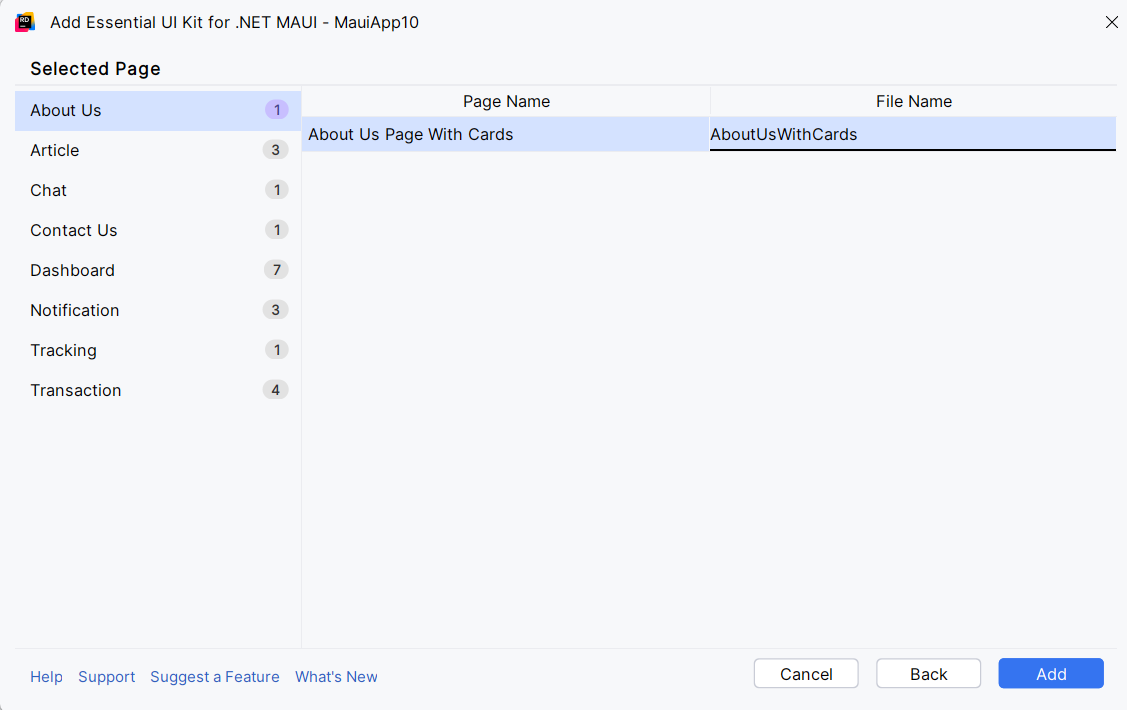
-
The selected pages will be added along with View, View Model, Model classes, resource files and Syncfusion® NuGet package reference.
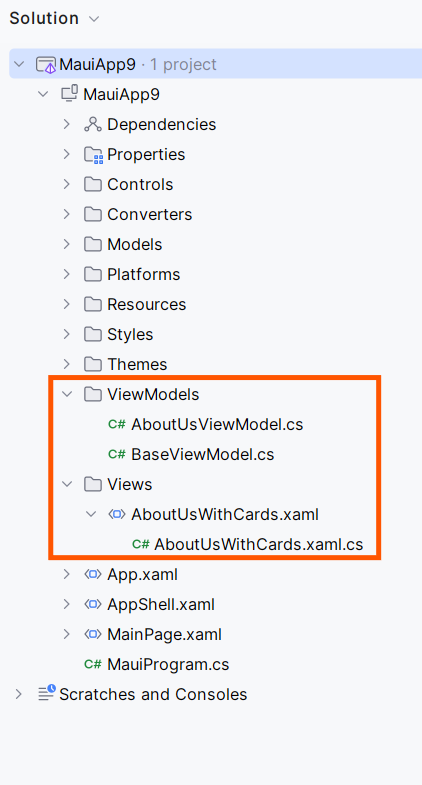
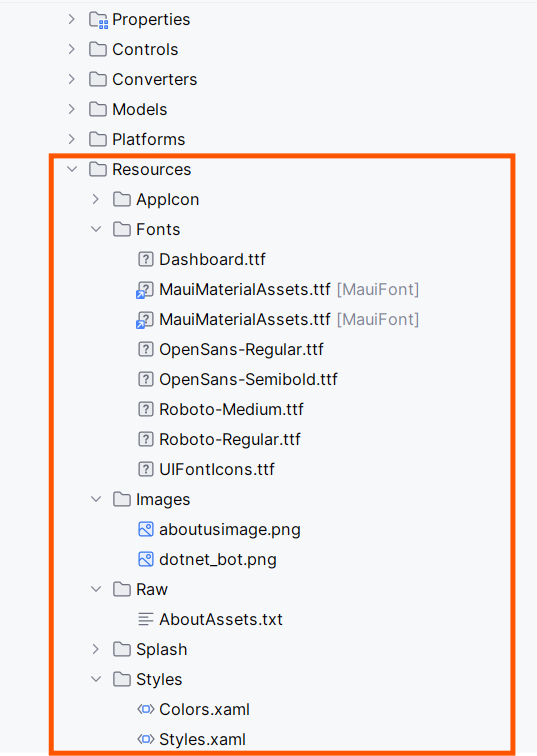
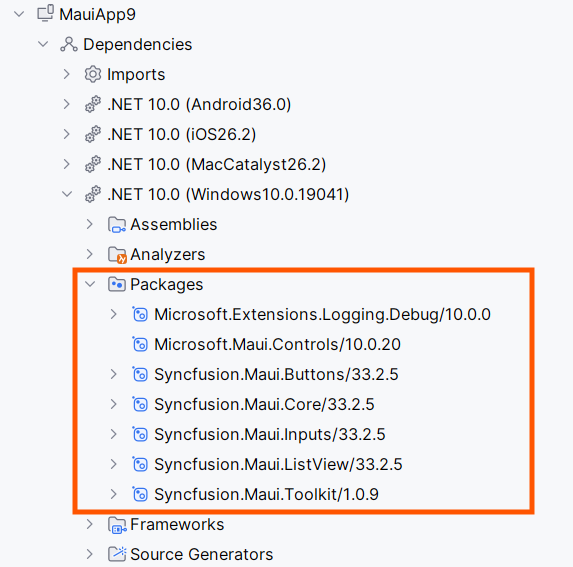
-
Syncfusion® licensing registration required message box will be shown if you installed the trial setup or NuGet packages since Syncfusion® introduced the licensing system from 2018 Volume 2 (v16.2.0.41) Essential Studio® release. Navigate to the help topic, which is shown in the licensing message box to generate and register the Syncfusion® license key to your project. Refer to this blog post for understanding the licensing changes introduced in Essential Studio®.
Set the new page as the app start page
Open App.xaml.cs and update CreateWindow to return your new page. Example — if you added LoginWithSocialIcon:
protected override Window CreateWindow(IActivationState? activationState)
{
	return new Window(new LoginWithSocialIcon());
}
Troubleshooting
-
Templates don’t appear: restart Rider after installing the extension or verify the plugin is enabled.
-
NuGet packages failing to restore: ensure your NuGet sources are available and that the project targets a supported MAUI framework.
-
License prompts persist: confirm the license key is registered early in app startup and matches your Syncfusion account.