Getting Started with Blazor Web App DOCX Editor
14 Aug 20267 minutes to read
Blazor DOCX Editor (Document Editor) enables you to create, edit, view, and print Word documents in web applications. This section guides you through the steps to get started and create a DOCX Editor in a Blazor Web App.
Prerequisites
Create a new Blazor Web App in Visual Studio
You can create a Blazor Web App using Visual Studio 2022 via Microsoft Templates.
You need to configure the corresponding Interactive render mode and Interactivity location while creating the Blazor Web App.
Install DOCX Editor NuGet packages
To add Syncfusion Blazor DOCX Editor component in the app, open the NuGet package manager in Visual Studio (Tools → NuGet Package Manager → Manage NuGet Packages for Solution), search and install:
Alternatively, you can utilize the following package manager command to achieve the same.
Install-Package Syncfusion.Blazor.WordProcessor
Install-Package Syncfusion.Blazor.Themes
Create a new Blazor Web App in Visual Studio Code
You can create a Blazor Web App using Visual Studio Code via Microsoft Templates.
You need to configure the corresponding Interactive render mode and Interactivity location while creating a Blazor Web Application.
For example, in a Blazor Web App with the Auto interactive render mode, use the following commands.
dotnet new blazor -o BlazorWebApp -int Auto
cd BlazorWebApp
cd BlazorWebApp.Client
For more information on creating a Blazor Web App with various interactive modes and locations, refer to this link.
Install DOCX Editor NuGet packages
If you utilize WebAssembly or Auto render modes in the Blazor Web App, you need to install DOCX Editor NuGet packages within the client project.
- Press Ctrl+` to open the integrated terminal in Visual Studio Code.
- Ensure the terminal is in the project root directory (where the
.csprojfile is located). - Run the following command to install:
dotnet add package Syncfusion.Blazor.WordProcessor
dotnet add package Syncfusion.Blazor.Themes
dotnet restore
Add import namespaces
Open the ~/_Imports.razor file based on your interactive render mode and add the following namespaces:
| Interactive Render Mode | File Location |
|---|---|
| WebAssembly or Auto |
~/_Imports.razor in the client project
|
| Server |
~/_Imports.razor in the Components folder |
Add the following import statement to the ~/_Imports.razor file:
@using Syncfusion.Blazor
@using Syncfusion.Blazor.DocumentEditor
Register a Syncfusion License Key
Before initializing the Blazor DOCX Editor control, generate a Syncfusion license key and register it in your application.
Register Syncfusion® Blazor Services
- Open the
Program.csfile and add the following namespace.
using Syncfusion.Blazor;- In the
Program.csfile, register the Syncfusion® Blazor services by adding the following statement along with the other service registrations.
// Register Syncfusion Blazor services along with other service registrations
builder.Services.AddSyncfusionBlazor();
If you are using the WebAssembly or Auto interactive render mode in a Blazor Web App, register the Syncfusion® Blazor services in both the Server and Client projects. For the Server interactive render mode, register the services only in the server project.
Add stylesheet
The theme stylesheet can be accessed from NuGet through Static Web Assets. Include the stylesheet reference in the <head> section of your Components/App.razor file.
<!-- Add Syncfusion theme -->
<link href="_content/Syncfusion.Blazor.Themes/bootstrap5.css" rel="stylesheet" />
Add script resources
Include the script reference at the end of the <body> section in the ~/Components/App.razor file.
<!-- Add the DOCX Editor script -->
<script src="_content/Syncfusion.Blazor.WordProcessor/scripts/syncfusion-blazor-documenteditor.min.js" type="text/javascript"></script>
Check out the Blazor Themes topic to discover various methods (Static Web Assets, CDN, and CRG) for referencing themes in your Blazor application. Also, check out the Adding Script Reference topic to learn different approaches for adding script references in your Blazor application.
Add the DOCX Editor component
Add the DOCX Editor component in the ~/Components/Pages/Home.razor file. If the interactivity location is set to Per page/component, define a render mode at the top of the component, as follows:
| Interactivity location | RenderMode | Code |
|---|---|---|
| Per page/component | Auto | @rendermode InteractiveAuto |
| WebAssembly | @rendermode InteractiveWebAssembly | |
| Server | @rendermode InteractiveServer |
If the interactivity location is set to Global in your Blazor Web App, you do not need to add a render mode directive.
@rendermode InteractiveAuto
@using Syncfusion.Blazor.DocumentEditor

<SfDocumentEditorContainer EnableToolbar=true Height="590px"></SfDocumentEditorContainer>
Run the application
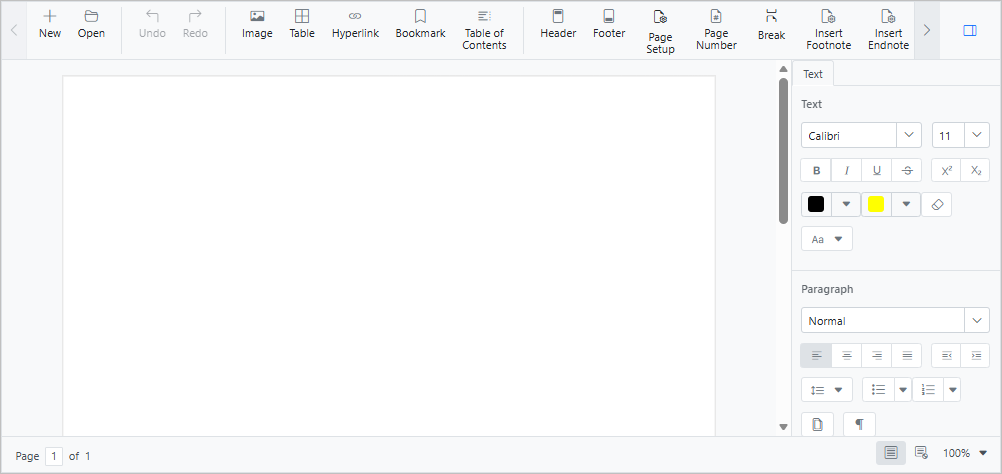
Press Ctrl+F5 (Windows) or ⌘+F5 (macOS) to launch the application. The application opens and displays the DOCX Editor in your default web browser. The output will appear as follows:
Online Demo
Explore how to create, edit, and print Word documents using the Blazor DOCX Editor in this live demo here.
Looking for the full Blazor DOCX Editor component overview, features, pricing, and documentation? Visit the Blazor DOCX Editor page.
Troubleshooting
If the DOCX Editor control does not render as expected, use the following checklist to resolve the most common setup and configuration issues.
1. DOCX Editor does not render / script errors in console
- Confirm the script reference is added at the end of the
<body>section in ~/Components/App.razor. - For WebAssembly or Auto render modes, ensure the DOCX Editor NuGet packages are installed in the client project (not just the server project).
2. Component renders but is non-interactive
- Verify a render mode directive (
@rendermode InteractiveAuto,InteractiveWebAssembly, orInteractiveServer) is present at the top of the page when interactivity location is set toPer page/component.
3. Licensing errors at runtime
- Ensure you have generated and registered your Syncfusion license key before initializing the DOCX Editor control.