Syncfusion AI Assistant

How can I help you?

Getting started with server-backed Vue PDF Viewer

28 Feb 202612 minutes to read

This section explains how to create the PDF Viewer component and configure its available functionalities in a Vue 2 application using Vue-CLI with a server-backed architecture. Ensure that your machine meets the system requirements for Syncfusion® Vue UI components.

This application uses the Vue CLI tooling and requires Node v14.15.0 or later. For more information about the CLI, refer to the Vue-CLI documentation.

Important: The server-backed PDF Viewer requires a backend web service to process and render PDFs. Unlike the standalone mode, which renders PDFs locally in the browser, the server-backed architecture offloads processing to a server, enabling better performance for large documents and advanced features.

Set up development environment

Open the command prompt in the required directory and run the following command to install Vue CLI and create a new Vue 2 project using the Vue create command:

npm install -g @vue/cli
vue create quickstart
cd quickstart

or

yarn global add @vue/cli
vue create quickstart
cd quickstart

When creating a new project, choose the option Default ([Vue 2] babel, es-lint) from the menu.

Vue 2 project

After the quick start project is created with the default settings, proceed to add Syncfusion® components to the application.

Add Syncfusion® Vue packages

Syncfusion® packages are available at npmjs.com. To add the PDF Viewer to the project, install the @syncfusion/ej2-vue-pdfviewer package using one of the following commands:

npm install @syncfusion/ej2-vue-pdfviewer --save

or

yarn add @syncfusion/ej2-vue-pdfviewer

Import Syncfusion® CSS styles

You can import themes for the Syncfusion® Vue components in several ways, such as referencing CSS or SASS styles from npm packages, CDN, CRG, or Theme Studio. Refer to the themes documentation for more details about built-in themes and the available approaches.

In this example, the Material theme styles required for the PDF Viewer component and its dependencies are imported into the <style> section of the src/App.vue file.

<style>
  @import '../node_modules/@syncfusion/ej2-base/styles/material.css';
  @import '../node_modules/@syncfusion/ej2-buttons/styles/material.css';
  @import '../node_modules/@syncfusion/ej2-dropdowns/styles/material.css';
  @import '../node_modules/@syncfusion/ej2-inputs/styles/material.css';
  @import '../node_modules/@syncfusion/ej2-navigations/styles/material.css';
  @import '../node_modules/@syncfusion/ej2-popups/styles/material.css';
  @import '../node_modules/@syncfusion/ej2-splitbuttons/styles/material.css';
  @import '../node_modules/@syncfusion/ej2-lists/styles/material.css';
  @import '../node_modules/@syncfusion/ej2-pdfviewer/styles/material.css';
</style>

PDF Viewer has different themes; refer to Supported themes section.

Add Syncfusion® Vue component

Follow these steps to add the Vue PDF Viewer component:

  1. Import and register the PDF Viewer component in the script section of the src/App.vue file
<script setup>
import { PdfViewerComponent as EjsPdfviewer, Toolbar, Magnification, Navigation, LinkAnnotation,
         BookmarkView,ThumbnailView, Print,TextSelection, TextSearch,
         Annotation, FormDesigner, FormFields, PageOrganizer} from '@syncfusion/ej2-vue-pdfviewer';

</script>
<script>
import { PdfViewerComponent, Toolbar, Magnification, Navigation, LinkAnnotation,
         BookmarkView,ThumbnailView, Print,TextSelection, TextSearch,
         Annotation, FormDesigner, FormFields, PageOrganizer} from '@syncfusion/ej2-vue-pdfviewer';

</script>
  1. In the template section, define the PDF Viewer component and bind the documentPath and serviceUrl properties.
<template>
  <div id="app">
    <ejs-pdfviewer
      id="pdfViewer"
      :serviceUrl="serviceUrl"
      :documentPath="documentPath">
    </ejs-pdfviewer>
  </div>
</template>
  1. Declare the bound properties serviceUrl and documentPath in the script section.
<script setup>
import { provide } from "vue";

import {
  PdfViewerComponent as EjsPdfviewer, Toolbar, Magnification, Navigation, LinkAnnotation,
  BookmarkView, ThumbnailView, Print, TextSelection, TextSearch,
  Annotation, FormDesigner, FormFields, PageOrganizer
} from '@syncfusion/ej2-vue-pdfviewer';

const serviceUrl = "https://document.syncfusion.com/web-services/pdf-viewer/api/pdfviewer";
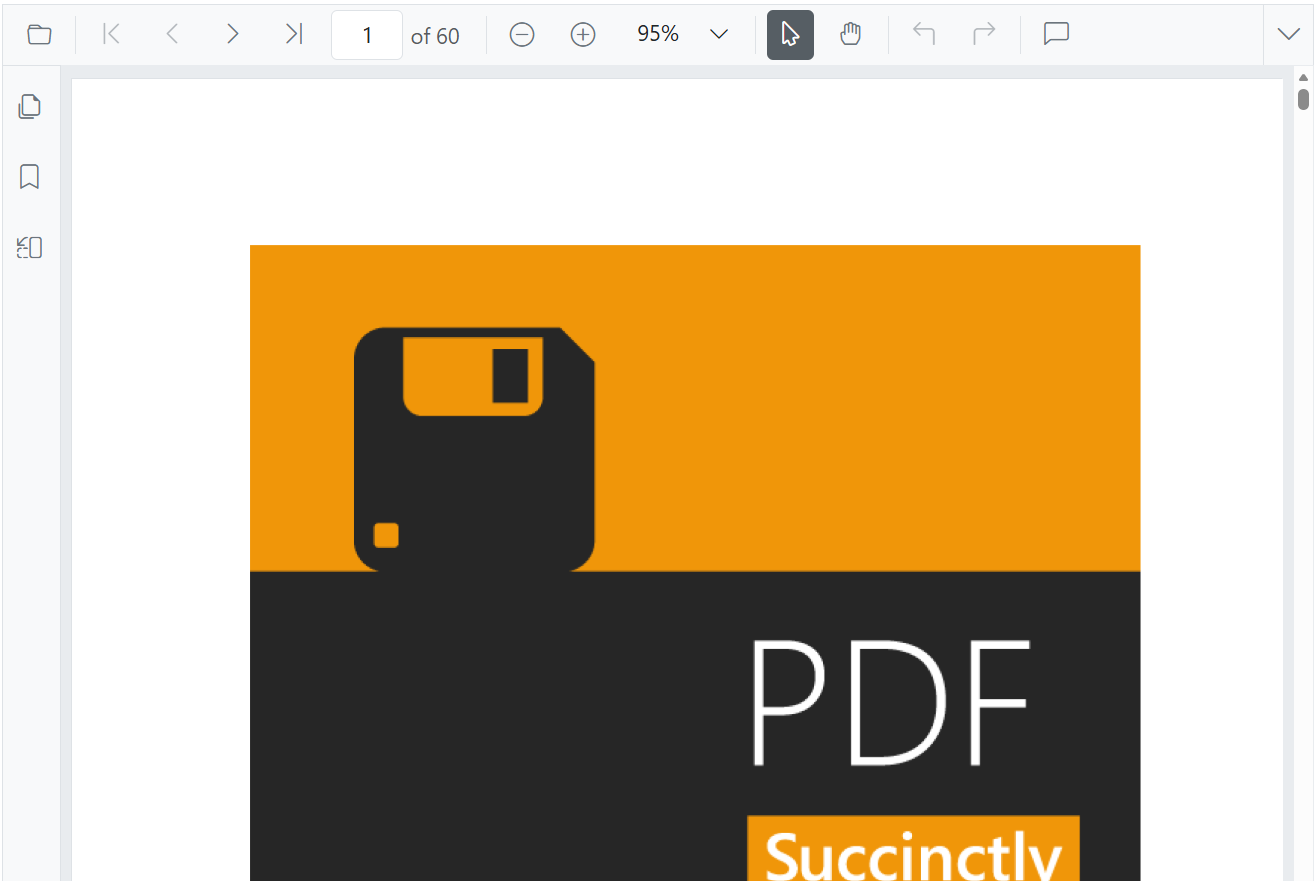
const documentPath = "https://cdn.syncfusion.com/content/pdf/pdf-succinctly.pdf";

provide('PdfViewer', [Toolbar, Magnification, Navigation, LinkAnnotation, BookmarkView, ThumbnailView,
  Print, TextSelection, TextSearch, Annotation, FormDesigner, FormFields, PageOrganizer]);

</script>
<script>
import {
  PdfViewerComponent, Toolbar, Magnification, Navigation, LinkAnnotation,
  BookmarkView, ThumbnailView, Print, TextSelection, TextSearch,
  Annotation, FormDesigner, FormFields, PageOrganizer
} from '@syncfusion/ej2-vue-pdfviewer';

export default {
  name: 'App',
  components: {
    "ejs-pdfviewer": PdfViewerComponent
  },
  data() {
    return {
      serviceUrl: "https://document.syncfusion.com/web-services/pdf-viewer/api/pdfviewer",
      documentPath: "https://cdn.syncfusion.com/content/pdf/pdf-succinctly.pdf"
    };
  },
  provide: {
    PdfViewer: [Toolbar, Magnification, Navigation, LinkAnnotation, BookmarkView, ThumbnailView,
      Print, TextSelection, TextSearch, Annotation, FormDesigner, FormFields, PageOrganizer]
  }
}

</script>

The following code summarizes the above steps in the src/App.vue file:

<template>
  <ejs-pdfviewer id="pdfViewer" :serviceUrl="serviceUrl" :documentPath="documentPath">
  </ejs-pdfviewer>
</template>

<script setup>
import { provide } from "vue";
import {
  PdfViewerComponent, Toolbar, Magnification, Navigation, LinkAnnotation, BookmarkView,
  ThumbnailView, Print, TextSelection, TextSearch, Annotation, FormDesigner, FormFields, PageOrganizer
} from '@syncfusion/ej2-vue-pdfviewer';

const serviceUrl = "https://document.syncfusion.com/web-services/pdf-viewer/api/pdfviewer";
const documentPath = "https://cdn.syncfusion.com/content/pdf/pdf-succinctly.pdf";

provide('PdfViewer', [Toolbar, Magnification, Navigation, LinkAnnotation, BookmarkView, ThumbnailView,
  Print, TextSelection, TextSearch, Annotation, FormDesigner, FormFields, PageOrganizer]);

</script>

<style>
@import '../node_modules/@syncfusion/ej2-base/styles/material.css';
@import '../node_modules/@syncfusion/ej2-buttons/styles/material.css';
@import '../node_modules/@syncfusion/ej2-dropdowns/styles/material.css';
@import '../node_modules/@syncfusion/ej2-inputs/styles/material.css';
@import '../node_modules/@syncfusion/ej2-navigations/styles/material.css';
@import '../node_modules/@syncfusion/ej2-popups/styles/material.css';
@import '../node_modules/@syncfusion/ej2-splitbuttons/styles/material.css';
@import '../node_modules/@syncfusion/ej2-lists/styles/material.css';
@import '../node_modules/@syncfusion/ej2-pdfviewer/styles/material.css';
</style>
<template>
  <ejs-pdfviewer id="pdfViewer" :serviceUrl="serviceUrl" :documentPath="documentPath">
  </ejs-pdfviewer>
</template>

<script>
import {
  PdfViewerComponent, Toolbar, Magnification, Navigation, LinkAnnotation, BookmarkView,
  ThumbnailView, Print, TextSelection, TextSearch, Annotation, FormDesigner, FormFields, PageOrganizer
} from '@syncfusion/ej2-vue-pdfviewer';

export default {
  name: "App",
  components: {
    "ejs-pdfviewer": PdfViewerComponent
  },
  data() {
    return {
      serviceUrl: "https://document.syncfusion.com/web-services/pdf-viewer/api/pdfviewer",
      documentPath: "https://cdn.syncfusion.com/content/pdf/pdf-succinctly.pdf"
    };
  },
  provide: {
    PdfViewer: [Toolbar, Magnification, Navigation, LinkAnnotation, BookmarkView, ThumbnailView,
      Print, TextSelection, TextSearch, Annotation, FormDesigner, FormFields, PageOrganizer]
  }
}
</script>

<style>
@import '../node_modules/@syncfusion/ej2-base/styles/material.css';
@import '../node_modules/@syncfusion/ej2-buttons/styles/material.css';
@import '../node_modules/@syncfusion/ej2-dropdowns/styles/material.css';
@import '../node_modules/@syncfusion/ej2-inputs/styles/material.css';
@import '../node_modules/@syncfusion/ej2-navigations/styles/material.css';
@import '../node_modules/@syncfusion/ej2-popups/styles/material.css';
@import '../node_modules/@syncfusion/ej2-splitbuttons/styles/material.css';
@import '../node_modules/@syncfusion/ej2-lists/styles/material.css';
@import '../node_modules/@syncfusion/ej2-pdfviewer/styles/material.css';
</style>

NOTE

We have provided support to dynamically change the serviceUrl. After updating the serviceUrl dynamically, invoke the pdfViewer.dataBind() method before calling the load method. This ensures that the updated serviceUrl is applied immediately. Make sure to perform this step in versions 23.1.36 and later.

NOTE

The Web API hosted link https://document.syncfusion.com/web-services/pdf-viewer/api/pdfviewer utilized in the PDF Viewer’s serviceUrl property is intended solely for demonstration and evaluation purposes. For production deployment, host your own web service with your required server configurations. Refer to the GitHub Web Service example or Docker image for hosting your own web service and use it for the serviceUrl property.

Run the project

To run the project, use the following command:

npm run serve

or

yarn run serve

Module injection

To create the PDF Viewer with additional features, inject the required modules. The following modules are used to extend the PDF Viewer component’s basic functionality:

  • LinkAnnotation: Inject this module to use PDF Viewer link annotations.
  • BookmarkView: Inject this module to use the bookmark view of the PDF Viewer.
  • Magnification: Inject this module to magnify the PDF document.
  • Navigation: Inject this module to enable page navigation in the PDF document.
  • TextSelection: Inject this module to enable text selection in the PDF document.
  • ThumbnailView: Inject this module to display the thumbnail view of the PDF Viewer.
  • Toolbar: Inject this module to provide the toolbar user interface in the PDF Viewer.
  • Print: Inject this module to add print support to the PDF Viewer.
  • Annotation: Inject this module to enable annotation features in the PDF Viewer.
  • TextSearch: Inject this module to enable text search functionality in the PDF Viewer.
  • FormFields: Inject this module to work with form fields in the PDF Viewer.
  • FormDesigner: Inject this module to enable the form designer feature.

These modules are registered with the component by providing them through the provide option in the Vue application.

For PDF Viewer serviceUrl creation, follow the steps provided in the link

How to run the PDF Viewer web service

1.Download the sample from the Web service sample in GitHub link.

2.Navigate to the ASP.NET Core folder and open it in the command prompt.

3.Navigate to the appropriate subfolder based on your .NET version:

  • .NET 6.0 → PdfViewerWebService_6.0
  • .NET 8.0 → PdfViewerWebService_8.0

4.Use the below command to restore the required packages.

  dotnet restore

5.Use the below command to run the web service.

  dotnet run

6.You can see that the PDF Viewer server instance runs in the localhost with the port number localhost:5001. Navigate to the PDF Viewer web control localhost:5001/pdfviewer, which returns the default GET response. Bind the link to the serviceUrl property of the PDF Viewer as shown below.

  export default {
    name: 'app',
    data () {
      return {
        serviceUrl:"https://localhost:5001/pdfviewer",
        documentPath:"PDF_Succinctly.pdf"
      };
    }}

NOTE

When configuring the server-backed PDF Viewer, there is no need to include the pdfium.js and pdfium.wasm files. Unlike the standalone PDF Viewer, which relies on these files for local rendering, the server-backed PDF Viewer fetches and renders PDFs directly from the server. Consequently, these files are not required for deployment, and you can exclude the copy command for the deployment process.

View sample in GitHub.

Explore the Vue PDF Viewer feature tour page for comprehensive feature demonstrations. You can also review the Vue PDF Viewer example to understand the core features of the PDF Viewer.

NOTE

For hosting the web service on Linux, ensure you include the SkiaSharp.NativeAssets.Linux package. Additionally, for AWS environments, use the following packages:

Amazon Web Services (AWS) NuGet package name
AWS Lambda SkiaSharp.NativeAssets.Linux
AWS Elastic Beanstalk SkiaSharp.NativeAssets.Linux.NoDependencies v3.116.1