Getting Started with Vue 3 PDF Viewer
7 Sep 20266 minutes to read
This section explains how to create a Vue 3 application with Vite and integrate the Syncfusion® Vue PDF Viewer component using either the Composition API or Options API.
API Approaches
Composition API – A modern approach to organizing component logic by composing smaller, reusable functions. This method offers better code organization and is more reusable for complex components.
Options API – The traditional Vue approach that organizes component logic into a series of options (data, methods, computed properties, watchers, life cycle hooks, etc.).
Prerequisites
Install Node.js (version 18 or later recommended) along with npm or Yarn before creating the project. Review the system requirements for Vue UI components to confirm supported platforms.
Set up the Vite project
Use Vite to quickly scaffold a Vue 3 project. Run one of the following commands to create a new project:
npm create vite@latestyarn create viteAfter running the command, follow the interactive prompts shown below to configure the project:
- Define the project name: Specify the project name directly. This guide uses
my-project.
? Project name: » my-project- Select
Vueas the framework to target Vue 3.
  ? Select a framework: » - Use arrow-keys. Return to submit.
  Vanilla
  > Vue
    React
    Preact
    Lit
    Svelte
Others- Choose
JavaScriptas the variant to build the Vite project with JavaScript and Vue.
  ? Select a variant: » - Use arrow-keys. Return to submit.
  > JavaScript
    TypeScript
    Customize with create-vue ↗
Nuxt ↗- After the scaffold completes, install the project dependencies:
cd my-project
  npm install
cd my-project
yarn installAdd Syncfusion® Vue packages
Install the @syncfusion/ej2-vue-pdfviewer package using npm or Yarn. This package includes the PDF Viewer component and all required dependencies:
npm install @syncfusion/ej2-vue-pdfviewer --saveyarn add @syncfusion/ej2-vue-pdfviewerImport the required CSS styles
Themes for PDF Viewer can be applied using CSS or SASS files from the npm theme packages, CDN, CRG, or Theme Studio. For more information, see the themes documentation.
This guide uses the Tailwind 3 theme as an example, sourced from the theme package. In this package, each component includes an index.css file that automatically loads all the required dependency styles. To install the Tailwind 3 theme package, use the following command:
npm install @syncfusion/ej2-tailwind3-themeImport the PDF Viewer theme CSS into the <style> section of src/App.vue:
<style>
  @import '../node_modules/@syncfusion/ej2-tailwind3-theme/styles/pdfviewer/index.css';
</style>
The
index.cssfile automatically includes all required dependent component styles for the PDF Viewer. You do not need to import individual dependency styles such as Base, Buttons, Dropdowns, Inputs, Navigations, Popups, SplitButtons, and Lists separately.
For full details, see the themes documentation.
Add Syncfusion® Vue component
Add the PDF Viewer component to your Vue 3 application by following these instructions:
Import and register the PDF Viewer
Import the PDF Viewer component and required modules in the <script> section of src/App.vue.
import { provide } from 'vue';
import { PdfViewerComponent, Toolbar, Magnification, Navigation, LinkAnnotation, BookmarkView,
  ThumbnailView, Print, TextSelection, TextSearch, Annotation, FormDesigner, FormFields } from '@syncfusion/ej2-vue-pdfviewer';

const serviceUrl = 'https://document.syncfusion.com/web-services/pdf-viewer/api/pdfviewer';
const documentPath = 'https://cdn.syncfusion.com/content/pdf/pdf-succinctly.pdf';
const pdfViewer = null;

provide('PdfViewer', [ Toolbar, Magnification, Navigation, LinkAnnotation, BookmarkView, ThumbnailView,
                       Print, TextSelection, TextSearch, Annotation, FormDesigner, FormFields ]);
import { PdfViewerComponent, Toolbar, Magnification, Navigation, LinkAnnotation, BookmarkView,
ThumbnailView, Print, TextSelection, TextSearch, Annotation, FormDesigner, FormFields } from '@syncfusion/ej2-vue-pdfviewer';
export default {
name: 'App',
components: {
"ejs-pdfviewer": PdfViewerComponent
},
data() {
return {
serviceUrl: "https://document.syncfusion.com/web-services/pdf-viewer/api/pdfviewer",
documentPath: "https://cdn.syncfusion.com/content/pdf/pdf-succinctly.pdf"
};
},
provide: {
PdfViewer: [ Toolbar, Magnification, Navigation, LinkAnnotation, BookmarkView, ThumbnailView,
Print, TextSelection, TextSearch, Annotation, FormDesigner, FormFields ]
}
}serviceUrl – The back-end endpoint for PDF processing. The Syncfusion-hosted URL provides evaluation capabilities. For production, replace with your deployed web service endpoint.
documentPath – The URL or file path to the PDF document to display.
Initialize the PDF Viewer
Add the PDF Viewer component markup to the <template> section of src/App.vue:
<ejs-pdfviewer id="pdfViewer" :serviceUrl="serviceUrl" :documentPath="documentPath">
</ejs-pdfviewer>
Run the project
Run the following command to start the Vue application:
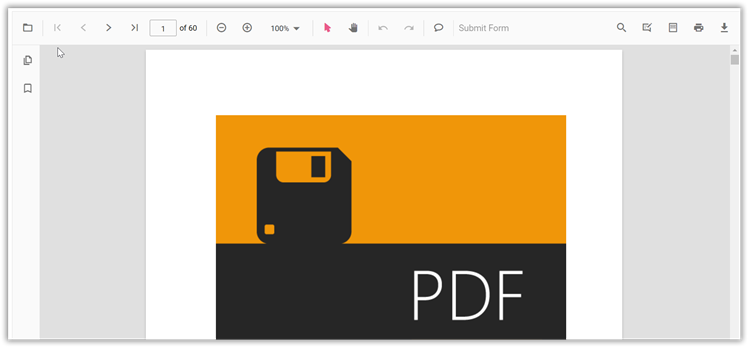
npm run devyarn run devAfter the application starts, open the URL shown in the terminal (typically http://localhost:5173) to view the Vue PDF Viewer in the browser. The output will appear as shown below, with the PDF Viewer toolbar and the sample pdf-succinctly.pdf document loaded:
Video tutorial
To get started quickly with Vue PDF Viewer, you can watch this video:
See also
- Getting Started with Standalone Vue 2 PDF Viewer
- Getting Started with Server-Backed Vue PDF Viewer
- Open PDF Files
- Save PDF Files
Looking for the full Vue PDF Viewer component overview, features, pricing, and documentation? Visit the Vue PDF Viewer page.