React UI Builder Skill with PDF Viewer
14 Aug 20268 minutes to read
Syncfusion® React UI Builder Skill is an AI-powered agent skill that accelerates React PDF Viewer development by transforming natural-language UI requirements into production-ready code using Syncfusion® React components.
Integrated with your AI-powered IDE, it leverages deep knowledge of the Syncfusion® PDF Viewer SDK and other React components to deliver accurate and ready-to-use code.
By combining intelligent code generation with best practices, accessibility standards, and design-system consistency, the Syncfusion® React UI Builder Skill helps you rapidly build scalable PDF viewing applications and user interfaces without leaving your development workflow.
Prerequisites
Before installing the Syncfusion® React UI Builder Skill with PDF Viewer, ensure the following:
- Install APM (Agent Package Manager).
-
Node.js version 18 or higher. Verify your installed version using the following command:
node -v - A React application (existing or new); see the Syncfusion® React Quick Start
- A supported AI agent or IDE that integrates with the Skills (VS Code, Cursor, Syncfusion® Code Studio, etc.)
- An active subscription for the selected agent (for example, a paid GitHub Copilot, Claude, or Cursor plan) where required by the agent.
- Active Syncfusion® license (any of the following):
Key Benefits
AI-Driven UI Generation
- Transforms prompts into fully developed React components rather than just partial code snippets.
- Automatically selects appropriate Syncfusion® components and features.
- Produces structured, maintainable code.
Component Usage & API Accuracy
- Uses correct Syncfusion® component APIs.
- Injects required feature modules (paging, sorting, filtering, etc.).
- Avoids unsupported or deprecated patterns.
Patterns & Best Practices
- Provides recommended component composition and state management.
- Aligns event handling with React standards.
- Applies secure and scalable coding patterns.
Accessibility & Responsiveness
- Produces output aligned with WCAG 2.1 AA.
- Generates semantic HTML with ARIA support.
- Builds mobile-first responsive layouts.
Design-System Integration
- Supports Tailwind, Bootstrap, Material, or custom themes.
- Ensures consistent Syncfusion® styling and theme usage.
Installation
Before installing React UI Builder Skill with PDF Viewer, ensure that APM (Agent Package Manager) is installed and available in your environment.
Verify APM Installation
Run the following command to confirm APM is installed:
apm --versionInstall the Syncfusion® React UI Builder Skill with PDF Viewer package using APM
Use the APM CLI to install the React UI Builder Skill with PDF Viewer for your preferred environment:
apm install syncfusion/react-ui-builder -t copilotapm install syncfusion/react-ui-builder -t cursorapm install syncfusion/react-ui-builder -t codexapm install syncfusion/react-ui-builder -t claudeAfter installation, the following artifacts are added to your project for the GitHub Copilot target:
-
.agent/skills/– contains the skill files -
.github/agents/– contains the agent configuration
Refer to the documentation for details about supported deployment targets.
For Syncfusion® Code Studio, use the Copilot command above to install the React UI Builder.
How the Syncfusion® React UI Builder Skill Works with PDF Viewer
- Intent Analysis: Parse the user’s prompt to identify component types and high-level layout intent.
- Project Detection: Automatically detects project framework, package manager, existing themes, and PDF Viewer configuration.
- Component Mapping: Map intent to Syncfusion® PDF Viewer and React components, including required modules.
-
Theming & Design System
Load required theming guidelines and confirm key design choices:- CSS framework (Tailwind, Bootstrap, Material, or Greenfield). When no themes are detected in the existing project, the Greenfield project type and the Syncfusion Tailwind3 theme are shown as the default options, which can be used as is or changed based on preference.
- Syncfusion theme (Tailwind3, Bootstrap5, Material3, Fluent2)
- Light and Dark Mode
- Core design basics (colors, spacing, typography, responsiveness, accessibility)
- Code Generation: Produces TypeScript React components with PDF Viewer integration, props interfaces, and CSS/styling scaffolding.
-
Dependency Management: Recommends or installs required Syncfusion® packages and peer dependencies, such as
@syncfusion/ej2-react-pdfviewer. - Validation: Runs accessibility and basic security checks, requests confirmation for changes.
- Code Insertion: Creates files or patches existing files following project structure and conventions.
Key enforcement points
- Adds correct theme and CSS imports for chosen Syncfusion® themes.
- Injects only the feature modules required by generated components.
- Generates semantic HTML with ARIA attributes and keyboard support.
- Avoids unsupported or deprecated API usages for Syncfusion® components.
The assistant handles most stages automatically and may request confirmation where required.
Using the AI Assistant
After installing React UI Builder Skill with PDF Viewer and APM, the relevant agent and skill files are added to your project under:
-
.agent/skills/(skill files) -
.github/agents/(React UI builder agent configuration, based on the selected target)
To start using the skill:
- Open your supported IDE.
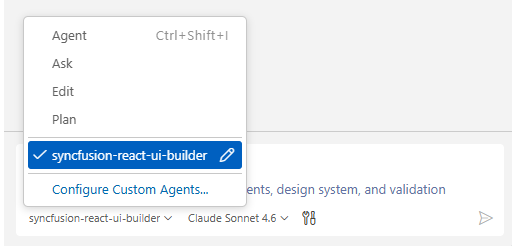
- In the chat panel, select the
syncfusion-react-ui-builderagent from the Agent dropdown.
- Prompt the agent with a clear description of your UI requirements.
For Syncfusion® Code Studio, if the UI Builder agent is not shown, ensure that the agent location is configured to use it in the chat, and refer to the documentation to configure the agent location properly.
Example Prompts:
Design an invoice viewing screen where the PDF viewer is displayed on the left and a structured details panel on the right. The panel should include invoice summary, payment status, client info, and action buttons (mark as paid, download, send reminder). Use card-based sections and soft colors for financial clarity.
Create a learning interface with the PDF viewer displaying course material. Add a collapsible sidebar with lesson navigation and progress tracking. Include a top progress bar, next/previous lesson buttons, and a notes section below or beside the viewer. Focus on student-friendly, distraction-free design.
Generated code follows best practices with accessible, semantic HTML, responsive mobile-first layouts, strong TypeScript typing, and built-in security measures such as input validation and avoidance of embedded secrets.
Best Practices
Follow these guidelines to get the most out of the Syncfusion® React UI Builder Skill and ensure high-quality production-ready results:
- Stay consistent: Maintain consistent file organization, naming conventions, and coding standards throughout your project.
- Use advanced AI models: For best results, use Claude Sonnet 4.6 or higher capability models to produce better code quality and more accurate implementations.
- Review all content and assets before production: Replace any placeholder images or icons (e.g., stock images or emoji sets) with your brand assets. Also validate the logic, security, and compatibility with your existing code before deployment.
Troubleshooting
APM installation failure
Refer to the APM installation troubleshooting guide.
Skills not loading
Ensure the .agent/ and .github/agents/ folders exist in your project and that the skill was installed successfully using APM. Verify that the correct agent is selected from the Agent dropdown in your IDE.
Agent does not appear in the dropdown
In Syncfusion® Code Studio, confirm that the agent location is configured to use the local agent. See the Code Studio user settings documentation.
Component not rendering
Retry generation using the specific component skill to resolve the issue, and ensure required Syncfusion® packages and themes are properly configured.
Syncfusion® license banner appears
Use the Licensing Skill to correctly register and validate your Syncfusion® license key in the application.
FAQ
Which agents/IDEs are supported?
The Syncfusion® React UI Builder Skill works with any Skills-compatible agent that reads local skill files, including Syncfusion® Code Studio, VS Code, and Cursor.
Are skills loaded automatically?
Yes. Supported agents automatically load relevant skills based on your query.
Can I customize the generated styles?
Yes. The skill supports choosing Tailwind, Bootstrap, Material, or a custom theme; generated components include clear integration points for style adjustments.
Does it modify files automatically?
The skill proposes changes and requires confirmation for insertion; automatic dependency installation may be offered depending on agent permissions.