Highlight Differences in React PDF Viewer UI
1 Oct 20266 minutes to read
The semantic text comparison feature highlights differences between two PDF documents with customizable colors and opacity, making it easy to identify changes at a glance.
Overview
When you compare two PDF documents using the semantic text comparison feature, differences are highlighted with:
- Deleted text - Highlighted in one color (default: red)
- Added text - Highlighted in another color (default: green)
- Synchronized viewers - Both documents remain aligned during comparison
Prerequisites
- Syncfusion React PDF Viewer installed
-
PdfComparerComponentavailable - Two PDF documents ready for comparison
Steps
Step 1: Import required components
import React from 'react';
import { PdfComparerComponent } from '@syncfusion/ej2-react-pdfviewer';
Step 2: Create the semantic text comparison component
Set up the comparison with basic default highlighting:
function SemanticTextComparison() {
    return (
        <PdfComparerComponent
            id="comparer-container"
            height="600px"
            // Specifies the URL (for example, a file from the public folder) or a Base64-encoded PDF.
            originalDocumentPath="https://cdn.syncfusion.com/content/pdf/original-document.pdf"
            modifiedDocumentPath="https://cdn.syncfusion.com/content/pdf/modified-document.pdf"
            // Specifies the path to the PDFium resource files required for the PDF Viewer to function.
            resourceUrl="https://cdn.syncfusion.com/ej2/34.2.4/dist/ej2-pdfviewer-lib">
        </PdfComparerComponent>
    );
}

export default SemanticTextComparison;
Step 3: Configure highlight colors and options
Define the comparisonOptions object to customize highlighting and pass it to the component:
function SemanticTextComparison() {
    const comparisonOptions = {
        beforeColor: '#FF0000',        // Color for deleted text (red)
        afterColor: '#00FF00',         // Color for added text (green)
        beforeColorOpacity: 0.4,       // Transparency for deleted (0-1)
        afterColorOpacity: 0.4,        // Transparency for added (0-1)
        enableHighlights: true         // Enable visual highlighting
    };

    return (
        <PdfComparerComponent
            id="comparer-container"
            height="600px"
            originalDocumentPath="https://cdn.syncfusion.com/content/pdf/original-document.pdf"
            modifiedDocumentPath="https://cdn.syncfusion.com/content/pdf/modified-document.pdf"
            comparisonOptions={comparisonOptions}
            resourceUrl="https://cdn.syncfusion.com/ej2/34.2.4/dist/ej2-pdfviewer-lib">
        </PdfComparerComponent>
    );
}

export default SemanticTextComparison;
Highlight customization
Comparison options
The highlight appearance is controlled by these options in the comparisonOptions object:
| Option | Type | Description | Default |
|---|---|---|---|
beforeColor |
string | Color for deleted text (hex format) | #FF0000 |
afterColor |
string | Color for added text (hex format) | #00FF00 |
beforeColorOpacity |
number | Transparency for deleted (0-1) | 0.4 |
afterColorOpacity |
number | Transparency for added (0-1) | 0.4 |
enableHighlights |
boolean | Enable/disable visual highlighting | true |
Viewer behavior properties
Control the viewer behavior with these properties:
| Property | Type | Description | Default |
|---|---|---|---|
enableDifferencePanel |
boolean | Show/hide sidebar panel displaying detected differences | true |
enableSyncScrolling |
boolean | Enable synchronized scrolling, navigation, and magnification between viewers | true |
Control the difference panel
Use the enableDifferencePanel property to show or hide the sidebar panel that displays all detected differences:
<PdfComparerComponent
    id="comparer-container"
    height="600px"
    originalDocumentPath="https://cdn.syncfusion.com/content/pdf/original-document.pdf"
    modifiedDocumentPath="https://cdn.syncfusion.com/content/pdf/modified-document.pdf"
    enableDifferencePanel={false}    // Hide the differences sidebar panel
    resourceUrl="https://cdn.syncfusion.com/ej2/34.2.4/dist/ej2-pdfviewer-lib">
</PdfComparerComponent>
Control synchronized scrolling and navigation
Use the enableSyncScrolling property to control whether the viewers stay synchronized during scrolling, page navigation, and magnification (zoom):
<PdfComparerComponent
    id="comparer-container"
    height="600px"
    originalDocumentPath="https://cdn.syncfusion.com/content/pdf/original-document.pdf"
    modifiedDocumentPath="https://cdn.syncfusion.com/content/pdf/modified-document.pdf"
    enableSyncScrolling={false}      // Disable synchronized scrolling and navigation
    resourceUrl="https://cdn.syncfusion.com/ej2/34.2.4/dist/ej2-pdfviewer-lib">
</PdfComparerComponent>
Features
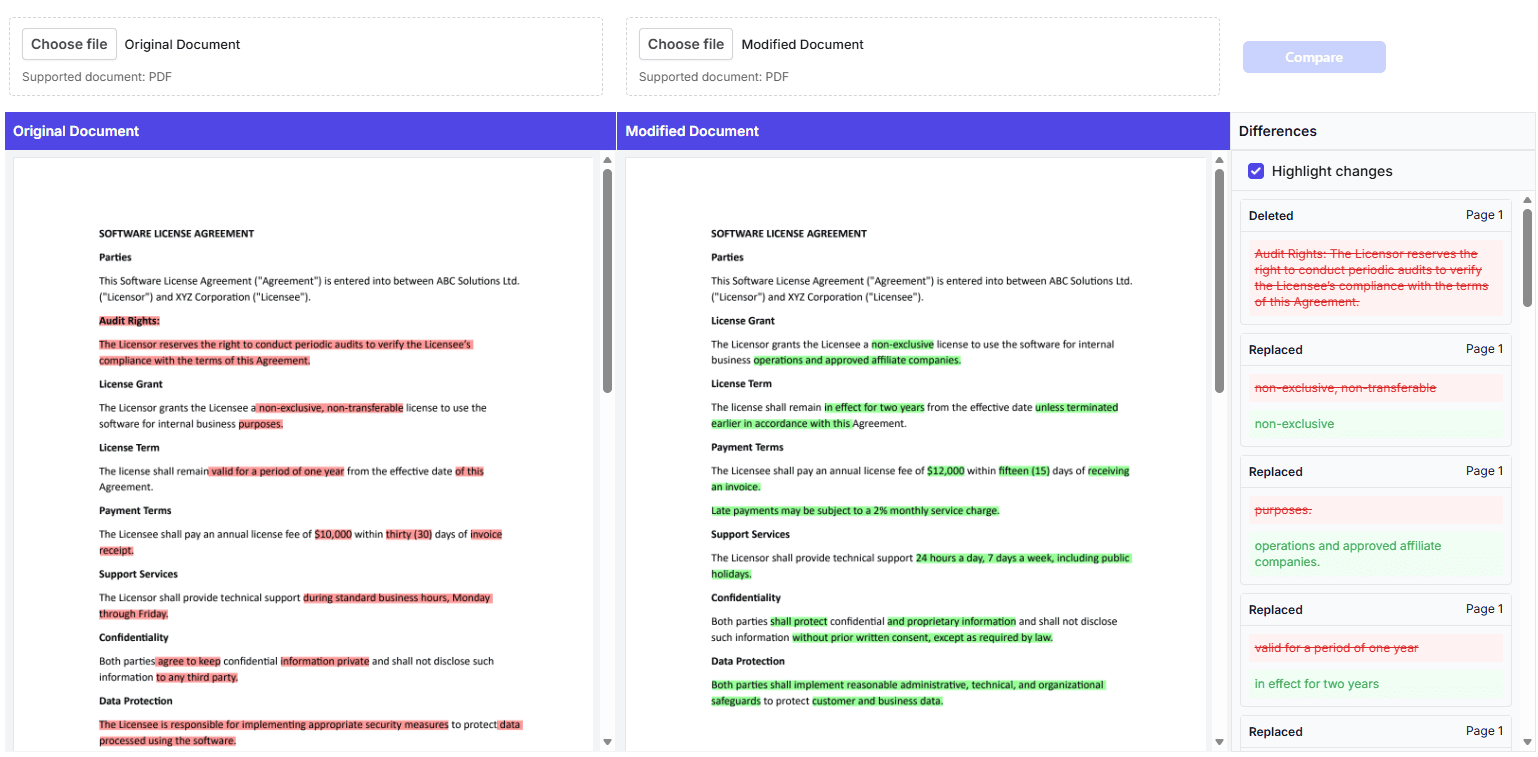
- Side-by-side viewers - Compare original and modified documents simultaneously
- Synchronized navigation - Zoom, scroll, and page navigation synchronized between viewers
- Color-coded highlighting - Visual differentiation of added and deleted text (red for deleted, green for added)
- Differences panel - Consolidated list on the right showing all detected differences categorized by type
- File upload support - Upload custom PDFs for comparison