Redaction UI Interactions in React PDF Viewer
14 Aug 20264 minutes to read
Overview
This guide explains how to use the Redaction UI in the React PDF Viewer: drawing redaction marks, customizing their appearance, deleting marks, redacting whole pages, and applying redaction. The page provides step-by-step UI instructions to redact a PDF.
Prerequisites
- A React project with PDF Viewer added to it. See getting started guide
- The EJ2 React PDF Viewer version you use must include the Redaction feature.
Steps
-
Enable the Redaction tool
- Open the viewer with the
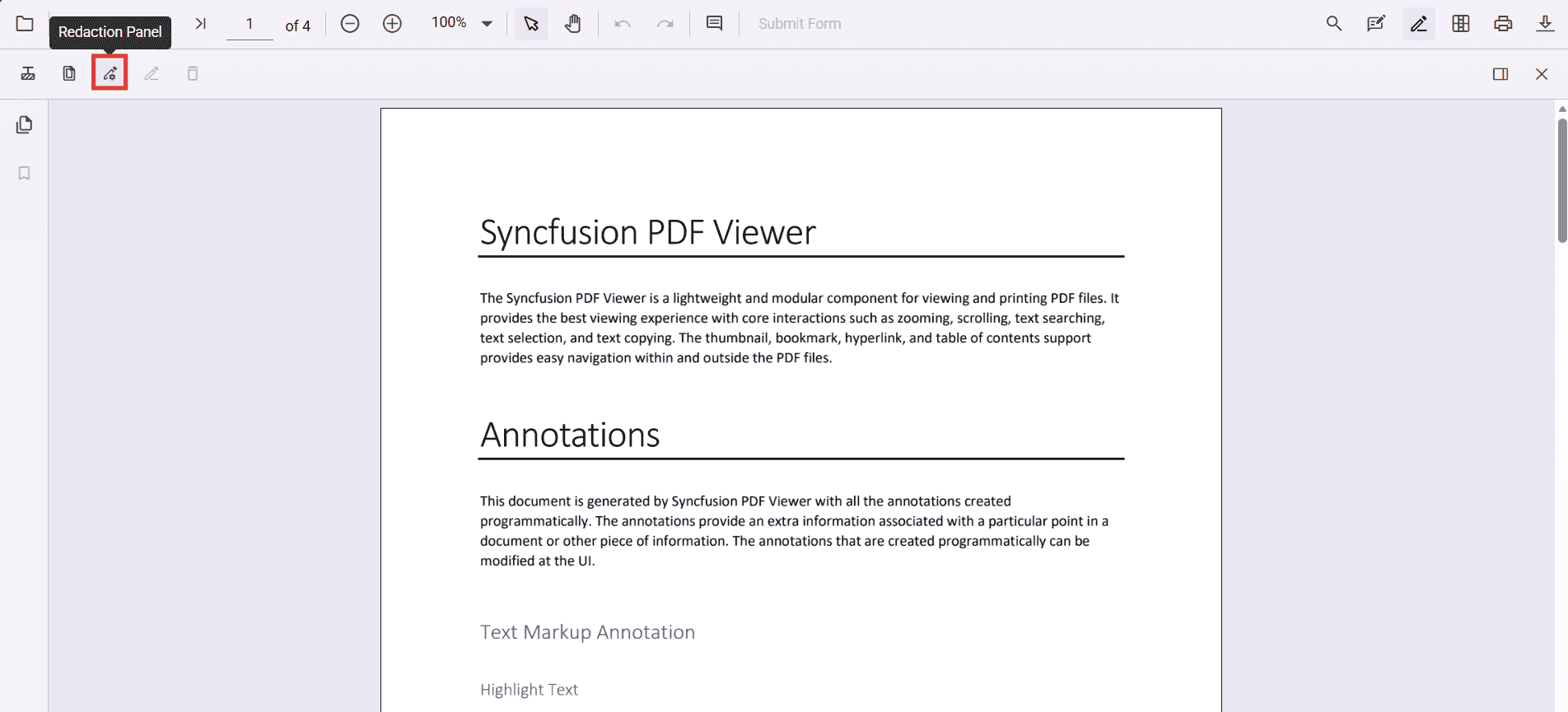
toolbarSettings.toolbarItemsconfigured to include the Redaction tool. - The Redaction tool is hidden by default; adding it to
toolbarItemsmakes it visible.
- Open the viewer with the
-
Add a redaction annotation from the toolbar
-
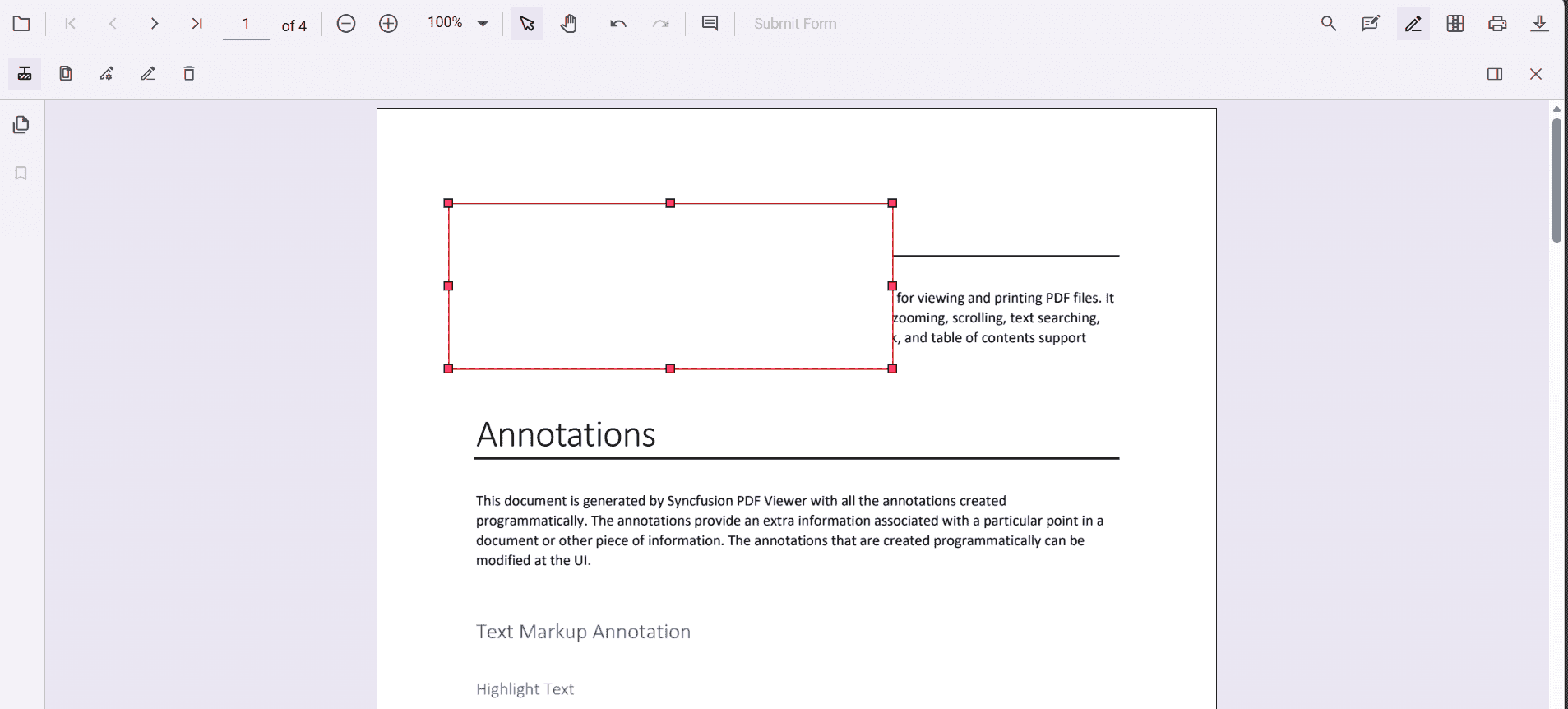
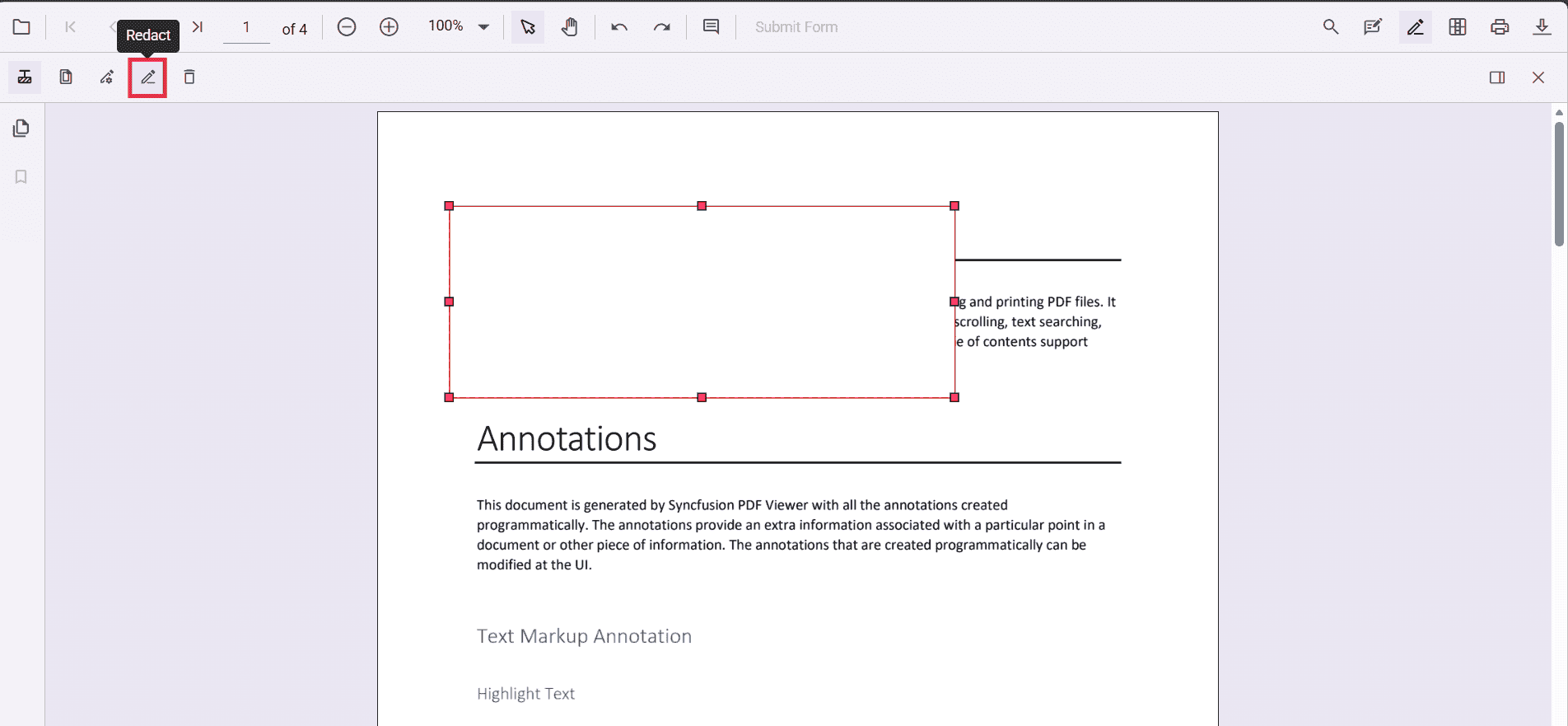
Select the Redaction tool in the toolbar, then draw a rectangle over the text or graphics to hide.
-
-
Add a redaction annotation from the context menu
-
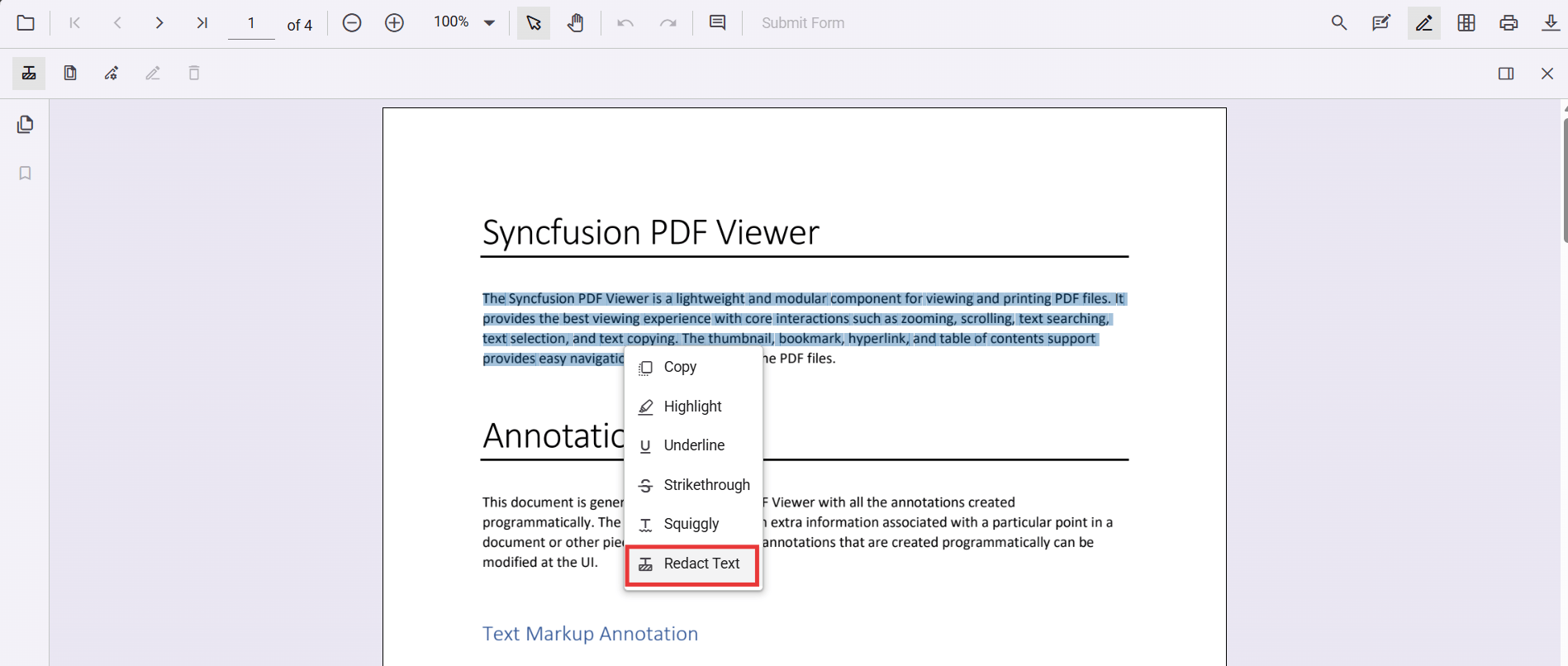
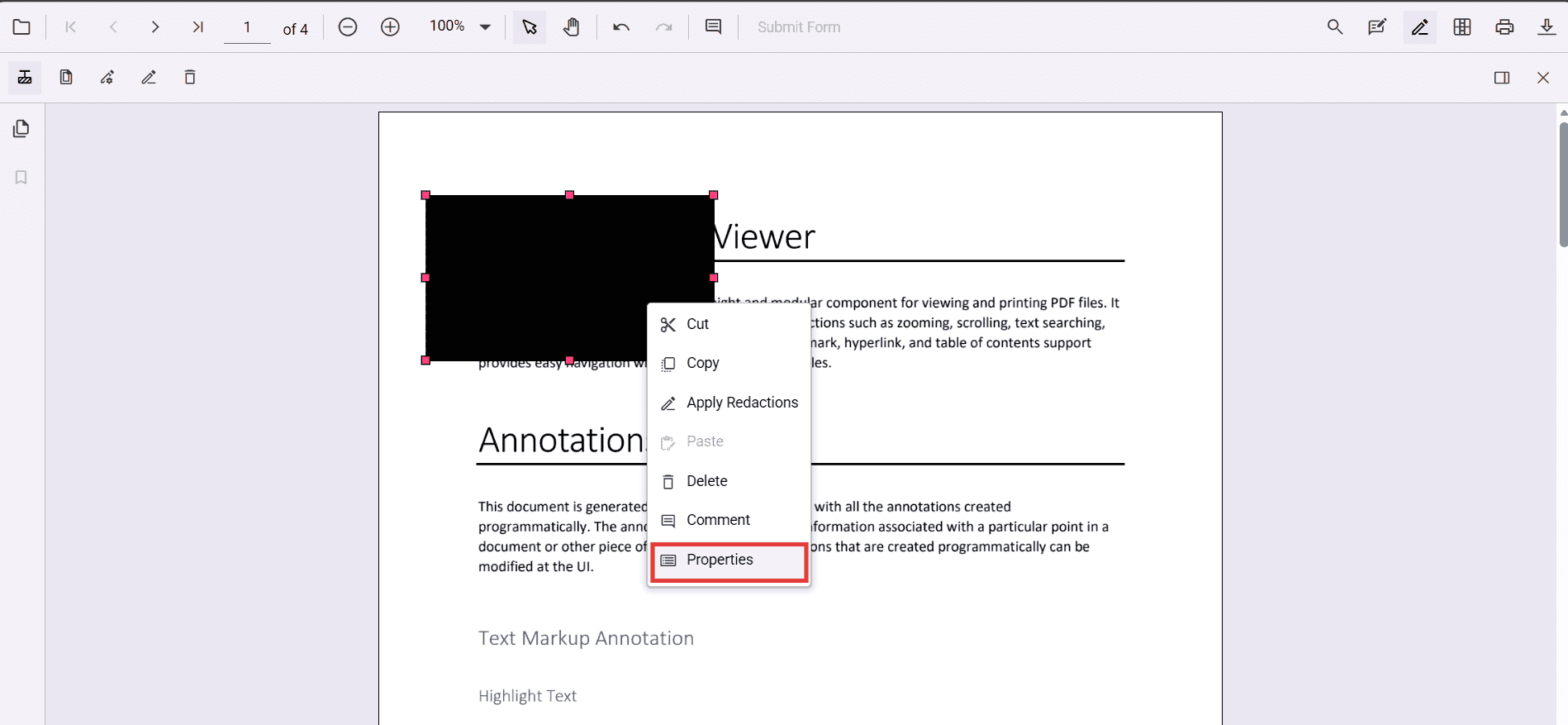
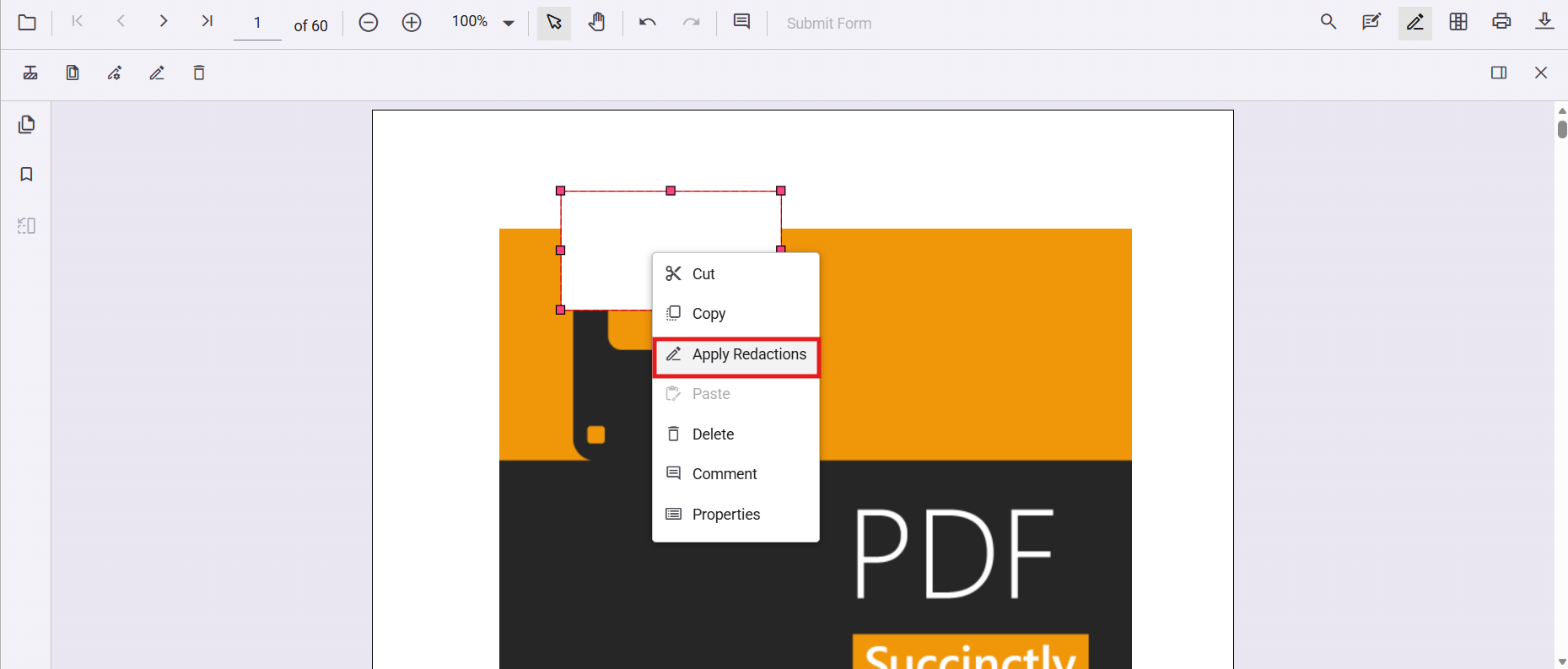
Select text or region, right‑click (or long‑press on mobile), and choose Redact Annotation.
-
-
Move or resize a redaction annotation
-
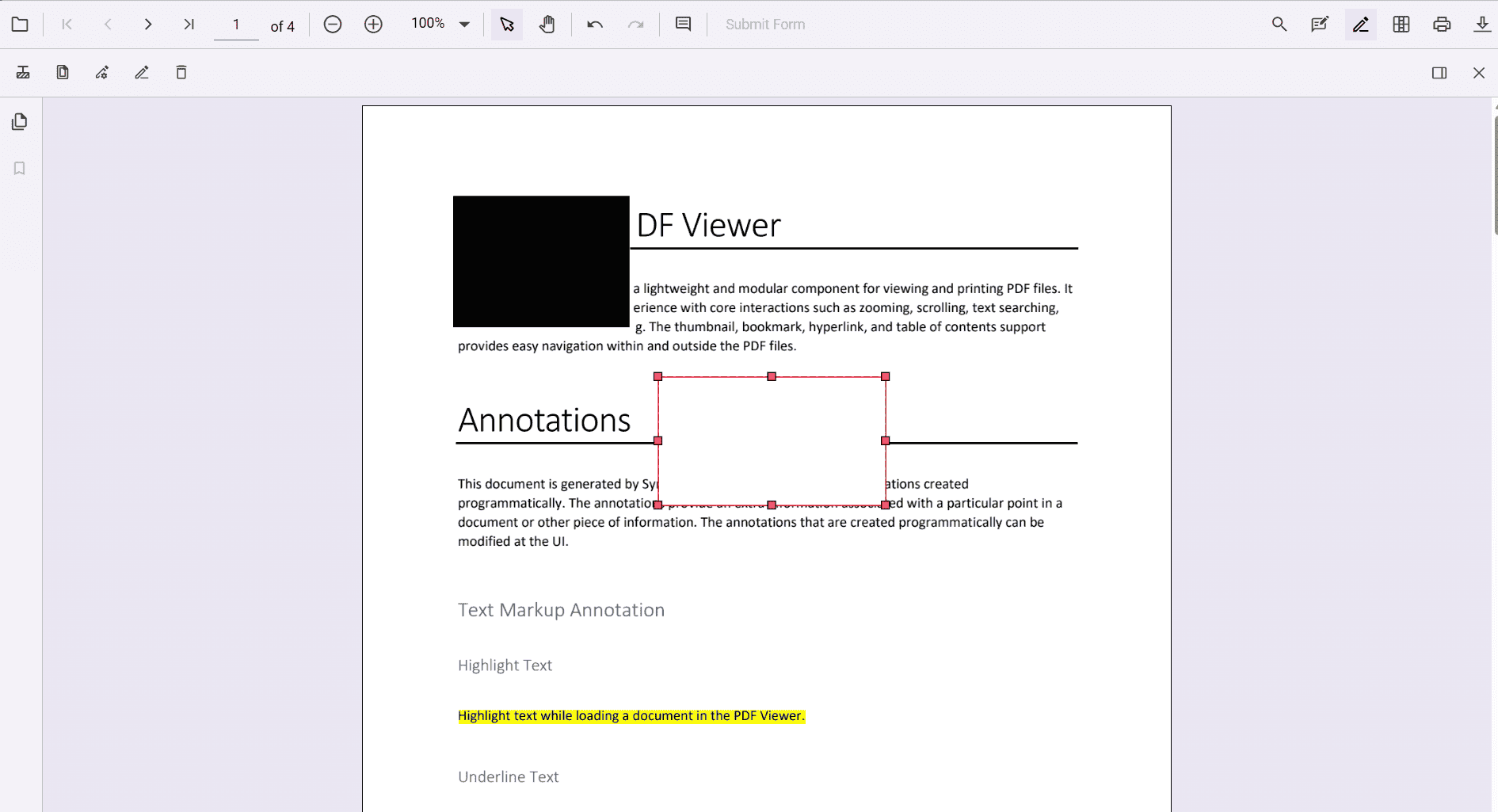
Drag to move the box
-
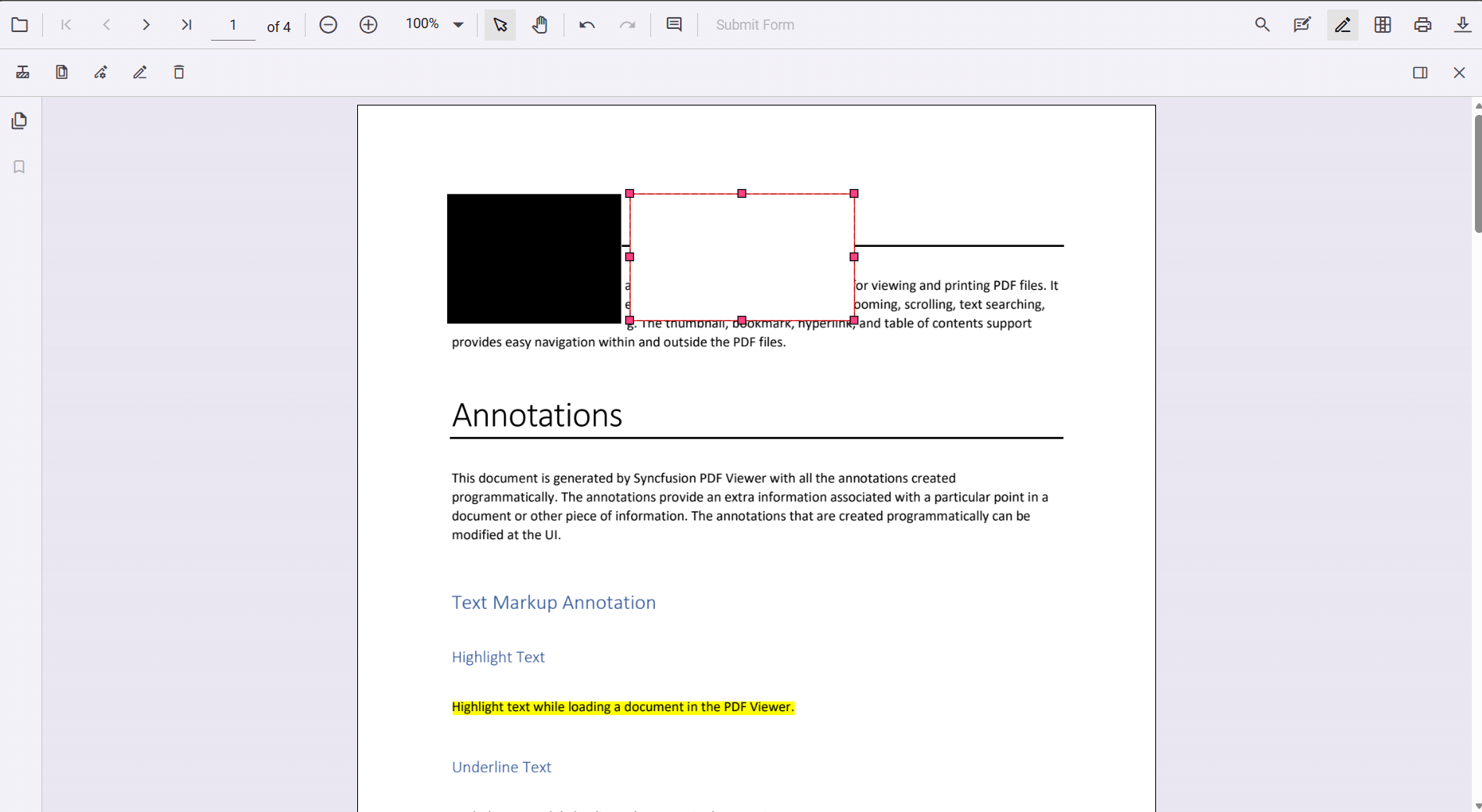
Drag the handles to resize.
-
-
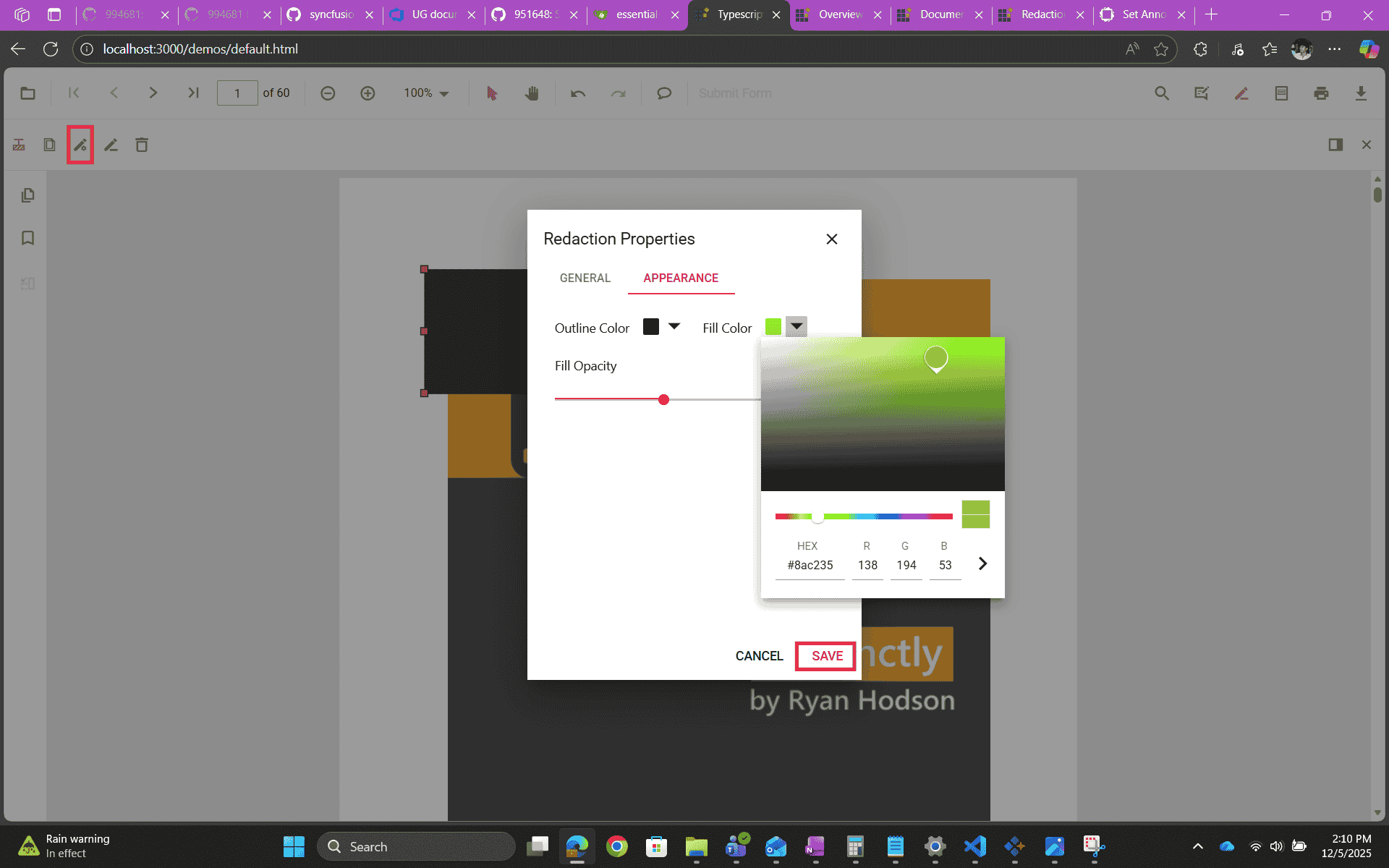
Update redaction properties using the property panel
-
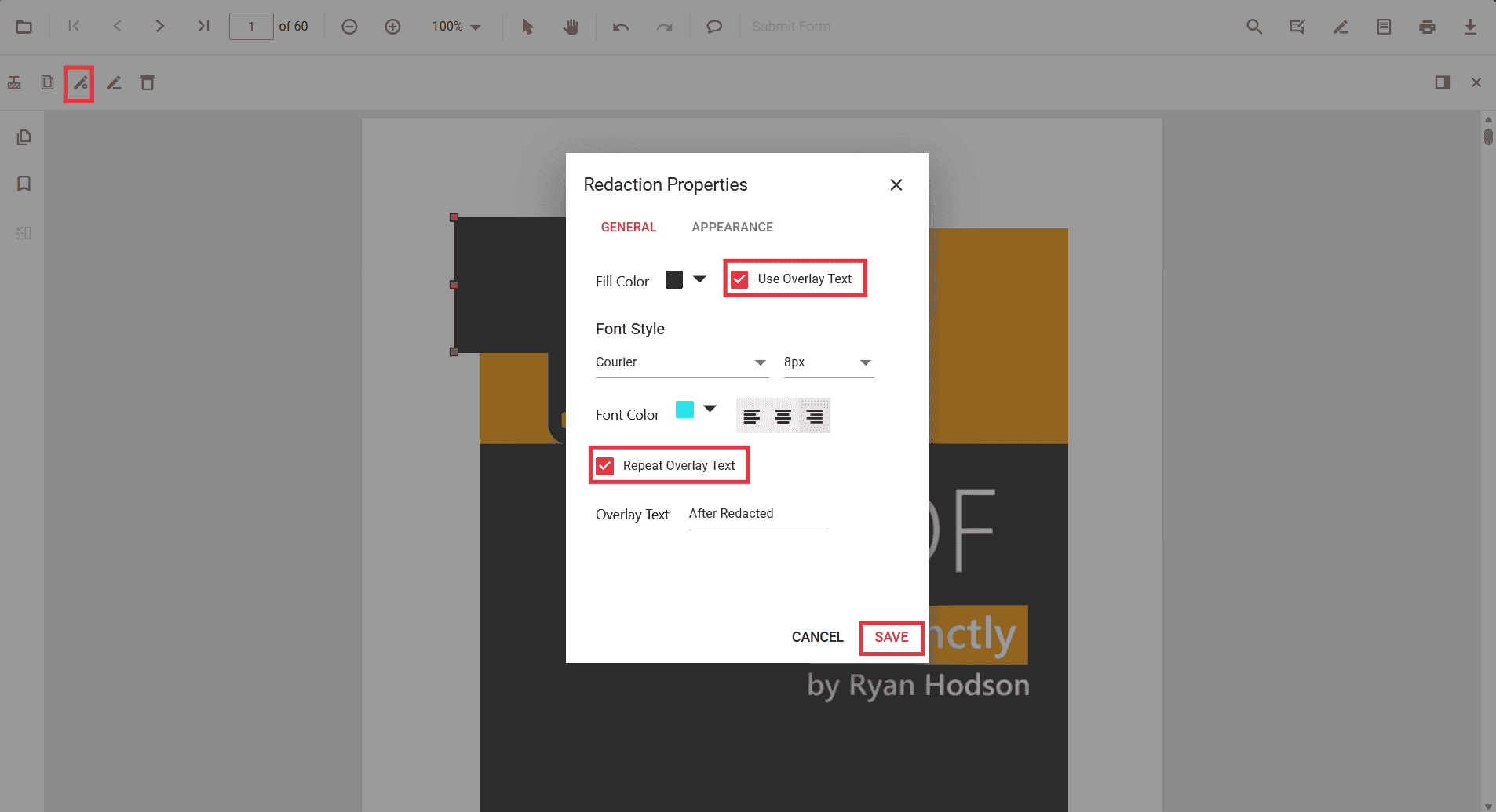
Select an annotation and open the Property Panel from the toolbar icon or choose Properties from the context menu.
-
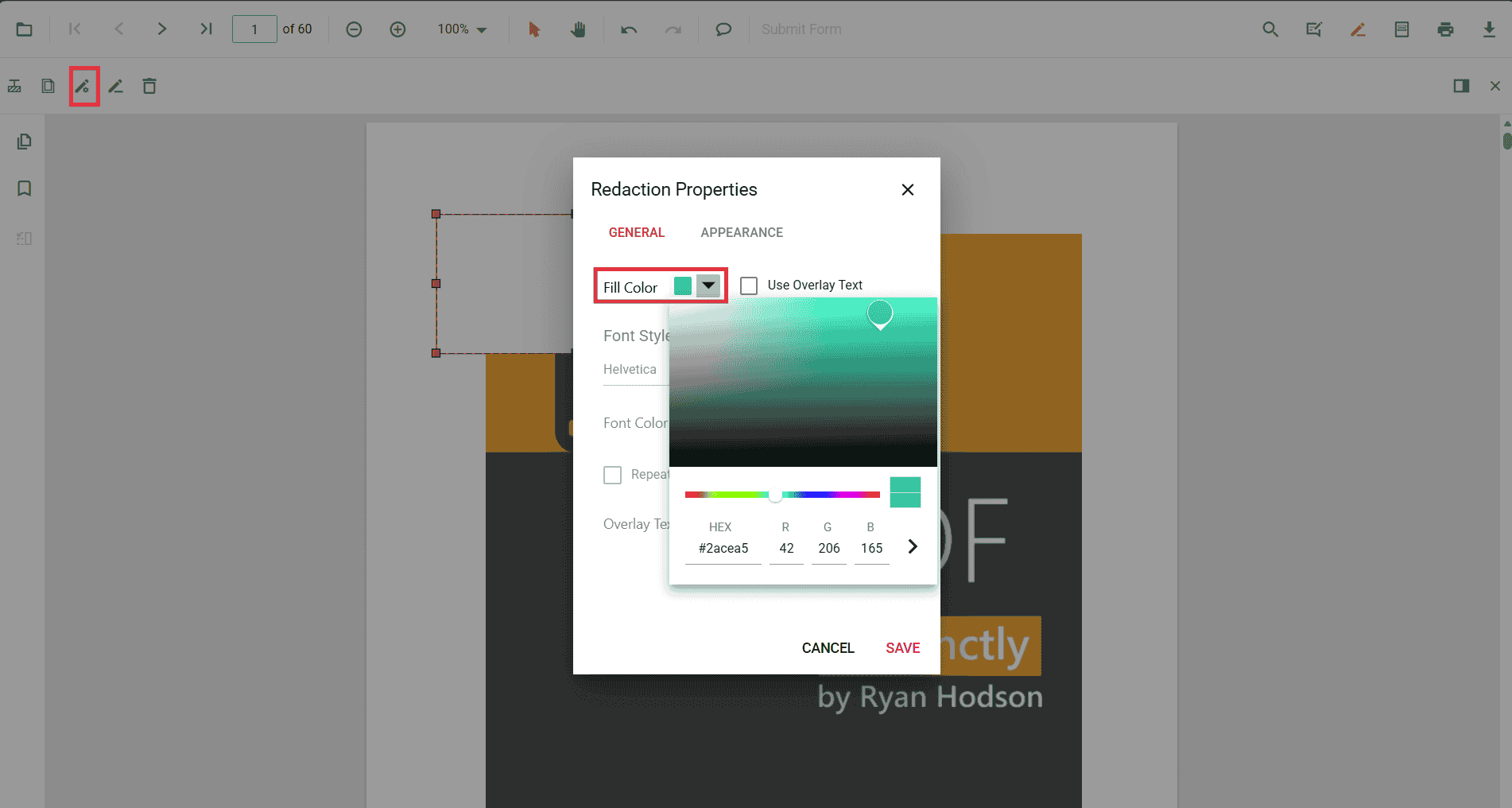
General tab: set Overlay Text, Repeat Overlay Text, font, and final Fill Color (these values are used when you apply redaction).
-
Appearance tab: style the temporary annotation (fill, outline, opacity).
-
-
Delete a redaction annotation
-
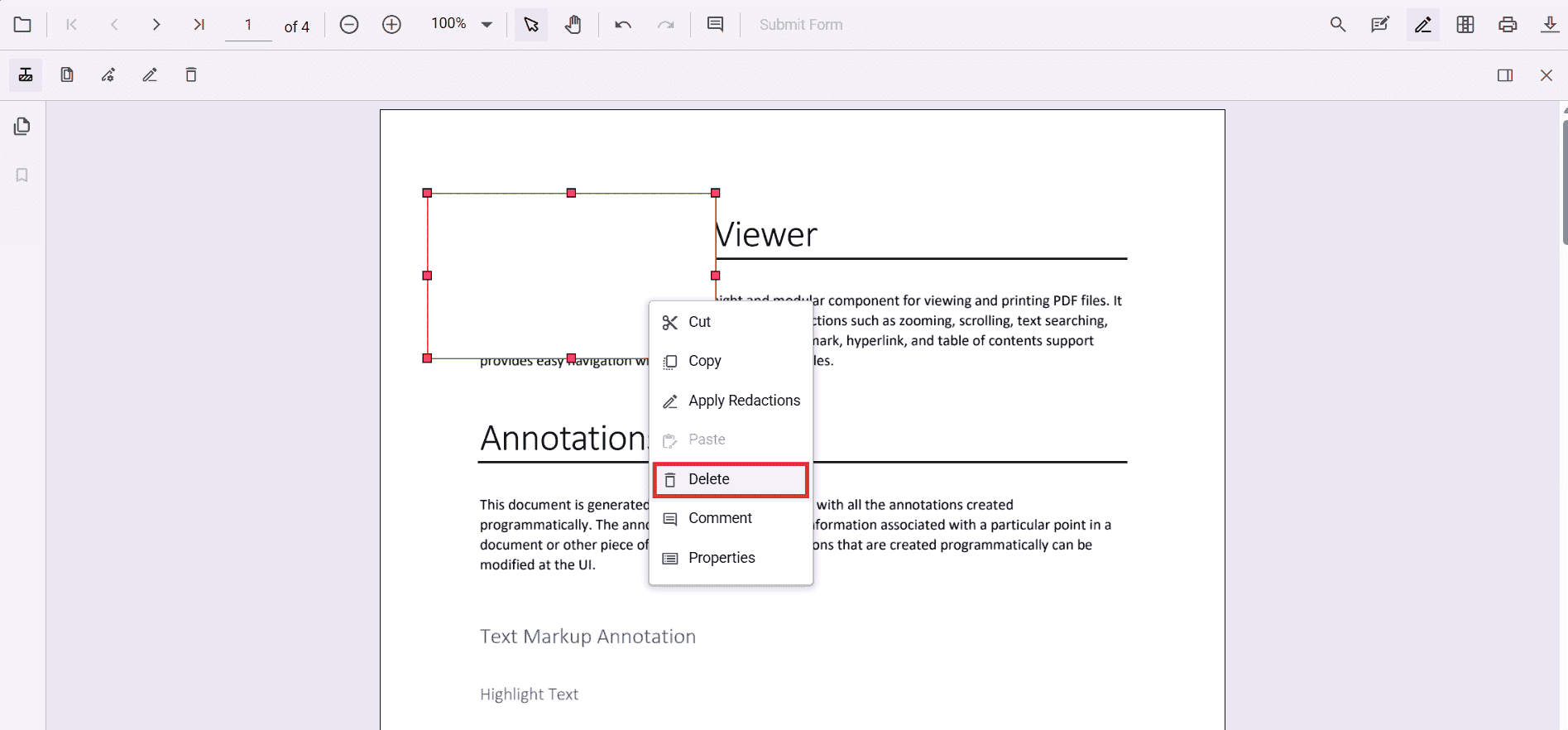
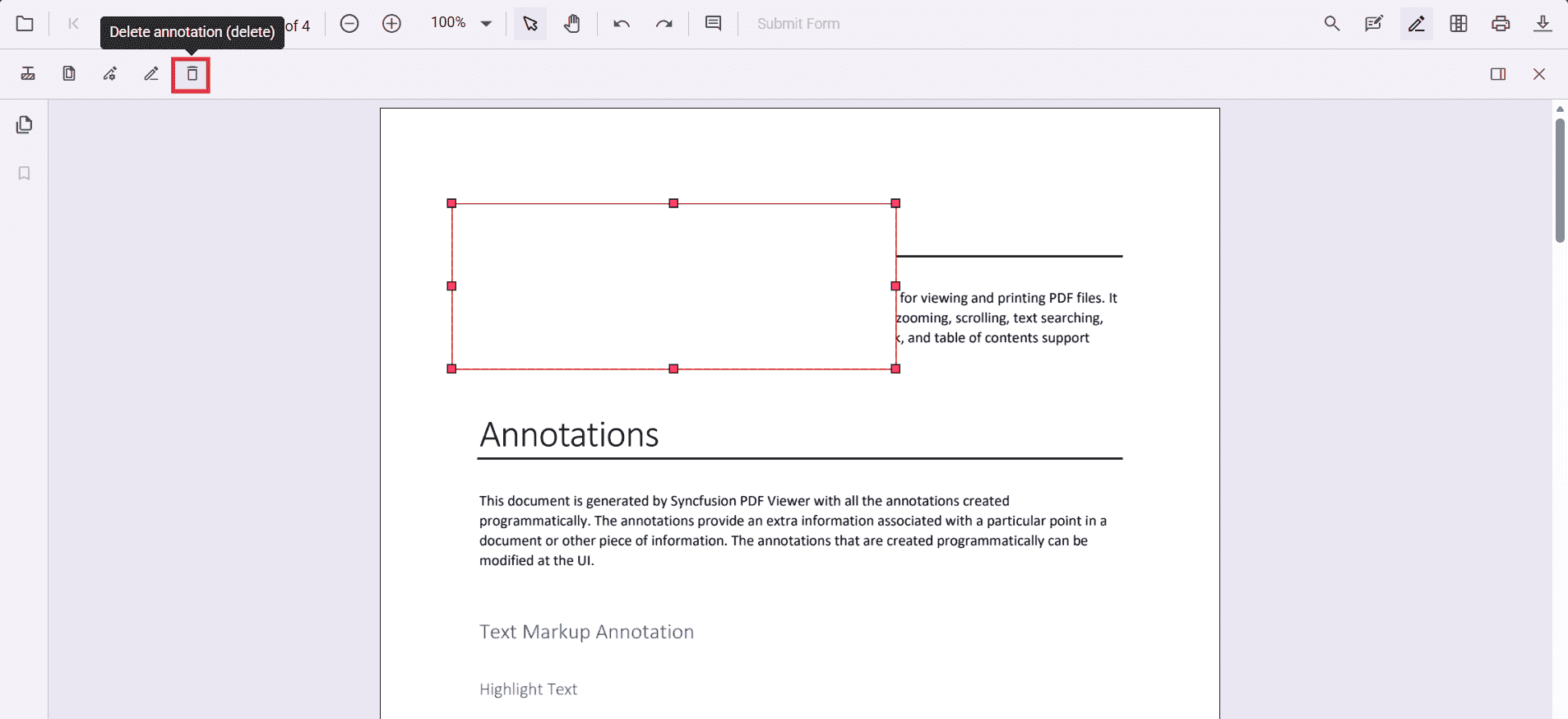
Right‑click the annotation and select Delete, press the Delete key, or click the toolbar Delete button.
-
-
Redact pages using the UI
-
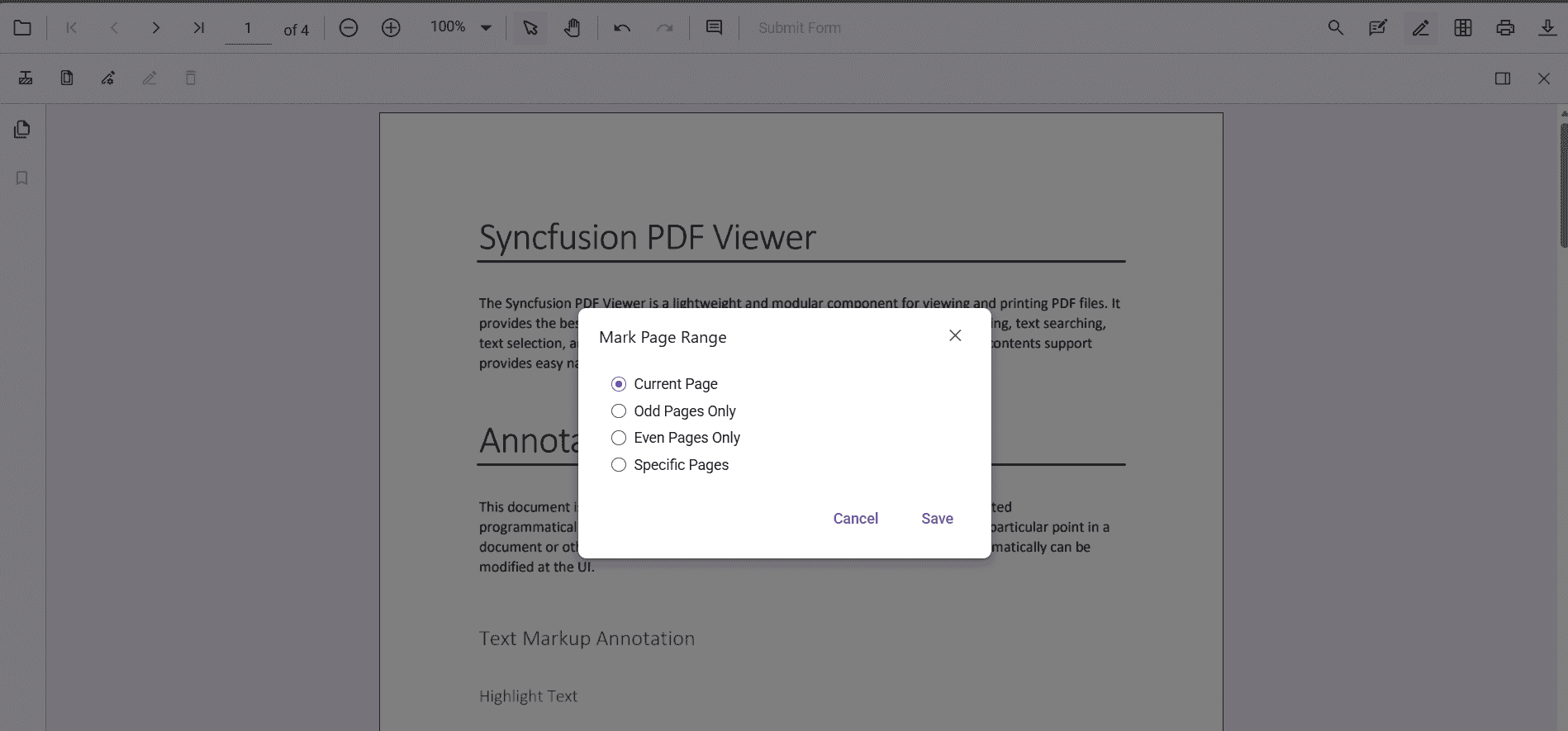
Use Redact Pages from the toolbar to mark whole pages (Current, Odd, Even, or Specific page ranges). Click Save to apply page marks.
-
-
Apply redaction
-
Click Apply Redaction in the toolbar or select Apply redactions in context menu to permanently remove marked content.
-
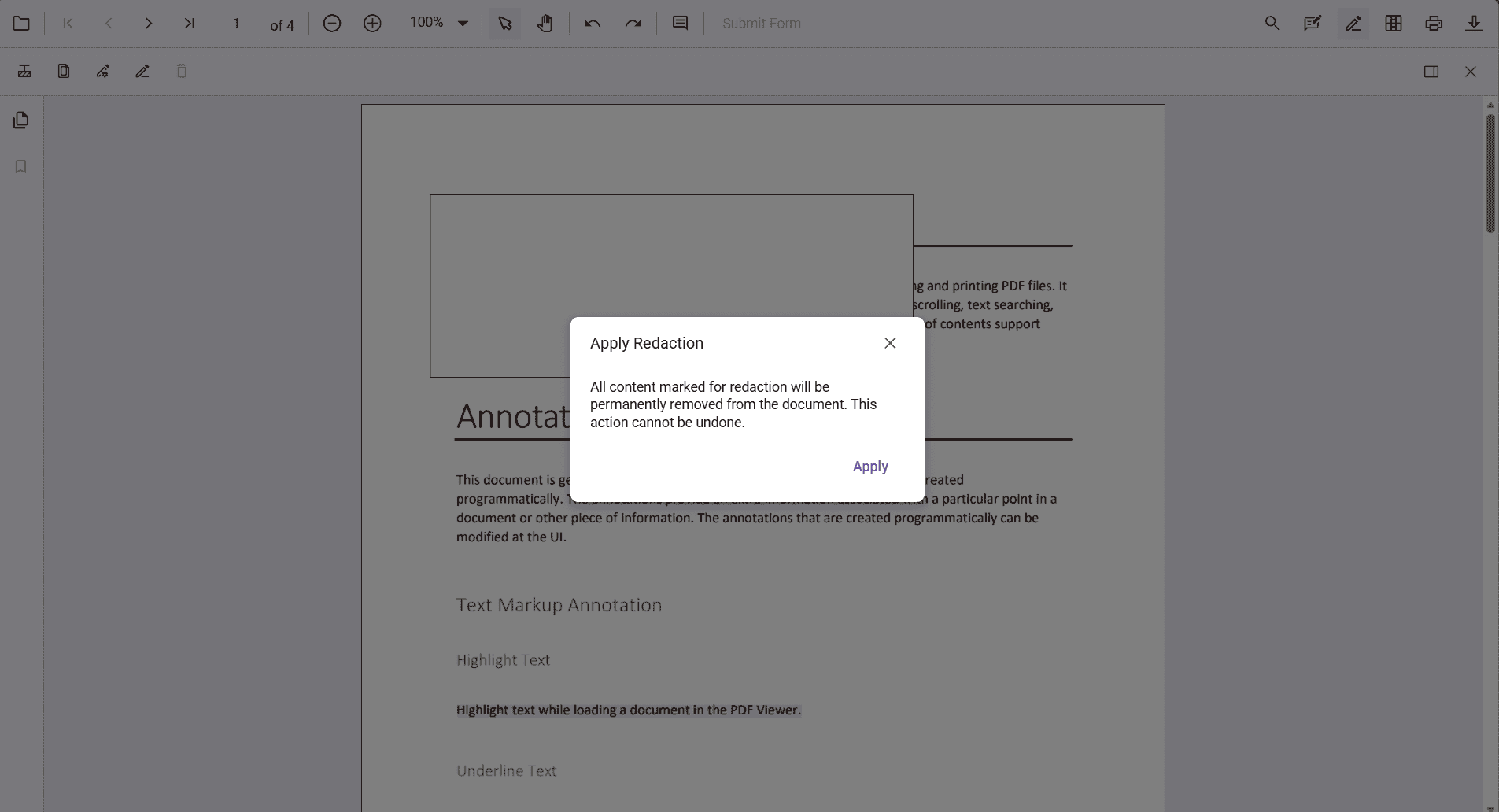
A confirmation dialog appears before changes are flattened.
-
After applying: the selected content is permanently removed, overlay text (if enabled) is burned in, and properties become read‑only.
-
Troubleshooting
- Redaction tool not visible: ensure you added
RedactionEditTooltotoolbarSettings.toolbarItemsand injected required services. - Apply Redaction disabled: there are no redaction annotations present; add at least one mark.
- Final redacted content not editable: this is expected — applied redaction flattens content and becomes read‑only. Keep a backup of the original file before applying.