Redaction in Mobile View in React PDF Viewer
14 Aug 20263 minutes to read
Overview
This tutorial teaches you how to enable and use the Redaction tools in the Syncfusion React PDF Viewer, optimized for mobile (phone/tablet) screens. You will add a redaction button to the viewer toolbar, open the viewer on a small-screen layout, create selective and page-wide redactions, customize appearance, and apply redactions permanently.
Outcome: a working React sample where users can mark content for redaction using touch, configure appearance, and apply redactions.
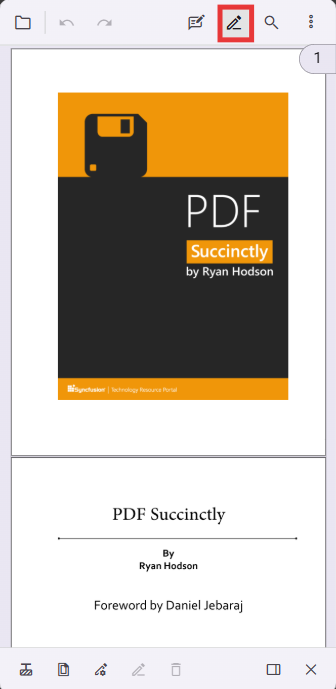
In mobile view the redaction toolbar appears at the bottom of the viewer for easy thumb access. Mobile layout activates automatically on small screens.
Prerequisites
- A React project with the PDF Viewer added to it. See getting started guide
Steps
-
Add the PdfViewer to your React app and include the redaction toolbar item.
- Enable the redaction tool with the code example in this guide. The example includes a toolbar entry for
RedactionEditToolwhich enables redaction controls in the viewer.
- Enable the redaction tool with the code example in this guide. The example includes a toolbar entry for
-
Start the app and open it on a narrow viewport (phone width) to trigger mobile layout.
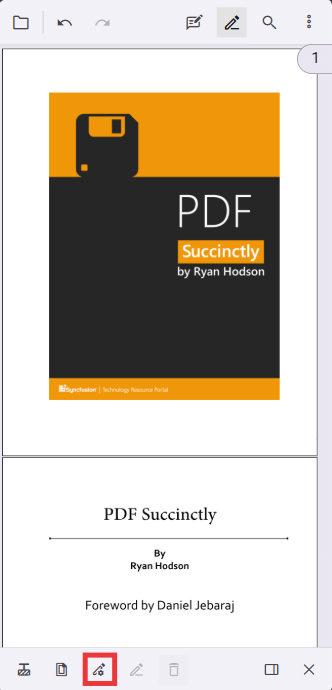
- Use the mobile redaction toolbar (bottom of the screen) to:
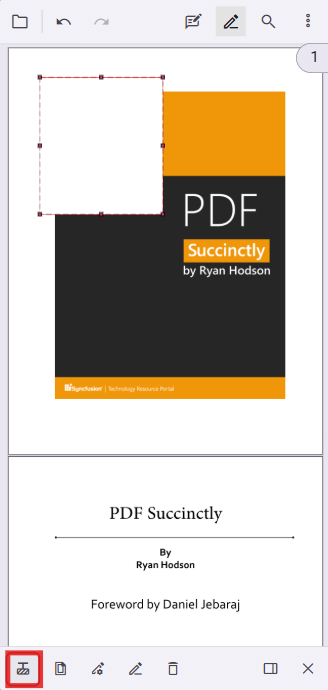
- Draw redaction boxes with the Redaction Annotation tool (touch & drag)
- Use Page Redaction to redact odd/even/specified pages
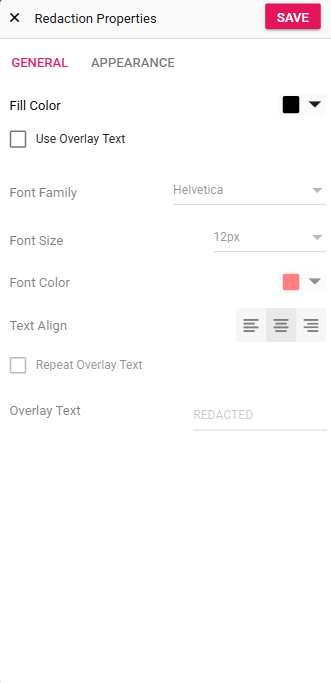
- Open Redaction Properties to change overlay color, overlay text, and font
- Review annotations, then tap Apply Redactions to permanently remove content.
Understanding mobile redaction toolbar tools
When entering redaction mode in mobile view, a specialized redaction toolbar appears with tools optimized for touch. Each tool supports a specific step in the redaction workflow.
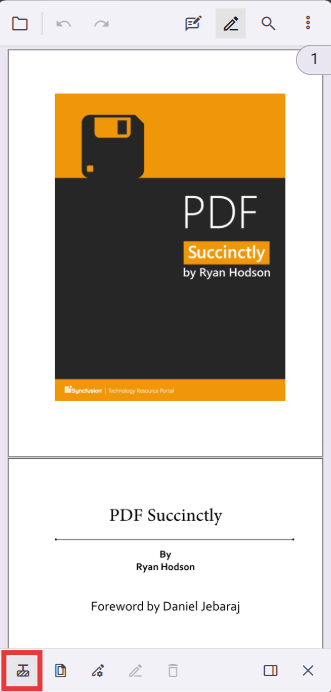
Redaction annotation tool
The Redaction Annotation tool creates rectangular overlays that mark content for removal. Touch and drag to draw boxes; overlays remain editable until applied.
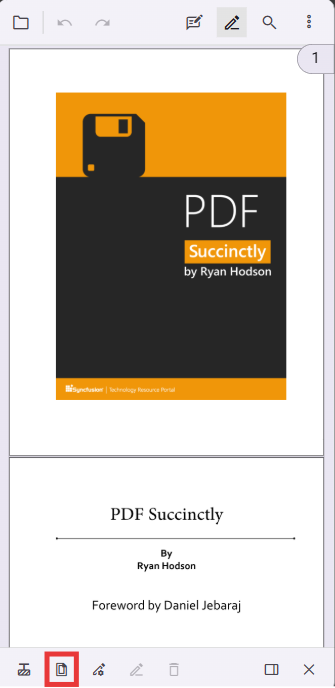
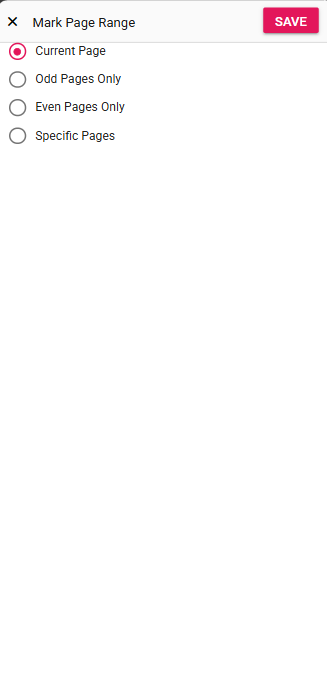
Page redaction tool
Use Page Redaction to redact whole pages or page ranges (odd, even, specific ranges). This helps remove patterns of sensitive pages quickly.
Redaction properties tool
Open Redaction Properties to change overlay fill color, outline color, overlay text, text color, font and alignment before applying.
Applying redactions in mobile view
Applying redactions is permanent. Back up the original document before applying.
-
Review all redaction marks and configurations.
-
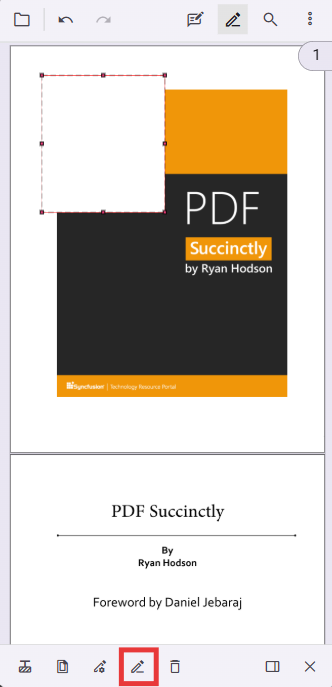
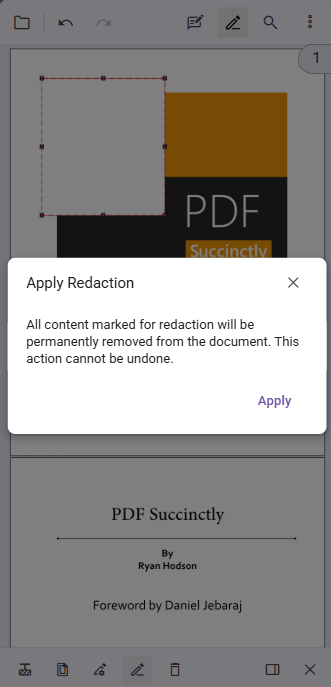
Tap the Apply Redactions button in the redaction toolbar.
-
Confirm the action when prompted — this operation is irreversible.
-
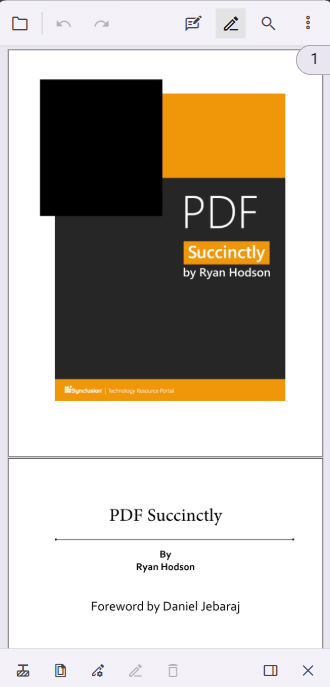
After applying, the selected content is permanently removed and replaced according to redaction properties.
Removing redaction annotations
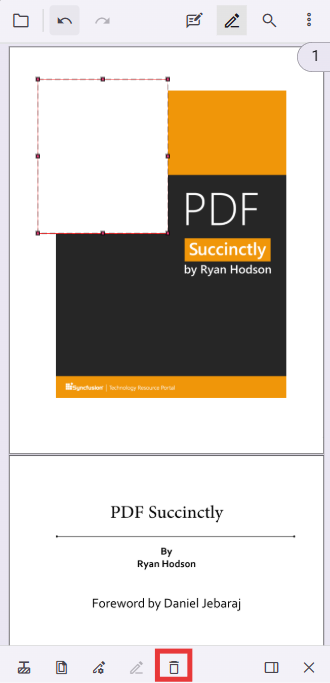
To remove a redaction annotation prior to applying it: enter Redaction Edit mode, tap the annotation to select it and choose Delete.
Mobile redaction workflow
- Tap the Redaction button in the main toolbar to open the mobile redaction toolbar at the bottom.
- Choose Redaction Annotation to draw boxes by touch-and-drag.
- Use Redaction Properties to set fill color and overlay text.
- Tap Apply Redactions to make changes permanent (this is irreversible).
Troubleshooting
- If toolbar or redaction controls don’t appear: ensure your
toolbarSettingsincludesRedactionEditTooland that theInjectlist containsAnnotation. - If the viewer is blank: confirm
resourceUrlpoints to the correct Syncfusion PDF Viewer resource package version. - For production builds, ensure your app serves the WASM and resource files from
resourceUrlor a hosted CDN.