Squiggly Annotation in React PDF Viewer
17 Sep 20267 minutes to read
This guide explains how to enable, apply, customize, and manage Squiggly text markup annotations in the Syncfusion React PDF Viewer.
You can add squiggly underlines from the toolbar or context menu, programmatically invoke squiggly mode, customize default settings, handle events, and export the PDF with annotations.
Enable Squiggly in the Viewer
To enable Squiggly annotations, inject the following modules into the React PDF Viewer:
This minimal setup enables UI interactions like selection and squiggly markup.
import * as React from 'react';
import * as ReactDOM from 'react-dom/client';
import {
  PdfViewerComponent,
  Inject,
  Toolbar,
  Annotation,
  TextSelection
} from '@syncfusion/ej2-react-pdfviewer';

function App() {
  return (
    <PdfViewerComponent
      id="container"
      documentPath="https://cdn.syncfusion.com/content/pdf/pdf-succinctly.pdf"
      resourceUrl="https://cdn.syncfusion.com/ej2/31.2.2/dist/ej2-pdfviewer-lib"
      style={{ height: '650px' }}
    >
      <Inject services={[Toolbar, Annotation, TextSelection]} />
    </PdfViewerComponent>
  );
}

ReactDOM.createRoot(document.getElementById('sample')).render(<App />);
Add Squiggly Annotation
Add Squiggly Using the Toolbar
- Select the text you want to annotate.
- Click the Squiggly icon in the annotation toolbar.
- If Pan Mode is active, the viewer automatically switches to Text Selection mode.
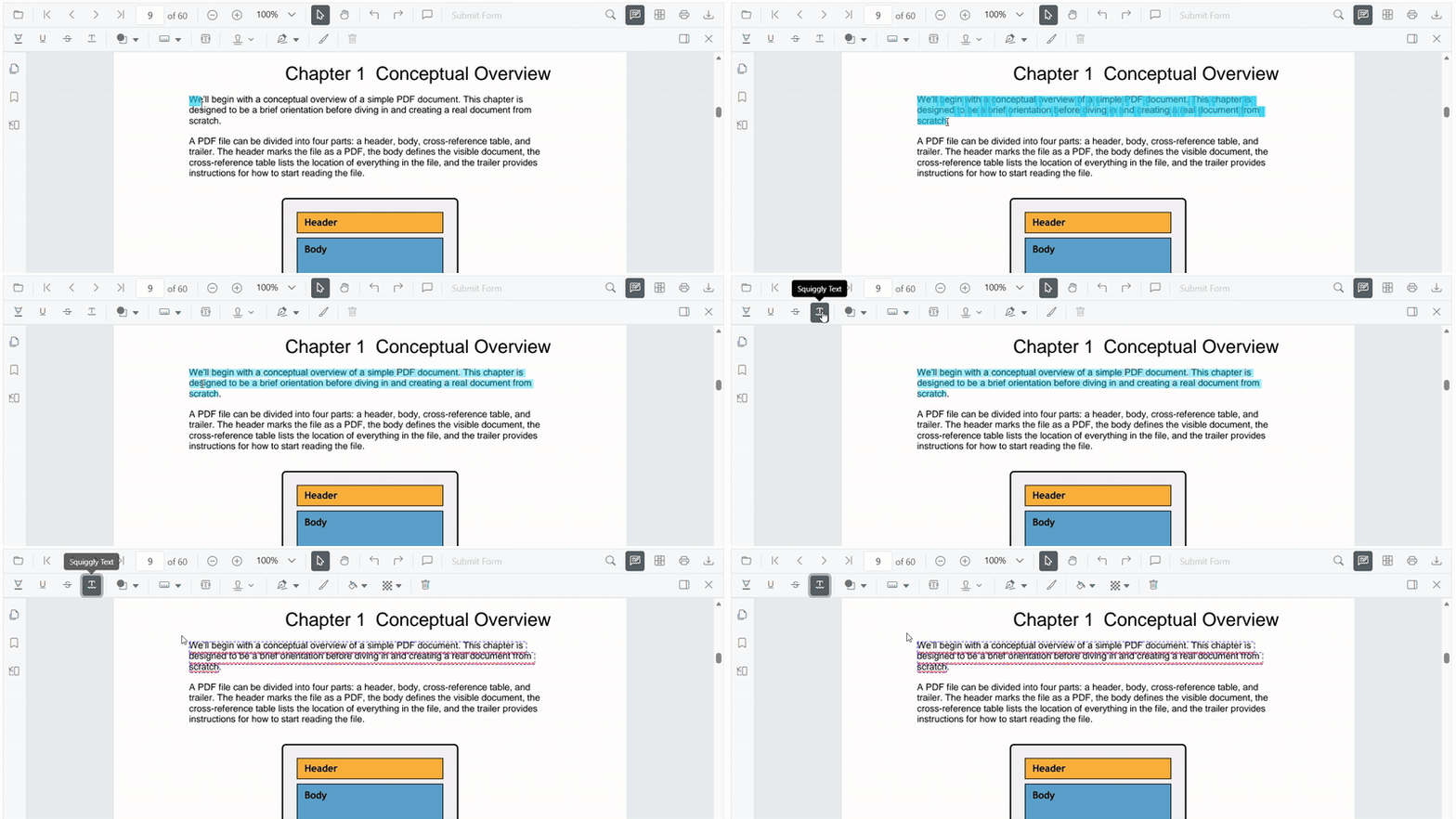
- If Pan Mode is active, the viewer automatically switches to Text Selection mode.
Add Squiggly Using the Context Menu
Right-click a selected text region → select Squiggly.
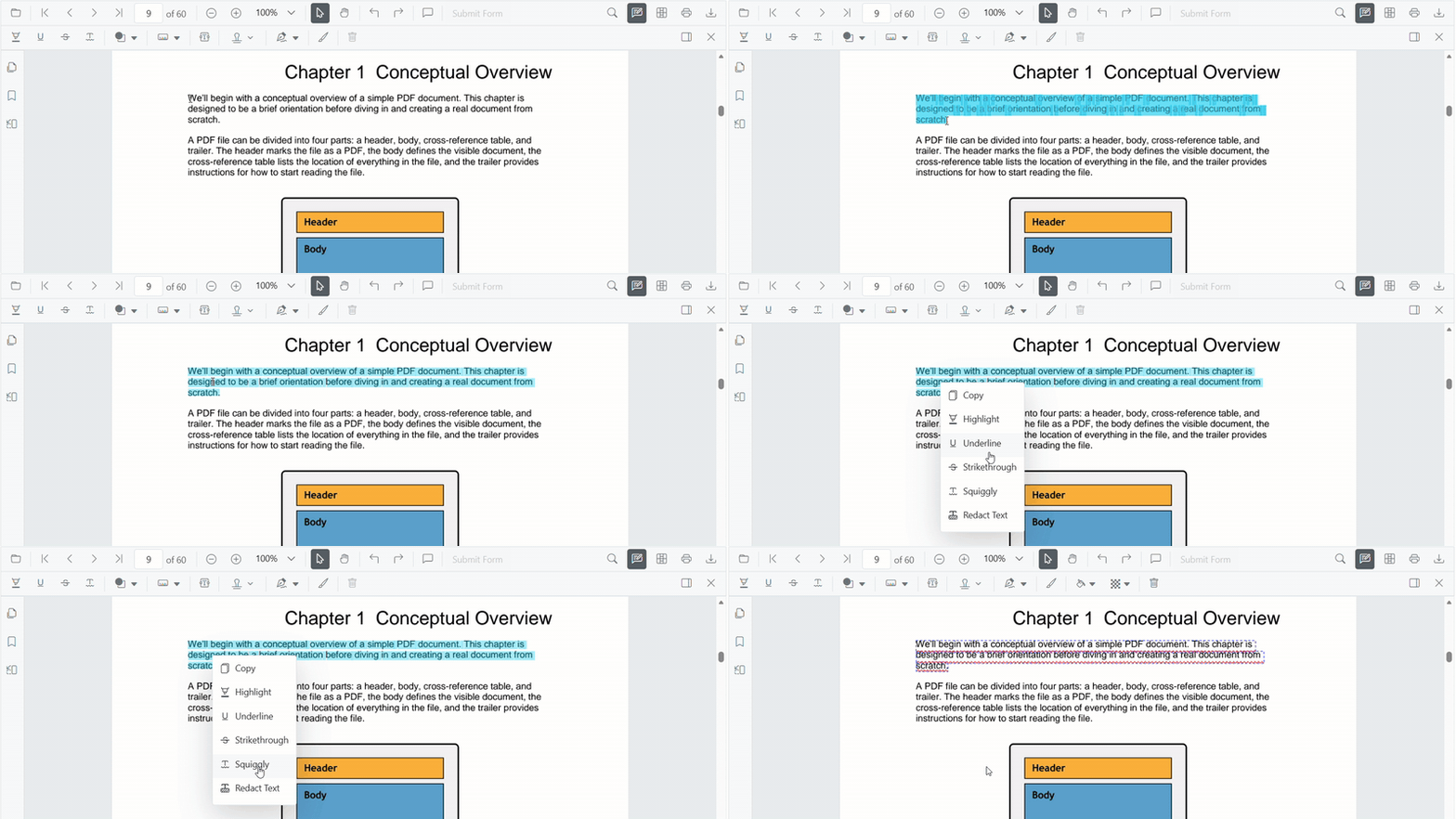
To customize menu items, refer to Customize Context Menu documentation.
Enable Squiggly Mode
Switch the viewer into squiggly mode using setAnnotationMode('Squiggly').
function enableSquiggly() {
  const viewer = document.getElementById('container').ej2_instances[0];
  viewer.annotation.setAnnotationMode('Squiggly');
}
Exit Squiggly Mode
Switch back to normal mode using:
function disableSquigglyMode() {
  const viewer = document.getElementById('container').ej2_instances[0];
  viewer.annotation.setAnnotationMode('None');
}
Add Squiggly Programmatically
Use addAnnotation() to insert a squiggly at a specific location.
function addSquiggly() {
  const viewer = document.getElementById('container').ej2_instances[0];
  viewer.annotation.addAnnotation('Squiggly', {
    bounds: [{ x: 97, y: 110, width: 350, height: 14 }],
    pageNumber: 1
  });
}
Customize Squiggly Appearance
Configure default squiggly settings such as color, opacity, and author using squigglySettings.
<PdfViewerComponent
  id="container"
  documentPath="https://cdn.syncfusion.com/content/pdf/pdf-succinctly.pdf"
  resourceUrl="https://cdn.syncfusion.com/ej2/31.2.2/dist/ej2-pdfviewer-lib"
  style={{ height: '650px' }}
  squigglySettings={{
    author: 'Guest User',
    subject: 'Corrections',
    color: '#00ff00',
    opacity: 0.9
  }}
>
  <Inject services={[Toolbar, Annotation, TextSelection]} />
</PdfViewerComponent>
Manage Squiggly (Edit, Delete, Comment)
Edit Squiggly
Edit Squiggly Appearance (UI)
Use the annotation toolbar:
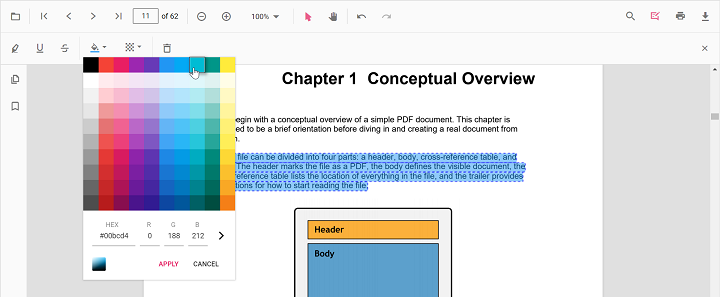
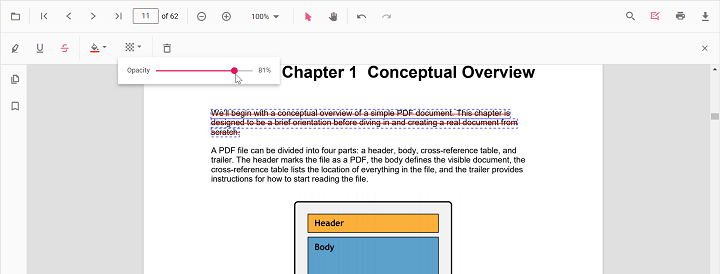
-
Edit Color tool
-
Edit Opacity slider
Edit Squiggly Programmatically
Modify an existing squiggly programmatically using editAnnotation().
function editSquigglyProgrammatically() {
  const viewer = document.getElementById('container').ej2_instances[0];
  for (let annot of viewer.annotationCollection) {
    if (annot.textMarkupAnnotationType === 'Squiggly') {
      annot.color = '#ff0000';
      annot.opacity = 0.8;
      viewer.annotation.editAnnotation(annot);
      break;
    }
  }
}
Delete Squiggly
The PDF Viewer supports deleting existing annotations through both the UI and API.
For detailed behavior, supported deletion workflows, and API reference, see Delete Annotation.
Comments
Use the Comments panel to add, view, and reply to threaded discussions linked to squiggly annotations.
It provides a dedicated UI for reviewing feedback, tracking conversations, and collaborating on annotation‑related notes within the PDF Viewer.
Set properties while adding individual annotations
Set properties for individual squiggly annotations at the time of creation using the addAnnotation API.
function addMultipleSquigglies() {
  const viewer = document.getElementById('container').ej2_instances[0];
  // Squiggly 1
  viewer.annotation.addAnnotation('Squiggly', {
    bounds: [{ x: 100, y: 150, width: 320, height: 14 }],
    pageNumber: 1,
    author: 'User 1',
    color: '#ffff00',
    opacity: 0.9
  });
  // Squiggly 2
  viewer.annotation.addAnnotation('Squiggly', {
    bounds: [{ x: 110, y: 220, width: 300, height: 14 }],
    pageNumber: 1,
    author: 'User 2',
    color: '#ff1010',
    opacity: 0.9
  });
}
Disable TextMarkup Annotation
Disable text markup annotations (including squiggly) using the enableTextMarkupAnnotation property.
<PdfViewerComponent
  id="container"
  enableTextMarkupAnnotation={false}
  documentPath="https://cdn.syncfusion.com/content/pdf/pdf-succinctly.pdf"
  resourceUrl="https://cdn.syncfusion.com/ej2/31.2.2/dist/ej2-pdfviewer-lib"
  style={{ height: '650px' }}
>
  <Inject services={[Toolbar, Annotation, TextSelection]} />
</PdfViewerComponent>
Handle Squiggly Events
The PDF viewer provides annotation life‑cycle events that notify when squiggly annotations are added, modified, selected, or removed.
For the full list of available events and their descriptions, see Annotation Events.
Export and Import
The PDF Viewer supports exporting and importing annotations, allowing you to save annotations as a separate file or load existing annotations back into the viewer.
For full details on supported formats and steps to export or import annotations, see Export and Import annotations.