Customize Form Field Appearance in JavaScript (ES6) PDF Viewer
14 Aug 20262 minutes to read
Styling customizes appearance only (font, color, alignment, border, background, indicator text).
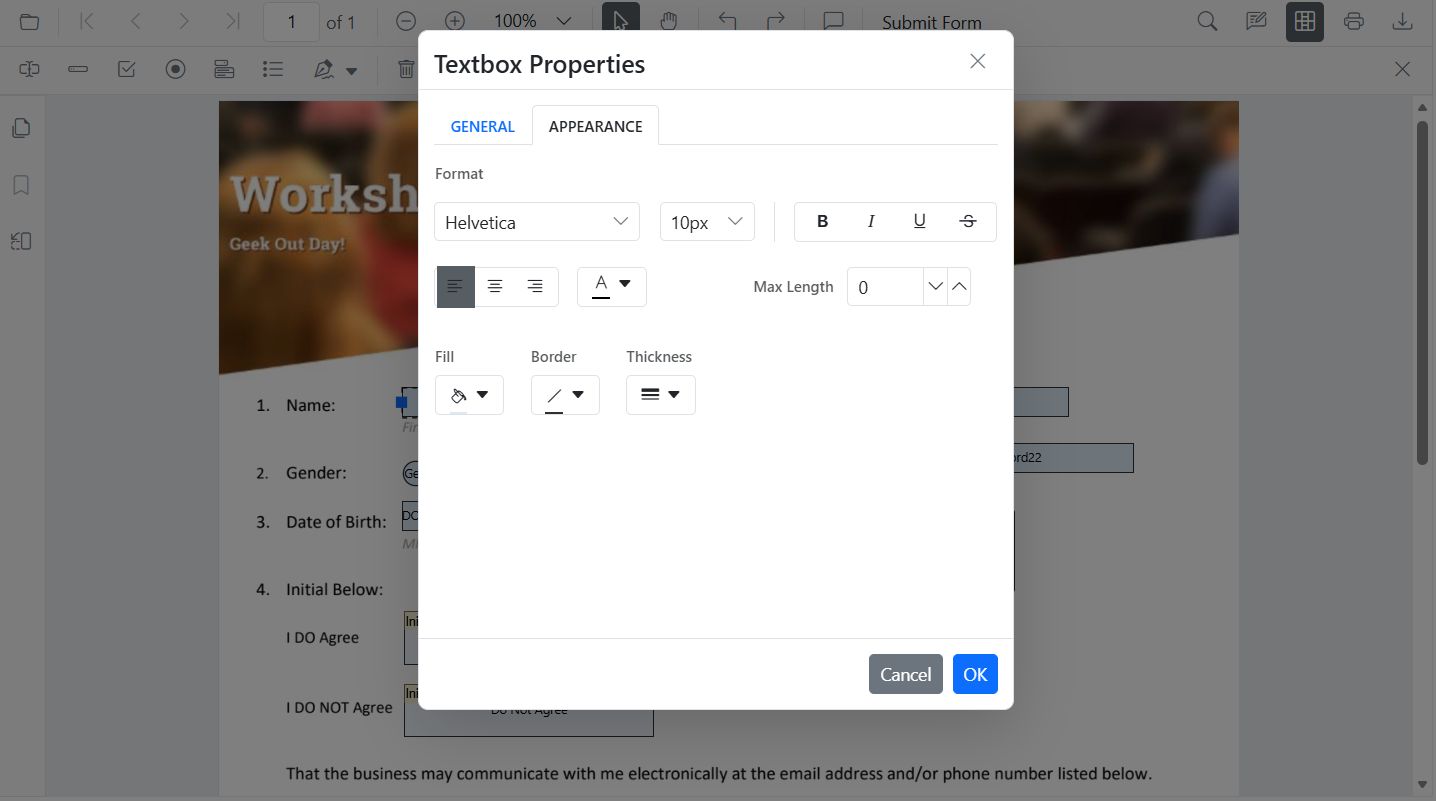
Customize appearance of form fields using the UI
Use the Properties panel to adjust:
- font family/size, text color, alignment
- border color/thickness
- background color
Customize appearance of form fields programmatically
Use updateFormField() to apply styles:
<button id="CustomizeTextboxStyle">Update Textbox Style</button>// Update textbox styling on button click
(document.getElementById('CustomizeTextboxStyle') as HTMLButtonElement)?.addEventListener('click', () => {
// Retrieve form fields collection
const fields = pdfviewer.retrieveFormFields();
// Find the textbox field by name
const tb = fields.find((f: any) => f.name === 'First Name') || fields[0];
if (tb) {
// Update textbox field styling
pdfviewer.formDesignerModule.updateFormField(tb, {
value: 'John',
fontFamily: 'Courier',
fontSize: 12,
fontStyle: FontStyle.None,
color: 'black',
borderColor: 'black',
backgroundColor: 'white',
alignment: 'Left',
thickness: 2
} as TextFieldSettings);
}
});Set default styles for new form fields
Define defaults so fields added from the toolbar inherit styles.
// Apply as defaults for Textbox added from toolbar
pdfviewer.textFieldSettings = {
  name: 'Textbox',
  isReadOnly: false,
  visibility: 'visible',
  isRequired: false,
  isPrint: true,
  tooltip: 'Textbox',
  thickness: 4,
  value: 'Textbox',
  fontFamily: 'Courier',
  fontSize: 10,
  fontStyle: 'None',
  color: 'black',
  borderColor: 'black',
  backgroundColor: 'White',
  alignment: 'Left',
  maxLength: 0,
  isMultiline: false
};