Enable Print Rotation in Blazor PDF Viewer
17 Aug 20262 minutes to read
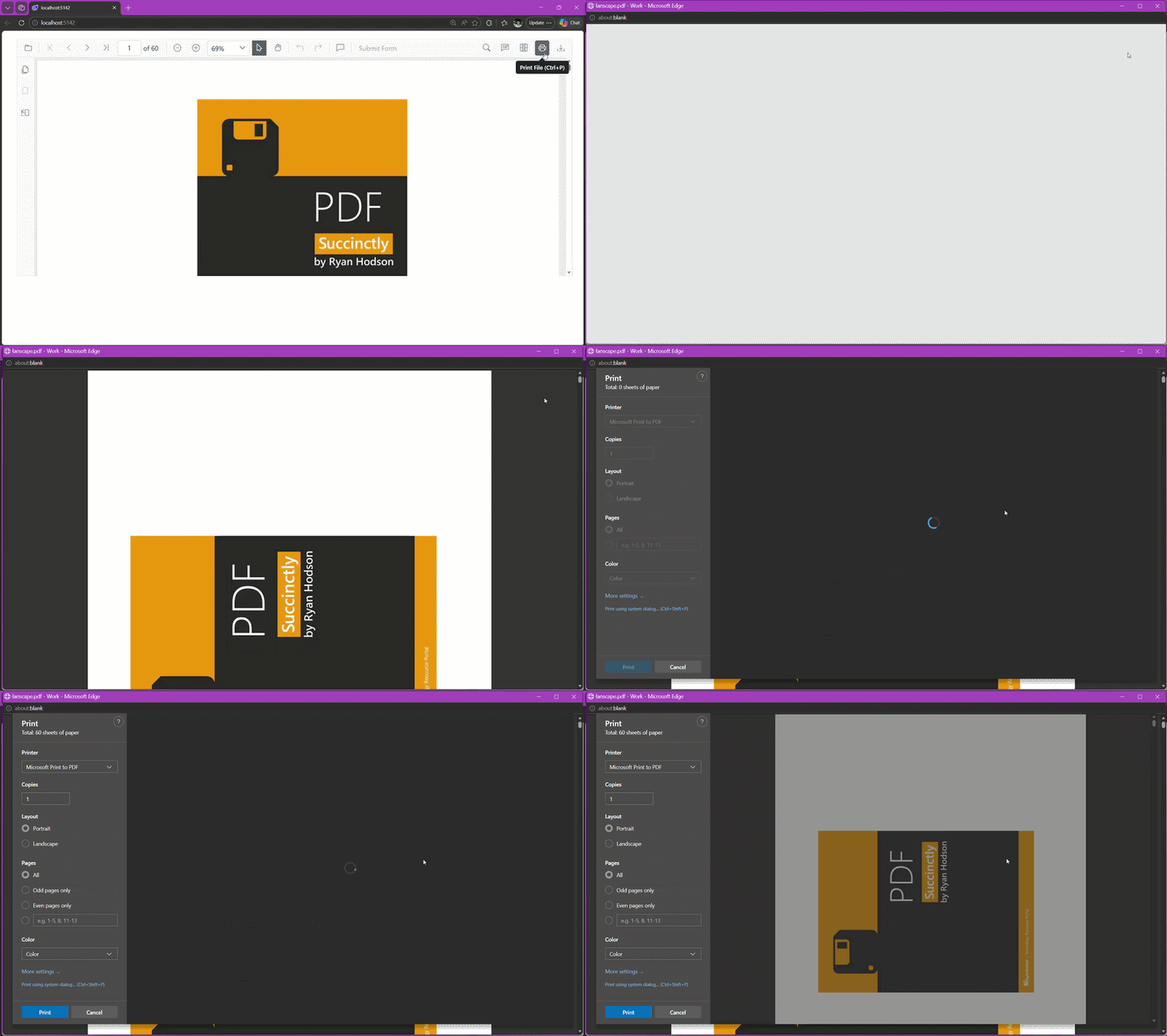
The EnablePrintRotation property in the Blazor PDF Viewer controls how landscape pages are handled during printing. When enabled, the viewer automatically rotates landscape-oriented pages to match the printer’s paper orientation, so the content fits within the paper margins and is not clipped. Portrait pages are unaffected.
| Property | Type | Default | Applies to |
|---|---|---|---|
EnablePrintRotation |
bool |
true |
SfPdfViewer2 (via PdfViewerBase) |
When set to false, pages retain their original orientation and are printed without any automatic rotation.
When to use print rotation
Enable this feature when printing documents that include landscape pages and you want them to align with the printer’s paper orientation. This helps improve readability and ensures that content is not cut off during printing. Rotation is applied regardless of the print mode (Default or NewWindow).
Enabling print rotation
The EnablePrintRotation property is set during the initialization of the PDF Viewer component. Since the default is true, explicit configuration is normally used only to disable rotation.
The following example keeps the default behavior.
@using Syncfusion.Blazor.SfPdfViewer

<SfPdfViewer2 Height="100%"
              Width="100%"
              DocumentPath="@DocumentPath"
              EnablePrintRotation="true" />

@code{
    private string DocumentPath { get; set; } = "wwwroot/Data/PDF_Succinctly.pdf";
}
Disabling print rotation
Set EnablePrintRotation to false to print pages in their original orientation without any automatic rotation.
@using Syncfusion.Blazor.SfPdfViewer

<SfPdfViewer2 Height="100%"
              Width="100%"
              DocumentPath="@DocumentPath"
              EnablePrintRotation="false" />

@code{
    private string DocumentPath { get; set; } = "wwwroot/Data/PDF_Succinctly.pdf";
}