Table of contents navigation in Blazor PDF Viewer
14 Aug 20261 minute to read
Use the table of contents (TOC) to jump to sections within a PDF. Each entry maps to a location in the document; selecting one navigates to that destination.
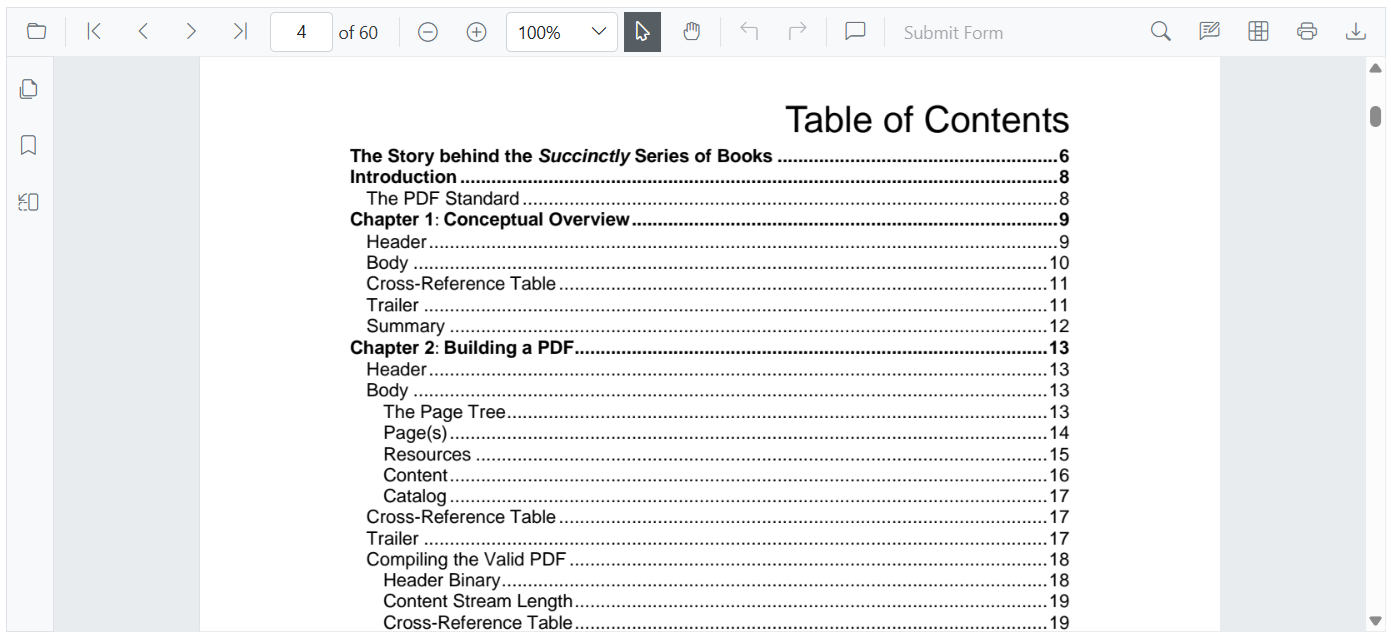
Enable hyperlink navigation, which also enables click behavior on TOC links, by setting the EnableHyperlink property to true. TOC entries are parsed from the PDF; if the document has no TOC, no entries appear.
@using Syncfusion.Blazor.SfPdfViewer

<SfPdfViewer2 Height="100%" Width="100%" DocumentPath="@DocumentPath" EnableHyperlink="true" />

@code{
    private string DocumentPath { get; set; } = "wwwroot/Data/PDF_Succinctly.pdf";
}
Control where external hyperlinks open using the HyperlinkOpenState property (for example, a new tab). In-document TOC links always navigate within the viewer.
@using Syncfusion.Blazor.SfPdfViewer

<SfPdfViewer2 Height="100%"
              Width="100%" DocumentPath="@DocumentPath"
              EnableHyperlink="true"
              HyperlinkOpenState="LinkTarget.NewTab" />

@code{
    private string DocumentPath { get; set; } = "wwwroot/Data/PDF_Succinctly.pdf";
}