Fill PDF Form Fields in ASP.NET MVC PDF Viewer
14 Aug 202610 minutes to read
The Syncfusion PDF Viewer supports three types of form-filling:
-
Filling Form Fields Programmatically
You can fill or update PDF form fields programmatically using the updateFormFieldsValue APIs. This approach is useful when form data needs to be set dynamically based on application logic.
-
Form Filling Through User Interface
Users can fill in PDF form fields directly through the PDF Viewer user interface by typing text, selecting options, or interacting with supported form elements.
-
The PDF Viewer allows you to import form field data into an existing PDF document. This enables pre filled forms using external data sources.
Fill PDF forms programmatically
You can update the values of PDF form fields programmatically using the updateFormFieldsValue API. This method allows you to set or modify form field values dynamically based on application logic, without user interaction.
The following example demonstrates how to update PDF form field values programmatically:
<div style="width:100%;height:600px">
        @Html.EJS().PdfViewer("pdfviewer").DocumentPath("https://cdn.syncfusion.com/content/pdf/form-filling-document.pdf").Render()
    </div>

    <button id="updateBtn">Fill Form Fields</button>

    <script>
        document.addEventListener("DOMContentLoaded", function () {
            var pdfviewer = document.getElementById('pdfviewer').ej2_instances[0];
            document.getElementById('updateBtn').onclick = function () {
                var fields = (pdfviewer.retrieveFormFields && pdfviewer.retrieveFormFields()) || pdfviewer.formFieldCollection || [];
                var field = fields.find(function (f) { return f && f.name === 'name'; }) || fields[0];
                if (field) {
                    field.value = 'John Doe';
                    field.tooltip = 'First';
                    pdfviewer.updateFormFieldsValue(field);
                }
                else {
                    console.warn('No form fields available to update.');
                }
            };
        });
    </script>
Fill PDF forms through the User Interface
The Syncfusion PDF Viewer allows users to fill PDF form fields directly through the user interface without using code. Users can click on form fields and enter or select values based on the field type.
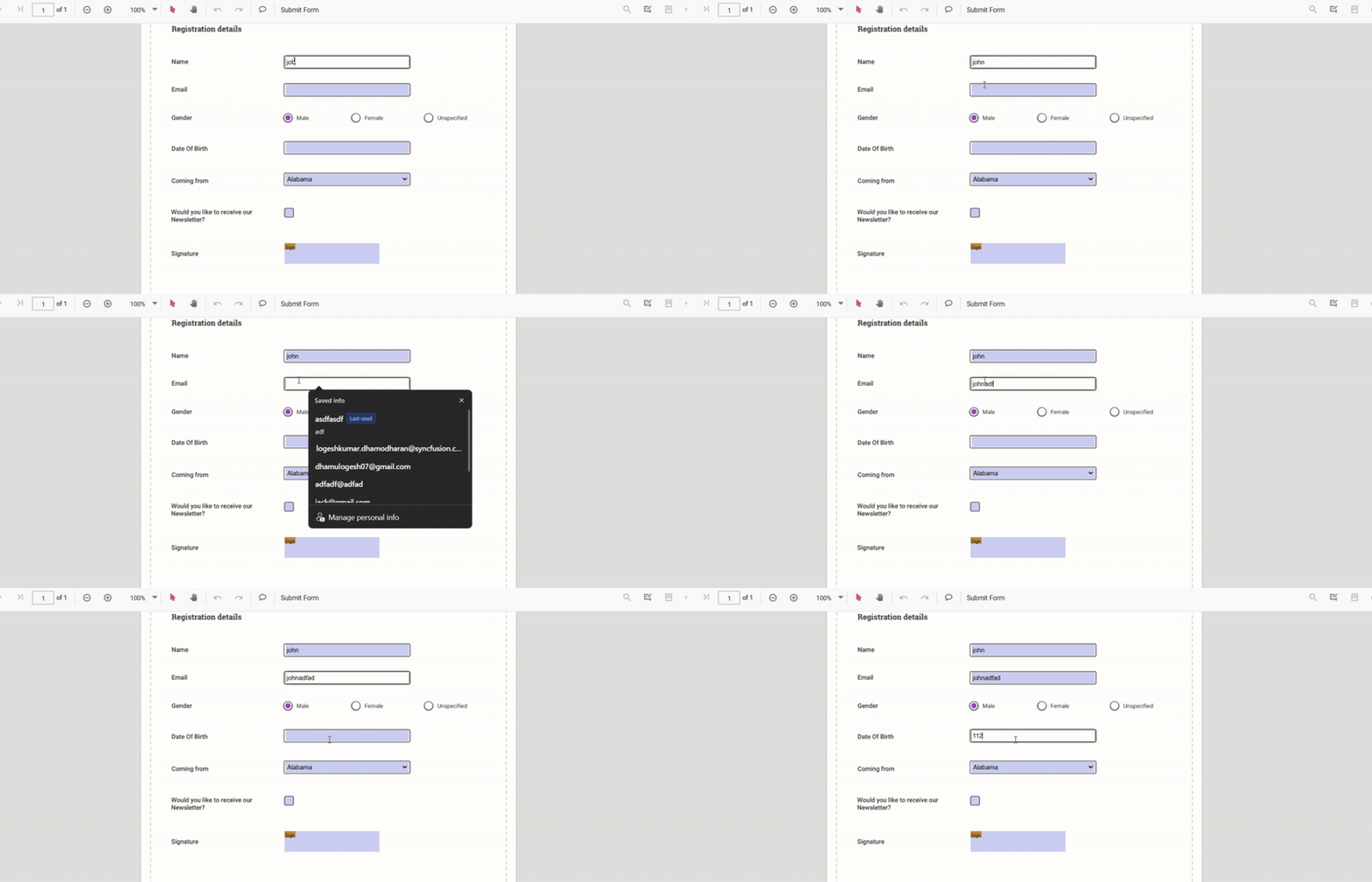
The PDF Viewer supports common form fields such as text boxes, check boxes, radio buttons, drop-down lists, list boxes, and signature fields. Filled values can be edited at any time, and the entered data is retained during the viewing session.
Fill PDF forms through Import Data
The PDF Viewer allows you to import form field data into an existing PDF document using the importFormFields API. This feature enables you to pre-fill form fields using data from an external source without requiring manual user input.
Imported form field data is automatically mapped to the corresponding form fields in the PDF document based on the field names. Once the data is imported, the populated values are displayed in the PDF Viewer and can be edited through the user interface if required.
<div style="width:100%;height:600px">
        @Html.EJS().PdfViewer("viewer").DocumentPath("https://cdn.syncfusion.com/content/pdf/form-filling-document.pdf").Render()
    </div>

    <button id="importJson">Import JSON</button>

    <script>
        document.addEventListener("DOMContentLoaded", function () {
            var viewer = document.getElementById('viewer').ej2_instances[0];
            document.getElementById('importJson').addEventListener('click', function () {
                // The file for importing should be accessible at the given path or as a file stream depending on your integration
                viewer.importFormFields('File', FormFieldDataFormat.Json);
            });
        });
    </script>
For more details, see Import Form Data.
How to get the filled data and store it to a backing system
You can export the filled form field data from the PDF Viewer and store it in a backing system such as a database or file storage. The exported data can later be imported to restore the form state.
For more details, see Export Form Data.
How to Validate Form Fields using validateFormFields Event
The validateFormFields event in the Syncfusion PDF Viewer is triggered when a user tries to download or submit a form while validation is enabled. You can use the retrieveFormFields() API to get all the form fields and check them one by one to see if any form fields values are empty.
This validation applies to all form field types in the PDF Viewer. A textbox is empty if no text is entered, a list box or dropdown is empty if no item is selected, a signature or initial field is empty if the user has not signed, and radio buttons or checkboxes are empty if none are chosen.
By enabling enableFormFieldsValidation and wiring the event, you can go through each field and stop the action if required fields are not filled.
<div style="width:100%;height:600px">
        @Html.EJS().PdfViewer("pdfviewer").DocumentPath("https://cdn.syncfusion.com/content/pdf/form-filling-document.pdf").Render()
    </div>

    <script>
        document.addEventListener("DOMContentLoaded", function () {
            var pdfviewer = document.getElementById('pdfviewer').ej2_instances[0];
            pdfviewer.enableFormFieldsValidation = true;

            pdfviewer.documentLoad = function () {
                // Add a required Email field
                pdfviewer.formDesignerModule.addFormField('Textbox', {
                    name: 'Email',
                    bounds: { X: 146, Y: 260, Width: 220, Height: 24 },
                    isRequired: true,
                    tooltip: 'Email is required'
                });

                // Add a required Phone field
                pdfviewer.formDesignerModule.addFormField('Textbox', {
                    name: 'Phone',
                    bounds: { X: 146, Y: 300, Width: 220, Height: 24 },
                    isRequired: true,
                    tooltip: 'Phone number is required'
                });
            };

            // Validate only the added fields
            pdfviewer.validateFormFields = function (args) {
                var fields = (pdfviewer.retrieveFormFields && pdfviewer.retrieveFormFields()) || [];
                fields.forEach(function (field) {
                    if ((field.name === 'Email' || field.name === 'Phone') && !field.value) {
                        alert(field.name + ' field cannot be empty.');
                        args.isFormSubmitCancelled = true;
                    }
                });
            };
        });
    </script>