Programmatic Support for Organize Pages in ASP.NET Core PDF Viewer
14 Aug 202619 minutes to read
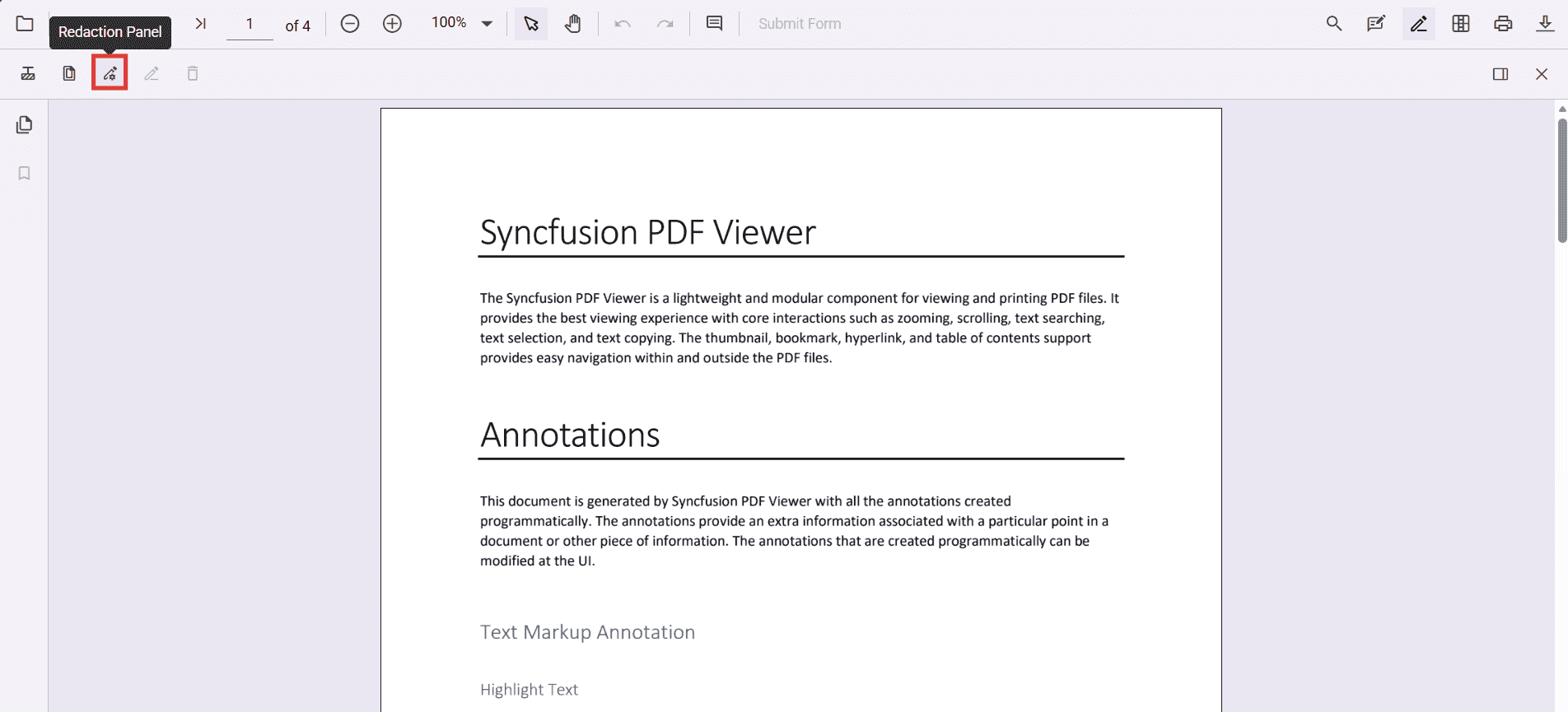
The Syncfusion ASP.NET Core PDF Viewer provides APIs to add, update, delete, and apply redaction annotations programmatically. The viewer also supports page redaction, configuration of default properties, and interaction with the redaction property panel.
Enable the redaction toolbar
To enable the redaction toolbar, configure the toolbarSettings.toolbarItems property of the PdfViewer instance to include the RedactionEditTool.
The following example shows how to enable the redaction toolbar:
<div class="text-center">
    <ejs-pdfviewer
        id="pdfViewer"
        style="height:640px; display:block"
        resourceUrl="https://cdn.syncfusion.com/ej2/31.2.12/dist/ej2-pdfviewer-lib"
        documentPath="https://cdn.syncfusion.com/content/pdf/pdf-succinctly.pdf">
    </ejs-pdfviewer>
</div>
<script type="text/javascript">
window.onload = function () {
        var viewer = document.getElementById('pdfViewer').ej2_instances[0];
        // Include RedactionEditTool in the primary toolbar
        viewer.toolbarSettings = {
            toolbarItems: [
                'OpenOption',
                'UndoRedoTool',
                'PageNavigationTool',
                'MagnificationTool',
                'PanTool',
                'SelectionTool',
                'CommentTool',
                'SubmitForm',
                'AnnotationEditTool',
                'RedactionEditTool',
                'FormDesignerEditTool',
                'SearchOption',
                'PrintOption',
                'DownloadOption'
            ]
        };
    }
</script>
Add redaction annotations programmatically
You can add redaction annotations to a PDF document using the addAnnotation method of the annotation module. You can listen to the annotationAdd event to track when annotations are added.
<div class="text-center">
    <div style="margin-bottom:8px; display:flex; gap:8px; align-items:center;">
        <button id="addRedactAnnot" type="button" onclick="addRedaction()">Add Redaction Annotation</button>
    </div>
    <ejs-pdfviewer
        id="pdfViewer"
        style="height:640px; display:block"
        resourceUrl="https://cdn.syncfusion.com/ej2/31.2.12/dist/ej2-pdfviewer-lib"
        documentPath="https://cdn.syncfusion.com/content/pdf/pdf-succinctly.pdf">
    </ejs-pdfviewer>
</div>
<script type="text/javascript">
    window.onload = function () {
        window.viewer = document.getElementById('pdfViewer').ej2_instances[0];
        viewer.toolbarSettings = {
            toolbarItems: [
                'OpenOption', 'UndoRedoTool', 'PageNavigationTool', 'MagnificationTool', 'PanTool',
                'SelectionTool', 'CommentTool', 'SubmitForm', 'AnnotationEditTool', 'RedactionEditTool',
                'FormDesignerEditTool', 'SearchOption', 'PrintOption', 'DownloadOption'
            ]
        };
    };
    function addRedaction() {
        if (!window.viewer) return;
        viewer.annotation.addAnnotation('Redaction', {
            bound: { x: 200, y: 480, width: 150, height: 75 },
            pageNumber: 1,
            markerFillColor: '#0000FF',
            markerBorderColor: 'white',
            fillColor: 'red',
            overlayText: 'Confidential',
            fontColor: 'yellow',
            fontFamily: 'Times New Roman',
            fontSize: 8,
            beforeRedactionsApplied: false
        });
        console.log('Redaction annotation added');
    }
</script>
Delete redaction annotations programmatically
Redaction annotations can be removed using the deleteAnnotationById method or by selecting and deleting them through code.
<div class="text-center">
    <div style="margin-bottom:8px;">
        <button type="button" onclick="deleteAnnotationById()">Delete Annotation By Id</button>
    </div>
    <ejs-pdfviewer
        id="pdfViewer"
        style="height:640px; display:block"
        resourceUrl="https://cdn.syncfusion.com/ej2/31.2.12/dist/ej2-pdfviewer-lib"
        documentPath="https://cdn.syncfusion.com/content/pdf/pdf-succinctly.pdf">
    </ejs-pdfviewer>
</div>
<script type="text/javascript">
    window.onload = function () {
        window.viewer = document.getElementById('pdfViewer').ej2_instances[0];
        viewer.toolbarSettings = {
            toolbarItems: [
                'OpenOption', 'UndoRedoTool', 'PageNavigationTool', 'MagnificationTool', 'PanTool',
                'SelectionTool', 'CommentTool', 'SubmitForm', 'AnnotationEditTool', 'RedactionEditTool',
                'FormDesignerEditTool', 'SearchOption', 'PrintOption', 'DownloadOption'
            ]
        };
    };
    function deleteAnnotationById() {
        if (!window.viewer) return;
        var first = viewer.annotationCollection && viewer.annotationCollection[0];
        if (first) {
            viewer.annotationModule.deleteAnnotationById(first.annotationId);
        }
    }
</script>
Alternatively, you can remove annotations by selecting them in the UI and pressing the Delete key.
Update redaction annotation properties programmatically
You can update properties of an existing redaction annotation using the editAnnotation API. For example, to change overlay text or fill color:
<div class="text-center">
    <div style="margin-bottom:8px; display:flex; gap:8px;">
        <button id="editRedactAnnotation" type="button" onclick="editRedactAnnotation()">Edit Redact Annotation</button>
    </div>
    <ejs-pdfviewer
        id="pdfViewer"
        style="height:640px; display:block"
        resourceUrl="https://cdn.syncfusion.com/ej2/31.2.12/dist/ej2-pdfviewer-lib"
        documentPath="https://cdn.syncfusion.com/content/pdf/pdf-succinctly.pdf">
    </ejs-pdfviewer>
</div>
<script type="text/javascript">
    window.onload = function () {
        window.viewer = document.getElementById('pdfViewer').ej2_instances[0];
        viewer.toolbarSettings = {
            toolbarItems: [
                'OpenOption', 'UndoRedoTool', 'PageNavigationTool', 'MagnificationTool', 'PanTool',
                'SelectionTool', 'CommentTool', 'SubmitForm', 'AnnotationEditTool', 'RedactionEditTool',
                'FormDesignerEditTool', 'SearchOption', 'PrintOption', 'DownloadOption'
            ]
        };
    };
    function editRedactAnnotation() {
        if (!window.viewer) return;
        var collection = viewer.annotationCollection || [];
        for (var i = 0; i < collection.length; i++) {
            if (collection[i].subject === 'Redaction') {
                collection[i].overlayText = 'EditedAnnotation';
                collection[i].markerFillColor = '#22FF00';
                collection[i].markerBorderColor = '#000000';
                collection[i].isRepeat = true;
                collection[i].fillColor = '#F8F8F8';
                collection[i].fontColor = '#333333';
                collection[i].fontSize = 14;
                collection[i].fontFamily = 'Symbol';
                collection[i].textAlign = 'Right';
                collection[i].beforeRedactionsApplied = false;
                viewer.annotation.editAnnotation(collection[i]);
            }
        }
    }
</script>
Add page redactions programmatically
Entire pages can be marked for redaction using the addPageRedactions method:
<div class="text-center">
    <div style="margin-bottom:8px; display:flex; gap:8px; align-items:center;">
        <button id="addPageRedactions" type="button" onclick="addPageRedactions()">Add Page Redaction</button>
    </div>
    <ejs-pdfviewer
        id="pdfViewer"
        style="height:640px; display:block"
        resourceUrl="https://cdn.syncfusion.com/ej2/31.2.12/dist/ej2-pdfviewer-lib"
        documentPath="https://cdn.syncfusion.com/content/pdf/pdf-succinctly.pdf">
    </ejs-pdfviewer>
</div>
<script type="text/javascript">
    window.onload = function () {
        window.viewer = document.getElementById('pdfViewer').ej2_instances[0];
        viewer.toolbarSettings = {
            toolbarItems: [
                'OpenOption', 'UndoRedoTool', 'PageNavigationTool', 'MagnificationTool', 'PanTool',
                'SelectionTool', 'CommentTool', 'SubmitForm', 'AnnotationEditTool', 'RedactionEditTool',
                'FormDesignerEditTool', 'SearchOption', 'PrintOption', 'DownloadOption'
            ]
        };
    };
    function addPageRedactions() {
        if (!window.viewer) return;
        // pages 1, 3, 5, 7
        viewer.annotation.addPageRedactions([1, 3, 5, 7]);
    }
</script>
Apply redaction programmatically
Once annotations are added, you can permanently apply them to the document using the redact method:
<div class="text-center">
    <div style="margin-bottom:8px; display:flex; gap:8px; align-items:center;">
        <button id="redact" type="button" onclick="applyRedaction()">Apply Redaction</button>
    </div>
    <ejs-pdfviewer
        id="pdfViewer"
        style="height:640px; display:block"
        resourceUrl="https://cdn.syncfusion.com/ej2/31.2.12/dist/ej2-pdfviewer-lib"
        documentPath="https://cdn.syncfusion.com/content/pdf/pdf-succinctly.pdf">
    </ejs-pdfviewer>
</div>
<script type="text/javascript">
    window.onload = function () {
        window.viewer = document.getElementById('pdfViewer').ej2_instances[0];
        viewer.toolbarSettings = {
            toolbarItems: [
                'OpenOption', 'UndoRedoTool', 'PageNavigationTool', 'MagnificationTool', 'PanTool',
                'SelectionTool', 'CommentTool', 'SubmitForm', 'AnnotationEditTool', 'RedactionEditTool',
                'FormDesignerEditTool', 'SearchOption', 'PrintOption', 'DownloadOption'
            ]
        };
    };
    function applyRedaction() {
        if (!window.viewer) return;
        viewer.annotation.redact();
    }
</script>
Applying redaction is irreversible. Once applied, the original content cannot be recovered.
Configure default redaction annotation properties
You can configure default properties for redaction annotations (such as fill color, overlay text, and font) when adding them programmatically:
<div class="text-center">
    <ejs-pdfviewer
        id="pdfViewer"
        style="height:640px; display:block"
        resourceUrl="https://cdn.syncfusion.com/ej2/31.2.12/dist/ej2-pdfviewer-lib"
        documentPath="https://cdn.syncfusion.com/content/pdf/pdf-succinctly.pdf">
    </ejs-pdfviewer>
</div>
<script type="text/javascript">
    window.onload = function () {
        window.viewer = document.getElementById('pdfViewer').ej2_instances[0];
        viewer.toolbarSettings = {
            toolbarItems: [
                'OpenOption', 'UndoRedoTool', 'PageNavigationTool', 'MagnificationTool', 'PanTool',
                'SelectionTool', 'CommentTool', 'SubmitForm', 'AnnotationEditTool', 'RedactionEditTool',
                'FormDesignerEditTool', 'SearchOption', 'PrintOption', 'DownloadOption'
            ]
        };
        // Default redaction properties
        viewer.redactionSettings = {
            overlayText: 'Confidential',
            markerFillColor: '#FF0000',
            markerBorderColor: '#000000',
            isRepeat: false,
            fillColor: '#F8F8F8',
            fontColor: '#333333',
            fontSize: 14,
            fontFamily: 'Symbol',
            textAlign: 'Right'
        };
    };
</script>Redaction property panel
The redaction property panel allows users to update annotation properties through the UI. Programmatically, you can invoke the property panel by selecting an annotation and calling the relevant APIs. Properties such as overlay text, font style, and fill color can be updated directly in the panel.