About Syncfusion ASP.NET Core PDF Viewer Redaction
14 Aug 20264 minutes to read
Redaction annotations hide confidential or sensitive information in a PDF. The Syncfusion ASP.NET Core PDF Viewer enables marking areas or entire pages for redaction, customizing their appearance, and permanently applying redactions.
Enable the redaction toolbar
To enable the redaction toolbar, configure the toolbarSettings.toolbarItems property of the PdfViewer instance to include the RedactionEditTool.
The following example shows how to enable the redaction toolbar:
<div class="text-center">
    <ejs-pdfviewer
        id="pdfViewer"
        style="height:640px; display:block"
        resourceUrl="https://cdn.syncfusion.com/ej2/31.2.12/dist/ej2-pdfviewer-lib"
        documentPath="https://cdn.syncfusion.com/content/pdf/pdf-succinctly.pdf">
    </ejs-pdfviewer>
</div>
<script type="text/javascript">
window.onload = function () {
        var viewer = document.getElementById('pdfViewer').ej2_instances[0];
        // Include RedactionEditTool in the primary toolbar
        viewer.toolbarSettings = {
            toolbarItems: [
                'OpenOption',
                'UndoRedoTool',
                'PageNavigationTool',
                'MagnificationTool',
                'PanTool',
                'SelectionTool',
                'CommentTool',
                'SubmitForm',
                'AnnotationEditTool',
                'RedactionEditTool',
                'FormDesignerEditTool',
                'SearchOption',
                'PrintOption',
                'DownloadOption'
            ]
        };
    }
</script>
Prerequisites: Add the PdfViewer control to the ASP.NET Core application and confirm that the redaction feature is available in the used product version. Applying redaction permanently removes the selected content.
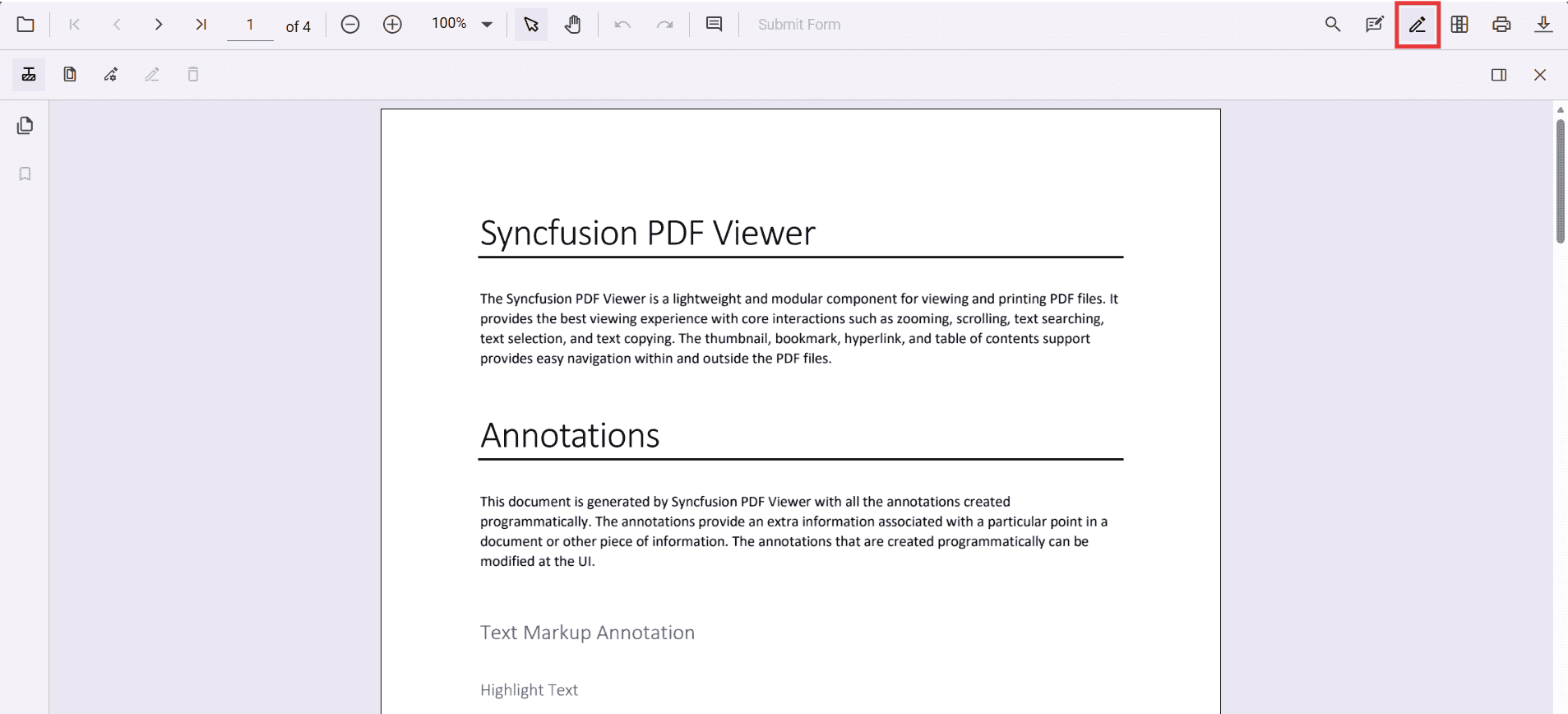
Add Redaction Annotations
Mark specific content for redaction using the toolbar or programmatically.
Select the Redaction tool and draw over the text or graphics to hide. Optionally add overlay text (for example, “Confidential”) and adjust the style: fill color, border color, and opacity.
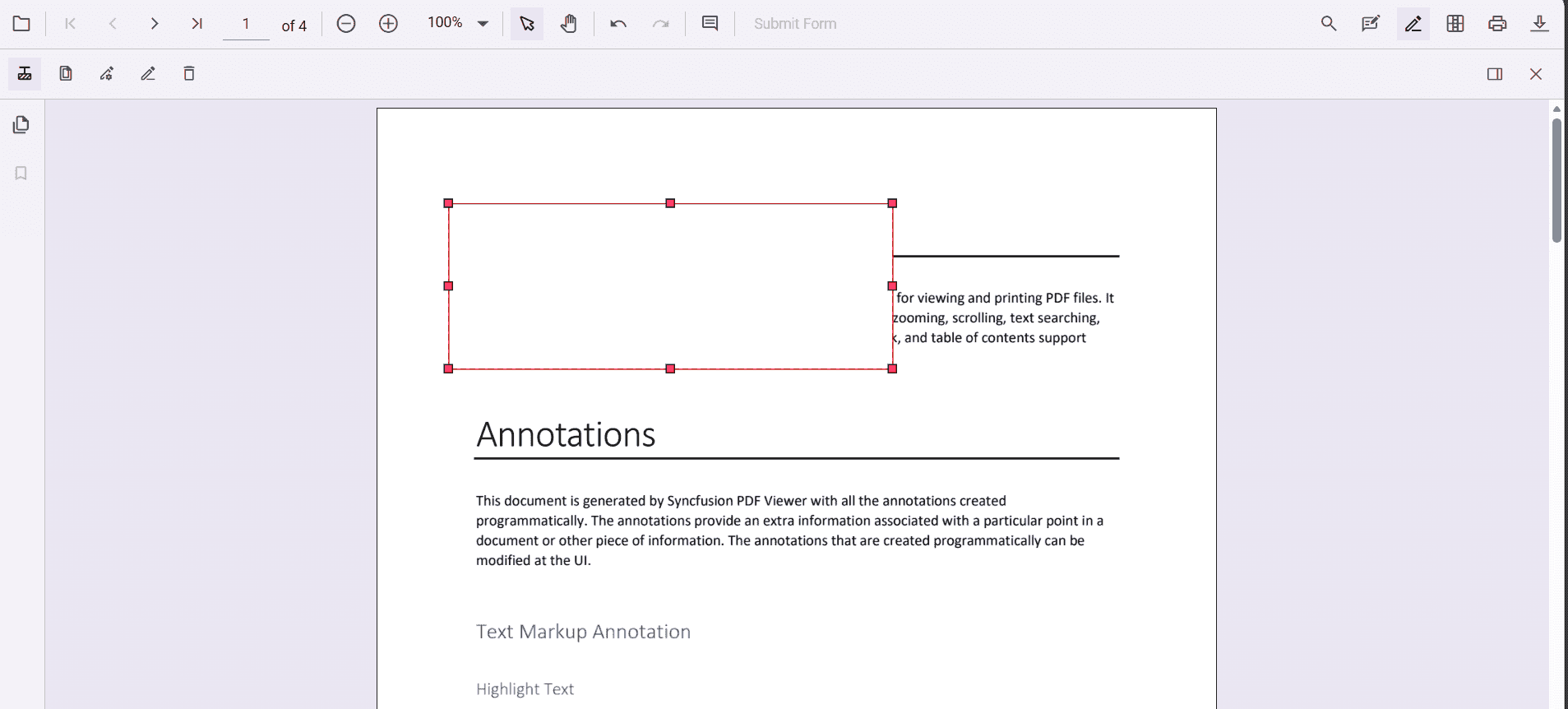
Delete Redaction Annotations
Remove redaction annotations by either:
- Clicking the Delete button on the toolbar, or
- Selecting the annotation and pressing the Delete key.
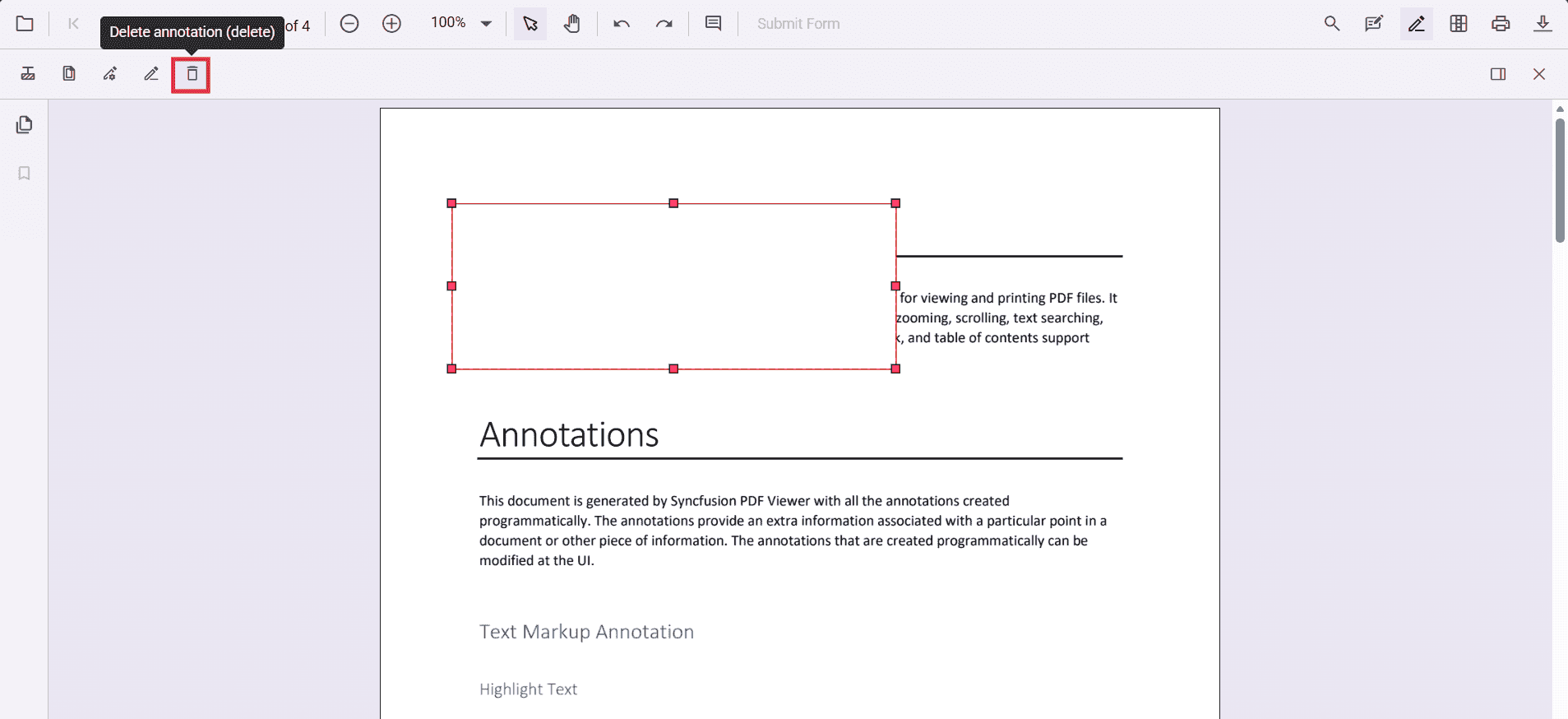
Redact Entire Pages
Redact whole pages that contain sensitive information. Choose specific pages, page ranges, or redact all pages using the built‑in dialog, or perform the same action programmatically.
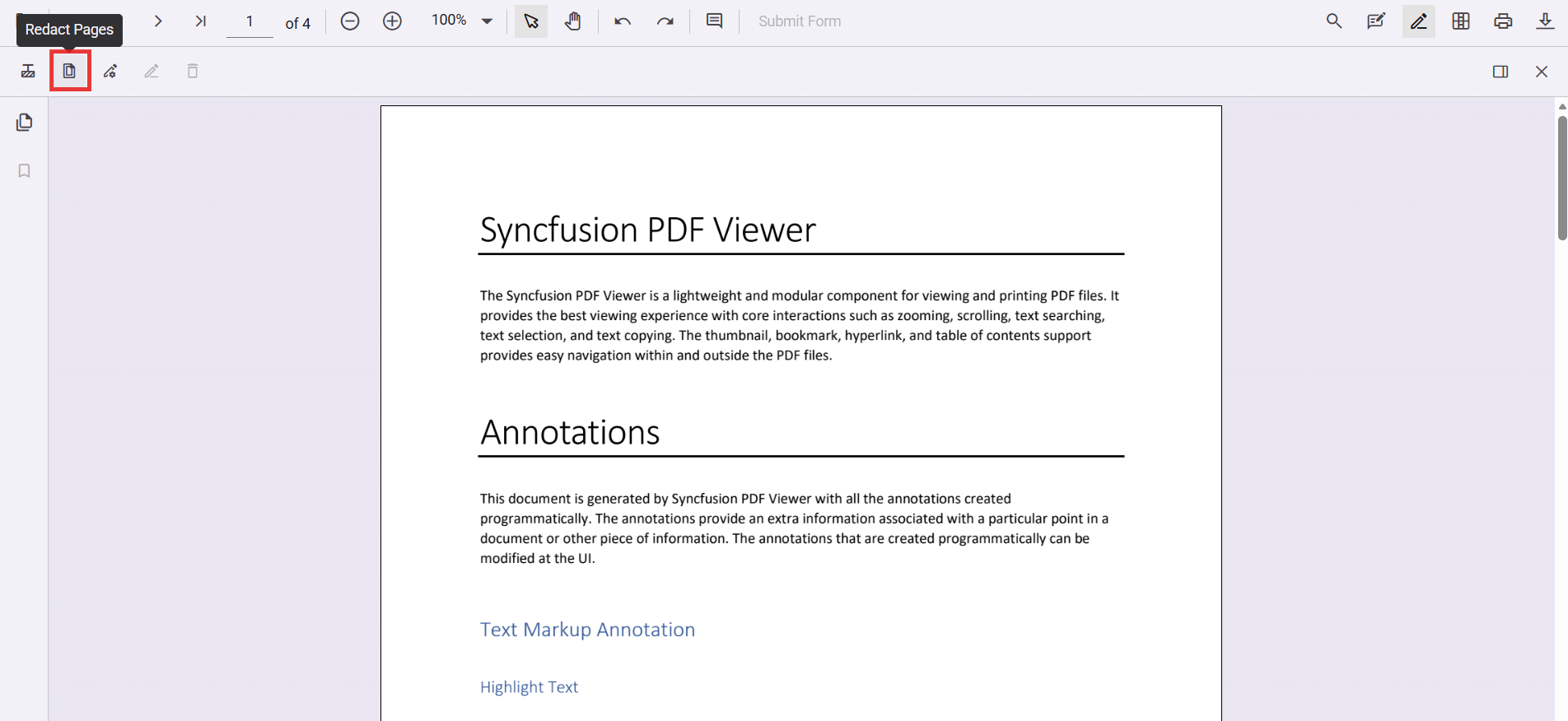
Apply Redaction
After adding annotations, permanently apply them to the document. This action is irreversible.
Use the Apply Redaction button on the toolbar or call the API method:
- The button remains disabled until at least one redaction annotation exists.
- It becomes active when redaction annotations are present.
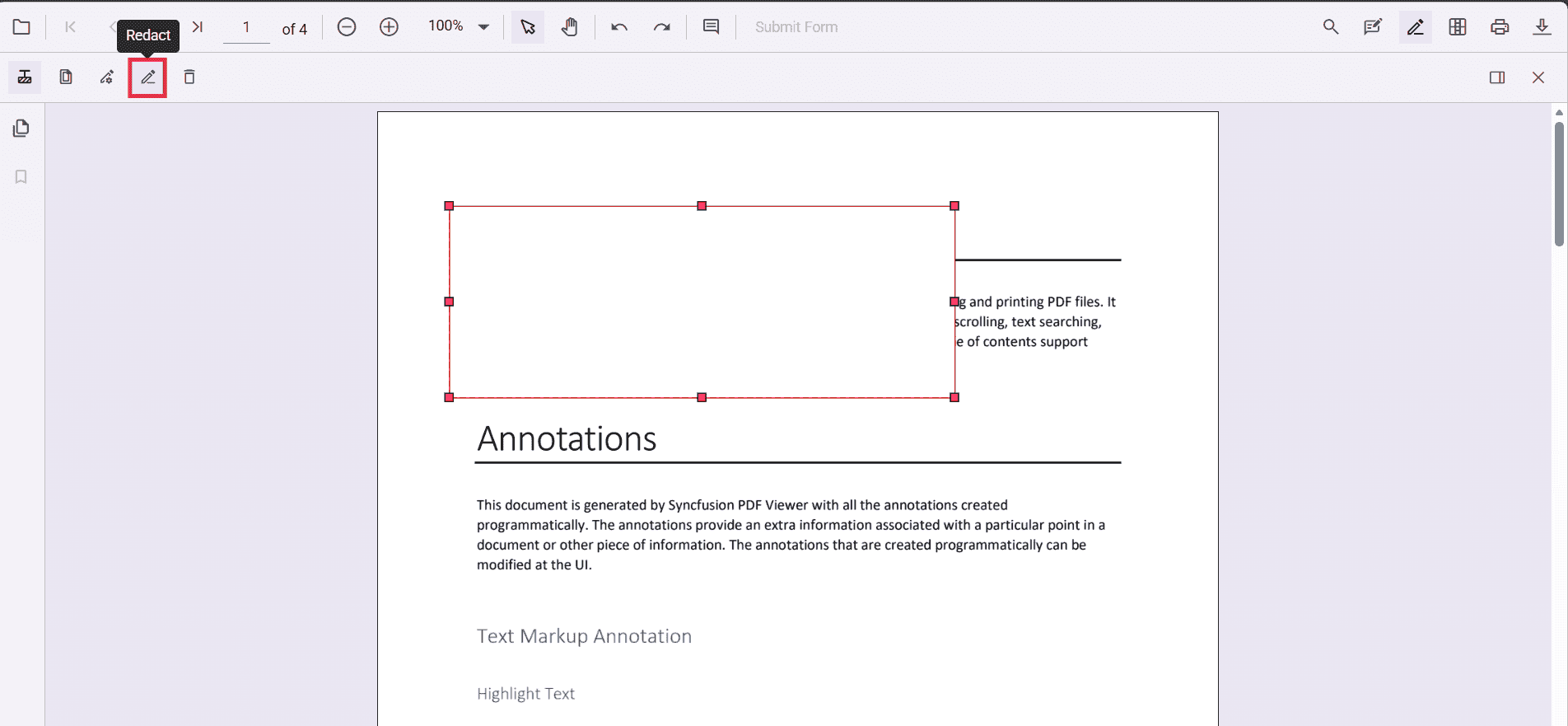
A confirmation dialog appears before applying redaction to ensure you acknowledge the irreversible nature of the process.
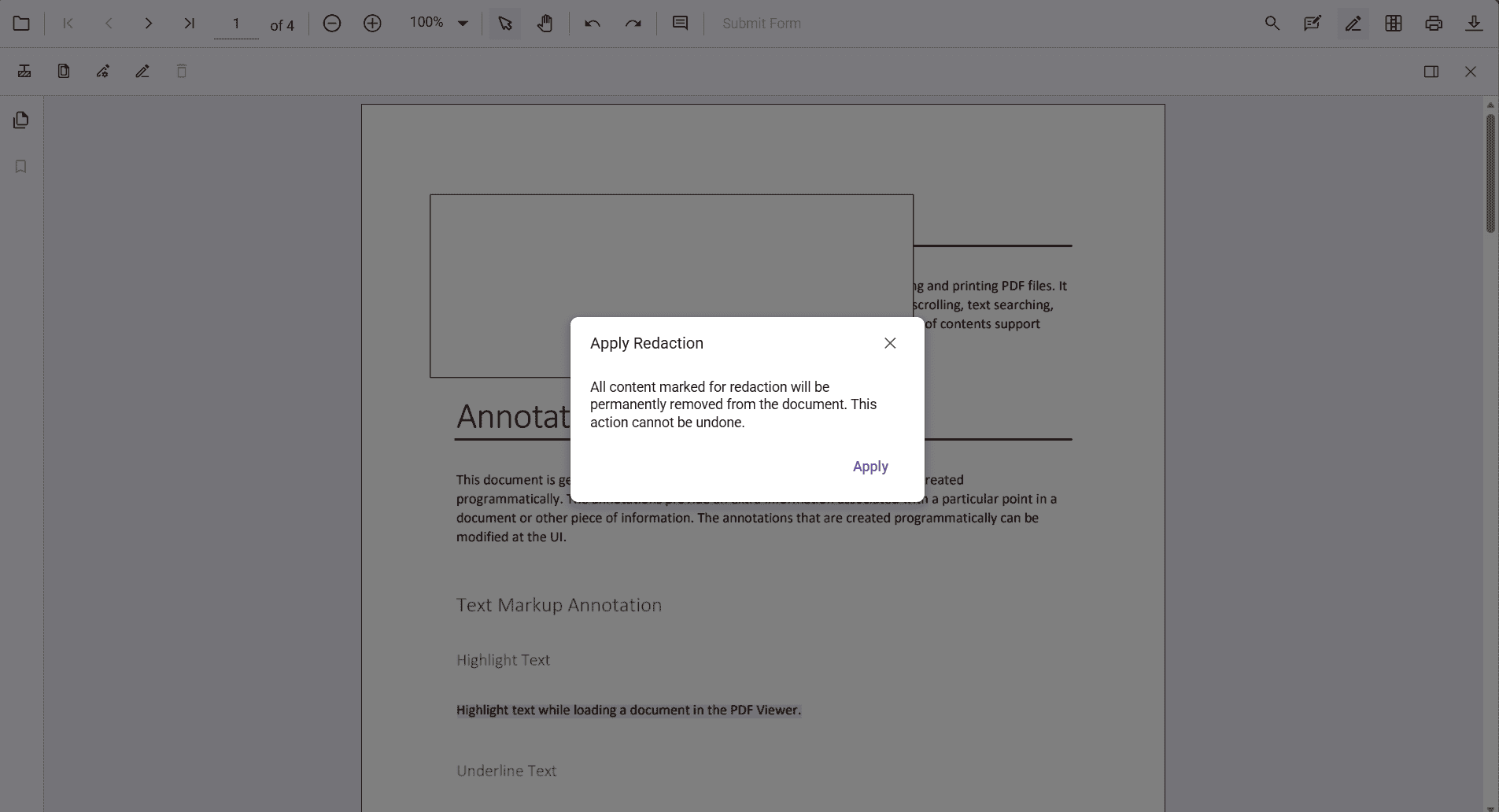
After redaction is applied, the original content cannot be recovered.
Comment Support
Redaction annotations can include comments using the built‑in comment panel. This helps you add notes, track reviews, or record the reason for redaction.
Comments can be added through the UI or API. For more details, see the Comments documentation.
Import and Export Redaction Annotations
You can save and reload redaction annotations by exporting and importing them in JSON format. This makes it easy to persist annotations or share them across sessions.
For more details, see the Export and import annotations documentation.