Customize Annotations in ASP.NET Core PDF Viewer
21 Oct 202613 minutes to read
Annotation appearance and behavior (for example, color, stroke color, thickness, and opacity) can be customized using the built‑in UI or programmatically. This page summarizes common customization patterns and shows how to set defaults per annotation type.
Customize via UI
Use the annotation toolbar after selecting an annotation:
- Edit color: changes the annotation fill or text color
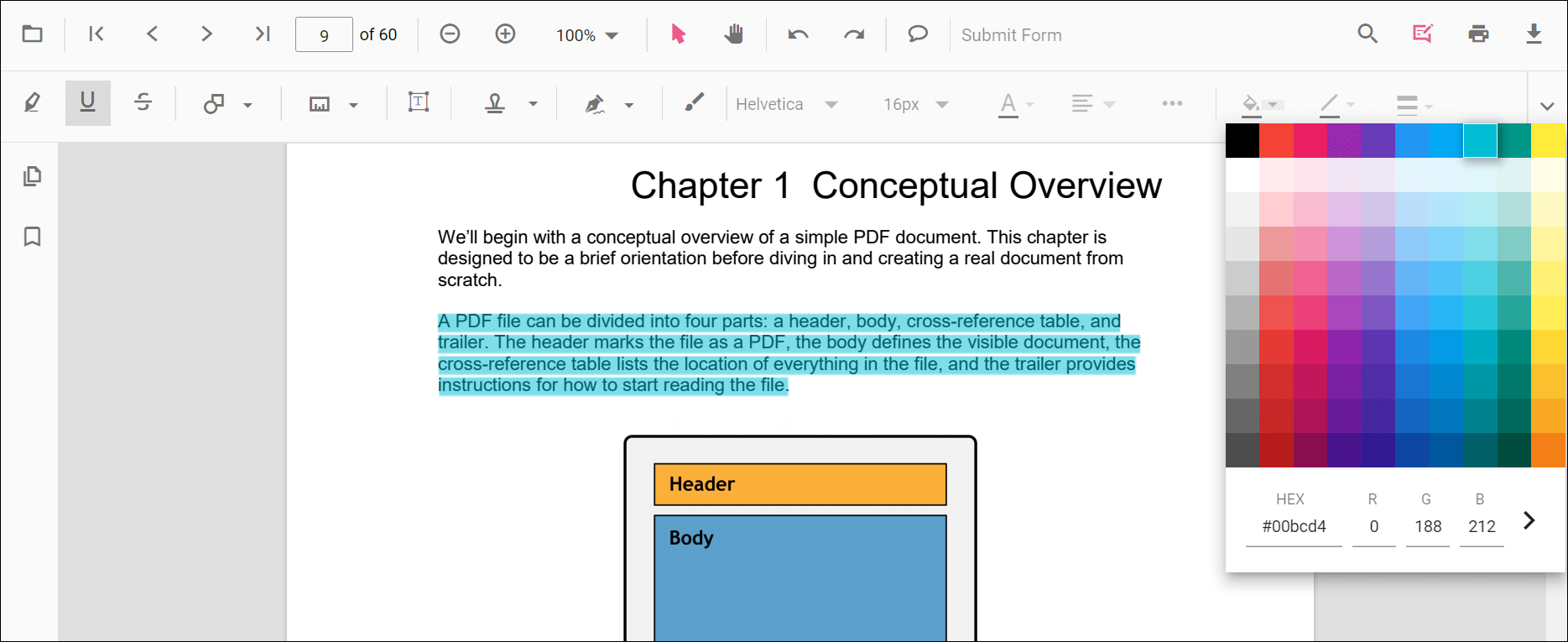
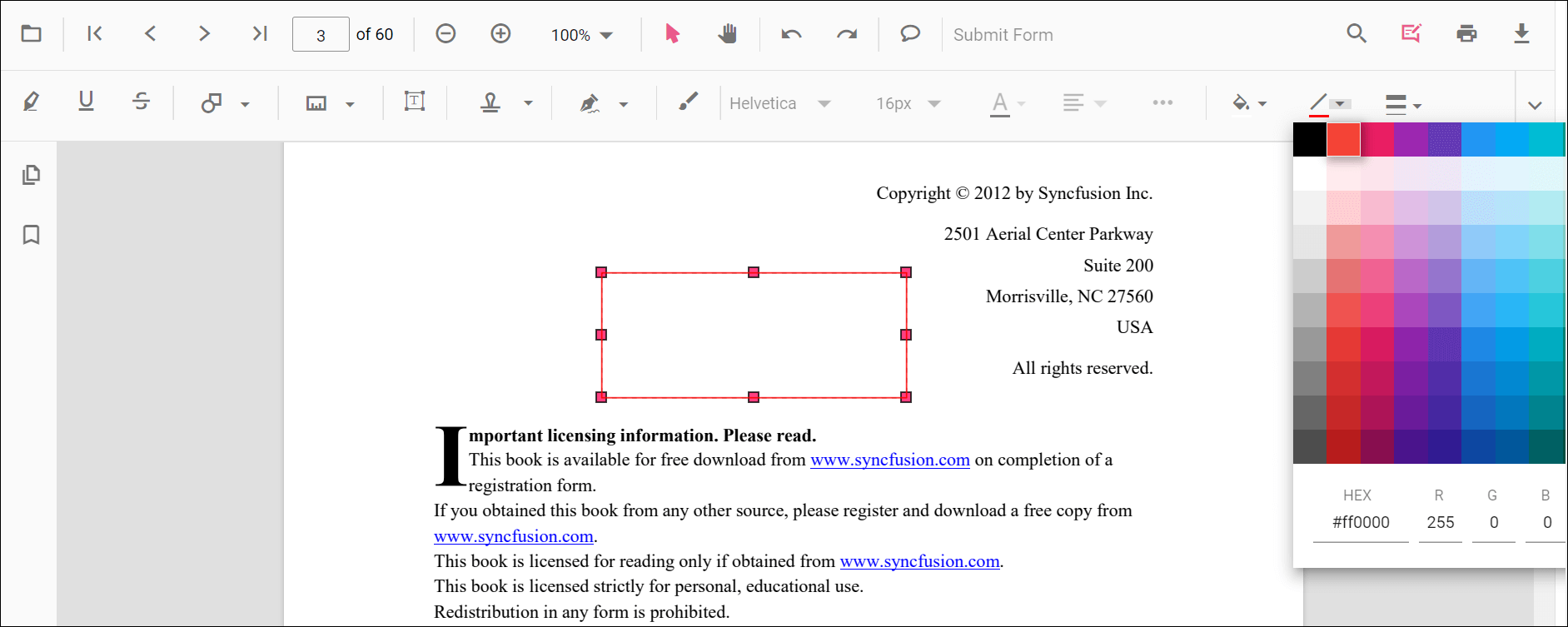
- Edit stroke color: changes border or line color for shapes and lines.
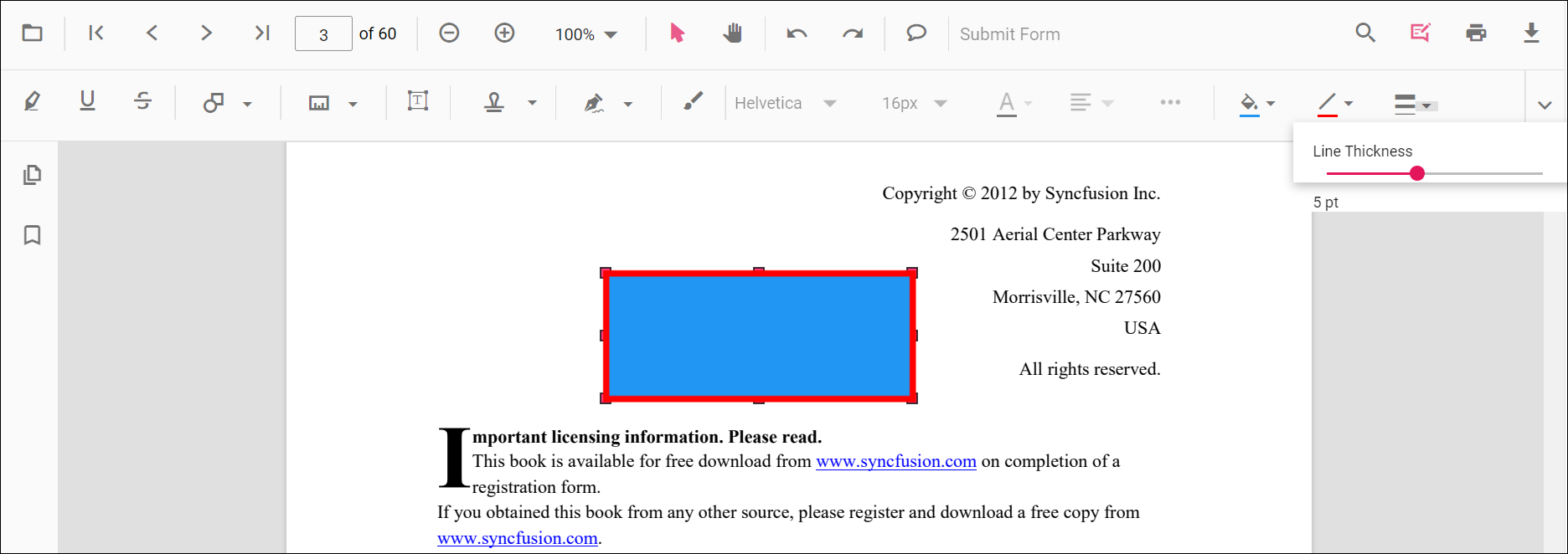
- Edit thickness: adjusts border or line thickness
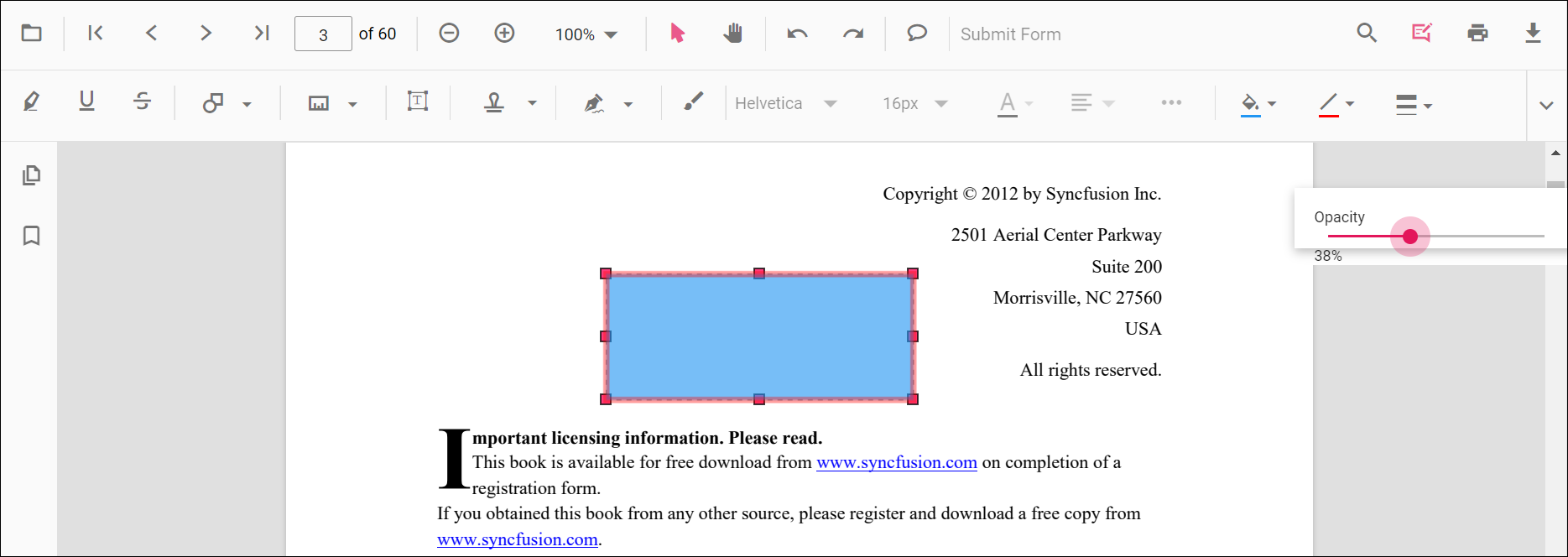
- Edit opacity: adjusts transparency
The annotation toolbar also exposes Border Style options (Solid, Cloud, Dashed) on shape and measurement annotations that support additional border styles. See Cloud Annotation for cloud-specific appearance options and the per-annotation pages linked below for border-style customization.
Type‑specific options (for example, Line properties) are available from the context menu (right‑click > Properties) where supported.
Border Style Support Matrix
Use this matrix to find which annotation types support the Solid, Cloud, and Dashed border styles and the settings property that controls them.
| Annotation Type | Solid | Cloud | Dashed | Settings property |
|---|---|---|---|---|
| Rectangle | ✓ | ✓ | ✓ | rectangleSettings |
| Circle | ✓ | ✓ | ✓ | circleSettings |
| Polygon | ✓ | ✓ | ✓ | polygonSettings |
| Cloud | ✓ | ✓ | — | cloudSettings |
| Free Text | ✓ | ✓ | ✓ | freeTextSettings |
| Area | ✓ | ✓ | ✓ | areaSettings |
| Radius | ✓ | ✓ | ✓ | radiusSettings |
| Volume | ✓ | ✓ | ✓ | volumeSettings |
| Perimeter | ✓ | — | ✓ | perimeterSettings |
| Distance | ✓ | — | ✓ | distanceSettings |
| Line | ✓ | — | ✓ | lineSettings |
| Arrow | ✓ | — | ✓ | arrowSettings |
Use the BorderStyle enum together with the optional borderDashArray (Dashed) and cloudIntensity (Cloud) settings. cloudIntensity accepts values from 1 to 2; the default value is 1.
Set default properties during initialization
Set defaults for specific annotation types when creating the PdfViewer instance. Configure properties such as author, subject, color, and opacity using annotation settings. The examples below reference settings used on the annotation type pages.
Text markup annotations:
- Highlight: Set default properties before creating the control using
highlightSettings - Strikethrough: Use
strikethroughSettings - Underline: Use
underlineSettings - Squiggly: Use
squigglySettings
Shape annotations:
- Line: Use
lineSettings - Arrow: Use
arrowSettings - Rectangle: Use
rectangleSettings - Circle: Use
circleSettings - Polygon: Use
polygonSettings - Cloud: Use
cloudSettings
Measurement annotations:
- Distance: Use
distanceSettings - Perimeter: Use
perimeterSettings - Area: Use
areaSettings - Radius: Use
radiusSettings - Volume: Use
volumeSettings
Other Annotations:
- Redaction: Use
redactionSettings - Free text: Use
freeTextSettings - Ink (freehand): Use
inkAnnotationSettings - Stamp: Use
stampSettings - Sticky notes: Use
stickyNotesSettings
Set defaults for specific annotation types when creating the ejs-pdfviewer element. Below are examples using settings already used in the annotation type pages.
<div style="width:100%;height:600px">
  <ejs-pdfviewer id="container" style="height:600px" resourceUrl="https://cdn.syncfusion.com/ej2/31.2.2/dist/ej2-pdfviewer-lib" documentPath="https://cdn.syncfusion.com/content/pdf/pdf-succinctly.pdf"></ejs-pdfviewer>
</div>
<script>
window.onload = function() {
  var viewer = document.getElementById('container').ej2_instances[0];
  if (viewer) {
    // Text markup defaults
    viewer.highlightSettings = { author: 'QA', subject: 'Review', color: '#ffff00', opacity: 0.6 };
    viewer.strikethroughSettings = { author: 'QA', subject: 'Remove', color: '#ff0000', opacity: 0.6 };
    viewer.underlineSettings = { author: 'Guest User', subject: 'Points to be remembered', color: '#00ffff', opacity: 0.9 };
    viewer.squigglySettings = { author: 'Guest User', subject: 'Corrections', color: '#00ff00', opacity: 0.9 };

    // Shapes
    viewer.lineSettings = { strokeColor: '#0066ff', thickness: 2, opacity: 0.8 };
    viewer.arrowSettings = { strokeColor: '#0066ff', thickness: 2, opacity: 0.8 };
    viewer.rectangleSettings = { fillColor: '#ffffff00', strokeColor: '#222222', thickness: 1, opacity: 1 };
    viewer.circleSettings = { fillColor: '#ffffff00', strokeColor: '#222222', thickness: 1, opacity: 1 };
    viewer.polygonSettings = { fillColor: '#ffffff00', strokeColor: '#222222', thickness: 1, opacity: 1 };

    // Measurements
    viewer.distanceSettings = { strokeColor: '#0066ff', thickness: 2, opacity: 0.8 };
    viewer.perimeterSettings = { strokeColor: '#0066ff', thickness: 2, opacity: 0.8 };
    viewer.areaSettings = { strokeColor: '#0066ff', thickness: 2, opacity: 0.8, fillColor: '#ffffff00' };
    viewer.radiusSettings = { strokeColor: '#0066ff', thickness: 2, opacity: 0.8, fillColor: '#ffffff00' };
    viewer.volumeSettings = { strokeColor: '#0066ff', thickness: 2, opacity: 0.8, fillColor: '#ffffff00' };

    // Others
    viewer.freeTextSettings = { borderColor: '#222222', thickness: 1, opacity: 1 };
    viewer.inkAnnotationSettings = { color: '#0000ff', thickness: 3, opacity: 0.8 };
    viewer.stampSettings = { opacity: 0.9 };
    viewer.stickyNotesSettings = { author: 'QA', subject: 'Review', color: '#ffcc00', opacity: 1 };
  }
};
</script>
After changing defaults using UI tools (for example, Edit color or Edit opacity), the updated values apply to subsequent annotations within the same session.
Customize programmatically at runtime
To update an existing annotation from code, modify its properties and call editAnnotation.
Example: bulk‑update matching annotations.
<div>
  <button id="bulkUpdate">Bulk Update Annotations</button>
  <div style="width:100%;height:600px">
    <ejs-pdfviewer id="container" style="height:600px" resourceUrl="https://cdn.syncfusion.com/ej2/31.2.2/dist/ej2-pdfviewer-lib" documentPath="https://cdn.syncfusion.com/content/pdf/pdf-succinctly.pdf"></ejs-pdfviewer>
  </div>
</div>
<script>
window.onload = function() {
  function getViewer() { return document.getElementById('container').ej2_instances[0]; }
  document.getElementById('bulkUpdate').onclick = function() {
    var viewer = getViewer();
    if (viewer && viewer.annotationCollection) {
      for (var i = 0; i < viewer.annotationCollection.length; i++) {
        var ann = viewer.annotationCollection[i];
        if (ann && (ann.author === 'Guest' || ann.subject === 'Rectangle')) {
          ann.color = '#ff0000';
          ann.opacity = 0.8;
          // For shapes/lines you can also change strokeColor/thickness when applicable
          // ann.strokeColor = '#222222';
          // ann.thickness = 2;
          viewer.annotation.editAnnotation(ann);
        }
      }
    }
  };
};
</script>
Customize Annotation Settings
Defines the settings of the annotations. You can change annotation settings like author name, height, width etc., using the annotationSettings property.
<div style="width:100%;height:600px">
  <ejs-pdfviewer id="container" style="height:600px" resourceUrl="https://cdn.syncfusion.com/ej2/31.2.2/dist/ej2-pdfviewer-lib" documentPath="https://cdn.syncfusion.com/content/pdf/pdf-succinctly.pdf"></ejs-pdfviewer>
</div>
<script>
window.onload = function() {
  var viewer = document.getElementById('container').ej2_instances[0];
  if (viewer) {
    viewer.annotationSettings = {
      author: 'XYZ',
      minHeight: 10,
      minWidth: 10,
      maxWidth: 100,
      maxHeight: 100,
      isLock: false,
      skipPrint: false,
      skipDownload: false,
      allowedInteractions: ['Select', 'Move']
    };
  }
};
</script>
Customize Annotation SelectorSettings
Defines the settings of annotation selector. You can customize the annotation selector using the annotationSelectorSettings property.
<div style="width:100%;height:600px">
  <ejs-pdfviewer id="container" style="height:600px" resourceUrl="https://cdn.syncfusion.com/ej2/31.2.2/dist/ej2-pdfviewer-lib" documentPath="https://cdn.syncfusion.com/content/pdf/pdf-succinctly.pdf"></ejs-pdfviewer>
</div>
<script>
window.onload = function() {
  var viewer = document.getElementById('container').ej2_instances[0];
  if (viewer) {
    viewer.annotationSelectorSettings = {
      selectionBorderColor: 'blue',
      resizerBorderColor: 'red',
      resizerFillColor: '#4070ff',
      resizerSize: 8,
      selectionBorderThickness: 1,
      resizerShape: 'Circle',
      selectorLineDashArray: [5, 6],
      resizerLocation: 'Corners | Edges',
      resizerCursorType: 'grab'
    };
  }
};
</script>