How can I help you?
Stamp Annotations in ASP.NET Core PDF Viewer
27 Apr 20269 minutes to read
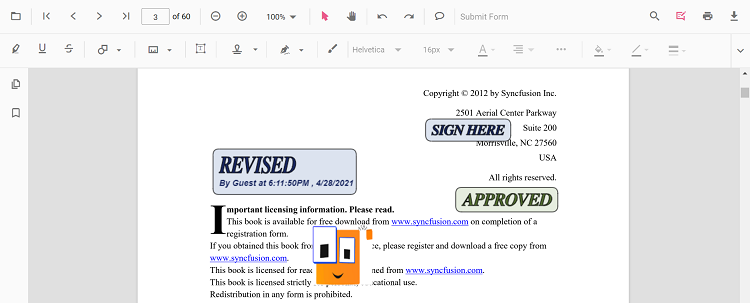
Stamp annotations allow you to place predefined or custom stamps (such as Dynamic, Sign Here, Standard Business, or Custom) on a PDF to communicate review states, approvals, or instructions. You can add stamps from the toolbar, switch to specific stamp modes programmatically, customize defaults (e.g., opacity/author), edit or lock them, and export them with the document.
Enable Stamp Annotation in the Viewer
In the ASP.NET Core PDF Viewer, annotation modules such as Stamp annotation are enabled by default.
<div style="width:100%;height:650px">
    <ejs-pdfviewer id="pdfviewer"
                   style="height:650px"
                   documentPath="https://cdn.syncfusion.com/content/pdf/pdf-succinctly.pdf"
                   resourceUrl="https://cdn.syncfusion.com/ej2/31.2.2/dist/ej2-pdfviewer-lib">
    </ejs-pdfviewer>
</div>
Add Stamp Annotation
Add Stamp Using the Toolbar
- Open the Annotation Toolbar.
- Choose Stamp to open the stamp gallery.
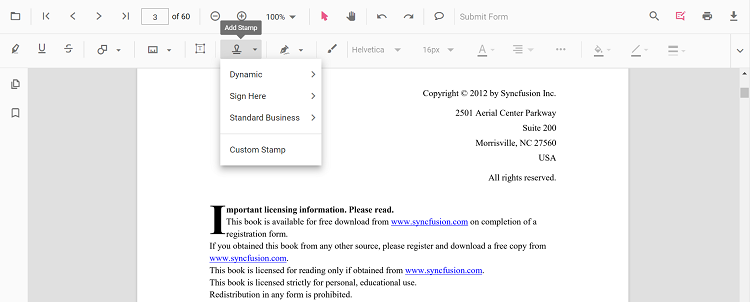
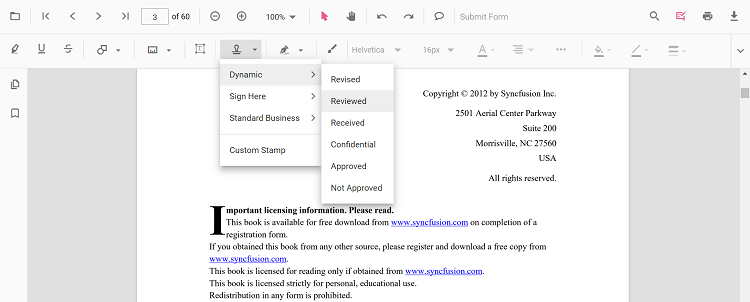
- Select a stamp type (Dynamic, Sign Here, Standard Business, or Custom) and click on the page to place it.
NOTE
When Pan mode is active and a stamp tool is chosen, the viewer automatically switches to selection mode for a smoother interaction.
Enable a Specific Stamp Mode
Switch the viewer into a specific stamp annotation mode programmatically.
<script>
function enableDynamicStamp() {
  var viewer = document.getElementById('pdfviewer').ej2_instances[0];
  viewer.annotation.setAnnotationMode('Stamp', 'NotApproved');
}

function enableSignHereStamp() {
  var viewer = document.getElementById('pdfviewer').ej2_instances[0];
  viewer.annotation.setAnnotationMode('Stamp', null, 'Witness');
}

function enableStandardBusinessStamp() {
  var viewer = document.getElementById('pdfviewer').ej2_instances[0];
  viewer.annotation.setAnnotationMode('Stamp', null, null, 'Approved');
}
</script>
Exit Stamp Mode
<script>
function exitStampMode() {
  var viewer = document.getElementById('pdfviewer').ej2_instances[0];
  viewer.annotation.setAnnotationMode('None');
}
</script>
Add Stamp Programmatically
Use the addAnnotation API to place stamps at specific coordinates.
<script>
// Dynamic stamp
function addDynamicStamp() {
  var viewer = document.getElementById('pdfviewer').ej2_instances[0];
  viewer.annotation.addAnnotation('Stamp', { offset: { x: 200, y: 140 }, pageNumber: 1 }, 'Approved');
}

// Sign Here stamp
function addSignStamp() {
  var viewer = document.getElementById('pdfviewer').ej2_instances[0];
  viewer.annotation.addAnnotation('Stamp', { offset: { x: 200, y: 240 }, pageNumber: 1 }, undefined, 'Witness');
}

// Standard Business stamp
function addStandardBusinessStamp() {
  var viewer = document.getElementById('pdfviewer').ej2_instances[0];
  viewer.annotation.addAnnotation('Stamp', { offset: { x: 200, y: 340 }, pageNumber: 1 }, undefined, undefined, 'Approved');
}

// Custom stamp (JPG/JPEG only)
function addCustomStamp() {
  var viewer = document.getElementById('pdfviewer').ej2_instances[0];
  viewer.annotation.addAnnotation('Stamp', {
    offset: { x: 100, y: 440 },
    width: 100,
    height: 46,
    author: 'Guest',
    isLock: true,
    pageNumber: 1,
    customStamps: [
      {
        customStampName: 'Image',
        customStampImageSource: 'data:image/jpeg;base64,REPLACE_WITH_YOUR_BASE64_IMAGE_DATA'
      }
    ]
  });
}
</script>
NOTE
For Custom Stamp via the UI, only JPG/JPEG image formats are supported.
Customize Stamp Appearance
Configure default properties using the stampSettings property (for example, default opacity and author).
<div style="width:100%;height:650px">
    <ejs-pdfviewer id="pdfviewer"
                   style="height:650px"
                   documentPath="https://cdn.syncfusion.com/content/pdf/pdf-succinctly.pdf"
                   resourceUrl="https://cdn.syncfusion.com/ej2/31.2.2/dist/ej2-pdfviewer-lib">
    </ejs-pdfviewer>
</div>
<script>
window.onload = function () {
  var viewer = document.getElementById('pdfviewer').ej2_instances[0];
  viewer.stampSettings = { opacity: 0.3, author: 'Guest User' };
}
</script>
NOTE
After changing opacity via the Edit Opacity tool in the toolbar, the updated value becomes the working default for subsequent placements in the current session.
Manage Stamp (Move, Resize, Rotate, Lock/Unlock, Delete)
Edit Stamp Annotation
Edit & Arrange (UI)
- Move: drag the stamp to reposition it.
- Resize: use corner handles to change size.
- Rotate: use the rotation handle (where available) to rotate the stamp.
- Opacity: adjust using the Edit Opacity tool in the annotation toolbar.
- Lock/Unlock: lock a selected stamp from the context menu to prevent edits.
Edit Stamp Programmatically
Modify bounds or lock state, then call editAnnotation().
<script>
function editStampProgrammatically() {
  var viewer = document.getElementById('pdfviewer').ej2_instances[0];
  var coll = viewer.annotationCollection || [];
  for (var i=0;i<coll.length;i++){
    var ann = coll[i];
    // shapeAnnotationType is 'stamp' for stamp annotations
    if (ann.shapeAnnotationType === 'stamp') {
      var width = ann.bounds.width, height = ann.bounds.height;
      ann.bounds = { x: 100, y: 100, width: width, height: height };
      ann.annotationSettings = ann.annotationSettings || {};
      ann.annotationSettings.isLock = true; // lock the stamp
      viewer.annotation.editAnnotation(ann);
      break;
    }
  }
}
</script>
Delete Stamp
Delete stamps via UI (toolbar/context menu) or programmatically. For supported workflows and APIs, see Delete Annotation.
Set properties while adding Individual Annotation
You can pass per‑annotation values (e.g., type, position, size, author, isLock, or customStamps) when calling addAnnotation.
<script>
function addMultipleStamps() {
  var viewer = document.getElementById('pdfviewer').ej2_instances[0];

  // Dynamic stamp – Approved
  viewer.annotation.addAnnotation('Stamp', { offset: { x: 180, y: 140 }, pageNumber: 1 }, 'Approved');

  // Sign Here – Witness
  viewer.annotation.addAnnotation('Stamp', { offset: { x: 180, y: 240 }, pageNumber: 1 }, undefined, 'Witness');

  // Standard Business – Approved
  viewer.annotation.addAnnotation('Stamp', { offset: { x: 180, y: 340 }, pageNumber: 1 }, undefined, undefined, 'Approved');
}
</script>
Handle Stamp Events
The PDF viewer provides annotation life‑cycle events that notify when Stamp annotations are added, modified, selected, or removed.
For the full list of available events and their descriptions, see Annotation Events
Export and Import
The PDF Viewer supports exporting and importing annotations, allowing you to save stamps and reload them later. For supported formats and steps, see Export and Import annotations.