Annotations in Mobile View in ASP.NET Core PDF Viewer
14 Aug 20263 minutes to read
Comprehensive guide for adding and managing annotations using the touch-optimized mobile interface. The PDF Viewer provides intuitive annotation tools designed specifically for mobile devices with streamlined workflows and accessible touch gestures.
Annotation toolbar in mobile view
The annotation toolbar provides access to all annotation tools on mobile devices. Enabling it displays the full range of annotation options in an optimized touch interface.
Opening the toolbar
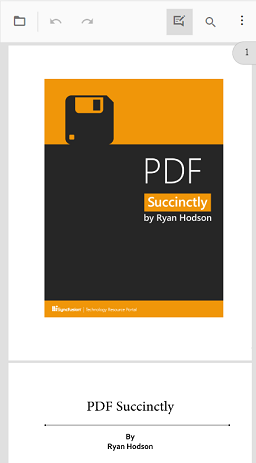
- Tap the Edit Annotation button in the main toolbar at the top of the PDF Viewer
- The annotation toolbar appears below with all available annotation tools
- Each icon represents a different annotation type
Step 1: Tap the Edit Annotation toolbar button to enable annotations
Step 2: Annotation toolbar is now active with all annotation options visible
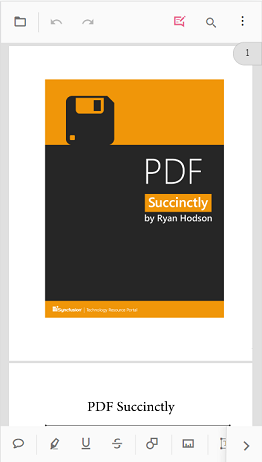
Annotation toolbar icons
The toolbar displays icon buttons for quick access to each annotation type. Tap any icon to activate that annotation mode.
To add sticky notes annotation
Sticky notes provide quick annotation markers with optional comment text.
Adding sticky notes on mobile
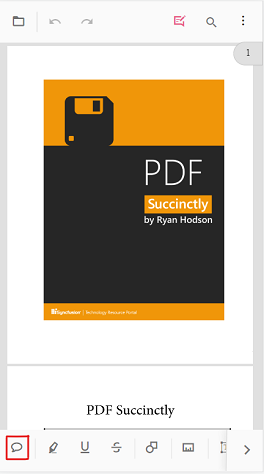
Step 1: Tap the sticky note icon to activate sticky note mode
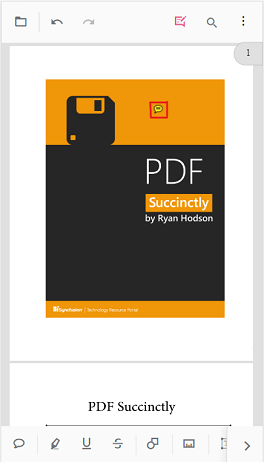
Step 2: Tap on the page location to add the sticky note annotation
To add text markup annotation
Text markup annotations highlight, underline, or strikethrough important text content.
Step 1: Tap a text markup icon, then select text on the page to mark
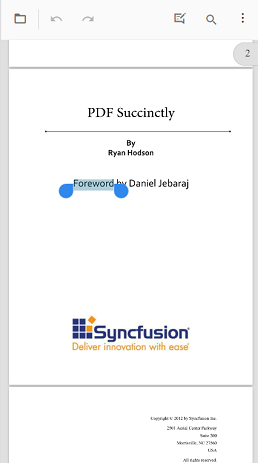
Step 2: Text markup annotation is applied to the selected text.
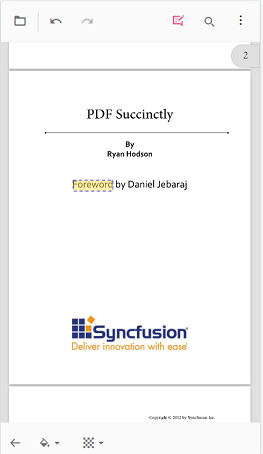
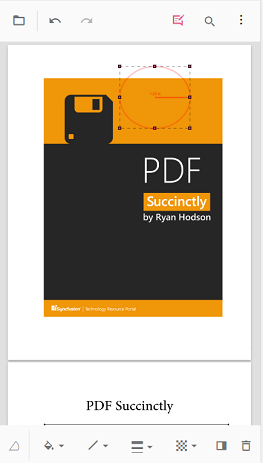
To add shape and measure annotations
Shape and measurement annotations provide visual drawing and dimensional analysis tools. They are useful for highlighting regions, measurements, and geometric markups.
Step 1: Tap the shape/measure icon to display available shape and measurement types
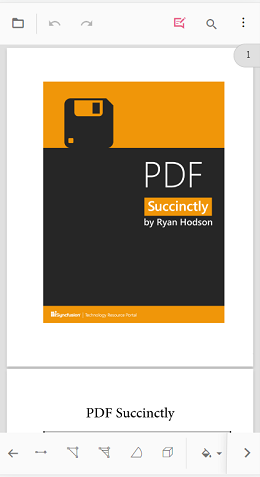
Step 2: Select a measurement type from the toolbar options
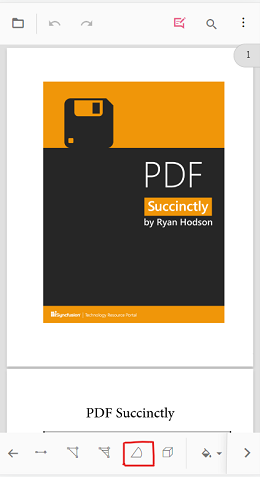
Step 3: Draw the annotation on the PDF page with touch gestures
To add the stamp annotation
Stamp annotations display predefined visual marks indicating document status or approval. They communicate document state without requiring text.
Step 1: Tap the stamp icon and select the desired stamp type from menu
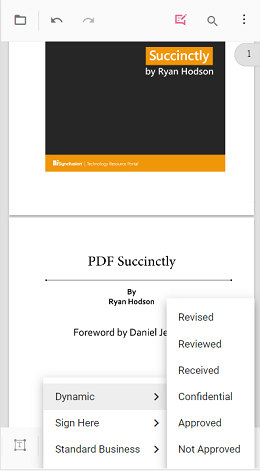
Step 2: Stamp annotation is added to the PDF page

To add signature
Digital signatures provide authentication and approval marks on PDF documents. They are captured through freehand drawing on a dedicated canvas.
Step 1: Tap the signature icon to open the signature drawing canvas
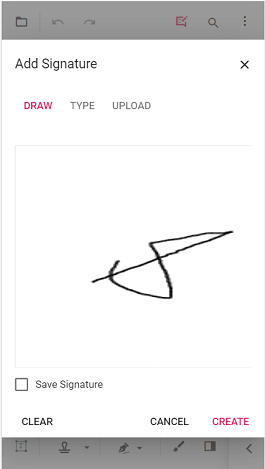
Step 2: Signature annotation is added to the PDF page
To add ink annotation
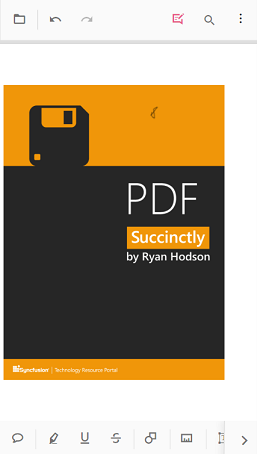
Ink annotations allow freehand drawing directly on PDF pages. They capture handwritten notes, sketches, and artistic marks.
Step 1: Tap the ink icon tool to activate freehand drawing mode
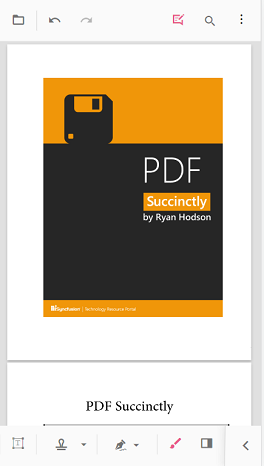
Step 2: Ink annotation is added to the PDF page via freehand drawing
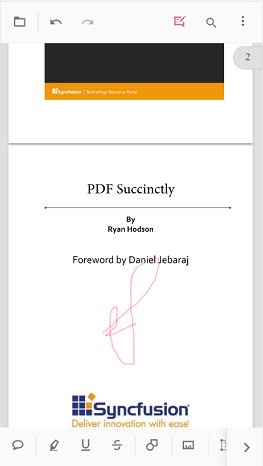
Change annotation properties
Mobile PDF Viewer provides two approaches for customizing annotation appearance: before creation or after placement.
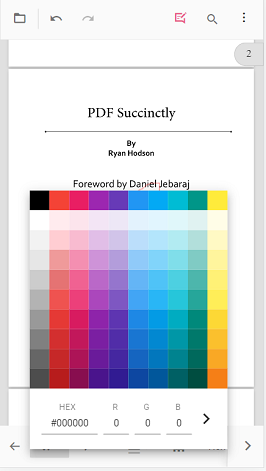
Change properties before adding
Customize annotation appearance before placing it on the page:
Method 1: Access the property toolbar to customize annotation before adding
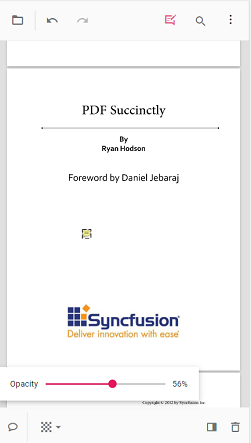
Change properties after adding
Modify an annotation after it has been placed on the page:
Method 2: Tap annotation to select and modify its properties
Delete annotation
Remove unwanted annotations from the PDF page using the delete tool:
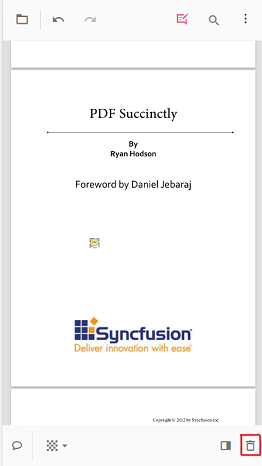
Step 1: Select annotation and tap the delete icon in the property toolbar
Open comment panel
The comment panel allows adding notes, discussions, and threaded comments to annotations:
Step 1: Tap the comment icon to open the comment panel
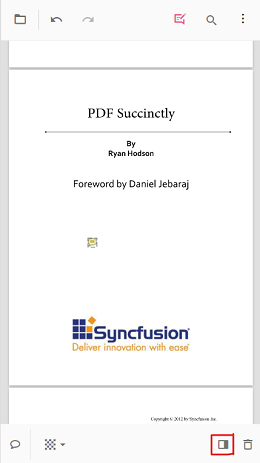
Step 2: Comment panel is now open and ready for text input

Close the comment panel
Close the comment panel when finished adding notes:
Step 1: Tap the close button to hide the comment panel