Customize the Organize Pages Toolbar in Angular PDF Viewer
14 Aug 20266 minutes to read
The redaction toolbar in the Syncfusion Angular PDF Viewer can be customized by rearranging items, hiding default items, or adding custom items. Custom items can be inserted at specific index positions within the existing toolbar.
Enable the redaction toolbar
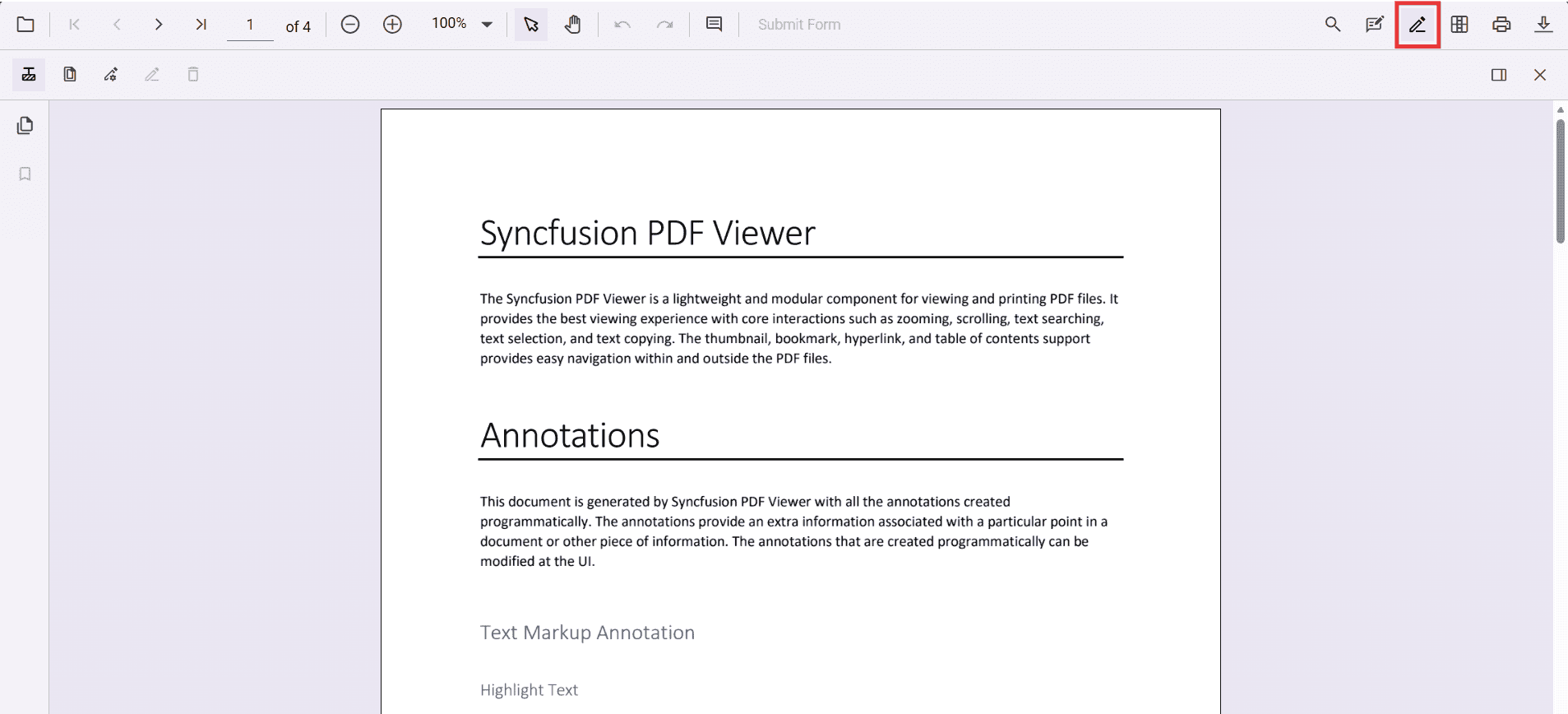
To enable the redaction toolbar, configure the toolbarSettings.toolbarItems property of the PdfViewer instance to include the RedactionEditTool.
The following example shows how to enable the redaction toolbar:
import { Component, ViewChild } from '@angular/core';
import {
  PdfViewerComponent,
  LinkAnnotationService,
  BookmarkViewService,
  MagnificationService,
  ThumbnailViewService,
  ToolbarService,
  NavigationService,
  AnnotationService,
  TextSearchService,
  TextSelectionService,
  PrintService,
  FormFieldsService,
  FormDesignerService,
  PageOrganizerService,
  ToolbarSettingsModel
} from '@syncfusion/ej2-angular-pdfviewer';

@Component({
  selector: 'app-root',
  template: `
    <div class="content-wrapper">
      <ejs-pdfviewer
        #pdfviewer
        id="pdfViewer"
        [resourceUrl]="resourceUrl"
        [documentPath]="documentPath"
        [toolbarSettings]="toolbarSettings"
        style="height:640px;display:block">
      </ejs-pdfviewer>
    </div>
  `,
  providers: [
    LinkAnnotationService,
    BookmarkViewService,
    MagnificationService,
    ThumbnailViewService,
    ToolbarService,
    NavigationService,
    AnnotationService,
    TextSearchService,
    TextSelectionService,
    PrintService,
    FormFieldsService,
    FormDesignerService,
    PageOrganizerService
  ]
})
export class AppComponent {
  @ViewChild('pdfviewer', { static: true }) pdfViewer!: PdfViewerComponent;

  // Standalone mode (CDN) – keep this version aligned with your package
  public resourceUrl = 'https://cdn.syncfusion.com/ej2/31.2.2/dist/ej2-pdfviewer-lib';
  public documentPath = 'https://cdn.syncfusion.com/content/pdf/pdf-succinctly.pdf';

  // Matches your JS toolbar configuration, with RedactionEditTool included
  public toolbarSettings: ToolbarSettingsModel = {
    toolbarItems: [
      'OpenOption',
      'UndoRedoTool',
      'PageNavigationTool',
      'MagnificationTool',
      'PanTool',
      'SelectionTool',
      'CommentTool',
      'SubmitForm',
      'AnnotationEditTool',
      'RedactionEditTool',   // Redaction entry in the primary toolbar
      'FormDesignerEditTool',
      'SearchOption',
      'PrintOption',
      'DownloadOption'
    ]
  };
}
Refer to the following image for the toolbar view:
Show or hide the redaction toolbar
The redaction toolbar can be toggled using the built‑in toolbar icon or programmatically with the showRedactionToolbar method.
Display the redaction toolbar using the toolbar icon
When RedactionEditTool is included in the toolbar settings, clicking the redaction icon in the primary toolbar will show or hide the redaction toolbar.
Display the redaction toolbar programmatically
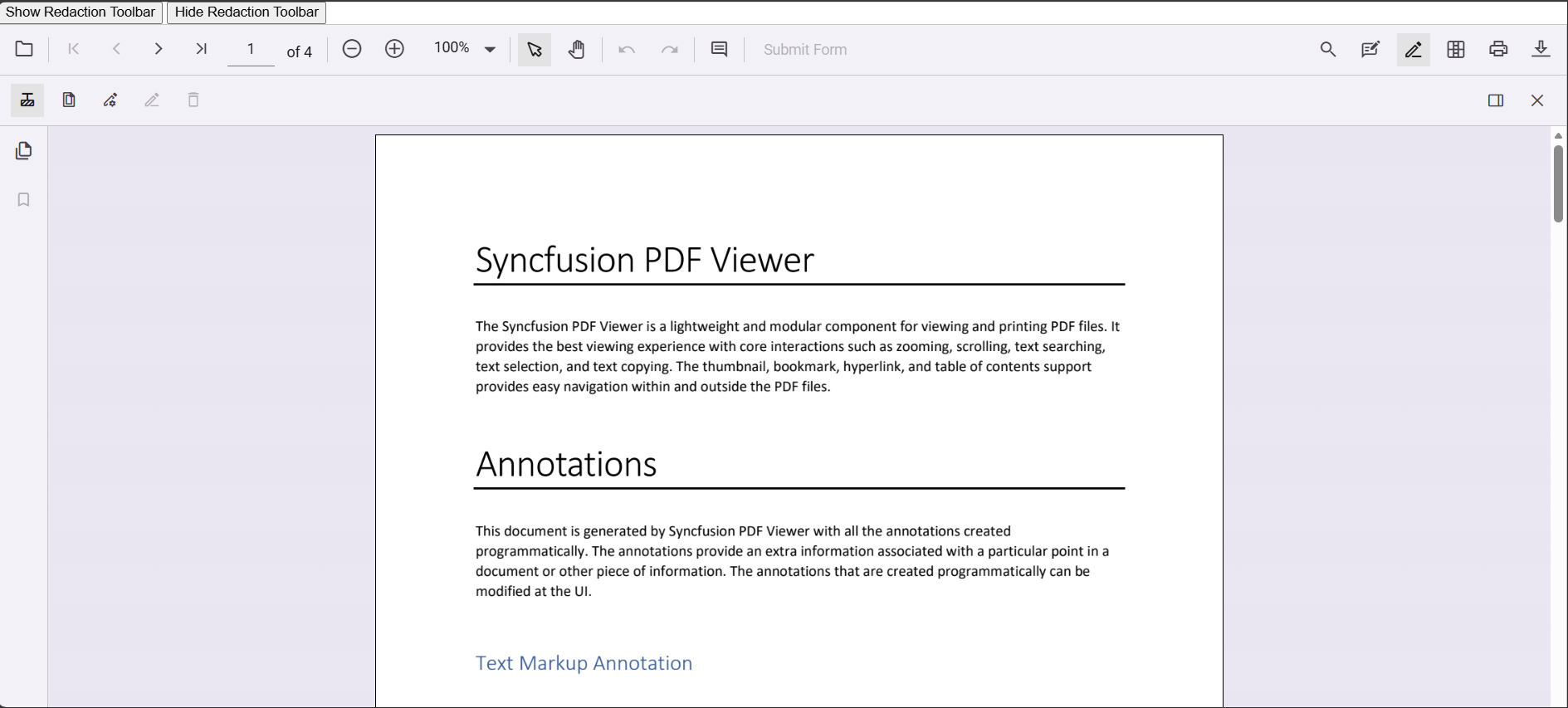
Programmatic control is available via the viewer instance. For example, call this.pdfViewer.toolbar.showRedactionToolbar(true) to display the redaction toolbar, or this.pdfViewer.toolbar.showRedactionToolbar(false) to hide it.
The following example demonstrates toggling the redaction toolbar programmatically:
import { Component, ViewChild } from '@angular/core';
import {
  PdfViewerComponent,
  LinkAnnotationService,
  BookmarkViewService,
  MagnificationService,
  ThumbnailViewService,
  ToolbarService,
  NavigationService,
  AnnotationService,
  TextSearchService,
  TextSelectionService,
  PrintService,
  FormFieldsService,
  FormDesignerService,
  PageOrganizerService,
  ToolbarSettingsModel
} from '@syncfusion/ej2-angular-pdfviewer';

@Component({
  selector: 'app-root',
  template: `
    <div class="content-wrapper">
      <!-- Separate buttons: Show and Hide Redaction toolbar -->
      <div style="margin-bottom:8px; display:flex; gap:8px;">
        <button type="button" (click)="showRedactionToolbar()">Show Redaction Toolbar</button>
        <button type="button" (click)="hideRedactionToolbar()">Hide Redaction Toolbar</button>
      </div>
      <ejs-pdfviewer
        #pdfviewer
        id="pdfViewer"
        [resourceUrl]="resource"
        [documentPath]="document"
        [toolbarSettings]="toolbarSettings"
        style="height:640px; display:block">
      </ejs-pdfviewer>
    </div>
  `,
  providers: [
    LinkAnnotationService,
    BookmarkViewService,
    MagnificationService,
    ThumbnailViewService,
    ToolbarService,
    NavigationService,
    AnnotationService,
    TextSearchService,
    TextSelectionService,
    PrintService,
    FormFieldsService,
    FormDesignerService,
    PageOrganizerService
  ]
})
export class AppComponent {
  @ViewChild('pdfviewer', { static: true }) pdfViewer!: PdfViewerComponent;

  // Standalone assets (keep version aligned with your installed package)
  public resource = 'https://cdn.syncfusion.com/ej2/31.2.2/dist/ej2-pdfviewer-lib';
  public document = 'https://cdn.syncfusion.com/content/pdf/pdf-succinctly.pdf';

  // Includes RedactionEditTool in the primary toolbar
  public toolbarSettings: ToolbarSettingsModel = {
    toolbarItems: [
      'OpenOption',
      'UndoRedoTool',
      'PageNavigationTool',
      'MagnificationTool',
      'PanTool',
      'SelectionTool',
      'CommentTool',
      'SubmitForm',
      'AnnotationEditTool',
      'RedactionEditTool',   // primary-bar entry to access the Redaction toolbar
      'FormDesignerEditTool',
      'SearchOption',
      'PrintOption',
      'DownloadOption'
    ]
  };

  // Separate handlers for show/hide (no toggle)
  showRedactionToolbar(): void {
    this.pdfViewer.toolbar.showRedactionToolbar(true);
  }

  hideRedactionToolbar(): void {
    this.pdfViewer.toolbar.showRedactionToolbar(false);
  }
}Refer to the following image for details: