Insert Blank Pages in Angular PDF Viewer
14 Aug 20262 minutes to read
Overview
This guide describes inserting new blank pages into a PDF using the Organize Pages UI in the EJ2 Angular PDF Viewer.
Outcome: A blank page is added at the chosen position and will appear in thumbnails and exports.
Prerequisites
- EJ2 Angular PDF Viewer installed
-
PageOrganizerservices injected intoPdfViewerComponent -
resourceUrlfor standalone mode orserviceUrlfor server-backed mode configured as required
Steps
-
Open the Organize Pages view
- Click the Organize Pages button in the viewer navigation toolbar to open the panel.
-
Select insertion point
- Hover over the thumbnail before or after which you want the blank page added.
-
Insert a blank page
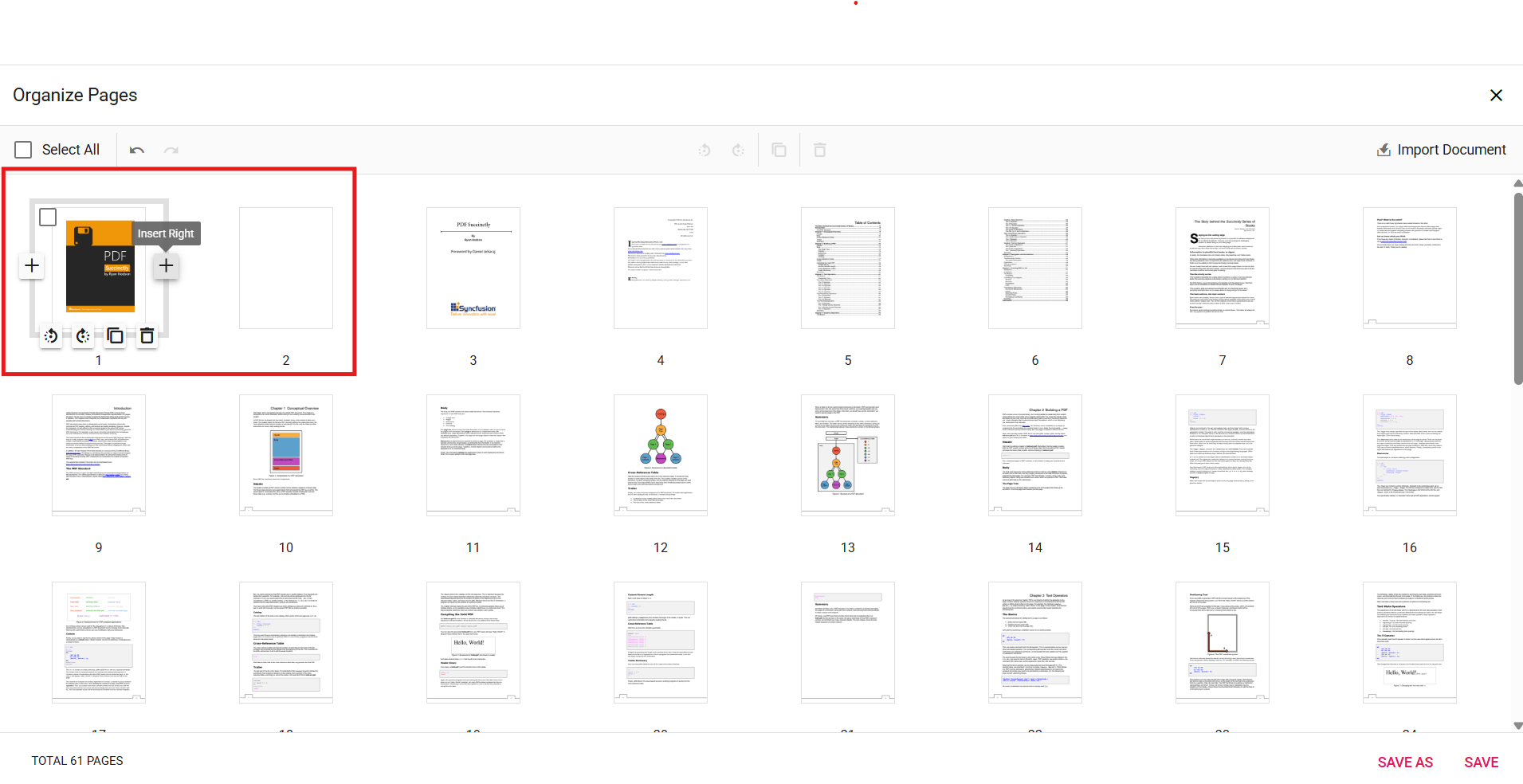
- Click the Insert Left / Insert Right option and choose the position (Before / After). A new blank thumbnail appears in the sequence.
-
Adjust and confirm
- Reposition or remove the inserted blank page if needed using drag-and-drop or delete options.
-
Persist the change
- Click Save or Save As to include the blank page in the exported PDF.
Expected result
- A blank page thumbnail appears at the chosen position and is present in any saved or downloaded PDF.
Enable or disable Insert Pages button
To enable or disable the Insert Pages button in the page thumbnails, update the pageOrganizerSettings. See Organize pages toolbar customization for the guidelines
Troubleshooting
-
Organize Pages button missing: Verify
PageOrganizeris included inInjectandToolbaris enabled. -
Inserted page not saved: Confirm
resourceUrlorserviceUrlis configured for your selected processing mode. -
Insert options disabled: Ensure
pageOrganizerSettings.canInsertis set totrueto enable the insert option.