Reorder Pages in Angular PDF Viewer
14 Aug 20261 minute to read
Overview
This guide describes how to rearrange pages in a PDF using the Organize Pages UI.
Outcome: Single or multiple pages can be reordered and the new sequence is preserved when the document is saved or exported.
Prerequisites
- EJ2 Angular PDF Viewer installed
-
ToolbarandPageOrganizerservices injected into the viewer
Steps
-
Open the Organize Pages view
- Click the Organize Pages button in the navigation toolbar to open the page thumbnails panel.
-
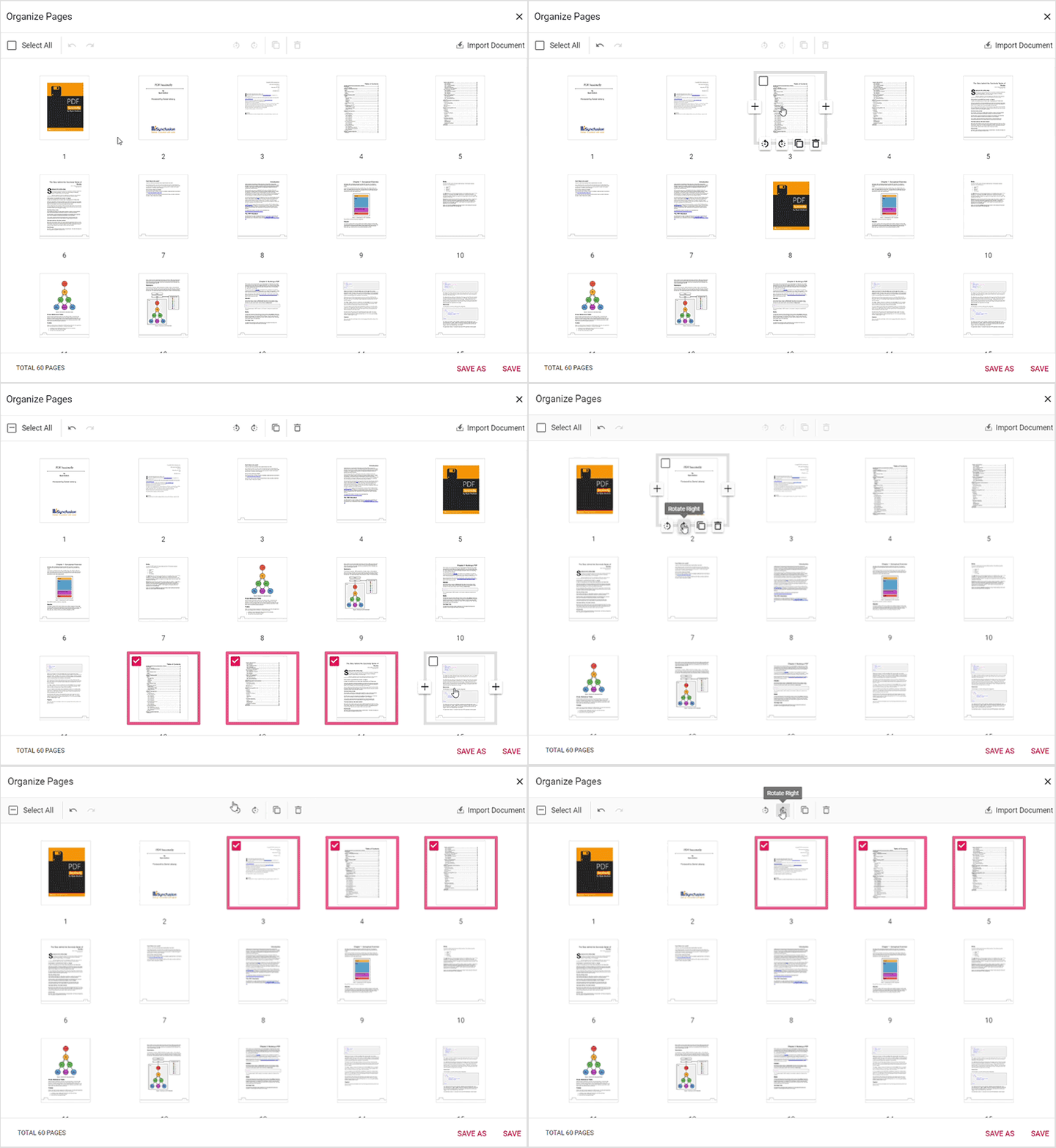
Reorder a single page
- Drag a thumbnail to the desired position. The thumbnails update instantly to show the new order.
-
Reorder multiple pages
- Select multiple thumbnails using Ctrl or Shift, then drag the selected group to the new location.
-
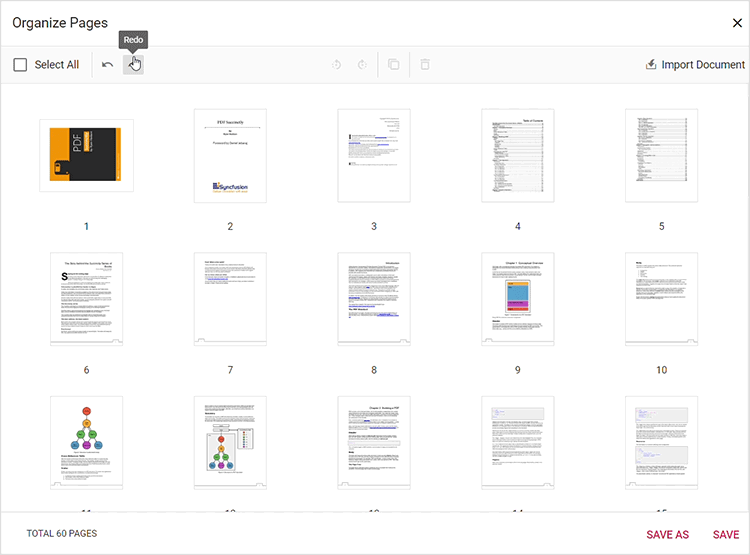
Verify and undo
- Use Undo / Redo options to revert accidental changes.
-
Persist the updated order
- Click Save or download the document using Save As to persist the new page sequence.
Expected result
- Thumbnails reflect the new page order immediately and saved / downloaded PDFs preserve the reordered sequence.
Enable or disable reorder option
To enable or disable the Reorder pages option in the Organize Pages, update the pageOrganizerSettings. See Organize pages toolbar customization for the guidelines.
Troubleshooting
-
Thumbnails won’t move: Confirm
pageOrganizerSettings.canRearrangeis not set tofalse. -
Changes not saved: Verify
serviceUrl(server) orresourceUrl(standalone) is configured correctly.