Remove Pages in Angular PDF Viewer
14 Aug 20262 minutes to read
Overview
This guide shows how to delete single or multiple pages from a PDF using the Organize Pages UI in the EJ2 Angular PDF Viewer.
Outcome: You will remove unwanted pages and save or download the updated PDF.
Prerequisites
- EJ2 Angular PDF Viewer installed in your project
- Basic PDF Viewer setup: use
resourceUrlfor standalone mode orserviceUrlfor server-backed mode
Steps
-
Open the Organize Pages view
- Click the Organize Pages button in the viewer navigation toolbar to open the Organize Pages dialog.
-
Select pages to remove
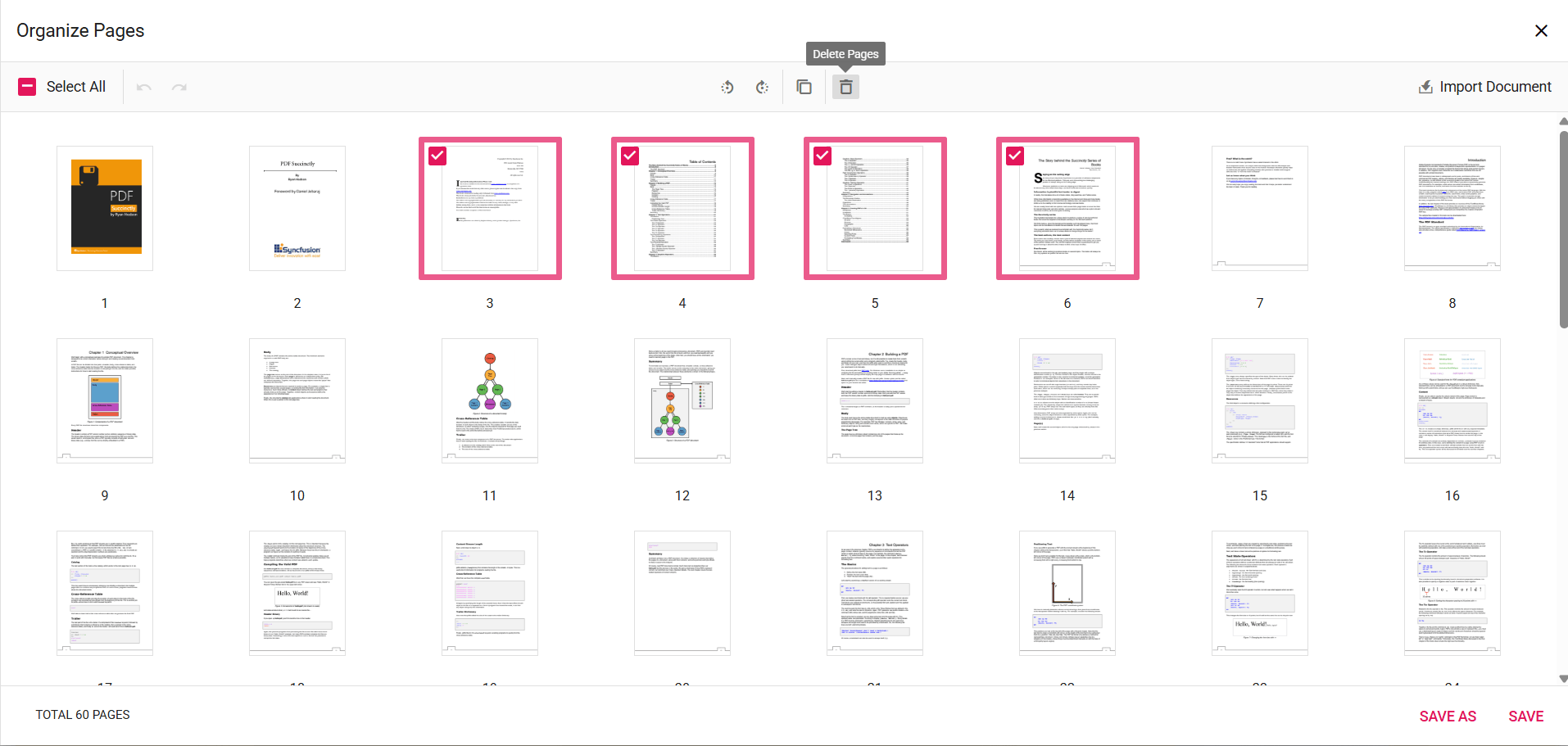
- Click a thumbnail to select a page. Use Shift+click or Ctrl+click to select multiple pages. Use the Select all button to select every page.
-
Delete selected pages
-
Click the Delete Pages icon in the Organize Pages toolbar to remove the selected pages. The thumbnails update immediately to reflect the deletion.
-
Delete a single page directly from its thumbnail: hover over the page thumbnail to reveal the per-page delete icon, then click that icon to remove only that page.
-
-
Multi-page deletion
- When multiple thumbnails are selected, the Delete action removes all selected pages at once.
-
Undo or redo deletion
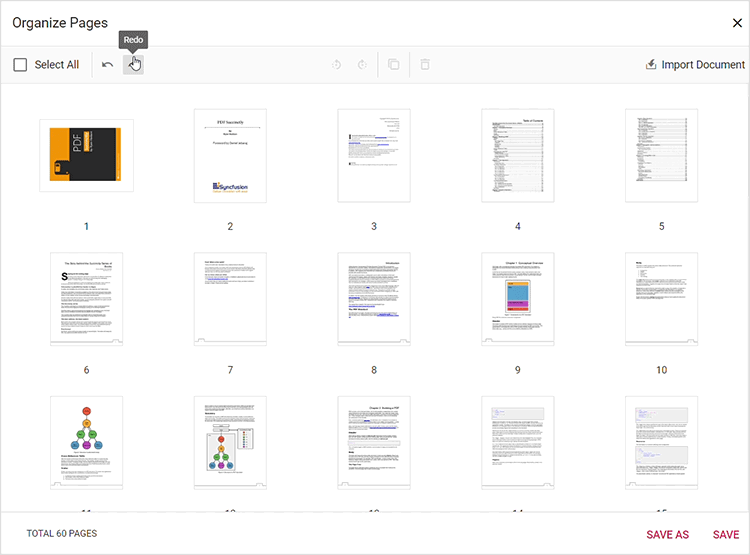
- Use Undo (Ctrl+Z) to revert the last deletion.
- Use Redo (Ctrl+Y) to revert the last undone deletion.
-
Save the PDF after deletion
- Click Save to apply changes to the currently loaded document, or Save As / Download to download a copy with the removed pages permanently applied.
Expected result
- Selected pages are removed from the document immediately in the Organize Pages dialog.
- After clicking Save or Save As, the resulting PDF reflects the deletions.
Enable or disable Remove Pages button
To enable or disable the Remove Pages button in the Organize Pages toolbar, update the pageOrganizerSettings. See Organize pages toolbar customization for the guidelines.
Troubleshooting
-
Delete button disabled: Ensure
PageOrganizeris injected andpageOrganizerSettings.canDeleteis not set tofalse. - Selection not working: Verify that the Organize Pages dialog has focus; use Shift+click for range selection.