Redaction Annotation in Angular PDF Viewer
14 Aug 20266 minutes to read
Redaction annotations permanently remove sensitive content from a PDF. You can draw redaction marks over text or graphics, redact entire pages, customize overlay text and styling, and apply redaction to finalize.
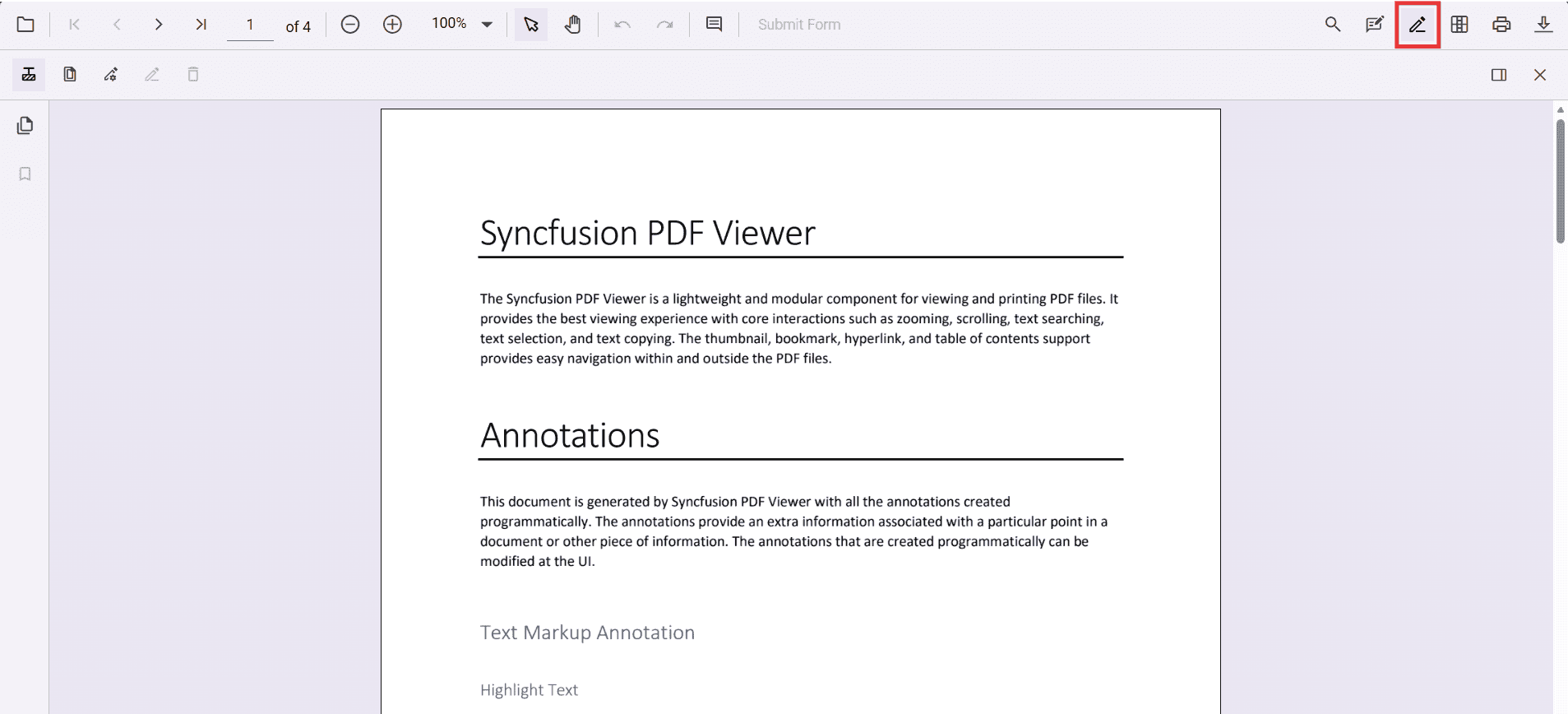
Add Redaction Annotation
Add redaction annotations in UI
- Use the Redaction tool from the toolbar to draw over content to hide it.
- Redaction marks can show overlay text (for example, “Confidential”) and can be styled.
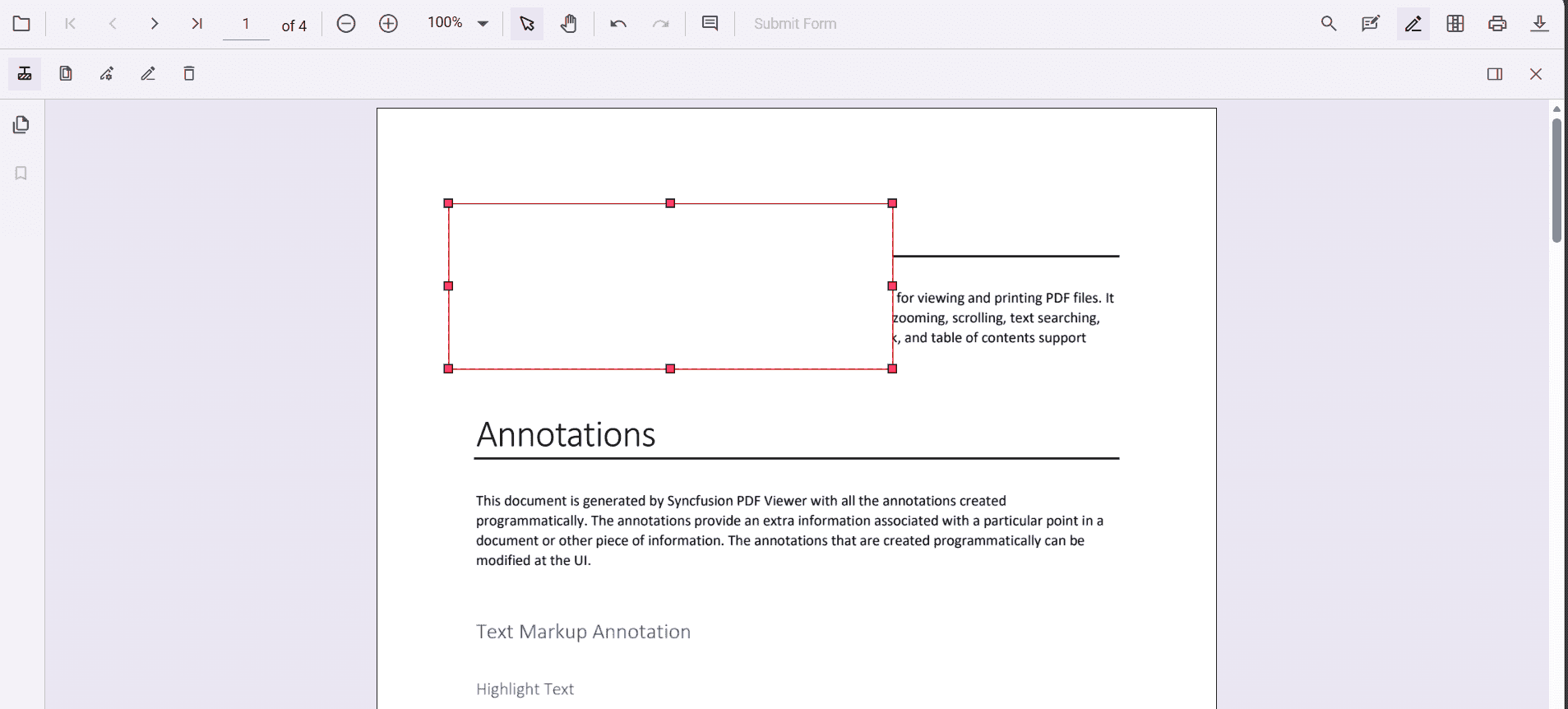
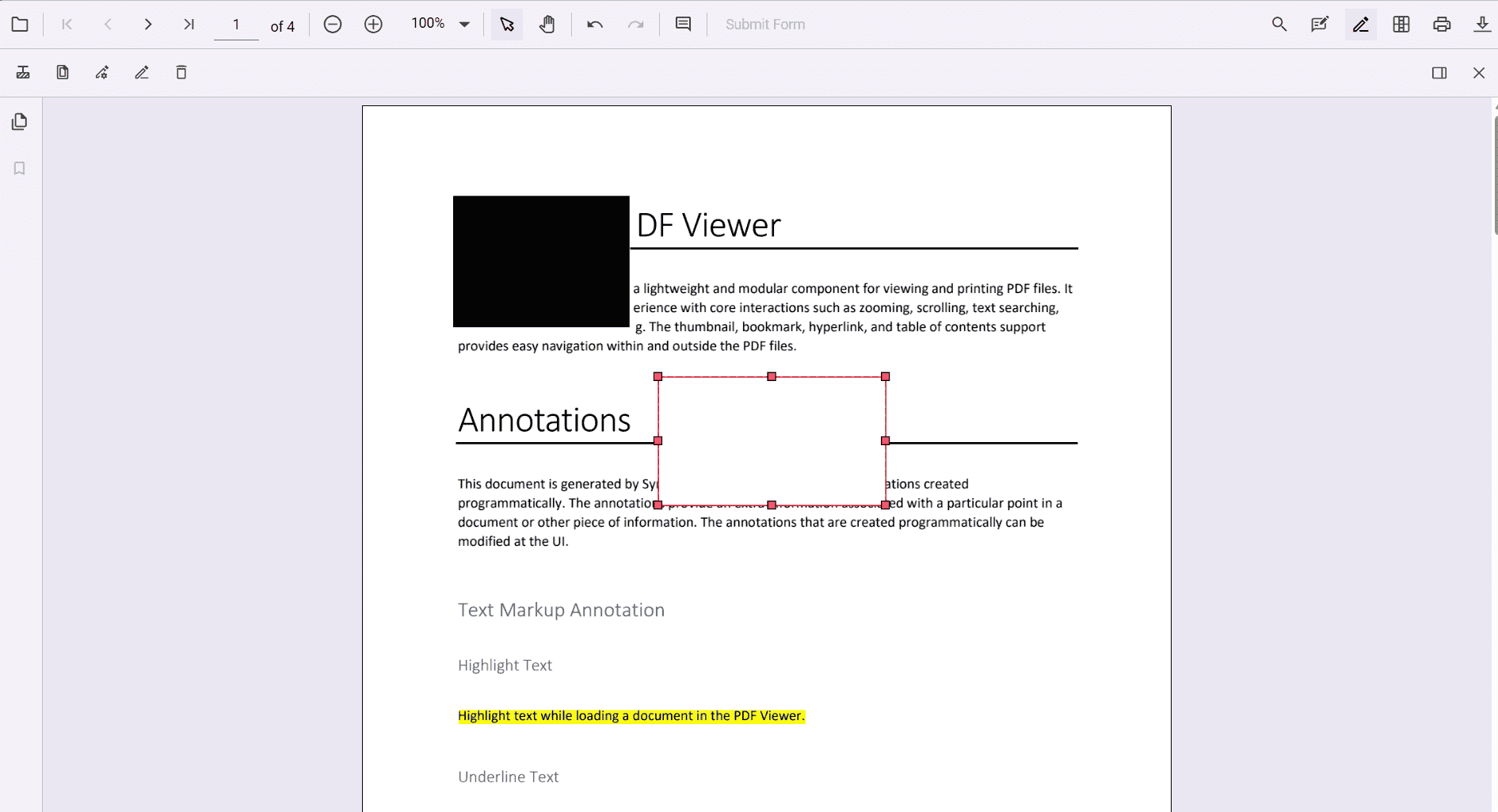
Redaction annotations are interactive:
-
Movable
-
Resizable
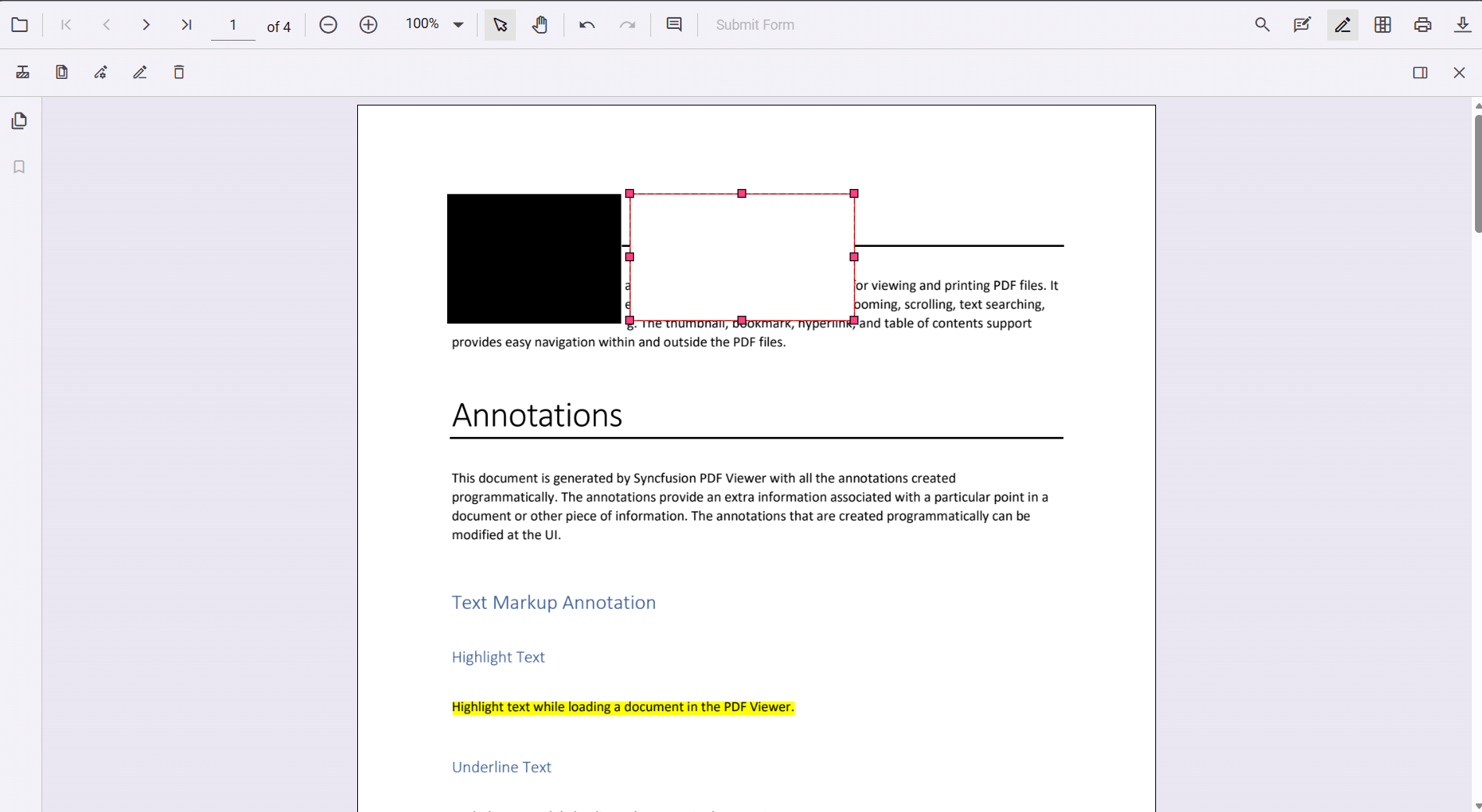
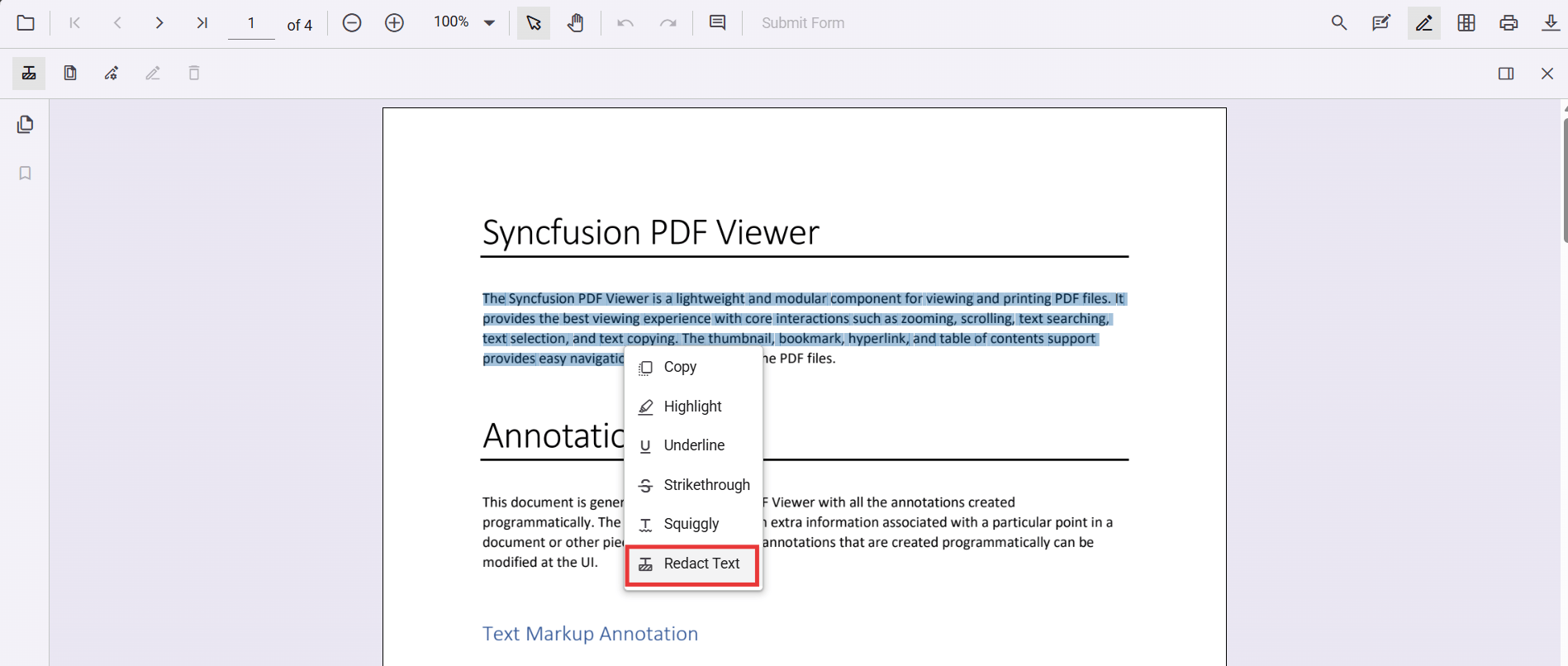
You can also add redaction annotations from the context menu by selecting content and choosing Redact Annotation.
Ensure the Redaction tool is included in the toolbar. See RedactionToolbar for configuration.
Add redaction annotations programmatically (Angular)
addRedactionProgrammatically(): void {
  const pdfViewer = (document.getElementById('pdfViewer') as any).ej2_instances[0];

  pdfViewer.annotation.addAnnotation('Redaction', {
    bound: { x: 200, y: 480, width: 150, height: 75 },
    pageNumber: 1,
    markerFillColor: '#000',
    markerBorderColor: '#fff',
    fillColor: '#000',
    overlayText: 'Confidential',
    fontColor: '#fff',
    fontFamily: 'Times New Roman',
    fontSize: 10,
    beforeRedactionsApplied: false
  });
}
Edit Redaction Annotations
Edit redaction annotations in UI
Use the viewer to select, move, and resize Redaction annotations. Use the context menu for additional actions.
Edit the properties of redaction annotations in UI
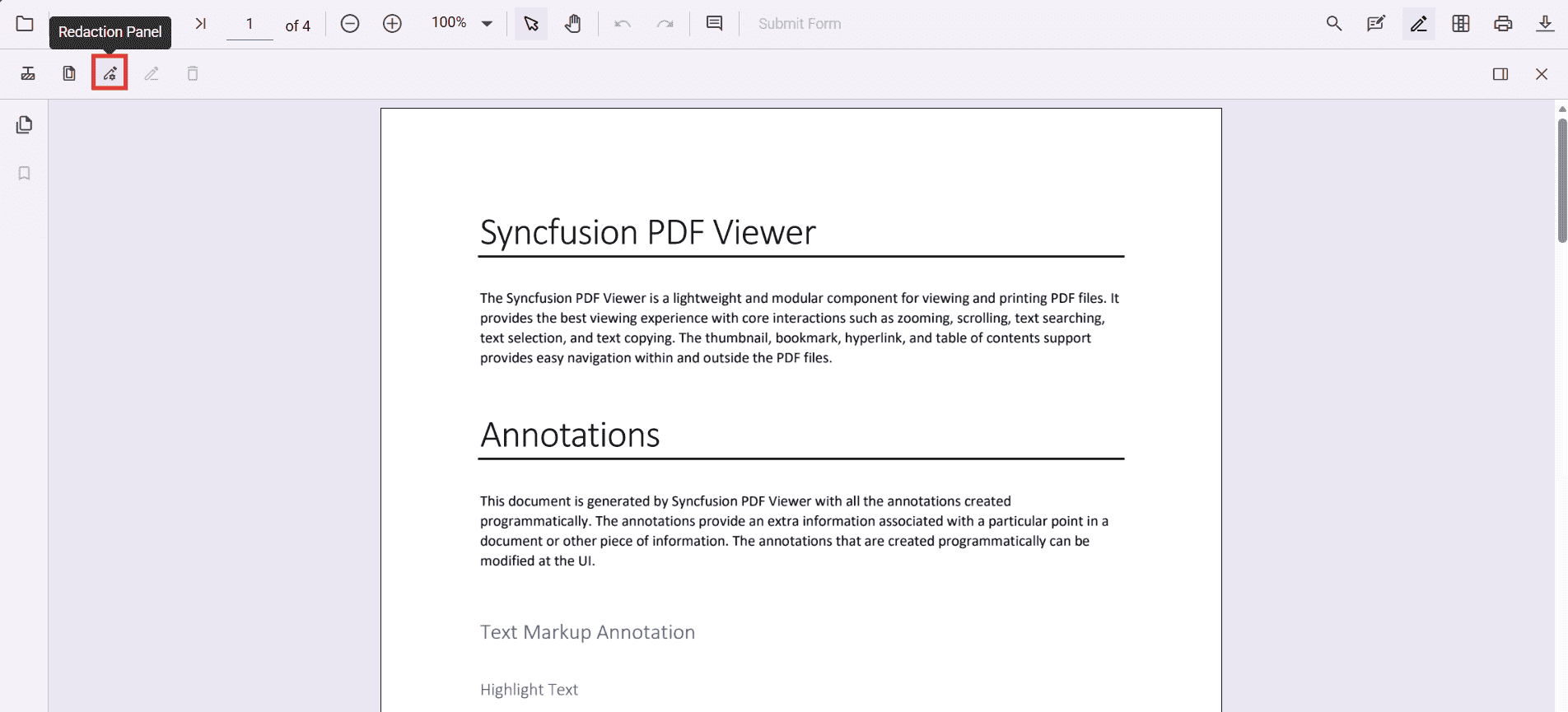
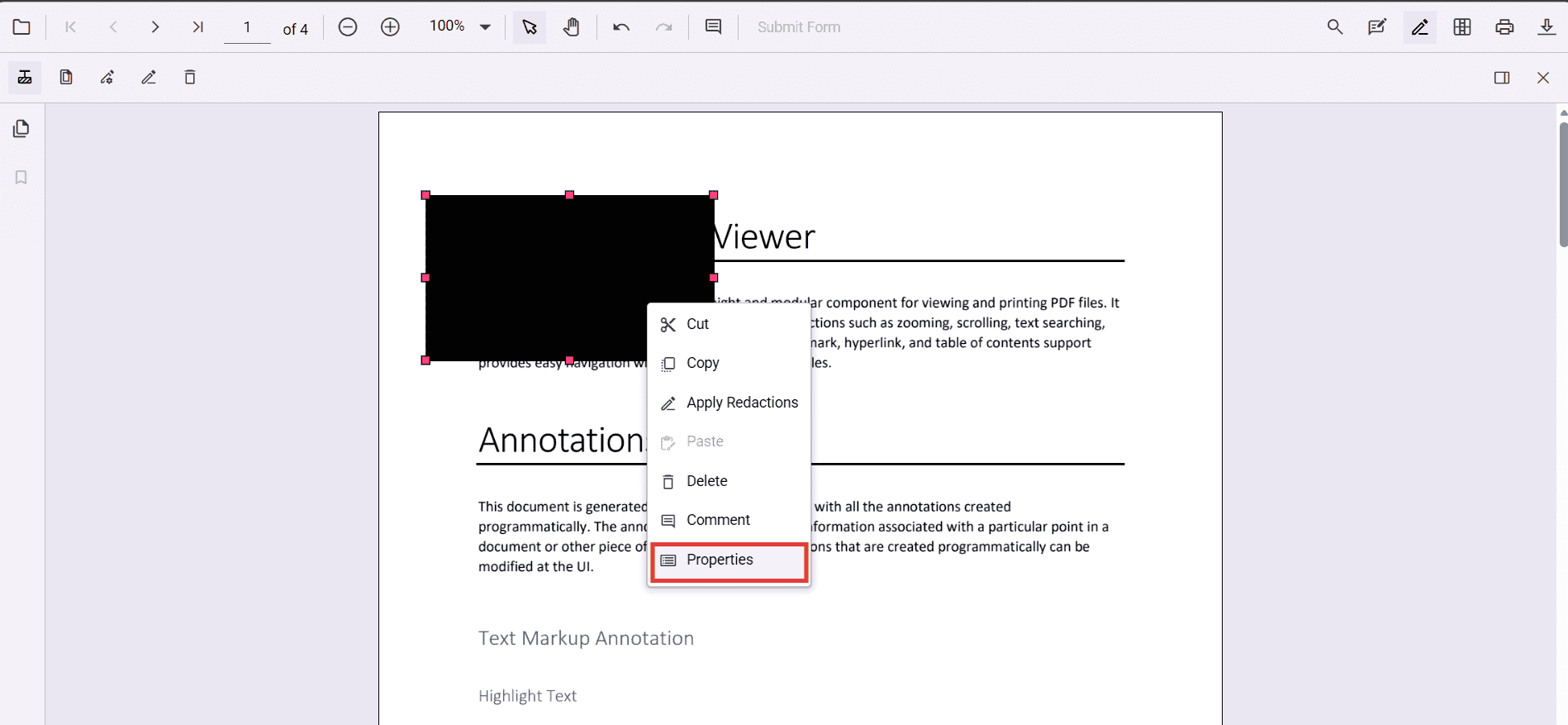
Use the property panel or context menu → Properties to change overlay text, font, fill color, and more.
Edit redaction annotations programmatically (Angular)
editFirstRedaction(): void {
  const pdfViewer = (document.getElementById('pdfViewer') as any).ej2_instances[0];
  const annotations = pdfViewer.annotationCollection || [];

  for (const annotation of annotations) {
    if (annotation.subject === 'Redaction') {
      annotation.overlayText = 'EditedAnnotation';
      annotation.markerFillColor = '#222';
      annotation.fontColor = '#ff0';
      pdfViewer.annotation.editAnnotation(annotation);
      break;
    }
  }
}
Delete redaction annotations
Delete in UI
-
Right‑click → Delete
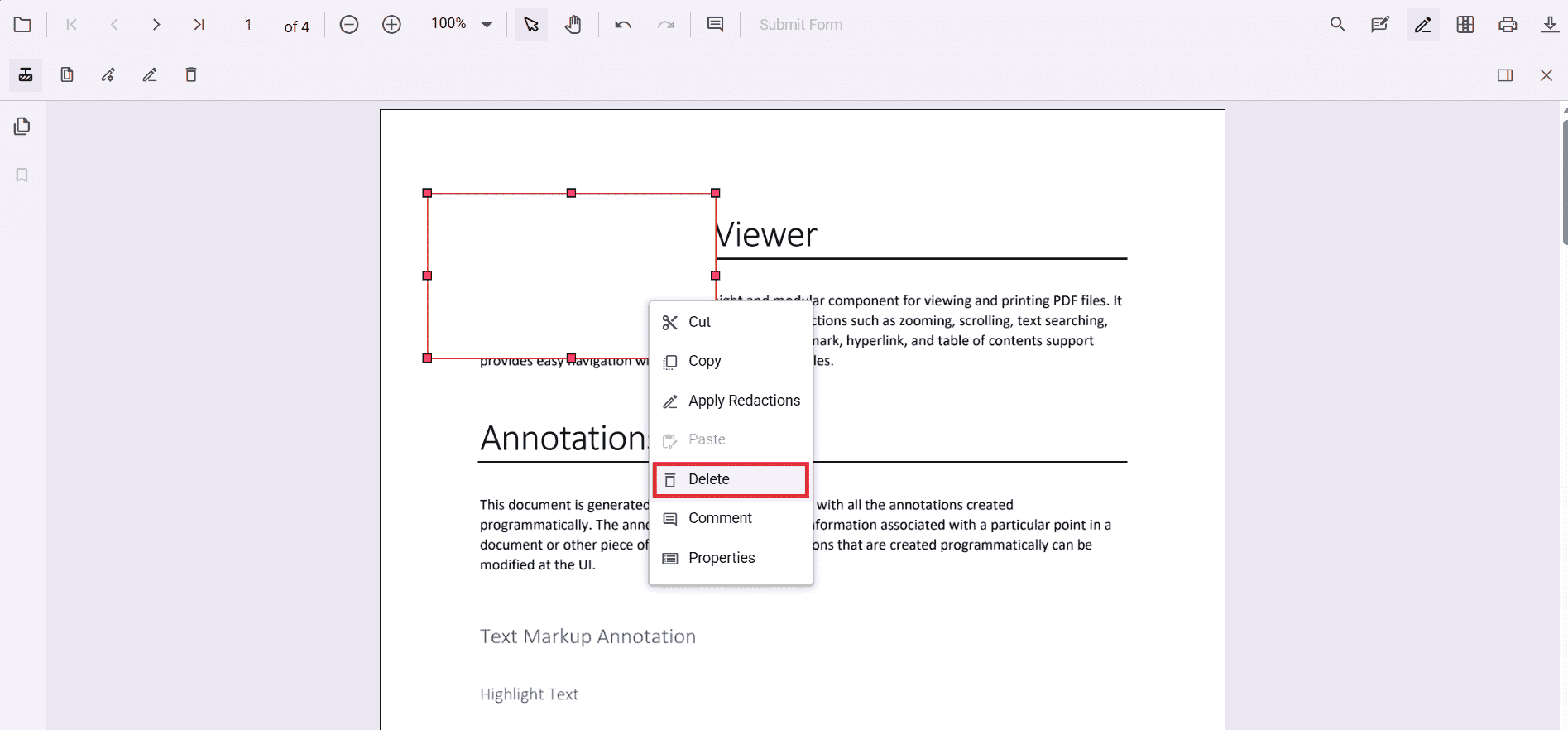
- Use the Delete button in the toolbar
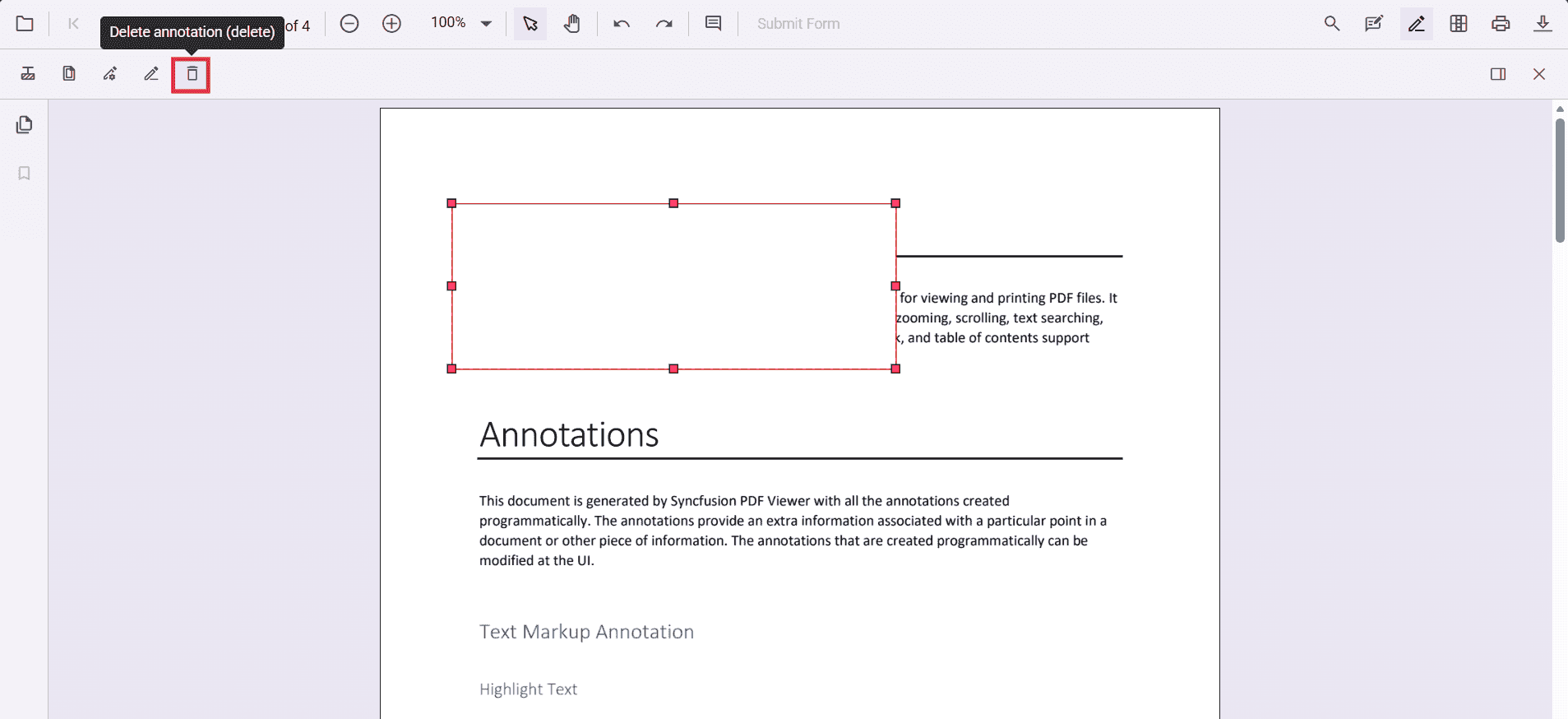
- Press Delete key
Delete programmatically (Angular)
deleteFirstRedaction(): void {
  const pdfViewer = (document.getElementById('pdfViewer') as any).ej2_instances[0];
  const annotations = pdfViewer.annotationCollection || [];
  const firstRedaction = annotations.find((a: any) => a.subject === 'Redaction');

  if (firstRedaction) {
    pdfViewer.annotationModule.deleteAnnotationById(firstRedaction.annotationId);
  }
}
Redact pages
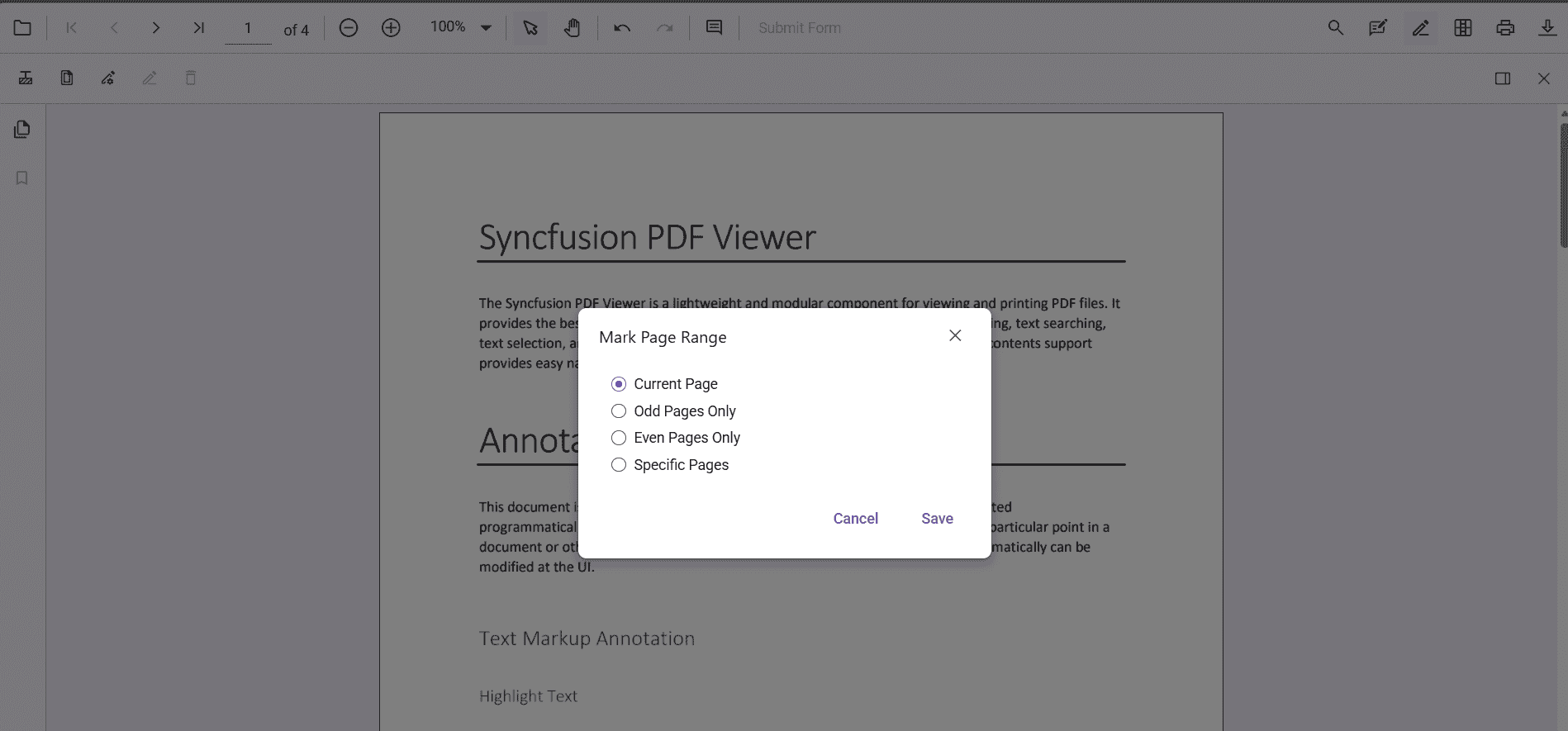
Redact pages in UI
Use the Redact Pages dialog to mark entire pages with options like Current Page, Odd Pages Only, Even Pages Only, and Specific Pages.
Add page redactions programmatically (Angular)
addPageRedactions(): void {
  const pdfViewer = (document.getElementById('pdfViewer') as any).ej2_instances[0];
  pdfViewer.annotation.addPageRedactions([1, 3, 5]);
}
Apply redaction
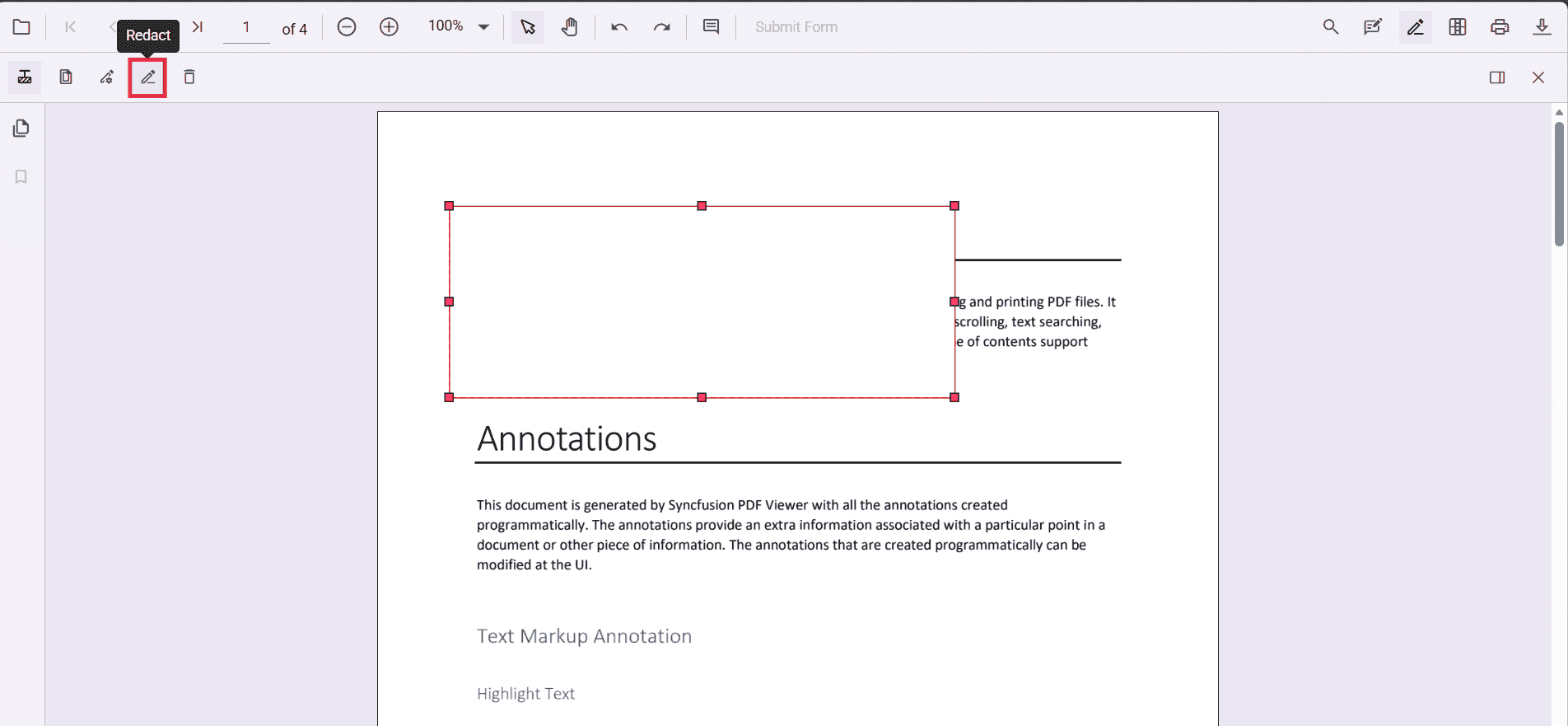
Apply redaction in UI
Click Apply Redaction to permanently remove marked content.
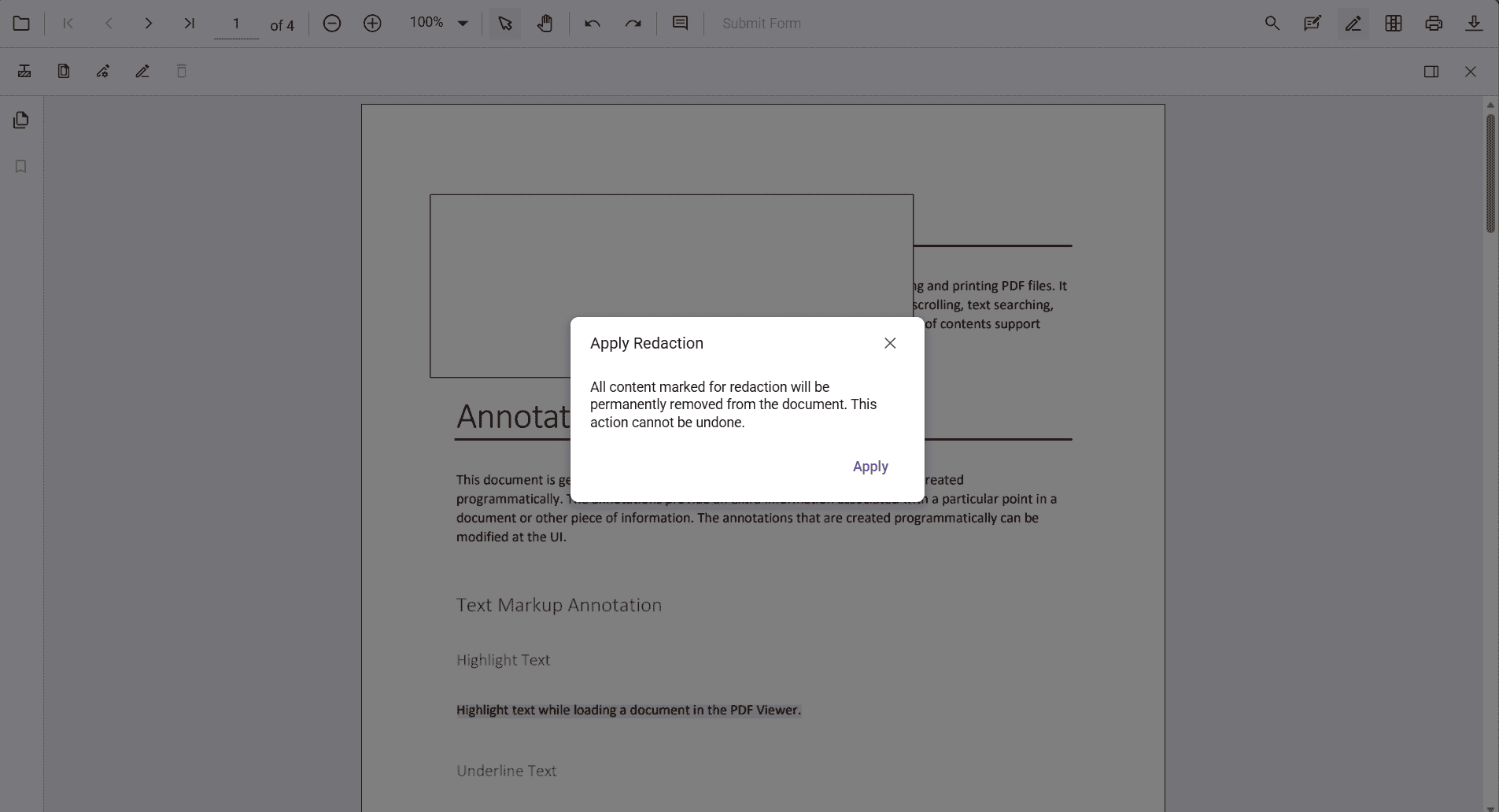
Redaction is permanent and cannot be undone.
Apply redaction programmatically (Angular)
applyRedaction(): void {
  const pdfViewer = (document.getElementById('pdfViewer') as any).ej2_instances[0];
  pdfViewer.annotation.redact();
}
Applying redaction is irreversible.
Default redaction settings during initialization
Configure defaults with the redactionSettings component property:
import { Component } from '@angular/core';
import {
  PdfViewerModule,
  ToolbarService,
  AnnotationService
} from '@syncfusion/ej2-angular-pdfviewer';

@Component({
  selector: 'app-root',
  template: `
    <div class="content-wrapper">
      <ejs-pdfviewer
        id="pdfViewer"
        [documentPath]="document"
        [resourceUrl]="resource"
        [redactionSettings]="redactionSettings"
        style="height:650px;display:block">
      </ejs-pdfviewer>
    </div>
  `,
  imports: [PdfViewerModule],
  providers: [ToolbarService, AnnotationService]
})
export class AppComponent {

  public document: string =
    'https://cdn.syncfusion.com/content/pdf/pdf-succinctly.pdf';

  public resource: string =
    'https://cdn.syncfusion.com/ej2/31.2.2/dist/ej2-pdfviewer-lib';

  // Redaction annotation default settings
  public redactionSettings = {
    overlayText: 'Confidential',
    markerFillColor: '#000'
  };
}