About Syncfusion Angular PDF Viewer Redaction
14 Aug 20264 minutes to read
Redaction annotations hide confidential or sensitive information in a PDF. The Syncfusion Angular PDF Viewer (EJ2) enables marking regions or entire pages for redaction, customizing appearance, and permanently applying redaction with a single action.
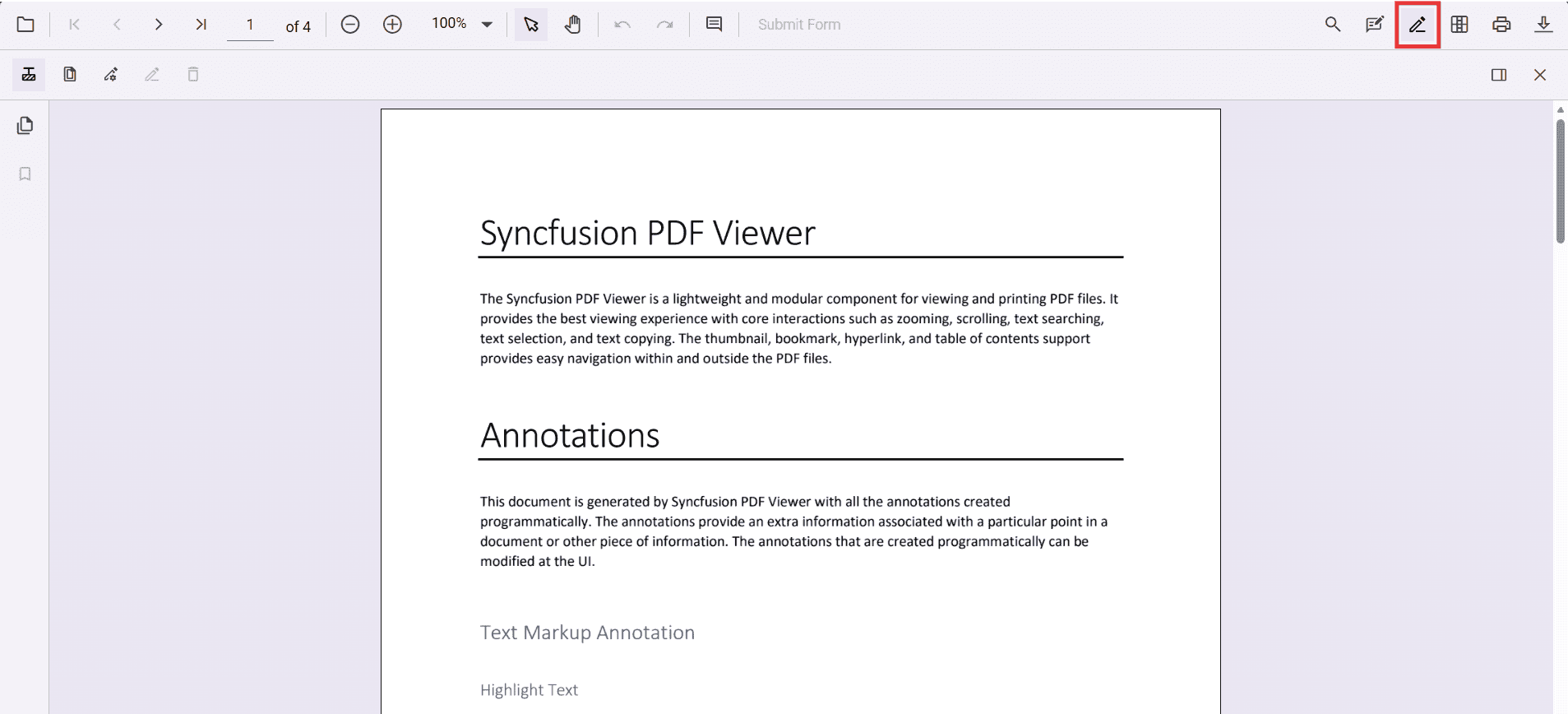
Enable the redaction toolbar
To enable the redaction toolbar, configure the toolbarSettings.toolbarItems property of the PdfViewer instance to include the RedactionEditTool.
The following example shows how to enable the redaction toolbar:
import { Component, ViewChild } from '@angular/core';
import {
  PdfViewerComponent,
  LinkAnnotationService,
  BookmarkViewService,
  MagnificationService,
  ThumbnailViewService,
  ToolbarService,
  NavigationService,
  AnnotationService,
  TextSearchService,
  TextSelectionService,
  PrintService,
  FormFieldsService,
  FormDesignerService,
  PageOrganizerService,
  ToolbarSettingsModel
} from '@syncfusion/ej2-angular-pdfviewer';

@Component({
  selector: 'app-root',
  template: `
    <div class="content-wrapper">
      <ejs-pdfviewer
        #pdfviewer
        id="pdfViewer"
        [resourceUrl]="resourceUrl"
        [documentPath]="documentPath"
        [toolbarSettings]="toolbarSettings"
        style="height:640px;display:block">
      </ejs-pdfviewer>
    </div>
  `,
  providers: [
    LinkAnnotationService,
    BookmarkViewService,
    MagnificationService,
    ThumbnailViewService,
    ToolbarService,
    NavigationService,
    AnnotationService,
    TextSearchService,
    TextSelectionService,
    PrintService,
    FormFieldsService,
    FormDesignerService,
    PageOrganizerService
  ]
})
export class AppComponent {
  @ViewChild('pdfviewer', { static: true }) pdfViewer!: PdfViewerComponent;

  // Standalone mode (CDN) – keep this version aligned with your package
  public resourceUrl = 'https://cdn.syncfusion.com/ej2/31.2.2/dist/ej2-pdfviewer-lib';
  public documentPath = 'https://cdn.syncfusion.com/content/pdf/pdf-succinctly.pdf';

  // Matches your JS toolbar configuration, with RedactionEditTool included
  public toolbarSettings: ToolbarSettingsModel = {
    toolbarItems: [
      'OpenOption',
      'UndoRedoTool',
      'PageNavigationTool',
      'MagnificationTool',
      'PanTool',
      'SelectionTool',
      'CommentTool',
      'SubmitForm',
      'AnnotationEditTool',
      'RedactionEditTool',   // Redaction entry in the primary toolbar
      'FormDesignerEditTool',
      'SearchOption',
      'PrintOption',
      'DownloadOption'
    ]
  };
}
Add the PdfViewer control to the Angular application and ensure the redaction feature is included in the installed package version. Once applied, redaction permanently removes the selected content.
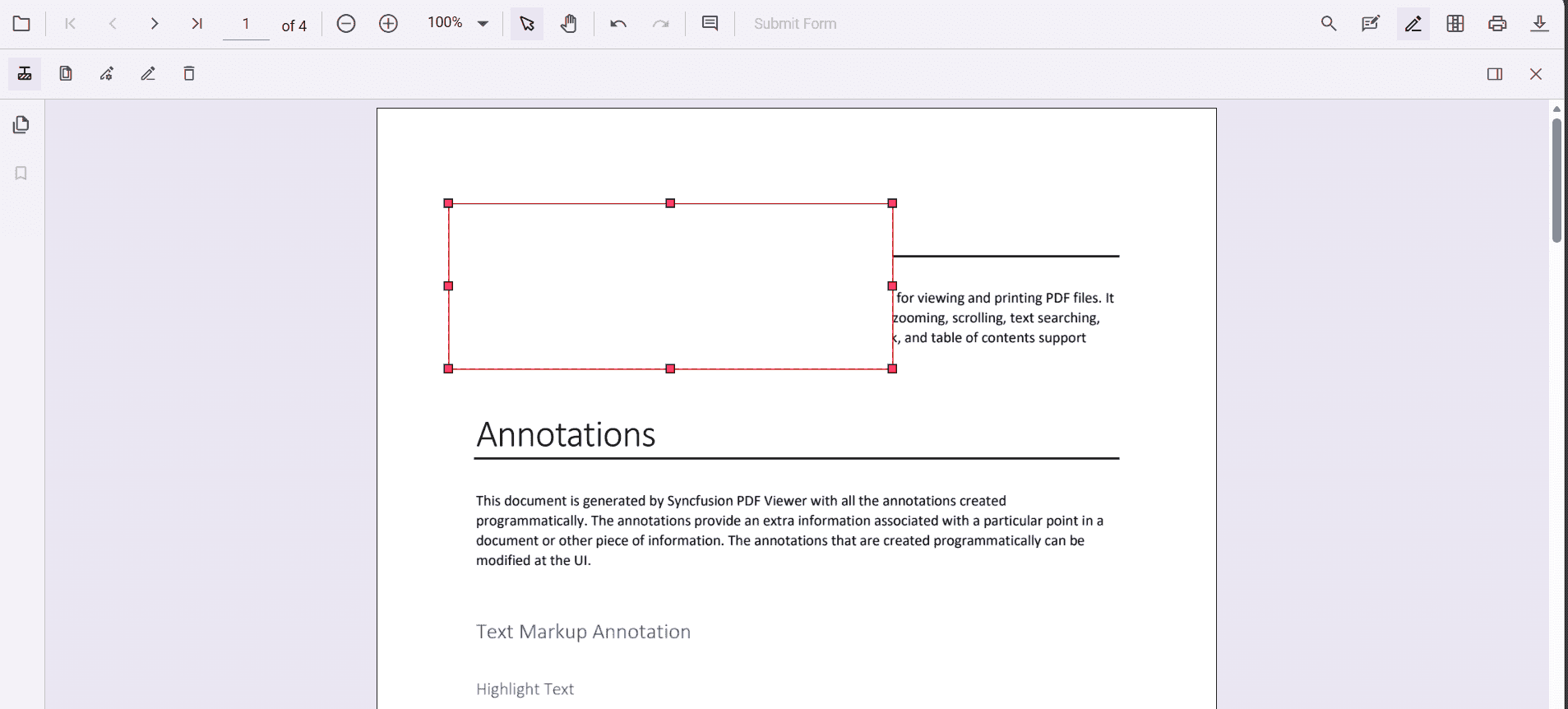
Add Redaction Annotations
Mark specific content for redaction using the toolbar or programmatically.
Select the Redaction tool and draw over text or graphics to hide. Optionally add overlay text (for example, “Confidential”) and adjust style properties: fill color, border color, and opacity.
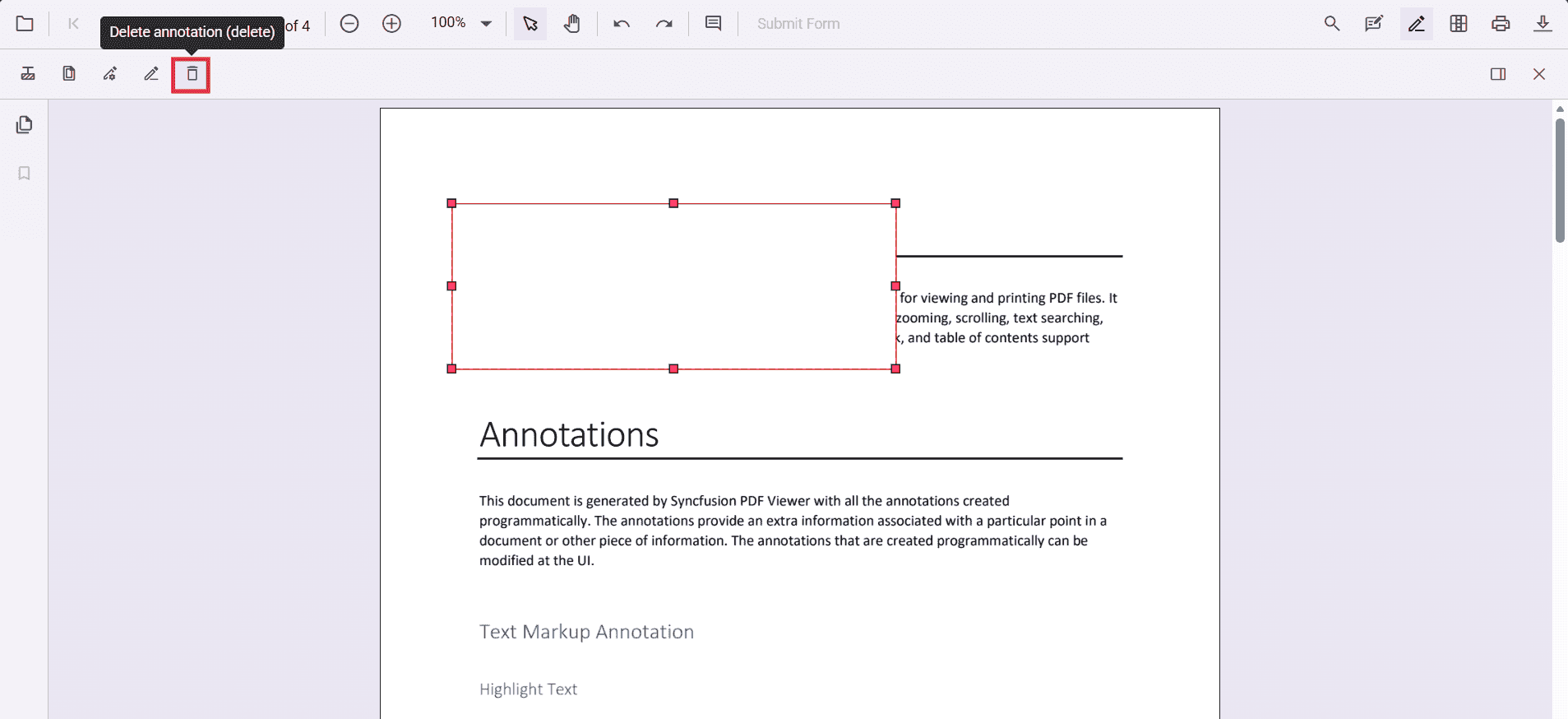
Delete Redaction Annotations
Remove redaction annotations using the toolbar or keyboard shortcuts:
- Click the Delete button on the toolbar, or
- Select the annotation and press the Delete key.
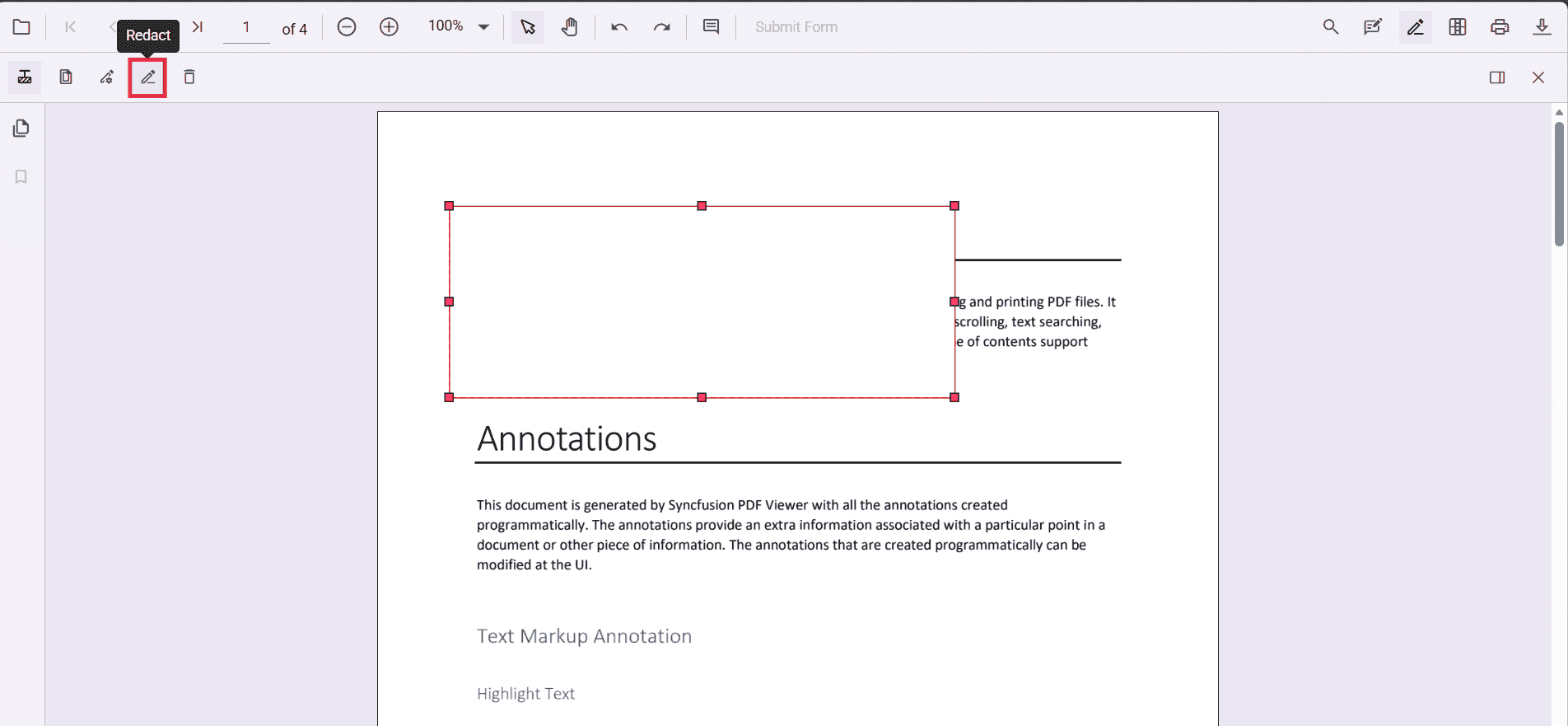
Redact Entire Pages
The viewer supports redacting entire pages that contain sensitive information. Use the built-in dialog to select specific pages, page ranges, or all pages, or invoke the same behavior programmatically.

Apply Redaction
After adding redaction annotations, permanently apply them to the document using the Apply Redaction toolbar button or the corresponding API method.
- The Apply Redaction button remains disabled until at least one redaction annotation exists.
- The button becomes enabled when redaction annotations are present.
A confirmation dialog appears before applying redaction to ensure acknowledgment of the irreversible action.
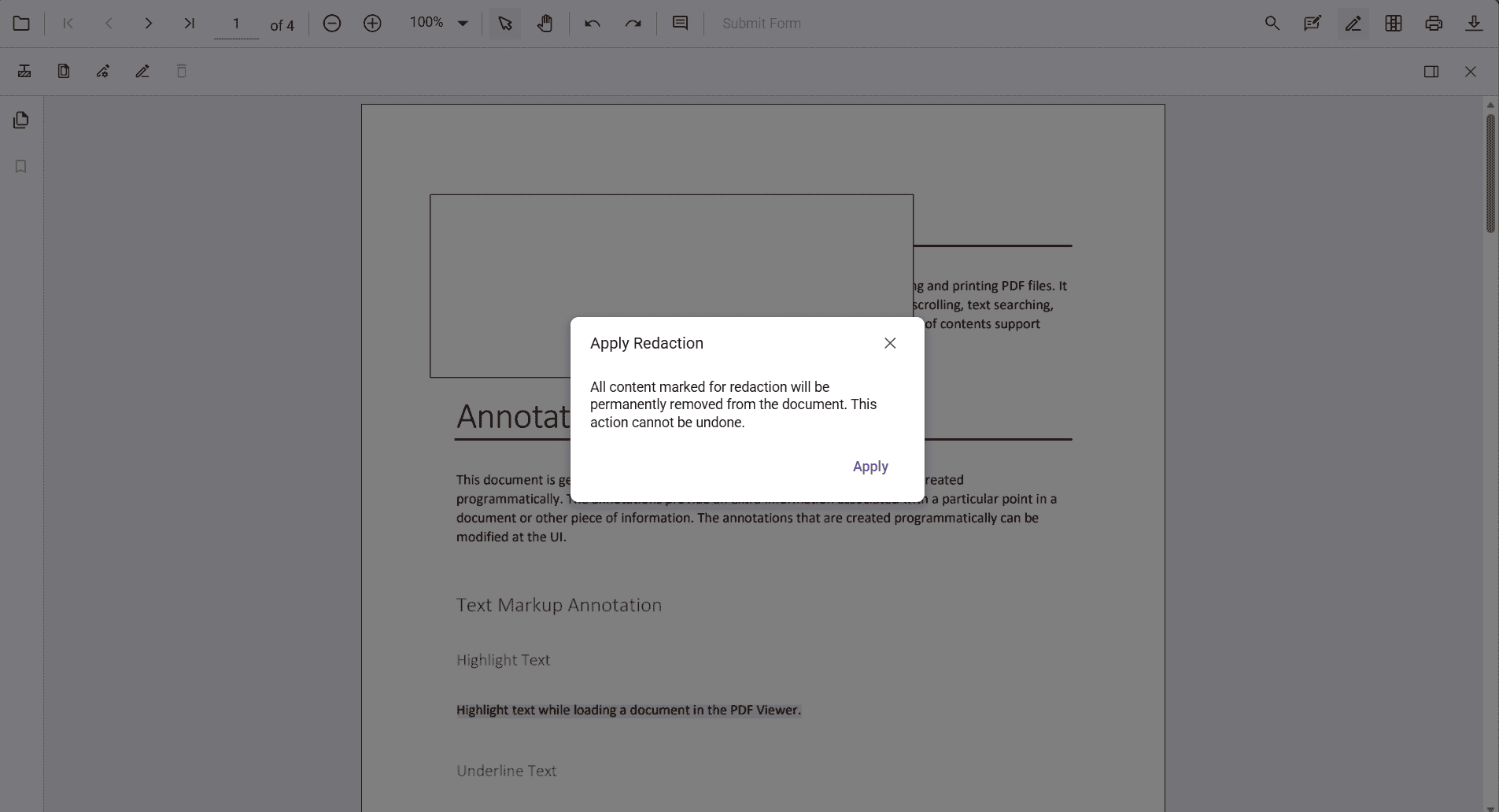
Applying redaction is irreversible. Once applied, the original content cannot be recovered.
Comment Support
Redaction annotations can include comments using the built‑in comment panel. This helps you add notes, track reviews, or record the reason for redaction.
Comments can be added through the UI or API. For more details, see the Comments documentation.
Import and Export Redaction Annotations
You can save and reload redaction annotations by exporting and importing them in JSON format. This makes it easy to persist annotations or share them across sessions.
For more details, see the Export and import annotations documentation.