Getting Started with .NET PDF Library on Linux
13 Aug 20266 minutes to read
The .NET PDF library is used to create, read, and edit PDF documents programmatically without the dependency on Adobe Acrobat. Using this library, you can create a PDF document in a .NET Core application on Linux.
Prerequisites
- .NET SDK 8.0 (or later)
- An active Syncfusion® license key (a free 30-day trial is available)
Steps to create PDF document programmatically
Step 1: Execute the following command in the Linux terminal to create a new .NET Core Console application project.
dotnet new consoleStep 2: Navigate to the newly created project directory.
cd ConsoleAppStep 3: Install the Syncfusion.Pdf.Net.Core NuGet package as a reference to your project from NuGet.org by executing the following command. Replace xx.x.x.xx with the actual version of the package you want to install (visit the NuGet page to find the latest stable version).
dotnet add package Syncfusion.Pdf.Net.Core -v xx.x.x.xx -s https://www.nuget.org/Starting with v16.2.0.x, if you reference Syncfusion® assemblies from the trial setup or from the NuGet feed, you also have to add the “Syncfusion.Licensing” assembly reference and include a license key in your projects. Please refer to this link to know about registering the Syncfusion® license key in your application to use our components.
Step 4: Register the Syncfusion® license key. An evaluation watermark is added to every page of the generated PDF until a valid key is registered. Include the license key at the top of Program.cs before creating a PdfDocument instance. Refer to the Syncfusion License documentation to learn about registering the Syncfusion® license key in your application.
using Syncfusion.Licensing;

// Register the Syncfusion license
Syncfusion.Licensing.SyncfusionLicenseProvider.RegisterLicense("YOUR LICENSE KEY");
Step 5: Include the following namespaces in the Program.cs file.
using Syncfusion.Pdf;
using Syncfusion.Pdf.Graphics;
using Syncfusion.Drawing;
using System.IO;
using System.Collections.Generic;
Step 6: Add the following code sample to the Program.cs file to create a PDF document in the .NET Core application on Linux.
//Create a new PDF document.
PdfDocument document = new PdfDocument();
// Set the page size.
document.PageSettings.Size = PdfPageSize.A4;
//Add a page to the document.
PdfPage page = document.Pages.Add();

//Create PDF graphics for the page.
PdfGraphics graphics = page.Graphics;
//Load the image from the disk.
FileStream imageStream = new FileStream("AdventureCycle.jpg", FileMode.Open, FileAccess.Read);
PdfBitmap image = new PdfBitmap(imageStream);
//Draw an image.
graphics.DrawImage(image, new RectangleF(130,0, 250, 100));

//Draw header text.
graphics.DrawString("Adventure Works Cycles", new PdfStandardFont(PdfFontFamily.TimesRoman, 20, PdfFontStyle.Bold), PdfBrushes.Gray, new PointF(150, 150));

//Add paragraph.
string text = "Adventure Works Cycles, the fictitious company on which the AdventureWorks sample databases are based, is a large, multinational manufacturing company. The company manufactures and sel
//Create a text element with the text and font.
PdfTextElement textElement = new PdfTextElement(text, new PdfStandardFont(PdfFontFamily.TimesRoman, 12));
//Draw the text in the first column.
textElement.Draw(page, new RectangleF(0, 200, page.GetClientSize().Width, page.GetClientSize().Height));

//Create a PdfGrid.
PdfGrid pdfGrid = new PdfGrid();
//Add values to the list.
List<object> data = new List<object>();
Object row1 = new { Product_ID = "1001", Product_Name = "Bicycle", Price = "10,000" };
Object row2 = new { Product_ID = "1002", Product_Name = "Head Light", Price = "3,000" };
Object row3 = new { Product_ID = "1003", Product_Name = "Break wire", Price = "1,500" };
data.Add(row1);
data.Add(row2);
data.Add(row3);
//Add list to IEnumerable.
IEnumerable<object> dataTable = data;
//Assign data source.
pdfGrid.DataSource = dataTable;
//Apply built-in table style.
pdfGrid.ApplyBuiltinStyle(PdfGridBuiltinStyle.GridTable4Accent3);
//Draw the grid to the page of PDF document.
pdfGrid.Draw(graphics, new RectangleF(0, 300, page.Size.Width - 80, 0));

//Create file stream.
using (FileStream outputFileStream = new FileStream(Path.GetFullPath(@"Output.pdf"), FileMode.Create, FileAccess.ReadWrite))
{
    //Save the PDF document to file stream.
    document.Save(outputFileStream);
}
//Close the PDF document.
document.Close(true);
Step 7: Execute the following command to restore the NuGet packages.
dotnet restore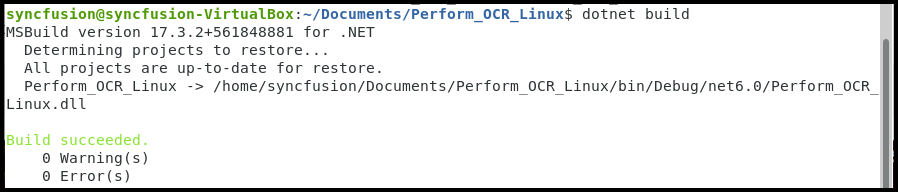
Step 8: Execute the following command in terminal to run the application.
dotnet run
A complete working sample can be downloaded from GitHub.
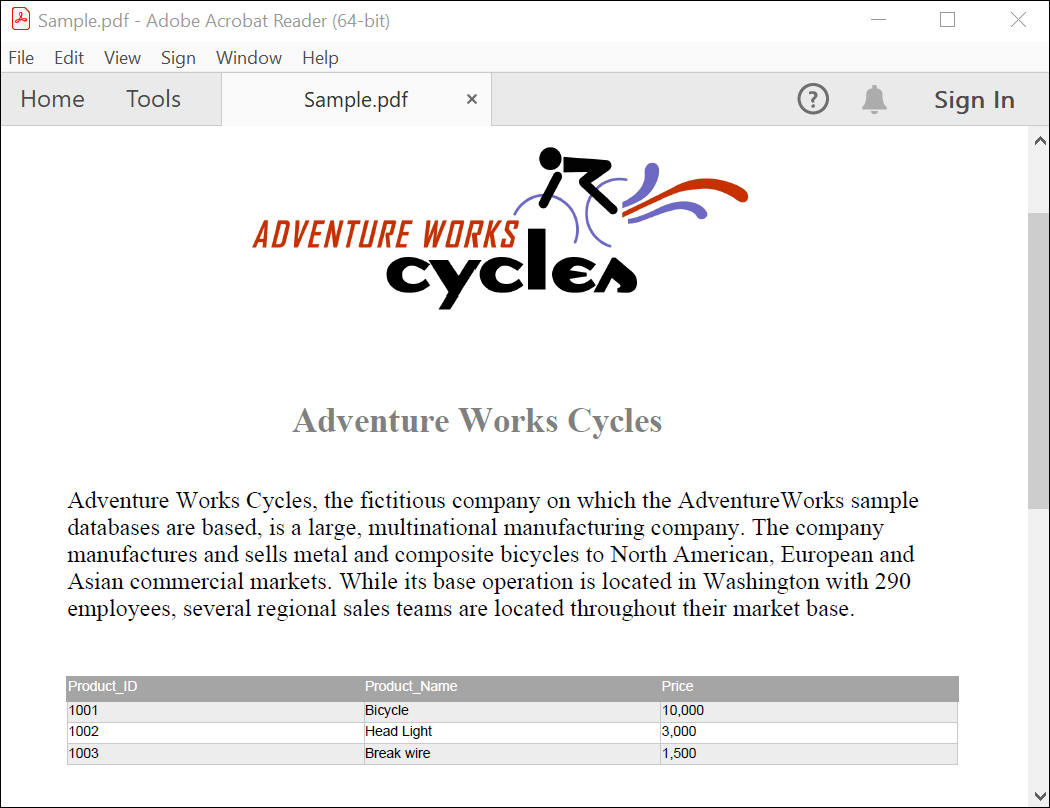
By executing the program, you will get the PDF document as follows. The output will be saved alongside Program.cs.
Next steps
- Create a PDF in a Console application (.NET Framework)
- Create a PDF in a Console application (cross-platform)
- Create a PDF in ASP.NET Core
- Create a PDF in WPF
- Open and read an existing PDF document
- Save the generated PDF to a file or stream
Click here to explore the rich set of Syncfusion® PDF library features.