# Create or Generate a PDF file in a Console application
The Syncfusion® [.NET PDF library](https://www.syncfusion.com/document-processing/pdf-framework/net/pdf-library) is used to create, read, and edit PDF documents. This library also offers functionality to merge, split, stamp, form, and secure PDF files.
To quickly get started with .NET PDF Library. Please, check this video:
{% youtube "https://youtu.be/PvUdu1hpRLQ?si=xFFjpsJZv3s8AonV" %}
## Steps to create PDF document in Console App
{% tabcontents %}
{% tabcontent Visual Studio %}
**Prerequisites**:
* Install .NET SDK: Ensure that you have the .NET SDK installed on your system. You can download it from the [.NET Downloads page](https://dotnet.microsoft.com/en-us/download).
* Install Visual Studio: Download and install Visual Studio Code from the [official website](https://code.visualstudio.com/download).
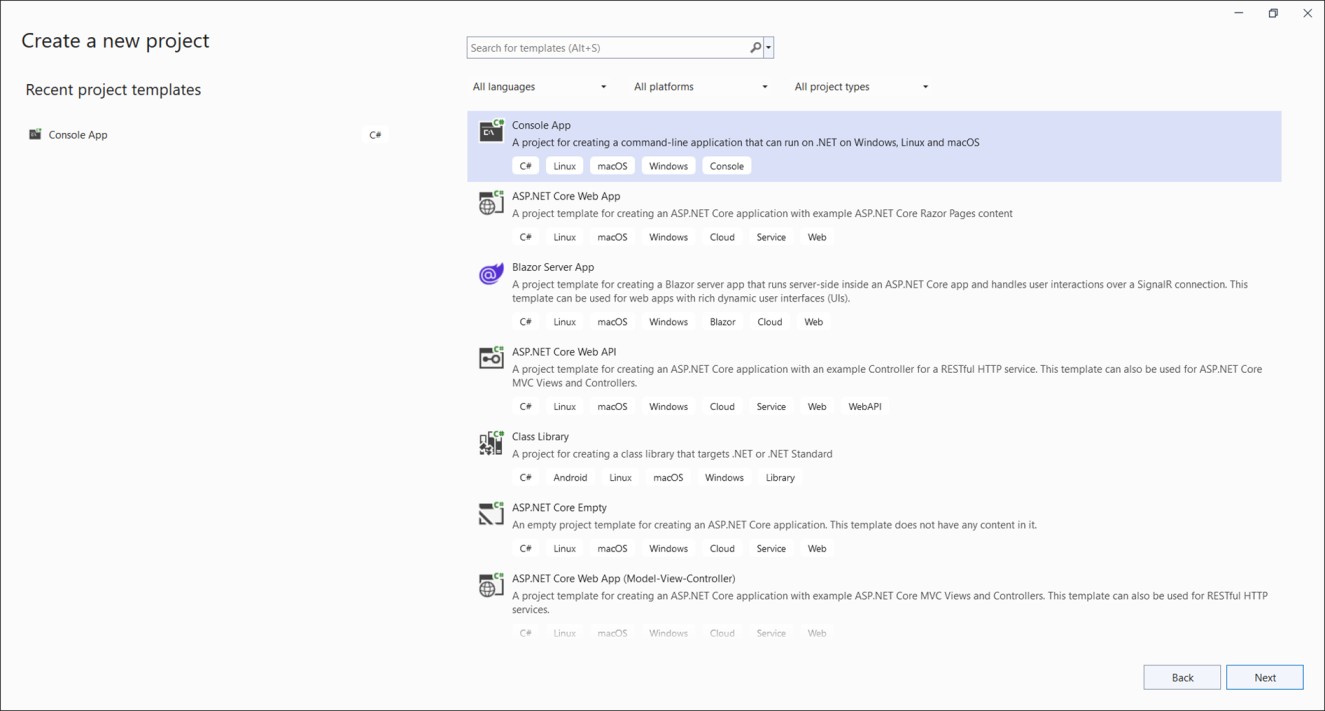
Step 1: Create a new C# Console Application project.
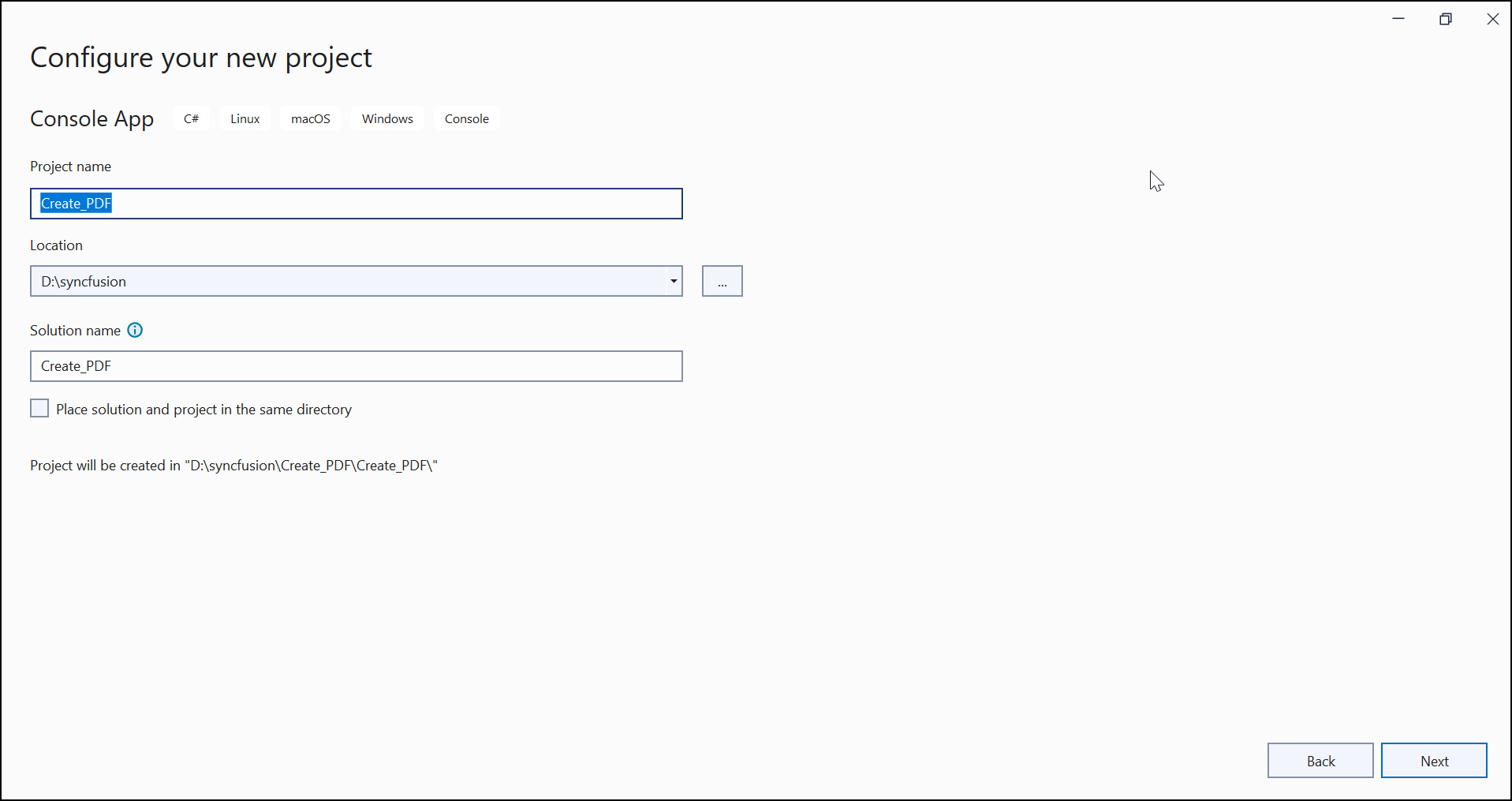
Step 2: Name the project.
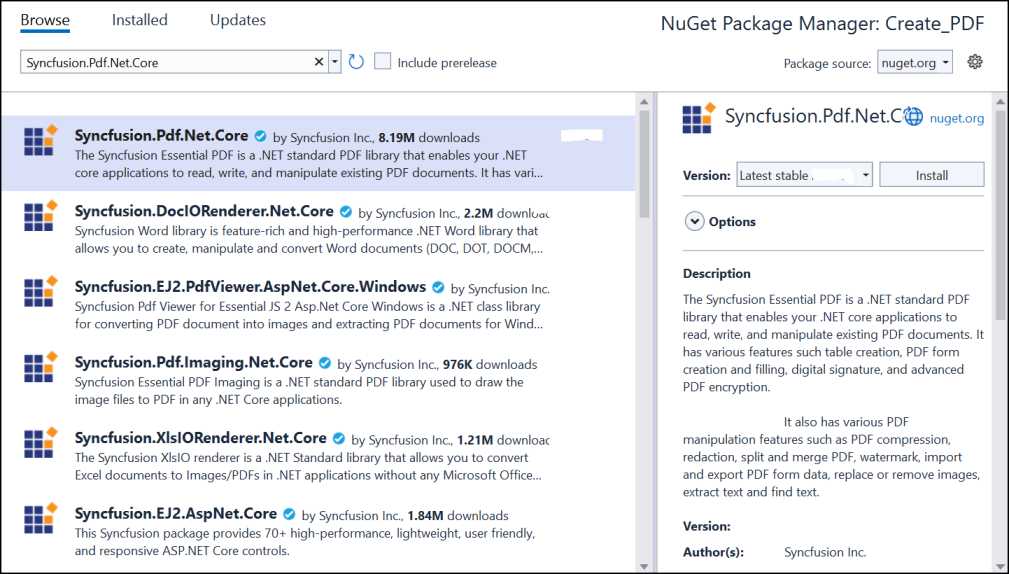
Step 3: Install the [Syncfusion.Pdf.Net.Core](https://www.nuget.org/packages/Syncfusion.Pdf.Net.Core) NuGet package as reference to your .NET Standard applications from [NuGet.org](https://www.nuget.org).
N> Starting with v16.2.0.x, if you reference Syncfusion® assemblies from trial setup or from the NuGet feed, you also have to add "Syncfusion.Licensing" assembly reference and include a license key in your projects. Please refer to this [link](https://help.syncfusion.com/common/essential-studio/licensing/overview) to learn about registering Syncfusion® license key in your application to use our components.
Step 4: Include the following namespaces in the *Program.cs* file.
{% highlight c# tabtitle="C#" %}
using Syncfusion.Pdf.Graphics;
using Syncfusion.Pdf;
using Syncfusion.Drawing;
{% endhighlight %}
Step 5: Include the below code snippet in *Program.cs* to create an PDF file.
{% tabs %}
{% highlight c# tabtitle="C# [Cross-platform]" playgroundButtonLink="https://raw.githubusercontent.com/SyncfusionExamples/PDF-Examples/master/Getting%20Started/Console/.NET/Create_PDF/Create_PDF/Program.cs" %}
//Create a new PDF document.
PdfDocument document = new PdfDocument();
//Add a page to the document.
PdfPage page = document.Pages.Add();
//Create PDF graphics for the page.
PdfGraphics graphics = page.Graphics;
//Set the standard font.
PdfFont font = new PdfStandardFont(PdfFontFamily.Helvetica, 20);
//Draw the text.
graphics.DrawString("Hello World!!!", font, PdfBrushes.Black, new PointF(0, 0));
//Create a fileStream.
FileStream fileStream = new FileStream("Output.pdf", FileMode.CreateNew, FileAccess.ReadWrite);
//Save and close the PDF document.
document.Save(fileStream);
document.Close(true);
{% endhighlight %}
{% endtabs %}
Step 6: Build the project.
Click on Build > Build Solution or press Ctrl + Shift + B to build the project.
Step 7: Run the project.
Click the Start button (green arrow) or press F5 to run the app.
{% endtabcontent %}
{% tabcontent Visual Studio Code %}
**Prerequisites**:
* Install .NET SDK: Ensure that you have the .NET SDK installed on your system. You can download it from the [.NET Downloads page](https://dotnet.microsoft.com/en-us/download).
* Install Visual Studio Code: Download and install Visual Studio Code from the [official website](https://code.visualstudio.com/download).
* Install C# Extension for VS Code: Open Visual Studio Code, go to the Extensions view (Ctrl+Shift+X), and search for 'C#'. Install the official [C# extension provided by Microsoft](https://marketplace.visualstudio.com/items?itemName=ms-dotnettools.csharp).
Step 1: Open the terminal (Ctrl+` ) and run the following command to create a new .NET Core console application project.
```
dotnet new console -n CreatePdfConsoleApp
```
Step 2: Replace ****CreatePdfConsoleApp** with your desired project name.
Step 3: Navigate to the project directory using the following command
```
cd CreatePdfConsoleApp
```
Step 4: Use the following command in the terminal to add the [Syncfusion.Pdf.Net.Core](https://www.nuget.org/packages/Syncfusion.pdf.Net.Core) package to your project.
```
dotnet add package Syncfusion.Pdf.Net.Core
```
N> Starting with v16.2.0.x, if you reference Syncfusion® assemblies from trial setup or from the NuGet feed, you also have to add "Syncfusion.Licensing" assembly reference and include a license key in your projects. Please refer to this [link](https://help.syncfusion.com/common/essential-studio/licensing/overview) to learn about registering Syncfusion® license key in your application to use our components.
Step 5: Include the following namespaces in the *Program.cs* file.
{% highlight c# tabtitle="C#" %}
using Syncfusion.Pdf.Graphics;
using Syncfusion.Pdf;
using Syncfusion.Drawing;
{% endhighlight %}
Step 6: Include the below code snippet in *Program.cs* to create an PDF file.
{% highlight c# tabtitle="C# [Cross-platform]" playgroundButtonLink="https://raw.githubusercontent.com/SyncfusionExamples/PDF-Examples/master/Getting%20Started/Console/.NET/Create_PDF/Create_PDF/Program.cs" %}
//Create a new PDF document.
PdfDocument document = new PdfDocument();
//Add a page to the document.
PdfPage page = document.Pages.Add();
//Create PDF graphics for the page.
PdfGraphics graphics = page.Graphics;
//Set the standard font.
PdfFont font = new PdfStandardFont(PdfFontFamily.Helvetica, 20);
//Draw the text.
graphics.DrawString("Hello World!!!", font, PdfBrushes.Black, new PointF(0, 0));
//Create a fileStream.
FileStream fileStream = new FileStream("Output.pdf", FileMode.CreateNew, FileAccess.ReadWrite);
//Save and close the PDF document.
document.Save(fileStream);
document.Close(true);
{% endhighlight %}
Step 7: Build the project.
Run the following command in terminal to build the project.
```
dotnet build
```
Step 8: Run the project.
Run the following command in terminal to build the project.
```
dotnet run
```
{% endtabcontent %}
{% tabcontent JetBrains Rider %}
**Prerequisites:**
* JetBrains Rider.
* Install .NET 8 SDK or later.
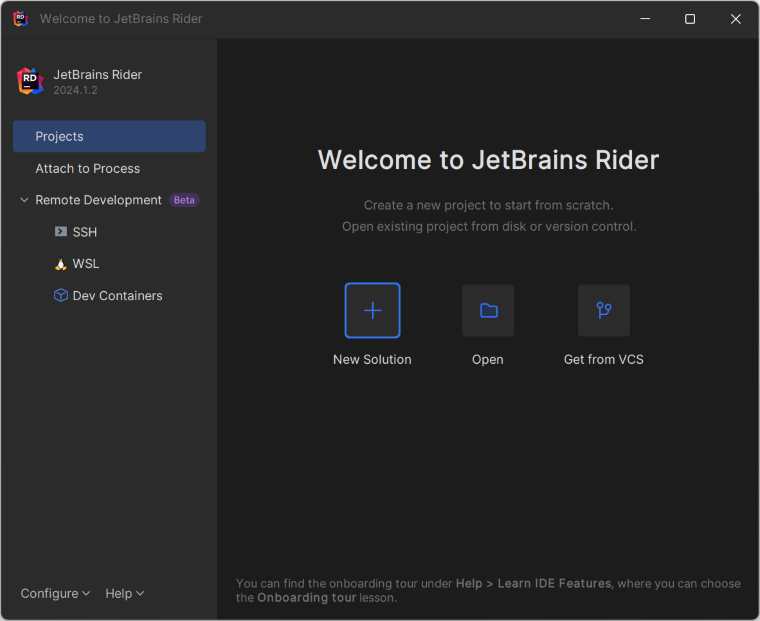
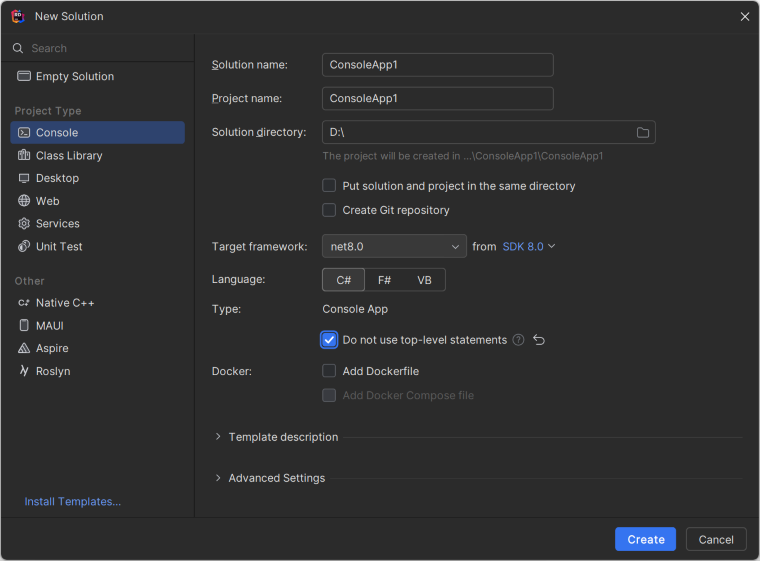
Step 1. Open JetBrains Rider and create a new .NET Core console application project.
* Launch JetBrains Rider.
* Click new solution on the welcome screen.
* In the new Solution dialog, select Project Type as Console.
* Enter a project name and specify the location.
* Select the target framework (e.g., .NET 8.0, .NET 9.0).
* Click create.
Step 2: Install the NuGet package from [NuGet.org](https://www.nuget.org/).
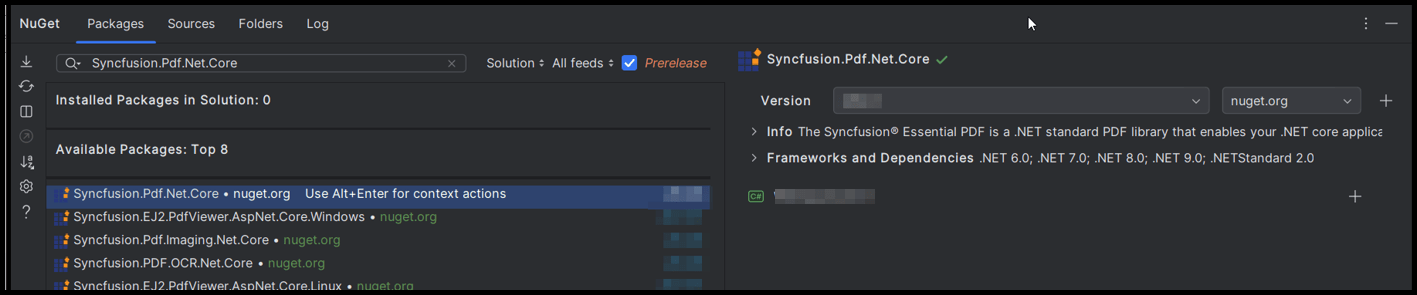
* Click the NuGet icon in the Rider toolbar and type [Syncfusion.Pdf.Net.Core](https://www.nuget.org/packages/Syncfusion.Pdf.Net.Core) in the search bar.
* Ensure that "nuget.org" is selected as the package source.
* Select the latest Syncfusion.Pdf.Net.Core NuGet package from the list.
* Click the + (Add) button to add the package.
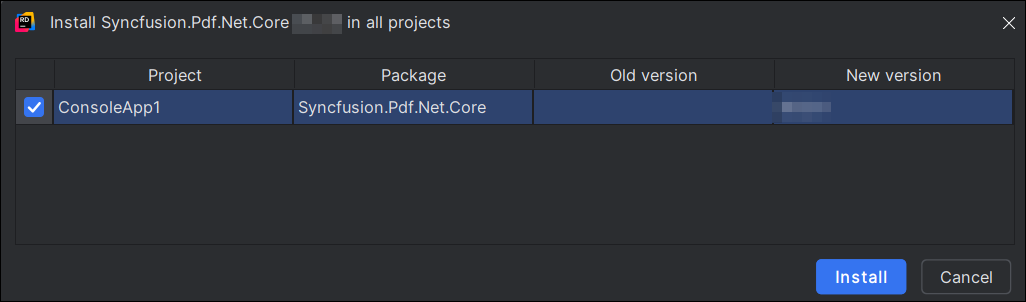
* Click the Install button to complete the installation.
N> Starting with v16.2.0.x, if you reference Syncfusion® assemblies from trial setup or from the NuGet feed, you also have to add "Syncfusion.Licensing" assembly reference and include a license key in your projects. Please refer to this [link](https://help.syncfusion.com/common/essential-studio/licensing/overview) to learn about registering Syncfusion® license key in your application to use our components.
Step 4: Include the following namespaces in the *Program.cs* file.
{% highlight c# tabtitle="C#" %}
using Syncfusion.Pdf.Graphics;
using Syncfusion.Pdf;
using Syncfusion.Drawing;
{% endhighlight %}
Step 5: Include the below code snippet in *Program.cs* to create an PDF file.
{% tabs %}
{% highlight c# tabtitle="C# [Cross-platform]" playgroundButtonLink="https://raw.githubusercontent.com/SyncfusionExamples/PDF-Examples/master/Getting%20Started/Console/.NET/Create_PDF/Create_PDF/Program.cs" %}
//Create a new PDF document.
PdfDocument document = new PdfDocument();
//Add a page to the document.
PdfPage page = document.Pages.Add();
//Create PDF graphics for the page.
PdfGraphics graphics = page.Graphics;
//Set the standard font.
PdfFont font = new PdfStandardFont(PdfFontFamily.Helvetica, 20);
//Draw the text.
graphics.DrawString("Hello World!!!", font, PdfBrushes.Black, new PointF(0, 0));
//Create a fileStream.
FileStream fileStream = new FileStream("Output.pdf", FileMode.CreateNew, FileAccess.ReadWrite);
//Save and close the PDF document.
document.Save(fileStream);
document.Close(true);
{% endhighlight %}
{% endtabs %}
Step 6: Build the project.
Click the **Build** button in the toolbar or press Ctrl+Shift+B to build the project.
Step 7: Run the project.
Click the **Run** button (green arrow) in the toolbar or press F5 to run the app.
{% endtabcontent %}
{% endtabcontents %}
You can download a complete working sample from [GitHub](https://github.com/SyncfusionExamples/PDF-Examples/tree/master/Getting%20Started/Console/.NET/Create_PDF).
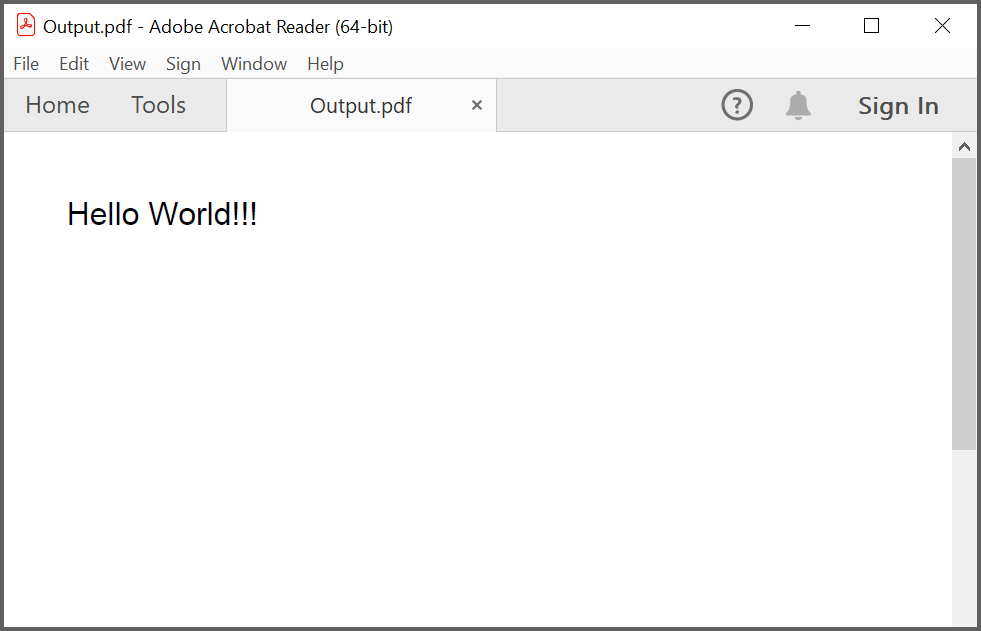
By executing the program, you will get the PDF document as follows.
## Create a simple PDF document using .NET Framework
The following steps illustrates creating a simple Hello world PDF document in console application using .NET Framework.
**Prerequisites**:
* Install .NET SDK: Ensure that you have the .NET SDK installed on your system. You can download it from the [.NET Downloads page](https://dotnet.microsoft.com/en-us/download).
* Install Visual Studio: Download and install Visual Studio Code from the [official website](https://code.visualstudio.com/download).
**Steps to create PDF document using .NET Framework**
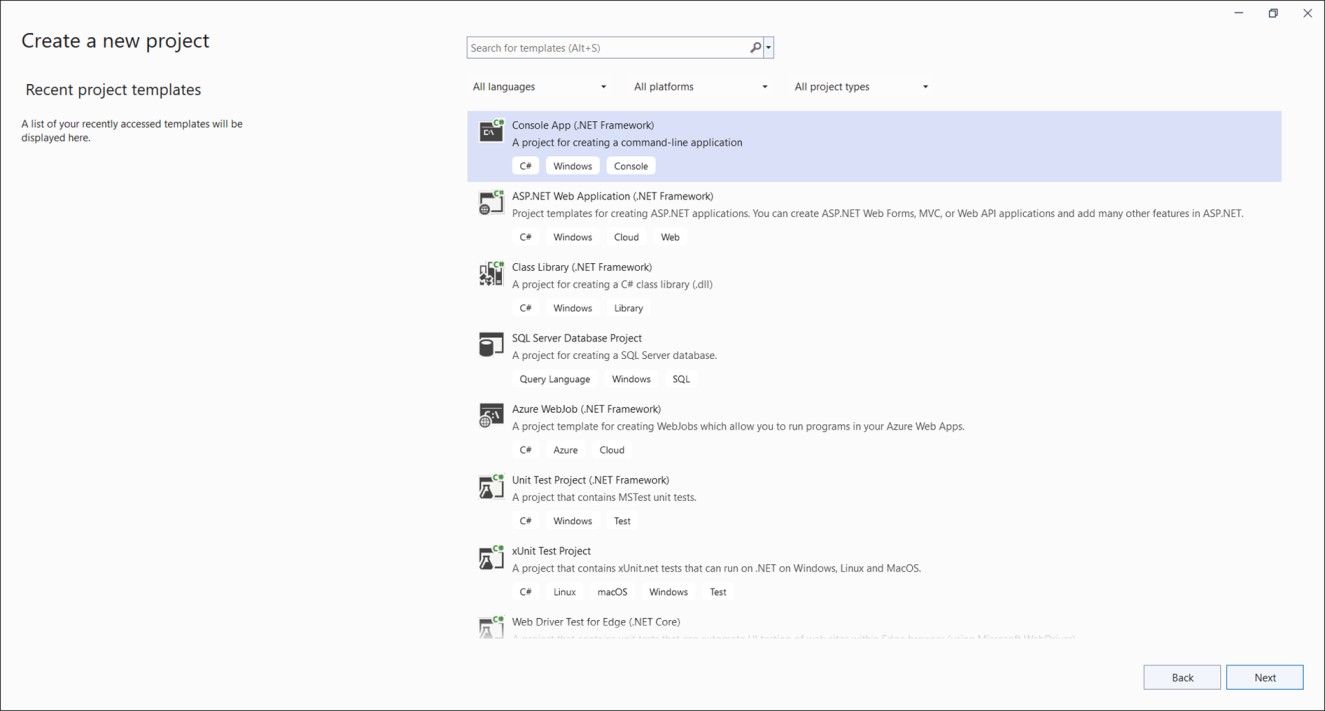
Step 1: Create a new C# Console Application (.NET Framework) project.
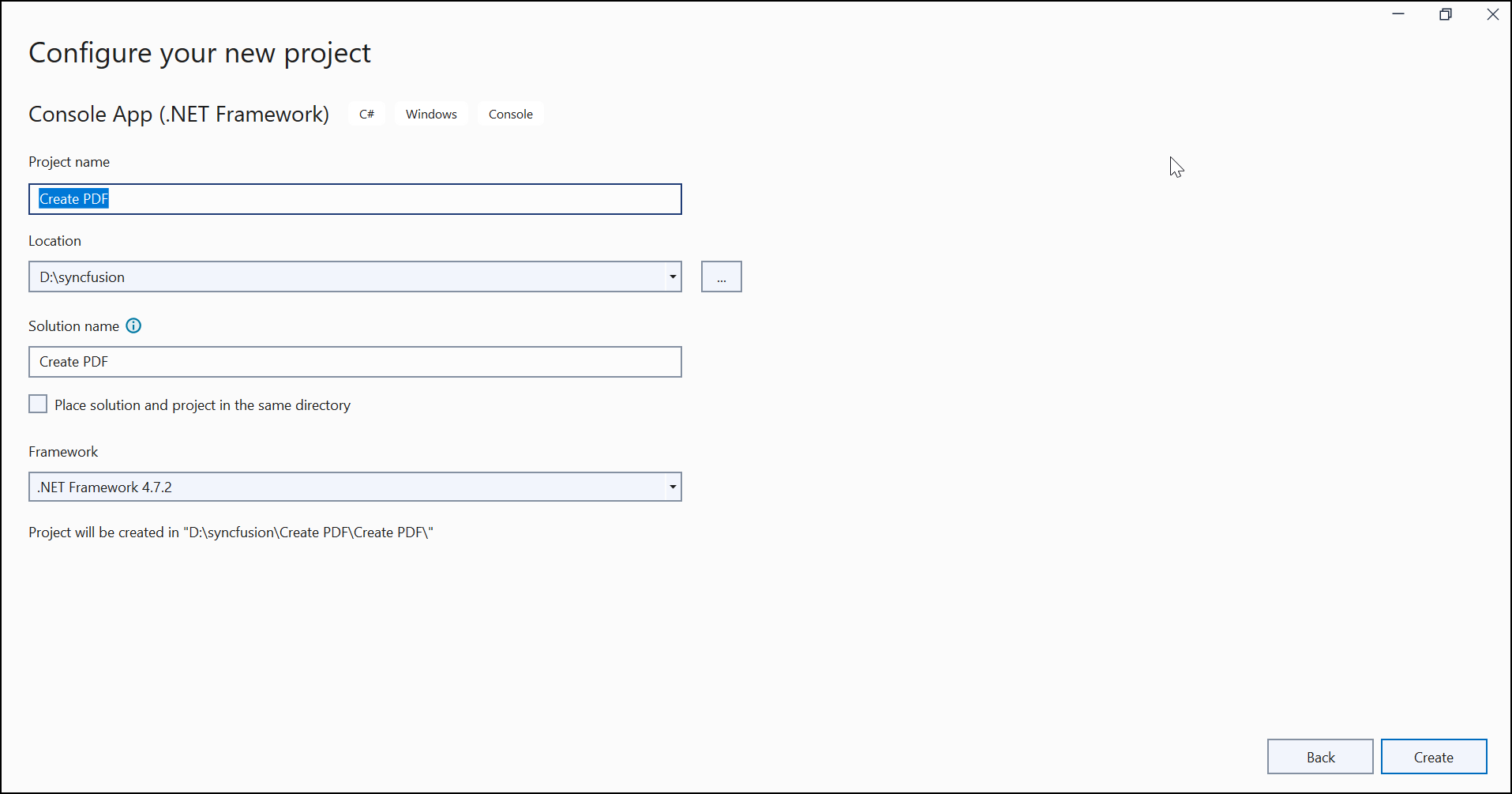
Step 2: Name the project.
Step 3: Install the [Syncfusion.Pdf.WinForms](https://www.nuget.org/packages/Syncfusion.Pdf.WinForms/) NuGet package as reference to your .NET Standard applications from [NuGet.org](https://www.nuget.org).
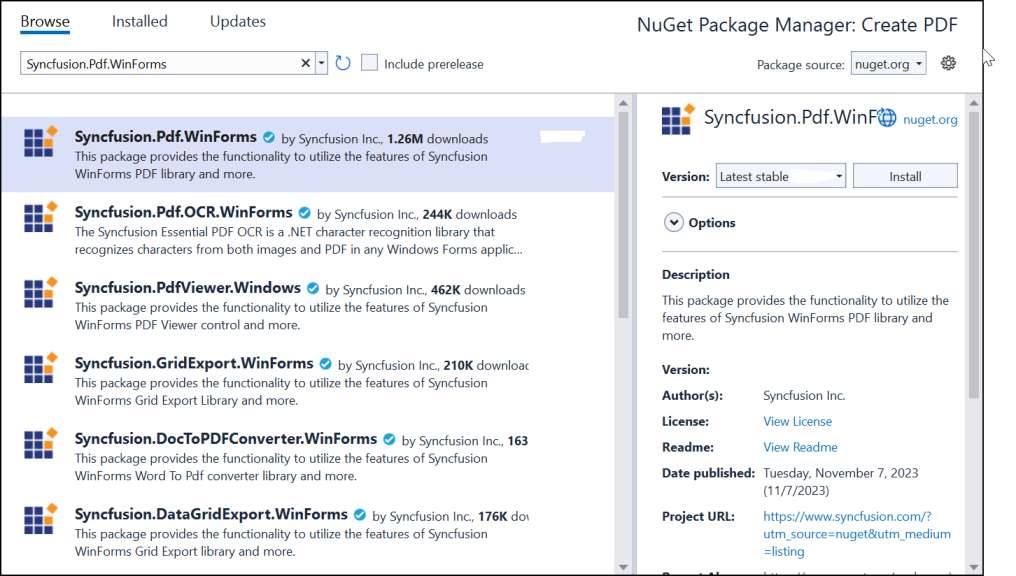
N> The [Syncfusion.Pdf.WinForms](https://www.nuget.org/packages/Syncfusion.Pdf.WinForms/) NuGet package is dependent package for Syncfusion® Windows Forms GUI controls, so named with suffix "WinForms". It has a platform-independent .NET framework (4.0, 4.5, 4.5.1, 4.6) assemblies of the PDF library and doesn't contain any Windows Forms-related references or code. Hence, we recommend this package for the .NET framework Console application.
Step 4: Include the following namespaces in the *Program.cs*.
{% highlight c# tabtitle="C#" %}
using Syncfusion.Pdf.Graphics;
using Syncfusion.Pdf;
using System.Drawing;
{% endhighlight %}
Step 5: Include the following code sample in *Program.cs* to create a PDF file.
{% highlight c# tabtitle="C#" %}
//Create a new PDF document.
using (PdfDocument document = new PdfDocument()) {
//Add a page to the document.
PdfPage page = document.Pages.Add();
//Create PDF graphics for a page.
PdfGraphics graphics = page.Graphics;
//Set the standard font.
PdfFont font = new PdfStandardFont(PdfFontFamily.Helvetica, 20);
//Draw the text.
graphics.DrawString("Hello World!!!", font, PdfBrushes.Black, new PointF(0, 0));
//Save the document.
document.Save("Output.pdf");
}
{% endhighlight %}
Step 6: Build the project.
Click on Build > Build Solution or press Ctrl + Shift + B to build the project.
Step 7: Run the project.
Click the Start button (green arrow) or press F5 to run the app.
You can download a complete working sample from [GitHub](https://github.com/SyncfusionExamples/PDF-Examples/tree/master/Getting%20Started/Console/.NET%20Framework/Create%20PDF).
By executing the program, you will get the PDF document as follows.

Click [here](https://www.syncfusion.com/document-processing/pdf-framework/net) to explore the rich set of Syncfusion® PDF library features.
An online sample link to [create PDF document](https://ej2.syncfusion.com/aspnetcore/PDF/HelloWorld#/material3) in ASP.NET Core.