# Create or Generate PDF file in ASP.NET Core

The Syncfusion<sup>&reg;</sup> [.NET Core PDF library](https://www.syncfusion.com/document-processing/pdf-framework/net-core/pdf-library) is used to create, read, and edit PDF documents. This library also offers functionality to merge, split, stamp, forms, and secure PDF files.

To include the .NET Core PDF library into your ASP.NET Core application, please refer to the [NuGet Package Required](https://help.syncfusion.com/document-processing/pdf/pdf-library/net/nuget-packages-required) or [Assemblies Required](https://help.syncfusion.com/document-processing/pdf/pdf-library/net/assemblies-required) documentation.

N> Beginning with our Volume 2, 2023 release, we have eliminated the dependency on the System.Drawing.Common package from our Syncfusion.Pdf.Imaging.Net.Core package. Instead, we have introduced SkiaSharp as the alternative library.

## Steps to create PDF document in ASP.NET Core

{% tabcontents %}
{% tabcontent Visual Studio %}
**Prerequisites**:

* Install .NET SDK: Ensure that you have the .NET SDK installed on your system. You can download it from the [.NET Downloads page](https://dotnet.microsoft.com/en-us/download).
* Install Visual Studio: Download and install Visual Studio from the [official website](https://visualstudio.microsoft.com/downloads/).


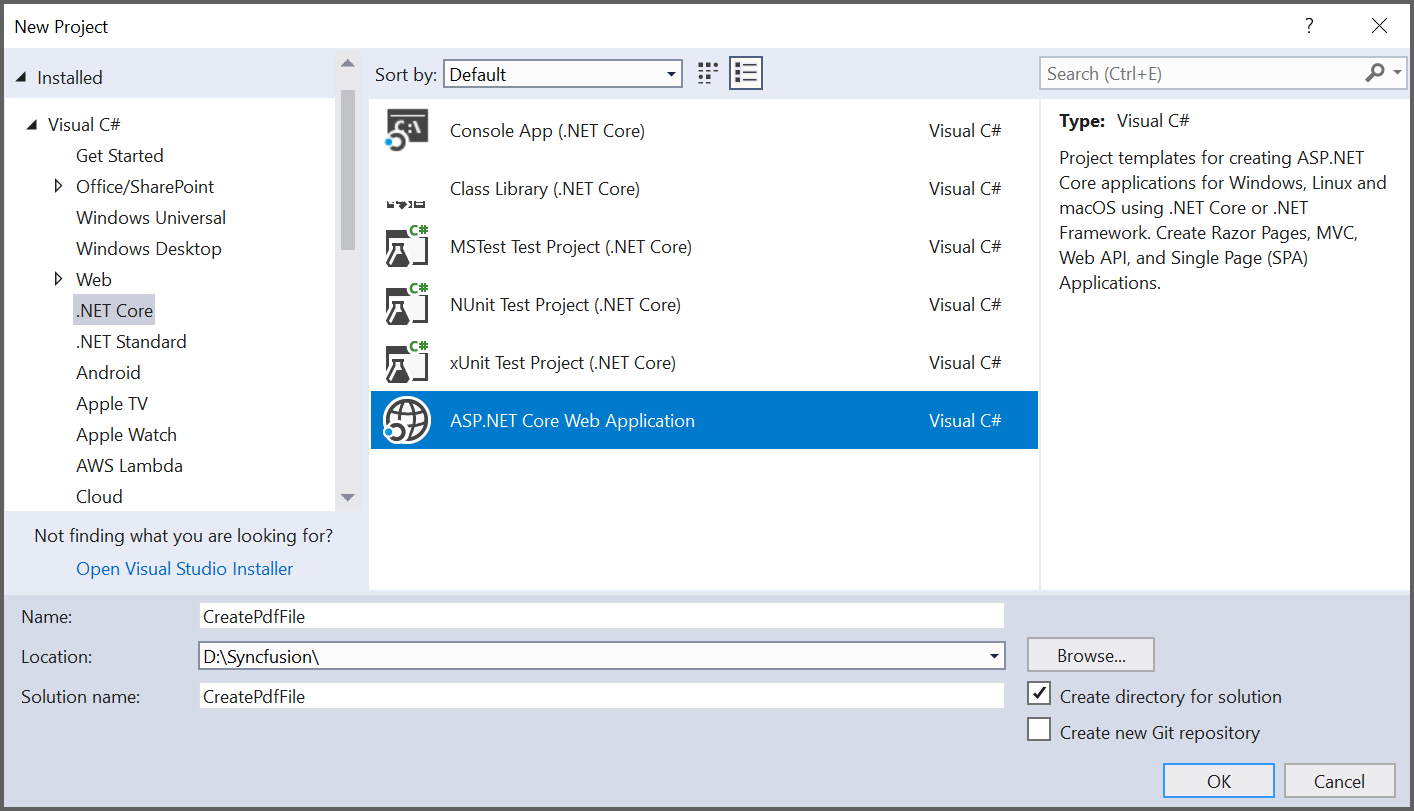
Step 1: Create a new C# ASP.NET Core Web Application project.
   ![Create ASP.NET Core Web application in Visual Studio](Asp.Net.Core_images/Creation1.png)

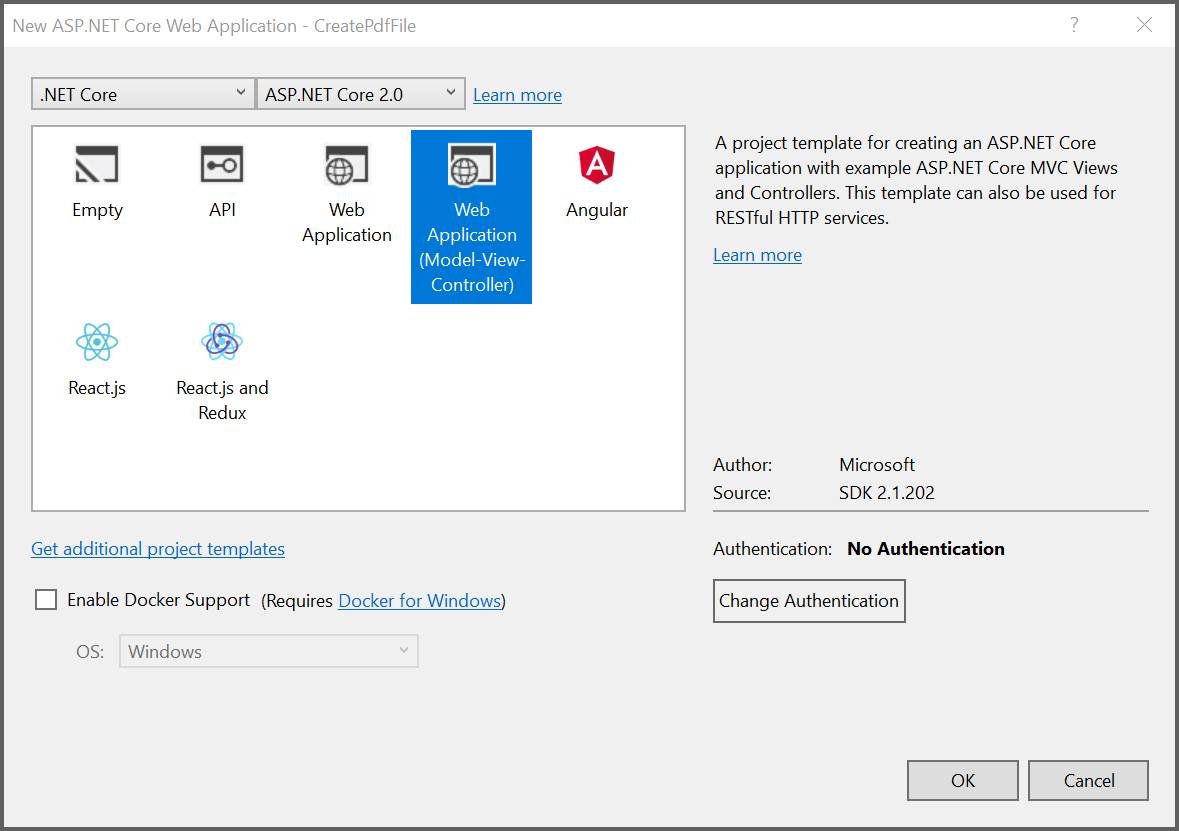
Step 2: In configuration windows, name your project and click Next.
   ![Select Web Application pattern](Asp.Net.Core_images/Creation2.png)

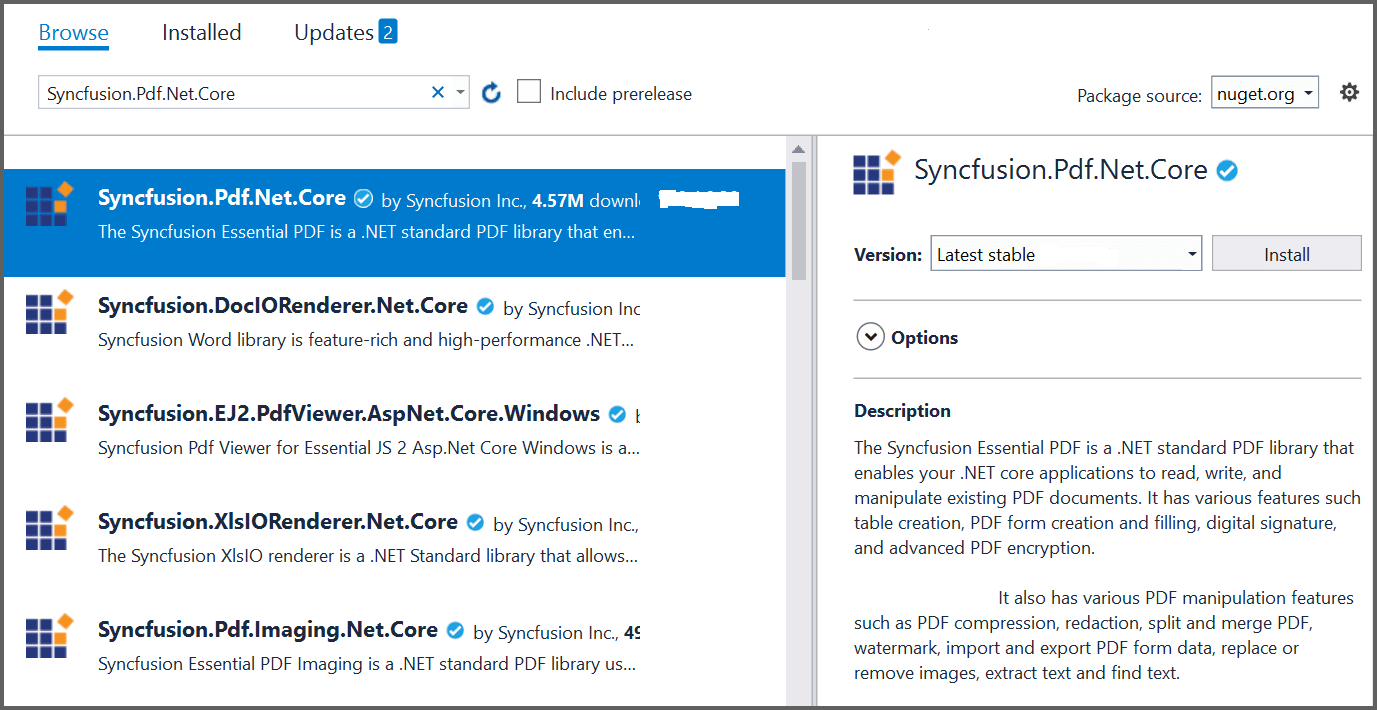
Step 3: Install the [Syncfusion.Pdf.Net.Core](https://www.nuget.org/packages/Syncfusion.Pdf.Net.Core/) package as reference to your ASP.NET Core applications from [NuGet.org](https://www.nuget.org/).
   ![Install PDF .NET Core NuGet package](Asp.Net.Core_images/Creation3.png)

N> Starting with v16.2.0.x, if you reference Syncfusion<sup>&reg;</sup> assemblies from trial setup or from the NuGet feed, you also have to add "Syncfusion.Licensing" assembly reference and include a license key in your projects. Please refer to this [link](https://help.syncfusion.com/common/essential-studio/licensing/overview) to know about registering Syncfusion<sup>&reg;</sup> license key in your application to use our components.

Step 4: A default controller with name HomeController.cs gets added on creation of ASP.NET Core project. Include the following namespaces in that HomeController.cs file.

{% highlight c# tabtitle="C#" %}

   using Syncfusion.Pdf;
   using Syncfusion.Pdf.Graphics;
   using Syncfusion.Drawing;
   using System.IO;

{% endhighlight %}

Step 5: A default action method named Index will be present in HomeController.cs. Right click on Index method and select Go To View where you will be directed to its associated view page Index.cshtml. Add a new button in the Index.cshtml as shown below.
{% highlight c# tabtitle="C#" %}
   @{Html.BeginForm("CreateDocument", "Home", FormMethod.Get);
       {
           <div>
               <input type="submit" value="Create PDF Document" style="width:200px;height:27px" />
           </div>
       }
       Html.EndForm();
   }

{% endhighlight %}

Step 6: Add a new action method named ``CreatePDFDocument`` in HomeController.cs file and include the below code example to generate a PDF document using the [PdfDocument](https://help.syncfusion.com/cr/document-processing/Syncfusion.Pdf.PdfDocument.html) class. Then use the [DrawString](https://help.syncfusion.com/cr/document-processing/Syncfusion.Pdf.Graphics.PdfGraphics.html#Syncfusion_Pdf_Graphics_PdfGraphics_DrawString_System_String_Syncfusion_Pdf_Graphics_PdfFont_Syncfusion_Pdf_Graphics_PdfBrush_System_Drawing_PointF_) method of the [PdfGraphics](https://help.syncfusion.com/cr/document-processing/Syncfusion.Pdf.Graphics.PdfGraphics.html) object to draw the text on the PDF page.

{% highlight c# tabtitle="C#" %}

   //Create a new PDF document.
   PdfDocument document = new PdfDocument();
   //Add a page to the document.
   PdfPage page = document.Pages.Add();
   //Create PDF graphics for the page.
   PdfGraphics graphics = page.Graphics;
   //Set the standard font.
   PdfFont font = new PdfStandardFont(PdfFontFamily.Helvetica, 20);
   //Draw the text.
   graphics.DrawString("Hello World!!!", font, PdfBrushes.Black, new PointF(0, 0));
   //Saving the PDF to the MemoryStream.
   MemoryStream stream = new MemoryStream();
   document.Save(stream);
   //Set the position as '0'.
   stream.Position = 0;
   //Download the PDF document in the browser.
   FileStreamResult fileStreamResult = new FileStreamResult(stream, "application/pdf");
   fileStreamResult.FileDownloadName = "Sample.pdf";
   return fileStreamResult;

{% endhighlight %}
Step 7: Build the project.
   Click on Build > Build Solution or press Ctrl + Shift + B to build the project.

Step 8: Run the project.
   Click the Start button (green arrow) or press F5 to run the app.

{% endtabcontent %}
 
{% tabcontent Visual Studio Code %}
**Prerequisites**:

* Install .NET SDK: Ensure that you have the .NET SDK installed on your system. You can download it from the [.NET Downloads page](https://dotnet.microsoft.com/en-us/download).
* Install Visual Studio Code: Download and install Visual Studio Code from the [official website](https://code.visualstudio.com/download).
* Install C# Extension for VS Code: Open Visual Studio Code, go to the Extensions view (Ctrl+Shift+X), and search for 'C#'. Install the official [C# extension provided by Microsoft](https://marketplace.visualstudio.com/items?itemName=ms-dotnettools.csharp).

Step 1: Open the terminal (Ctrl+` ) and run the following command to create a C# ASP.NET Core Web Application project.

```
dotnet new mvc -n CreatePdfASPNETCoreAPP
```
Step 2: Replace ****CreatePdfASPNETCoreAPP** with your desired project name.

Step 3: Navigate to the project directory using the following command

```
cd CreatePdfASPNETCoreAPP
```
Step 4: Use the following command in the terminal to add the [Syncfusion.Pdf.Net.Core](https://www.nuget.org/packages/Syncfusion.pdf.Net.Core) package to your project.

```
dotnet add package Syncfusion.Pdf.Net.Core
```
N> Starting with v16.2.0.x, if you reference Syncfusion<sup>&reg;</sup> assemblies from trial setup or from the NuGet feed, you also have to add "Syncfusion.Licensing" assembly reference and include a license key in your projects. Please refer to this [link](https://help.syncfusion.com/common/essential-studio/licensing/overview) to know about registering Syncfusion<sup>&reg;</sup> license key in your application to use our components.

Step 5: A default controller with name HomeController.cs gets added on creation of ASP.NET Core project. Include the following namespaces in that HomeController.cs file.

{% highlight c# tabtitle="C#" %}

using Syncfusion.Pdf;
using Syncfusion.Pdf.Graphics;
using Syncfusion.Drawing;
using System.IO;

{% endhighlight %}

Step 6: A default action method named Index will be present in HomeController.cs. Right click on Index method and select Go To View where you will be directed to its associated view page Index.cshtml. Add a new button in the Index.cshtml as shown below.

{% highlight c# tabtitle="C#" %}

@{Html.BeginForm("CreateDocument", "Home", FormMethod.Get);
    {
        <div>
            <input type="submit" value="Create PDF Document" style="width:200px;height:27px" />
        </div>
    }
    Html.EndForm();
}

{% endhighlight %}

Step 7: Add a new action method named ``CreatePDFDocument`` in HomeController.cs file and include the below code example to generate a PDF document using the [PdfDocument](https://help.syncfusion.com/cr/document-processing/Syncfusion.Pdf.PdfDocument.html) class. Then use the [DrawString](https://help.syncfusion.com/cr/document-processing/Syncfusion.Pdf.Graphics.PdfGraphics.html#Syncfusion_Pdf_Graphics_PdfGraphics_DrawString_System_String_Syncfusion_Pdf_Graphics_PdfFont_Syncfusion_Pdf_Graphics_PdfBrush_System_Drawing_PointF_) method of the [PdfGraphics](https://help.syncfusion.com/cr/document-processing/Syncfusion.Pdf.Graphics.PdfGraphics.html) object to draw the text on the PDF page.

{% highlight c# tabtitle="C#" %}

//Create a new PDF document.
PdfDocument document = new PdfDocument();
//Add a page to the document.
PdfPage page = document.Pages.Add();
//Create PDF graphics for the page.
PdfGraphics graphics = page.Graphics;
//Set the standard font.
PdfFont font = new PdfStandardFont(PdfFontFamily.Helvetica, 20);
//Draw the text.
graphics.DrawString("Hello World!!!", font, PdfBrushes.Black, new PointF(0, 0));
//Saving the PDF to the MemoryStream.
MemoryStream stream = new MemoryStream();
document.Save(stream);
//Set the position as '0'.
stream.Position = 0;
//Download the PDF document in the browser.
FileStreamResult fileStreamResult = new FileStreamResult(stream, "application/pdf");
fileStreamResult.FileDownloadName = "Sample.pdf";
return fileStreamResult;

{% endhighlight %}

Step 8: Build the project.

Run the following command in terminal to build the project.

```
dotnet build
```

Step 9: Run the project.

Run the following command in terminal to build the project.

```
dotnet run
```
{% endtabcontent %}

{% tabcontent JetBrains Rider %}
**Prerequisites:**

* JetBrains Rider.
* Install .NET 8 SDK or later.

Step 1. Open JetBrains Rider and create a new ASP.NET Core Web application project.
* Launch JetBrains Rider.
* Click new solution on the welcome screen.


![Launch JetBrains Rider](JetBrains_Images/Launch-JetBrains-Rider.png)

* In the new Solution dialog, select Project Type as Web.
* Select the target framework (e.g., .NET 8.0, .NET 9.0) and template as **Web App(Model-View-Controller)**. 
* Enter a project name and specify the location.
* Click create.

![Creating a new .NET Core console application in JetBrains Rider](JetBrains_Images/Create-ASP.NET-Core-application.png)

Step 2: Install the NuGet package from [NuGet.org](https://www.nuget.org/).
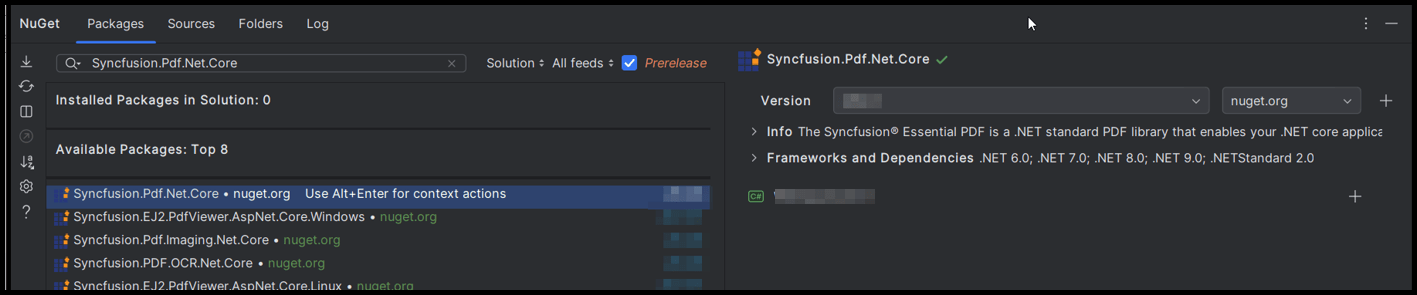
* Click the NuGet icon in the Rider toolbar and type [Syncfusion.Pdf.Net.Core](https://www.nuget.org/packages/Syncfusion.Pdf.Net.Core/) in the search bar.
* Ensure that "nuget.org" is selected as the package source.
* Select the latest Syncfusion.Pdf.Net.Core NuGet package from the list.
* Click the + (Add) button to add the package.

![Select the Syncfusion.Pdf.Net.Core package](JetBrains_Images/Core-Package.png)

* Click the Install button to complete the installation.

![Install the package](JetBrains_Images/Install-Core-Web-Package.png)

N> Starting with v16.2.0.x, if you reference Syncfusion<sup>&reg;</sup> assemblies from trial setup or from the NuGet feed, you also have to add "Syncfusion.Licensing" assembly reference and include a license key in your projects. Please refer to this [link](https://help.syncfusion.com/common/essential-studio/licensing/overview) to know about registering Syncfusion<sup>&reg;</sup> license key in your application to use our components.

Step 4: A default controller with name HomeController.cs gets added on creation of ASP.NET Core project. Include the following namespaces in that HomeController.cs file.

{% highlight c# tabtitle="C#" %}

   using Syncfusion.Pdf;
   using Syncfusion.Pdf.Graphics;
   using Syncfusion.Drawing;
   using System.IO;

{% endhighlight %}

Step 5: A default action method named Index will be present in HomeController.cs. Right click on Index method and select Go To View where you will be directed to its associated view page Index.cshtml. Add a new button in the Index.cshtml as shown below.
{% highlight c# tabtitle="C#" %}
   @{Html.BeginForm("CreateDocument", "Home", FormMethod.Get);
       {
           <div>
               <input type="submit" value="Create PDF Document" style="width:200px;height:27px" />
           </div>
       }
       Html.EndForm();
   }

{% endhighlight %}

Step 6: Add a new action method named ``CreatePDFDocument`` in HomeController.cs file and include the below code example to generate a PDF document using the [PdfDocument](https://help.syncfusion.com/cr/document-processing/Syncfusion.Pdf.PdfDocument.html) class. Then use the [DrawString](https://help.syncfusion.com/cr/document-processing/Syncfusion.Pdf.Graphics.PdfGraphics.html#Syncfusion_Pdf_Graphics_PdfGraphics_DrawString_System_String_Syncfusion_Pdf_Graphics_PdfFont_Syncfusion_Pdf_Graphics_PdfBrush_System_Drawing_PointF_) method of the [PdfGraphics](https://help.syncfusion.com/cr/document-processing/Syncfusion.Pdf.Graphics.PdfGraphics.html) object to draw the text on the PDF page.

{% highlight c# tabtitle="C#" %}

   //Create a new PDF document.
   PdfDocument document = new PdfDocument();
   //Add a page to the document.
   PdfPage page = document.Pages.Add();
   //Create PDF graphics for the page.
   PdfGraphics graphics = page.Graphics;
   //Set the standard font.
   PdfFont font = new PdfStandardFont(PdfFontFamily.Helvetica, 20);
   //Draw the text.
   graphics.DrawString("Hello World!!!", font, PdfBrushes.Black, new PointF(0, 0));
   //Saving the PDF to the MemoryStream.
   MemoryStream stream = new MemoryStream();
   document.Save(stream);
   //Set the position as '0'.
   stream.Position = 0;
   //Download the PDF document in the browser.
   FileStreamResult fileStreamResult = new FileStreamResult(stream, "application/pdf");
   fileStreamResult.FileDownloadName = "Sample.pdf";
   return fileStreamResult;

{% endhighlight %}
Step 7: Build the project.

Click the **Build** button in the toolbar or press <kbd>Ctrl</kbd>+<kbd>Shift</kbd>+<kbd>B</kbd> to build the project.

Step 8: Run the project.

Click the **Run** button (green arrow) in the toolbar or press <kbd>F5</kbd> to run the app.

{% endtabcontent %}
{% endtabcontents %}

You can download a complete working sample from [GitHub](https://github.com/SyncfusionExamples/PDF-Examples/tree/master/Getting%20Started/ASP.NET%20Core/Create-new-PDF-document).

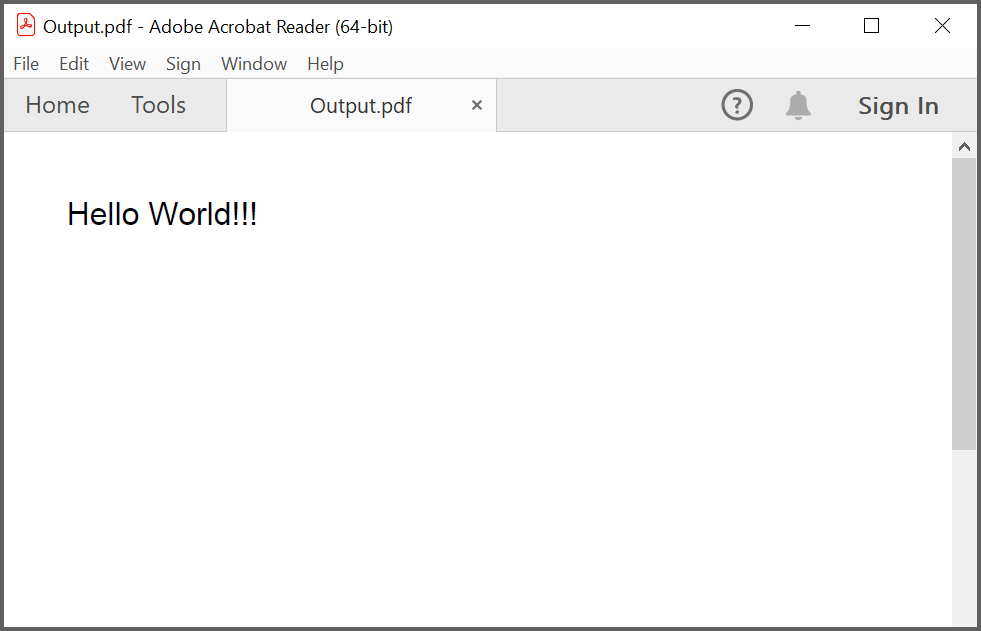
By executing the program, you will get the PDF document as follows.
![ASP.Net Core output PDF document](GettingStarted_images/pdf-generation-output.png)

N> The WinForms and WPF controls support in .NET Core 3.0 have been provided. To run this application, please install the [System.Drawing.Common](https://www.nuget.org/packages/System.Drawing.Common) NuGet package as a dependent package. 

## Creating a PDF document with image

Load image stream from the local files on disk and draw the images through the [DrawImage](https://help.syncfusion.com/cr/document-processing/Syncfusion.Pdf.Graphics.PdfGraphics.html#Syncfusion_Pdf_Graphics_PdfGraphics_DrawImage_Syncfusion_Pdf_Graphics_PdfImage_System_Single_System_Single_) method of the [PdfGraphics](https://help.syncfusion.com/cr/document-processing/Syncfusion.Pdf.Graphics.PdfGraphics.html) class. The following code example shows how to create a PDF document with an image.

{% highlight c# tabtitle="C#" %}

//Create a new PDF document.
PdfDocument doc = new PdfDocument();
//Add a page to the document.
PdfPage page = doc.Pages.Add();
//Create PDF graphics for the page.
PdfGraphics graphics = page.Graphics;
//Load the image as stream.
FileStream imageStream = new FileStream("Adventure Cycles.png", FileMode.Open, FileAccess.Read);
PdfBitmap image = new PdfBitmap(imageStream);
//Draw the image.
graphics.DrawImage(image, 0, 0);
//Save the PDF document to stream.
MemoryStream stream = new MemoryStream();
doc.Save(stream);
//If the position is not set to '0' then the PDF will be empty.
stream.Position = 0;
//Close the document.
doc.Close(true);
//Defining the ContentType for pdf file.
string contentType = "application/pdf";
//Define the file name.
string fileName = "Output.pdf";
//Creates a FileContentResult object by using the file contents, content type, and file name.
return File(stream, contentType, fileName); 
         
{% endhighlight %}

You can download a complete working sample from [GitHub](https://github.com/SyncfusionExamples/PDF-Examples/tree/master/Getting%20Started/ASP.NET%20Core/Creating-a-PDF-document-with-image).

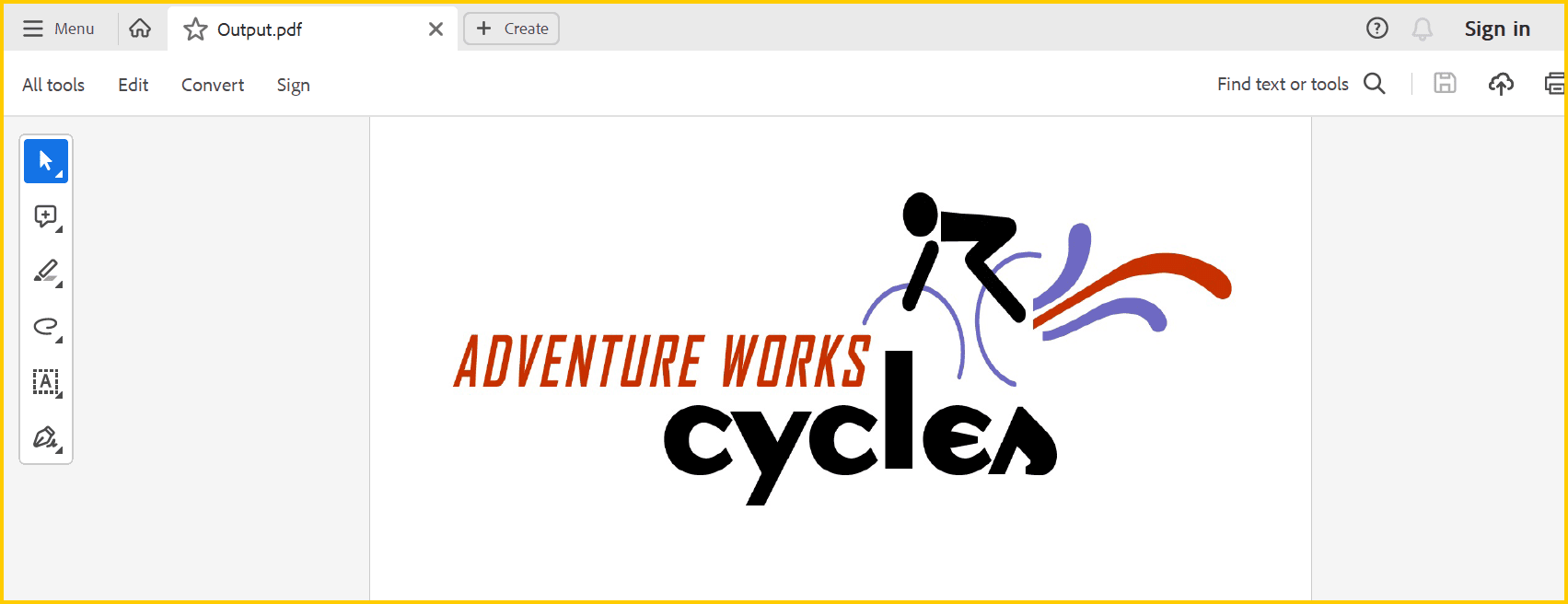
By executing the program, you will get the PDF document as follows.
![ASP.Net Core output PDF document](GettingStarted_images/PDF_with_image.png)

## Creating a PDF document with table

The [PdfGrid](https://help.syncfusion.com/cr/document-processing/Syncfusion.Pdf.Grid.PdfGrid.html) allows you to create a table from a [DataSource](https://help.syncfusion.com/cr/document-processing/Syncfusion.Pdf.Grid.PdfGrid.html#Syncfusion_Pdf_Grid_PdfGrid_DataSource) (data set, data table, arrays, or IEnumerable object) in a PDF document.The following code example shows how to create a PDF document with a simple table.

{% highlight c# tabtitle="C#" %}

//Generate a new PDF document.
PdfDocument doc = new PdfDocument();
//Add a page.
PdfPage page = doc.Pages.Add();
//Create a PdfGrid.
PdfGrid pdfGrid = new PdfGrid();
//Add values to list.
List<object> data = new List<object>();
Object row1 = new { ID = "E01", Name = "Clay" };
Object row2 = new { ID = "E02", Name = "Thomas" };
Object row3 = new { ID = "E03", Name = "Andrew" };
Object row4 = new { ID = "E04", Name = "Paul" };
Object row5 = new { ID = "E05", Name = "Gray" };
data.Add(row1);
data.Add(row2);
data.Add(row3);
data.Add(row4);
data.Add(row5);
//Add list to IEnumerable.
IEnumerable<object> dataTable = data;
//Assign data source.
pdfGrid.DataSource = dataTable;
//Apply built-in table style
pdfGrid.ApplyBuiltinStyle(PdfGridBuiltinStyle.GridTable4Accent1);
//Draw grid to the page of PDF document.
pdfGrid.Draw(page, new Syncfusion.Drawing.PointF(10, 10));
//Write the PDF document to stream.
MemoryStream stream = new MemoryStream();
doc.Save(stream);
//If the position is not set to '0' then the PDF will be empty.
stream.Position = 0;
//Close the document.
doc.Close(true);
//Defining the ContentType for pdf file.
string contentType = "application/pdf";
//Define the file name.
string fileName = "Output.pdf";
//Creates a FileContentResult object by using the file contents, content type, and file name.
return File(stream, contentType, fileName);

{% endhighlight %}

You can download a complete working sample from [GitHub](https://github.com/SyncfusionExamples/PDF-Examples/tree/master/Getting%20Started/ASP.NET%20Core/Create-PDF-document-with-table).

By executing the program, you will get the PDF document as follows.
![ASP.Net Core output PDF document](GettingStarted_images/PDF_with_table.png)

## Creating a simple PDF document with basic elements
The [PdfDocument](https://help.syncfusion.com/cr/document-processing/Syncfusion.Pdf.PdfDocument.html) object represents an entire PDF document that is being created. The following code example shows how to generate a PDF document and add a [PdfPage](https://help.syncfusion.com/cr/document-processing/Syncfusion.Pdf.PdfPage.html) to it along with the [PdfPageSettings](https://help.syncfusion.com/cr/document-processing/Syncfusion.Pdf.PdfPageSettings.html).

{% highlight c# tabtitle="C#" %}

//Creates a new PDF document.
PdfDocument document = new PdfDocument();
//Adds page settings.
document.PageSettings.Orientation = PdfPageOrientation.Landscape;
document.PageSettings.Margins.All = 50;
//Adds a page to the document.
PdfPage page = document.Pages.Add();
PdfGraphics graphics = page.Graphics;

{% endhighlight %}

1. Essential<sup>&reg;</sup> PDF has APIs similar to the .NET GDI plus which helps to draw elements to the PDF page just like 2D drawing in .NET. 
2. Unlike System.Drawing APIs all the units are measured in point instead of pixel. 
3. In PDF, all the elements are placed in absolute positions and has the possibility for content overlapping if misplaced. 
4. Essential<sup>&reg;</sup> PDF provides the rendered bounds for each and every elements added through [PdfLayoutResult](https://help.syncfusion.com/cr/document-processing/Syncfusion.Pdf.Graphics.PdfLayoutResult.html) objects. This can be used to add successive elements and prevent content overlap.

The following code example explains how to add an image from disk to a PDF document, by providing the rectangle coordinates. 

{% highlight c# tabtitle="C#" %}

//Loads the image as stream.
FileStream imageStream = new FileStream("AdventureCycle.jpg", FileMode.Open, FileAccess.Read);
RectangleF bounds = new RectangleF(176, 0, 390, 130);
PdfImage image = PdfImage.FromStream(imageStream);
//Draws the image to the PDF page.
page.Graphics.DrawImage(image, bounds);

{% endhighlight %}

The following methods can be used to add text to a PDF document.

1. [DrawString()](https://help.syncfusion.com/cr/document-processing/Syncfusion.Pdf.Graphics.PdfGraphics.html#Syncfusion_Pdf_Graphics_PdfGraphics_DrawString_System_String_Syncfusion_Pdf_Graphics_PdfFont_Syncfusion_Pdf_Graphics_PdfBrush_System_Drawing_PointF_) method of the [PdfGraphics](https://help.syncfusion.com/cr/document-processing/Syncfusion.Pdf.Graphics.PdfGraphics.html)
2. [PdfTextElement](https://help.syncfusion.com/cr/document-processing/Syncfusion.Pdf.Graphics.PdfTextElement.html) class.

The ```PdfTextElement``` provides the layout result of the added text by using the location of the next element that decides to prevent content overlapping. This is not available in the ```DrawString``` method. 

The following code example adds the necessary text such as address, invoice number and date to create a basic invoice application. 

{% highlight c# tabtitle="C#" %}

PdfBrush solidBrush = new PdfSolidBrush(new PdfColor(126, 151, 173));
bounds = new RectangleF(0,bounds.Bottom + 90, graphics.ClientSize.Width, 30);
//Draws a rectangle to place the heading in that region.
graphics.DrawRectangle(solidBrush, bounds);
//Creates a font for adding the heading in the page.
PdfFont subHeadingFont = new PdfStandardFont(PdfFontFamily.TimesRoman, 14);
//Creates a text element to add the invoice number.
PdfTextElement element = new PdfTextElement("INVOICE " + id.ToString(), subHeadingFont);
element.Brush = PdfBrushes.White;

//Draws the heading on the page.
PdfLayoutResult result = element.Draw(page, new PointF(10, bounds.Top + 8));
string currentDate = "DATE " + DateTime.Now.ToString("MM/dd/yyyy");
//Measures the width of the text to place it in the correct location.
SizeF textSize = subHeadingFont.MeasureString(currentDate);
PointF textPosition = new PointF(graphics.ClientSize.Width - textSize.Width - 10, result.Bounds.Y);
//Draws the date by using DrawString method.
graphics.DrawString(currentDate, subHeadingFont, element.Brush, textPosition);
PdfFont timesRoman = new PdfStandardFont(PdfFontFamily.TimesRoman, 10);
//Creates text elements to add the address and draw it to the page.
element = new PdfTextElement("BILL TO ", timesRoman);
element.Brush = new PdfSolidBrush(new PdfColor(126, 155, 203));
result = element.Draw(page, new PointF(10, result.Bounds.Bottom + 25));
PdfPen linePen = new PdfPen(new PdfColor(126, 151, 173), 0.70f);
PointF startPoint = new PointF(0, result.Bounds.Bottom + 3);
PointF endPoint = new PointF(graphics.ClientSize.Width, result.Bounds.Bottom + 3);
//Draws a line at the bottom of the address.
graphics.DrawLine(linePen, startPoint, endPoint);

{% endhighlight %}

Essential<sup>&reg;</sup> PDF provides two types of table models. The difference between both the table models can be referred from the link 
[Difference between PdfLightTable and PdfGrid](https://help.syncfusion.com/document-processing/pdf/pdf-library/net/working-with-tables)

Since the invoice document requires only simple cell customizations, the given code example explains how to create a simple invoice table by using [PdfGrid](https://help.syncfusion.com/cr/document-processing/Syncfusion.Pdf.Grid.PdfGrid.html).

{% highlight c# tabtitle="C#" %}

//Creates the datasource for the table.
DataTable invoiceDetails = GetProductDetailsAsDataTable();
//Creates a PDF grid.
PdfGrid grid = new PdfGrid();
//Adds the data source.
grid.DataSource = invoiceDetails;
//Creates the grid cell styles.
PdfGridCellStyle cellStyle = new PdfGridCellStyle();
cellStyle.Borders.All = PdfPens.White;
PdfGridRow header = grid.Headers[0];
//Creates the header style.
PdfGridCellStyle headerStyle = new PdfGridCellStyle();
headerStyle.Borders.All = new PdfPen(new PdfColor(126, 151, 173));
headerStyle.BackgroundBrush = new PdfSolidBrush(new PdfColor(126, 151, 173));
headerStyle.TextBrush = PdfBrushes.White;
headerStyle.Font = new PdfStandardFont(PdfFontFamily.TimesRoman, 14f, PdfFontStyle.Regular);

//Adds cell customizations.
for (int i = 0; i < header.Cells.Count; i++)
{
if (i == 0 || i == 1)
header.Cells[i].StringFormat = new PdfStringFormat(PdfTextAlignment.Left, PdfVerticalAlignment.Middle);
else
header.Cells[i].StringFormat = new PdfStringFormat(PdfTextAlignment.Right, PdfVerticalAlignment.Middle);
}

//Applies the header style.
header.ApplyStyle(headerStyle);
cellStyle.Borders.Bottom = new PdfPen(new PdfColor(217, 217, 217), 0.70f);
cellStyle.Font = new PdfStandardFont(PdfFontFamily.TimesRoman, 12f);
cellStyle.TextBrush = new PdfSolidBrush(new PdfColor(131, 130, 136));
//Creates the layout format for grid.
PdfGridLayoutFormat layoutFormat = new PdfGridLayoutFormat();
//Creates layout format settings to allow the table pagination.
layoutFormat.Layout = PdfLayoutType.Paginate;
//Draws the grid to the PDF page.
PdfGridLayoutResult gridResult = grid.Draw(page, new RectangleF(new PointF(0, result.Bounds.Bottom + 40), new SizeF(graphics.ClientSize.Width, graphics.ClientSize.Height - 100)), layoutFormat);

{% endhighlight %}

The following code example shows how to save the invoice document to disk and dispose the [PdfDocument](https://help.syncfusion.com/cr/document-processing/Syncfusion.Pdf.PdfDocument.html) object.

{% highlight c# tabtitle="C#" %}

//Create file stream. 
FileStream fileStream = new FileStream("Sample.pdf", FileMode.CreateNew, FileAccess.ReadWrite);
//Save and close the PDF document 
document.Save(fileStream);
document.Close(true);

{% endhighlight %}

You can download a complete working sample from [GitHub](https://github.com/SyncfusionExamples/PDF-Examples/tree/master/Getting%20Started/ASP.NET%20Core/Create-PDF-document-with-basic-elements).

The following screenshot shows the invoice PDF document created by using Essential<sup>&reg;</sup> PDF.
![ASP.Net Core invoice PDF document](GettingStarted_images/pdf-invoice.png)

## Filling forms

An interactive form sometimes referred to as an AcroForm, is a collection of fields for gathering information interactively from the user. A [PDF document](https://help.syncfusion.com/cr/document-processing/Syncfusion.Pdf.PdfDocument.html) or [existing PDF document](https://help.syncfusion.com/cr/document-processing/Syncfusion.Pdf.Parsing.PdfLoadedDocument.html) contain any number of fields appearing in any combination of pages, all that make a single, globally interactive form spanning the entire document.

The .NET Core PDF library allows you to [create and manipulate existing form](https://www.syncfusion.com/document-processing/pdf-framework/net/pdf-library/pdf-form-fields) in a PDF document using the [PdfForm](https://help.syncfusion.com/cr/document-processing/Syncfusion.Pdf.Interactive.PdfForm.html) class. The [PdfLoadedFormFieldCollection](https://help.syncfusion.com/cr/document-processing/Syncfusion.Pdf.Parsing.PdfLoadedFormFieldCollection.html) class represents the entire field collection of the loaded form. To work with existing form documents, the following namespaces are required.

1. Syncfusion.Pdf
2. Syncfusion.Pdf.Parsing

The following guide shows how to fill out a sample PDF form.
![ASP.Net Core PDF form document](GettingStarted_images/fill-pdf-forms.png)

The .NET Core PDF library allows you to fill the form fields by using the [PdfLoadedField](https://help.syncfusion.com/cr/document-processing/Syncfusion.Pdf.Parsing.PdfLoadedField.html) class. Get the form field either by using its field name or field index.

{% highlight c# tabtitle="C#" %}

//Load the PDF document.
FileStream docStream = new FileStream("JobApplication.pdf", FileMode.Open, FileAccess.Read);
PdfLoadedDocument loadedDocument = new PdfLoadedDocument(docStream);
//Loads the form.
PdfLoadedForm form = loadedDocument.Form;
//Fills the textbox field by using index.
(form.Fields[0] as PdfLoadedTextBoxField).Text = "John";
//Fills the textbox fields by using field name.
(form.Fields["LastName"] as PdfLoadedTextBoxField).Text = "Doe";
(form.Fields["Address"] as PdfLoadedTextBoxField).Text = " John Doe \n 123 Main St \n Anytown, USA";
//Loads the radio button group.
PdfLoadedRadioButtonItemCollection radioButtonCollection = (form.Fields["Gender"] as PdfLoadedRadioButtonListField).Items;
//Checks the 'Male' option.
radioButtonCollection[0].Checked = true;
//Checks the 'business' checkbox field.
(form.Fields["Business"] as PdfLoadedCheckBoxField).Checked = true;
//Checks the 'retiree' checkbox field.
(form.Fields["Retiree"] as PdfLoadedCheckBoxField).Checked = true;
//Write the PDF document to stream.
MemoryStream stream = new MemoryStream();
loadedDocument.Save(stream);
//If the position is not set to '0' then the PDF will be empty.
stream.Position = 0;
//Close the document.
loadedDocument.Close(true);
//Defining the ContentType for pdf file.
string contentType = "application/pdf";
//Define the file name.
string fileName = "output.pdf";
//Creates a FileContentResult object by using the file contents, content type, and file name.
return File(stream, contentType, fileName);

{% endhighlight %}

You can download a complete working sample from [GitHub](https://github.com/SyncfusionExamples/PDF-Examples/tree/master/Getting%20Started/ASP.NET%20Core/Fill-form-in-an-existing-PDF-document).

The filled form is shown in adobe reader application as follows.
![ASP.Net Core filled PDF form document](GettingStarted_images/filled-form-in-pdf.jpeg)

## Merge PDF Documents

The .NET Core PDF library supports [merging multiple PDF documents](https://www.syncfusion.com/document-processing/pdf-framework/net/pdf-library/merge-pdf) from stream using the [Merge](https://help.syncfusion.com/cr/document-processing/Syncfusion.Pdf.PdfDocumentBase.html#Syncfusion_Pdf_PdfDocumentBase_Merge_Syncfusion_Pdf_PdfDocumentBase_Syncfusion_Pdf_Parsing_PdfLoadedDocument_) method of the [PdfDocumentBase](https://help.syncfusion.com/cr/document-processing/Syncfusion.Pdf.PdfDocumentBase.html) class.

You can merge the PDF document streams by using the following code example.

{% highlight c# tabtitle="C#" %}

//Generate a PDF document.
PdfDocument finalDoc = new PdfDocument();
FileStream stream1 = new FileStream("file1.pdf", FileMode.Open, FileAccess.Read);
FileStream stream2 = new FileStream("file2.pdf", FileMode.Open, FileAccess.Read);
//Creates a PDF stream for merging.
Stream[] streams = { stream1, stream2 };
// Merges PDFDocument.
PdfDocumentBase.Merge(finalDoc, streams);
//Save the PDF document to stream.
MemoryStream stream = new MemoryStream();
finalDoc.Save(stream);
//If the position is not set to '0' then the PDF will be empty.
stream.Position = 0;
//Close the document.
finalDoc.Close(true);
//Defining the ContentType for pdf file.
string contentType = "application/pdf";
//Define the file name.
string fileName = "sample.pdf";
//Creates a FileContentResult object by using the file contents, content type, and file name.
return File(stream, contentType, fileName);

{% endhighlight %}

You can download a complete working sample from [GitHub](https://github.com/SyncfusionExamples/PDF-Examples/tree/master/Getting%20Started/ASP.NET%20Core/Merge-multiple-PDF-documents).

Click [here](https://www.syncfusion.com/document-processing/pdf-framework/net-core) to explore the rich set of Syncfusion<sup>&reg;</sup> PDF library features.

An online sample link to [create PDF document](https://ej2.syncfusion.com/aspnetcore/PDF/HelloWorld#/material3) in ASP.NET Core. 