Context Menu in Blazor Spreadsheet
14 Aug 20269 minutes to read
The context menu enhances interaction with the Blazor Spreadsheet Editor component by displaying a popup with relevant operations when a right-click is performed on elements such as cells, column headers, row headers, or sheet tabs. Set EnableContextMenu to control visibility. The default value is true.
Disable the context menu
The example below shows how to disable the context menu across the entire Spreadsheet:
@page "/"
@using Syncfusion.Blazor.Spreadsheet

<SfSpreadsheet EnableContextMenu="false">
    <SpreadsheetRibbon></SpreadsheetRibbon>
</SfSpreadsheet>
Context Menu Options by Element
The context menu options are dynamically adjusted based on the specific element in the Spreadsheet that is right-clicked. Each element displays context-specific functionality relevant to its type.
Cell context menu options
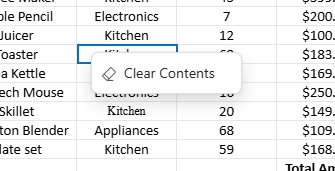
When a cell or range of cells is right-clicked, the context menu displays with the following options:
| Options | Action |
|---|---|
| Cut | Removes data from the selected cells and temporarily stores it on the clipboard for reuse within the Spreadsheet or in an external application. |
| Copy | Copies data from the selected cells and temporarily stores it on the clipboard for reuse within the Spreadsheet or in an external application. |
| Paste | Inserts data from the clipboard into the currently selected cells. |
| Hyperlink | Creates a navigational link to a web address or a cell reference within the current sheet or other sheets in the Spreadsheet. To know more about Hyperlink, refer here. |
| Sort | Sorts the selected range of cells in ascending or descending order using sub-options. To know more about sorting, refer here. |
| Clear Contents | Removes all data from the selected cells while retaining formatting properties. |
| Filter | Applies a filter to the selected cells based on the value of the active cell. To know more about filtering, refer here. |
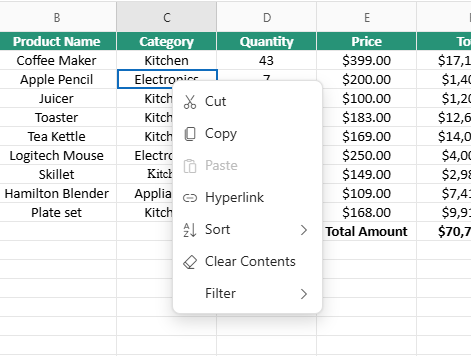
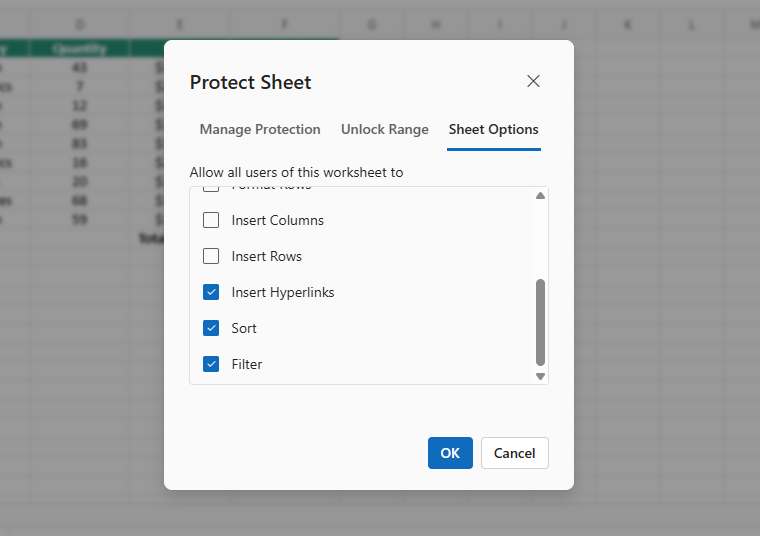
When a sheet is protected, the Cut, Paste, and Clear Contents functions are restricted to unlocked cells. The Hyperlink, Sort, and Filter options are available only when explicitly enabled in the protection sheet option settings and applied to unlocked cells.
Row header context menu options
When right-clicking a single row header or a range of selected row headers, the context menu displays the following options:
| Options | Action |
|---|---|
| Cut | Removes data from the selected rows and temporarily stores it on the clipboard for reuse within the Spreadsheet or in an external application. |
| Copy | Copies data from the selected rows and temporarily stores it on the clipboard for reuse within the Spreadsheet or in an external application. |
| Paste | Inserts data from the clipboard into the Spreadsheet at the current selection. |
| Insert Rows Above | Adds new rows above the selected rows. The number of rows inserted matches the number of rows selected. |
| Insert Rows Below | Adds new rows below the selected rows. The number of rows inserted matches the number of rows selected. |
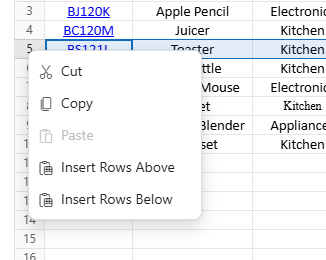
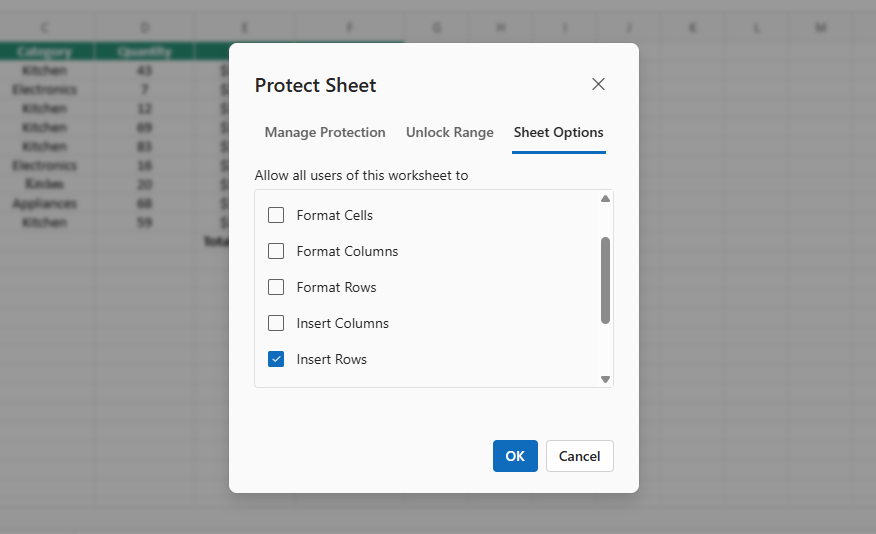
When a sheet is protected, Insert Rows Above and Insert Rows Below options are accessible only when the Insert Rows permission is enabled in the protection sheet option settings.
Column header context menu options
When right-clicking a single column header or a range of selected column headers, the context menu displays options for column-level operations.
| Options | Action |
|---|---|
| Cut | Removes data from the selected columns and temporarily stores it on the clipboard for reuse within the Spreadsheet or in an external application. |
| Copy | Copies data from the selected columns and temporarily stores it on the clipboard for reuse within the Spreadsheet or in an external application. |
| Paste | Inserts data from the clipboard into the Spreadsheet at the current selection. |
| Insert column to the left | Adds a new column to the left of the selected column. The number of columns inserted matches the number of columns selected. |
| Insert column to the right | Adds a new column to the right of the selected column. The number of columns inserted matches the number of columns selected. |
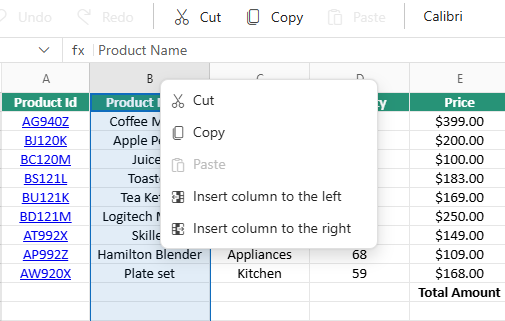
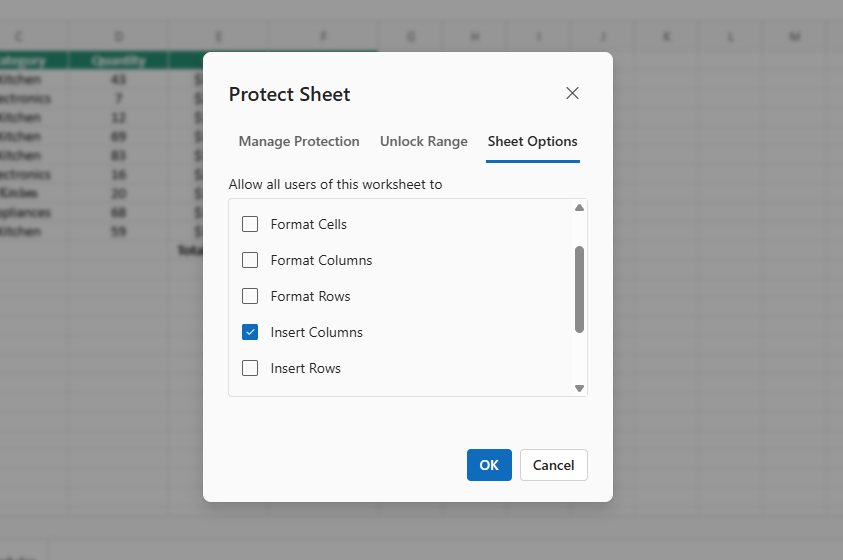
When a sheet is protected, Insert column to the left and Insert column to the right options are accessible only when the Insert Columns permission is enabled in the protection sheet option settings.
Sheet tab context menu options
When right-clicking on a sheet tab located at the bottom of the Spreadsheet, the context menu displays options specific to sheet-level operations.
| Options | Action |
|---|---|
| Insert | Inserts a new sheet immediately after the currently active sheet. |
| Delete | Deletes the selected sheet from the Spreadsheet. This option is disabled when only one sheet exists. |
| Duplicate | Creates an exact copy of the selected sheet, including content, formatting, and settings. The duplicate is positioned immediately after the current sheet. |
| Rename | Opens a dialog box to modify the name of the selected sheet. |
| Protect Sheet (or Unprotect Sheet) | The label switches between Protect Sheet and Unprotect Sheet based on the current protection status of the sheet. When the sheet is unprotected, the context menu displays Protect Sheet to restrict editing. Once protection is applied, the option changes to Unprotect Sheet, allowing removal of those restrictions. |
| Move Right | Moves the selected sheet one position to the right in the tab sequence. Disabled when the last sheet is selected. |
| Move Left | Moves the selected sheet one position to the left in the tab sequence. Disabled when the first sheet is selected. |
| Hide | Hides the selected sheet within the Spreadsheet. This option is disabled when only one sheet is visible. |
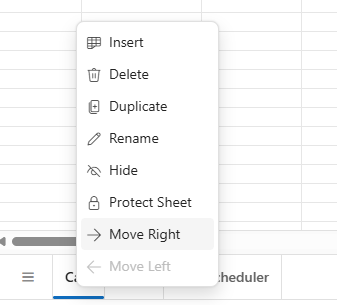
When a sheet is protected, the Protect Sheet (or Unprotect Sheet) option in the sheet tab context menu remains available so the protection status can be toggled directly from the tab. When a workbook is protected, only the Protect Sheet (or Unprotect Sheet) option remains active, and all other options—Insert, Delete, Rename, Move Right, Move Left, Hide, and Duplicate—are disabled to preserve the workbook structure.
Context menu configuration properties
These properties control specific context menu functionality:
| Property | Default | Effect when set to false |
|---|---|---|
EnableContextMenu |
true | Disables the context menu globally. No context menu appears for any element. |
EnableClipboard |
true | Removes the Cut, Copy, and Paste options from all context menus throughout the Spreadsheet. |
AllowSorting |
true | Removes the Sort option from the context menu, preventing sorting operations. |
AllowFiltering |
true | Removes the Filter option from the context menu, disabling filtering capabilities. |
AllowHyperlink |
true | Removes all hyperlink-related options from the context menu, preventing hyperlink operations. |
AllowInsert |
true | Removes the all Insert-related options from the row and column header context menus. |
@page "/"
@using Syncfusion.Blazor.Spreadsheet

<SfSpreadsheet DataSource="DataSourceBytes" AllowFiltering="false" AllowSorting="false" EnableClipboard="false" AllowHyperlink="false">
    <SpreadsheetRibbon></SpreadsheetRibbon>
</SfSpreadsheet>

@code {
    public byte[] DataSourceBytes { get; set; }

    protected override void OnInitialized()
    {
        string filePath = "wwwroot/Sample.xlsx";
        DataSourceBytes = File.ReadAllBytes(filePath);
    }
}