Sorting in Blazor Spreadsheet
14 Aug 20265 minutes to read
The Blazor Spreadsheet Editor component provides built-in sorting functionality that enables users to organize worksheet data in either ascending or descending order. This feature helps improve readability and simplifies data analysis by arranging content according to selected columns. The sorting behavior is controlled by the AllowSorting property, which is set to true by default. When AllowSorting is set to false, all sorting options are removed from the interface, including the Ribbon and Context Menu, and related API methods become inactive. Additionally, sorting is disabled if the worksheet is protected. For more information on worksheet protection, refer to the worksheet protection documentation.
Disabling sorting
The example below shows how to disable sorting across the entire Spreadsheet:
@page "/"
@using Syncfusion.Blazor.Spreadsheet

<SfSpreadsheet DataSource="DataSourceBytes" AllowSorting="false">
    <SpreadsheetRibbon></SpreadsheetRibbon>
</SfSpreadsheet>

@code {
    public byte[] DataSourceBytes { get; set; }

    protected override void OnInitialized()
    {
        string filePath = "wwwroot/Sample.xlsx";
        DataSourceBytes = File.ReadAllBytes(filePath);
    }
}
Sort operations
The component supports two sort orders that help organize data for analysis and presentation:
- Ascending - Arranges data from smallest to largest (e.g., A → Z, 0 → 9, earliest → latest date).
- Descending - Arranges data from largest to smallest (e.g., Z → A, 9 → 0, latest → earliest date).
Sort via UI
Sorting can be performed through the user interface (UI) using any of the following methods:
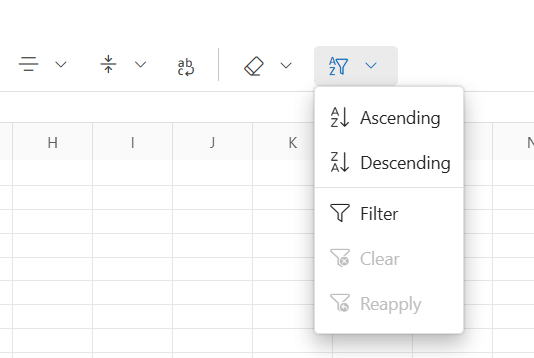
Using the Ribbon
- Select a cell or range of cells to sort.
- Click the Home tab in the Ribbon.
- Click the Sort & Filter icon.
- Choose either Sort Ascending or Sort Descending from the dropdown menu.
Using the Context Menu
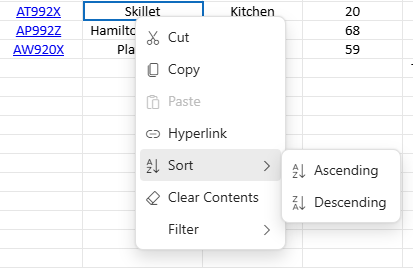
- Select a cell or a range of cells to sort.
- Right-click the selected range to open the context menu.
- Hover over the Sort option.
- Select either Ascending or Descending from the submenu.
Using the Filter Dialog
If filtering is enabled, sorting can also be performed using the filter dialog. This adds another layer of flexibility by allowing users to sort data directly through the filtered view. For more details on how filtering works in the Blazor Spreadsheet component, refer to the filtering documentation.
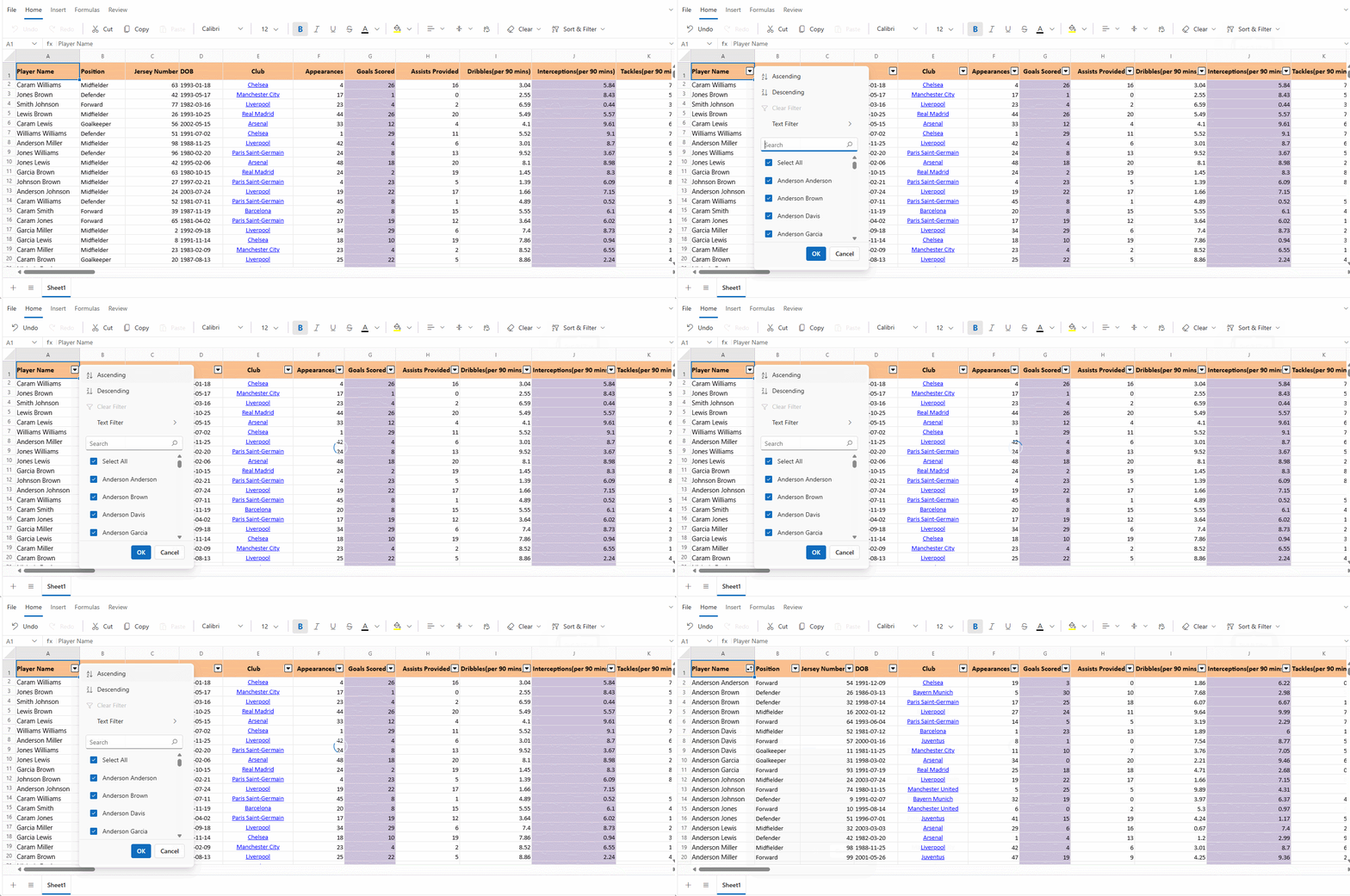
- Apply a Filter to the desired column.
- Click the filter icon in a column header.
- In the filter dialog, choose either Sort Ascending or Sort Descending.
- The sort operation is applied to the entire used range based on the selected column.
Sort by active cell
When a sort operation is performed through the UI without an explicitly selected range, the component automatically identifies the used range of the worksheet. Sorting is applied to this entire range using the column of the active cell as the sort key - the column whose values determine the order of the rows during sorting.
This behavior ensures that the entire dataset is sorted cohesively, preserving row integrity and preventing data misalignment.
Example
If the active cell is located in Column C and no range is selected, it sorts all rows within the used range based on the values in Column C.
Sorting a selected range
When a specific cell range is selected in the UI, the sort operation is restricted to that range. The column of the active cell within the selected range is used as the sort key. This method allows for targeted sorting of a subset of data without affecting the rest of the worksheet.
Example
If the range B2:D10 is selected and the active cell is in Column D, the component sorts only the rows within B2:D10 based on the values in Column D.
Sort programmatically
The SortRangeAsync() method enables sorting of a specified range of cells based on the values in a specific column. This method provides a programmatic way to sort data without using the UI. The available parameters in the SortRangeAsync() method are:
| Parameter | Type | Description |
|---|---|---|
| selectedRange | string (optional) | Specifies the address of the cell range to sort. If not provided, the currently selected range in the active worksheet is used. The range must follow the standard Excel format (e.g., "B2:C5"). Sorting is based on the first column within the specified range. |
| sortDirection | SortDirection (optional) | Defines the direction in which data is sorted. Accepts values from the SortDirection enumeration. If unspecified, the default is SortDirection.Ascending.Possible values: • SortDirection.Ascending – Sorts data in ascending order. • SortDirection.Descending – Sorts data in descending order. |
@page "/"
@using Syncfusion.Blazor.Spreadsheet
@using Syncfusion.Blazor.Buttons

<SfButton OnClick="SortData" Content="Sort B2:D5"></SfButton>

<SfSpreadsheet @ref="SpreadsheetInstance" DataSource="DataSourceBytes">
    <SpreadsheetRibbon></SpreadsheetRibbon>
</SfSpreadsheet>

@code {
    public byte[] DataSourceBytes { get; set; }
    public SfSpreadsheet SpreadsheetInstance;

    protected override void OnInitialized()
    {
        string filePath = "wwwroot/Sample.xlsx";
        DataSourceBytes = File.ReadAllBytes(filePath);
    }

    public async Task SortData()
    {
        // Sorts the range B2:D5 in ascending order based on values in "Column B".
        await SpreadsheetInstance.SortRangeAsync("B2:D5", SortDirection.Ascending);
    }
}