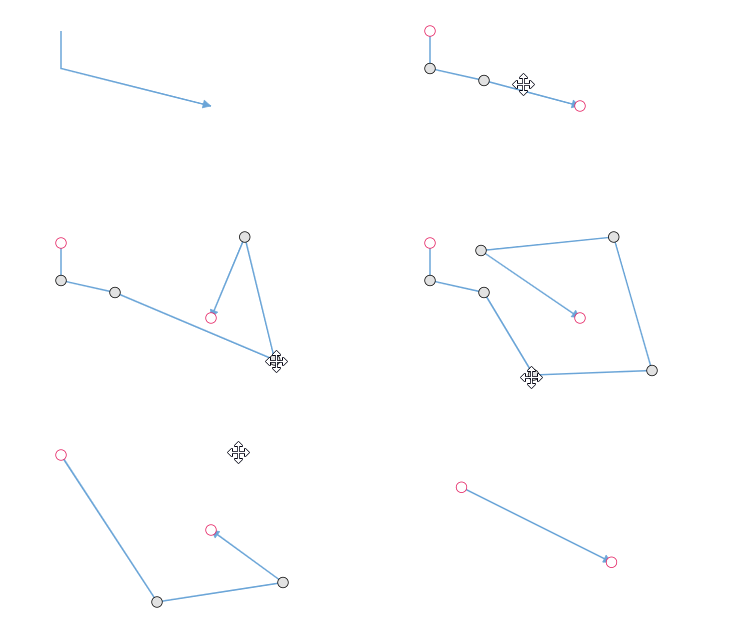
Straight Connector Segments
To create a straight line, specify the type of the segment as straight and add a straight segment to segments collection and need to specify type for the connector.
The following code example illustrates how to create a default straight segment.
<template>
    <div id="app">
        <ejs-diagram id="diagram" :width='width' :height='height' :connectors='connectors'></ejs-diagram>
    </div>
</template>
<script setup>
import { DiagramComponent as EjsDiagram } from '@syncfusion/ej2-vue-diagrams';

let connectors = [{
    id: "connector1",
    type: 'Straight',
    segments: [{
        // Defines the segment type of the connector
        type: 'Straight'
    }],
    sourcePoint: {
        x: 100,
        y: 100
    },
    targetPoint: {
        x: 200,
        y: 200
    }
}]

const width = "100%";
const height = "350px";
</script>
<style>
@import "../node_modules/@syncfusion/ej2-vue-diagrams/styles/tailwind3.css";
@import "../node_modules/@syncfusion/ej2-base/styles/tailwind3.css";
@import "../node_modules/@syncfusion/ej2-popups/styles/tailwind3.css";
@import "../node_modules/@syncfusion/ej2-splitbuttons/styles/tailwind3.css";
@import "../node_modules/@syncfusion/ej2-navigations/styles/tailwind3.css";
</style><template>
<div id="app">
<ejs-diagram id="diagram" :width='width' :height='height' :connectors='connectors'></ejs-diagram>
</div>
</template>
<script>
import { DiagramComponent } from '@syncfusion/ej2-vue-diagrams';
let connectors = [{
id: "connector1",
type: 'Straight',
segments: [{
// Defines the segment type of the connector
type: 'Straight'
}],
sourcePoint: {
x: 100,
y: 100
},
targetPoint: {
x: 200,
y: 200
}
}]
export default {
name: "App",
components: {
"ejs-diagram": DiagramComponent
},
data() {
return {
width: "100%",
height: "350px",
connectors: connectors
}
}
}
</script>
<style>
@import "../node_modules/@syncfusion/ej2-vue-diagrams/styles/tailwind3.css";
@import "../node_modules/@syncfusion/ej2-base/styles/tailwind3.css";
@import "../node_modules/@syncfusion/ej2-popups/styles/tailwind3.css";
@import "../node_modules/@syncfusion/ej2-splitbuttons/styles/tailwind3.css";
@import "../node_modules/@syncfusion/ej2-navigations/styles/tailwind3.css";
</style>The point property of straight segment allows you to define the end point of it.
The following code example illustrates how to define the end point of a straight segment.
<template>
    <div id="app">
        <ejs-diagram id="diagram" :width='width' :height='height' :connectors='connectors'></ejs-diagram>
    </div>
</template>
<script setup>
import { DiagramComponent as EjsDiagram } from '@syncfusion/ej2-vue-diagrams';

const connectors = [{
    id: "connector1",
    // Defines the segment type of the connector
    segments: [{
        type: 'Straight',
        // Defines the point of the segment
        point: {
            x: 100,
            y: 150
        }
    }],
    type: 'Straight',
    sourcePoint: {
        x: 100,
        y: 100
    },
    targetPoint: {
        x: 200,
        y: 200
    }
}]

const width = "100%";
const height = "350px";

</script>
<style>
@import "../node_modules/@syncfusion/ej2-vue-diagrams/styles/tailwind3.css";
@import "../node_modules/@syncfusion/ej2-base/styles/tailwind3.css";
@import "../node_modules/@syncfusion/ej2-popups/styles/tailwind3.css";
@import "../node_modules/@syncfusion/ej2-splitbuttons/styles/tailwind3.css";
@import "../node_modules/@syncfusion/ej2-navigations/styles/tailwind3.css";
</style><template>
<div id="app">
<ejs-diagram id="diagram" :width='width' :height='height' :connectors='connectors'></ejs-diagram>
</div>
</template>
<script>
import { DiagramComponent } from '@syncfusion/ej2-vue-diagrams';
const connectors = [{
id: "connector1",
// Defines the segment type of the connector
segments: [{
type: 'Straight',
// Defines the point of the segment
point: {
x: 100,
y: 150
}
}],
type: 'Straight',
sourcePoint: {
x: 100,
y: 100
},
targetPoint: {
x: 200,
y: 200
}
}]
export default {
name: "App",
components: {
"ejs-diagram": DiagramComponent
},
data() {
return {
width: "100%",
height: "350px",
connectors: connectors
}
}
}
</script>
<style>
@import "../node_modules/@syncfusion/ej2-vue-diagrams/styles/tailwind3.css";
@import "../node_modules/@syncfusion/ej2-base/styles/tailwind3.css";
@import "../node_modules/@syncfusion/ej2-popups/styles/tailwind3.css";
@import "../node_modules/@syncfusion/ej2-splitbuttons/styles/tailwind3.css";
@import "../node_modules/@syncfusion/ej2-navigations/styles/tailwind3.css";
</style>Straight segment editing
End point of each straight segment is represented by a thumb that enables to edit the segment.
Any number of new segments can be inserted into a straight line by clicking when Shift and Ctrl keys are pressed (Ctrl+Shift+Click).
Straight segments can be removed by clicking the segment end point when Ctrl and Shift keys are pressed (Ctrl+Shift+Click). You can also add/remove segments by using the editSegment method of diagram.
The following example shows how to add segments at runtime for the straight connector.
<template>
<div id="app">
<button @click="editSegment">editSegment</button>
    <ejs-diagram :width='width' :height='height' :connectors='connectors'></ejs-diagram>
</div>
</template>
<script setup>
import { DiagramComponent as EjsDiagram, ConnectorConstraints, ConnectorEditing  } from '@syncfusion/ej2-vue-diagrams';

let connectors = [{
    id: "connector1",
    constraints:
    ConnectorConstraints.Default | ConnectorConstraints.DragSegmentThumb,
    // Defines the segment type of the connector
    segments: [
        {
            type: 'Straight',
            // Defines the point of the segment
            point: {
            x: 100,
            y: 150,
            },
        },
        ],
    type: 'Straight',
    sourcePoint: { x: 150, y: 100 },
    targetPoint: { x: 340, y: 200 },
}]
const width = "100%";
const height = "350px";
provide('diagram', [ConnectorEditing]);
const editSegment = function () {
   let diagramInstance = diagram.value.ej2Instances;
    let options = {};
    options.SegmentEditing = 'Toggle';
    options.point = { x: 220, y: 150 };
    options.connector = diagramInstance.connectors[0];
    options.hitPadding = diagramInstance.connectors[0].hitPadding;
    diagramInstance.editSegment(options);
}
</script>
<style>
@import "../node_modules/@syncfusion/ej2-vue-diagrams/styles/tailwind3.css";
@import "../node_modules/@syncfusion/ej2-base/styles/tailwind3.css";
@import "../node_modules/@syncfusion/ej2-popups/styles/tailwind3.css";
@import "../node_modules/@syncfusion/ej2-splitbuttons/styles/tailwind3.css";
@import "../node_modules/@syncfusion/ej2-navigations/styles/tailwind3.css";
</style><template>
<div id="app">
<button @click="editSegment">editSegment</button>
<ejs-diagram ref="diagram" :width='width' :height='height' :connectors='connectors'></ejs-diagram>
</div>
</template>
<script>
import { DiagramComponent,ConnectorConstraints,ConnectorEditing } from '@syncfusion/ej2-vue-diagrams';
let connectors = [{
id: "connector1",
constraints:
ConnectorConstraints.Default | ConnectorConstraints.DragSegmentThumb,
// Defines the segment type of the connector
segments: [
{
type: 'Straight',
// Defines the point of the segment
point: {
x: 100,
y: 150,
},
},
],
type: 'Straight',
sourcePoint: { x: 150, y: 100 },
targetPoint: { x: 340, y: 200 },
}]
export default {
name: "App",
components: {
"ejs-diagram": DiagramComponent
},
data() {
return {
width: "100%",
height: "350px",
connectors: connectors
}
},
mounted: function () {
const diagramInstance = this.$refs.diagram.ej2Instances;
diagramInstance.select([diagramInstance.connectors[0]])
},
methods :{
editSegment () {
let diagramInstance = this.$refs.diagram.ej2Instances;
let options = {};
options.SegmentEditing = 'Toggle';
options.point = { x: 220, y: 150 };
options.connector = diagramInstance.connectors[0];
options.hitPadding = diagramInstance.connectors[0].hitPadding;
diagramInstance.editSegment(options);
}
}, provide: {
diagram: [ConnectorEditing]
}
}
</script>
<style>
@import "../node_modules/@syncfusion/ej2-vue-diagrams/styles/tailwind3.css";
@import "../node_modules/@syncfusion/ej2-base/styles/tailwind3.css";
@import "../node_modules/@syncfusion/ej2-popups/styles/tailwind3.css";
@import "../node_modules/@syncfusion/ej2-splitbuttons/styles/tailwind3.css";
@import "../node_modules/@syncfusion/ej2-navigations/styles/tailwind3.css";
</style>