Bezier Control points
How to interact with the bezier segments efficiently
While interacting with multiple bezier segments, maintain their control points at the same distance and angle by using the bezierSettings smoothness property of the connector class.
| BezierSmoothness value | Description | Output |
|---|---|---|
| SymmetricDistance | Both control points of adjacent segments will be at the same distance when any one of them is editing. | 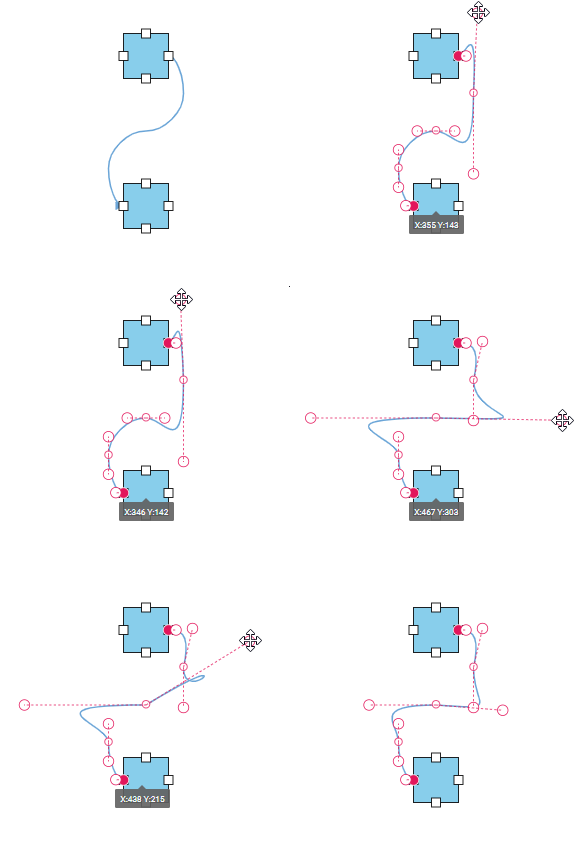 |
| SymmetricAngle | Both control points of adjacent segments will be at the same angle when any one of them is editing. | 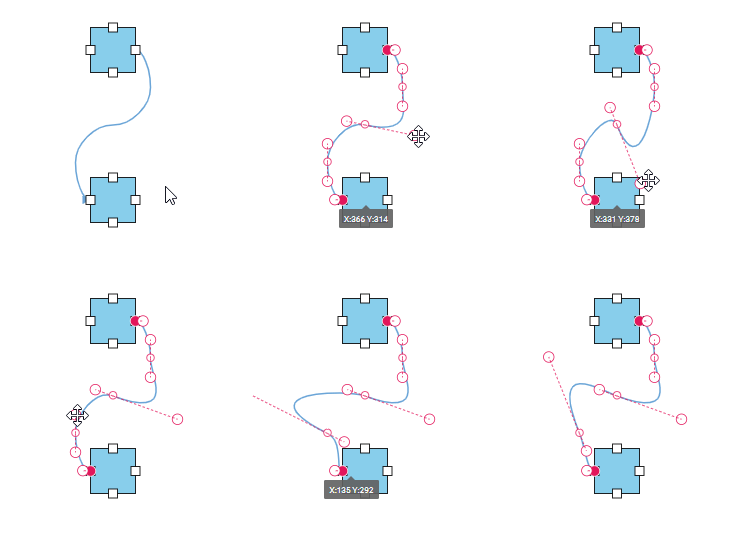 |
| Default | Both control points of adjacent segments will be at the same angle and same distance when any one of them is editing. | 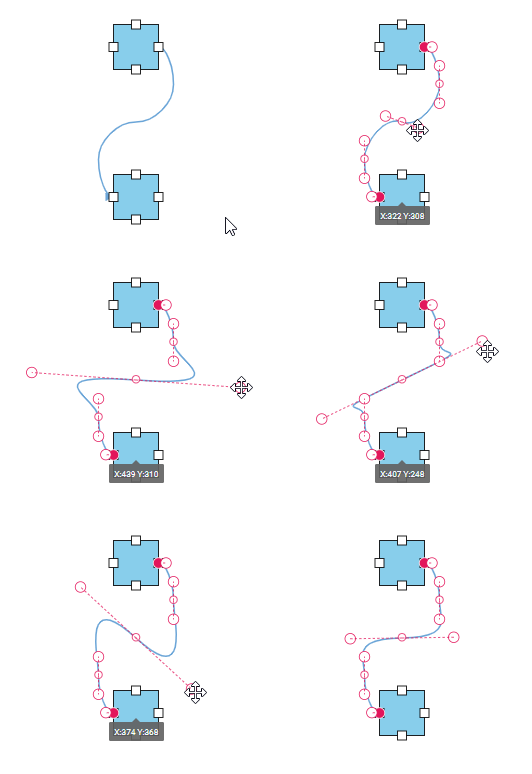 |
| None | Segment’s control points are interacted independently from each other. | 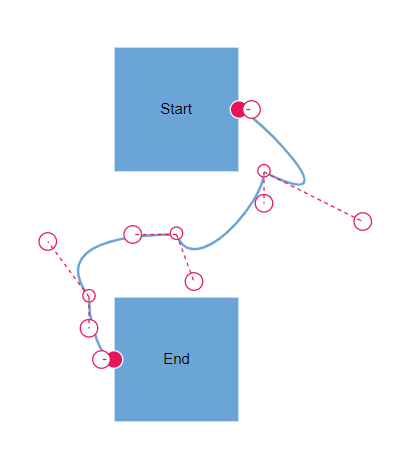 |
<template>
  <div id="app">
    <ejs-diagram id="diagram" :width='width' :height='height' :nodes='nodes' :connectors='connectors'
      :getNodeDefaults='getNodeDefaults'>
    </ejs-diagram>
  </div>
</template>
<script setup>
import { provide } from "vue";
import { DiagramComponent as EjsDiagram, ConnectorEditing,PortVisibility, BezierSmoothness,ConnectorConstraints } from '@syncfusion/ej2-vue-diagrams';

let nodes = [{
    id: 'Start',
    offsetX: 250,
    offsetY: 150,
    annotations: [{ content: 'Start' }],
    ports: [{
    id: 'StartPort',
    visibility: PortVisibility.Visible,
    shape: 'Circle',
    offset: { x: 1, y: 0.5 },
    style: { strokeColor: '#366F8C', fill: '#366F8C' }
    }]},
    {
    id: 'End',
    offsetX: 250,
    offsetY: 350,
    annotations: [{ content: 'End' }],
    ports: [{
    id: 'EndPort',
    visibility: PortVisibility.Visible,
    shape: 'Circle',
    offset: { x: 0, y: 0.5 },
    style: { strokeColor: '#366F8C', fill: '#366F8C' }
    }]
}];

let connectors = [{
    id: "connector1",
    targetDecorator: { shape: 'None' },
    // ID of the source and target nodes
    sourceID: 'Start',
    sourcePortID: 'StartPort',
    targetID: 'End',
    targetPortID: 'EndPort',
    type: 'Bezier',
    // Configuring settings for bezier interactions
    bezierSettings: {
    smoothness: BezierSmoothness.SymmetricAngle,
    },constraints :
    ConnectorConstraints.Default | ConnectorConstraints.DragSegmentThumb
}];

const width = "100%";
const height = "600px";
const getNodeDefaults = (node) => {
  node.height = 100;
  node.width = 100;
  node.shape = { type: 'Basic', shape: 'Rectangle' }
  node.style.fill = '#6BA5D7';
  node.style.strokeColor = 'white';
  return node;
}
provide('diagram', [ConnectorEditing]);
</script>
<style>
@import "../node_modules/@syncfusion/ej2-vue-diagrams/styles/tailwind3.css";
@import "../node_modules/@syncfusion/ej2-base/styles/tailwind3.css";
@import "../node_modules/@syncfusion/ej2-popups/styles/tailwind3.css";
@import "../node_modules/@syncfusion/ej2-splitbuttons/styles/tailwind3.css";
@import "../node_modules/@syncfusion/ej2-navigations/styles/tailwind3.css";
</style><template>
<div id="app">
<ejs-diagram id="diagram" :width='width' :height='height' :nodes='nodes' :connectors='connectors'
:getNodeDefaults='getNodeDefaults'></ejs-diagram>
</div>
</template>
<script>
import { DiagramComponent, Diagram, ConnectorEditing, ConnectorConstraints,PortVisibility ,BezierSmoothness } from '@syncfusion/ej2-vue-diagrams';
Diagram.Inject(ConnectorEditing);
let nodes = [{
id: 'Start',
offsetX: 250,
offsetY: 150,
annotations: [{ content: 'Start' }],
ports: [{
id: 'StartPort',
visibility: PortVisibility.Visible,
shape: 'Circle',
offset: { x: 1, y: 0.5 },
style: { strokeColor: '#366F8C', fill: '#366F8C' }
}]},
{
id: 'End',
offsetX: 250,
offsetY: 350,
annotations: [{ content: 'End' }],
ports: [{
id: 'EndPort',
visibility: PortVisibility.Visible,
shape: 'Circle',
offset: { x: 0, y: 0.5 },
style: { strokeColor: '#366F8C', fill: '#366F8C' }
}]
}];
let connectors = [{
id: "connector1",
targetDecorator: { shape: 'None' },
// ID of the source and target nodes
sourceID: 'Start',
sourcePortID: 'StartPort',
targetID: 'End',
targetPortID: 'EndPort',
type: 'Bezier',
// Configuring settings for bezier interactions
bezierSettings: {
smoothness: BezierSmoothness.SymmetricAngle,
},
constraints : ConnectorConstraints.Default | ConnectorConstraints.DragSegmentThumb
}];
export default {
name: 'App',
components: {
'ejs-diagram': DiagramComponent
},
data() {
return {
width: "100%",
height: "600px",
nodes: nodes,
connectors: connectors,
getNodeDefaults: (node) => {
node.height = 100;
node.width = 100;
node.shape = { type: 'Basic', shape: 'Rectangle' }
node.style.fill = '#6BA5D7';
node.style.strokeColor = 'white';
return node;
},
}
}
}
</script>
<style>
@import "../node_modules/@syncfusion/ej2-vue-diagrams/styles/tailwind3.css";
@import "../node_modules/@syncfusion/ej2-base/styles/tailwind3.css";
@import "../node_modules/@syncfusion/ej2-popups/styles/tailwind3.css";
@import "../node_modules/@syncfusion/ej2-splitbuttons/styles/tailwind3.css";
@import "../node_modules/@syncfusion/ej2-navigations/styles/tailwind3.css";
</style>How to show or hide the bezier segment’s control points
By using the controlPointsVisibility property of bezierSettings, you can enable or disable the visibility of the bezier segment’s control points.
| ControlPointsVisibility value | Description | Output |
|---|---|---|
| None | It allows you to hide all control points of the bezier connector. | 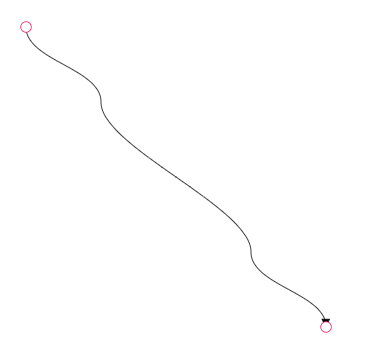 |
| Source | It allows you to show control points of the source segment and hides all other control points in a bezier connector. | 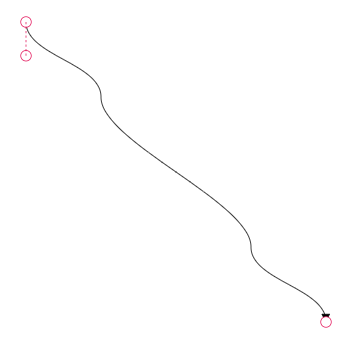 |
| Target | It allows you to show control points of the target segment and hides all other control points in a bezier connector. | 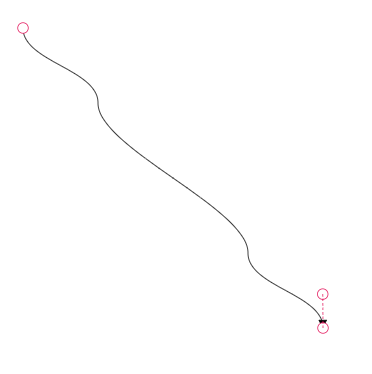 |
| Intermediate | It allows you to show control points of the intermediate segments and hides all other control points in a bezier connector. | 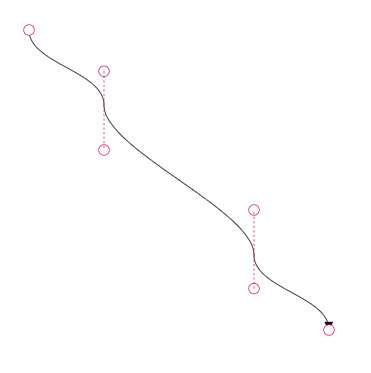 |
| All | It allows you to show all the control points of the bezier connector, including the source, target, and intermediate segments’ control points. | 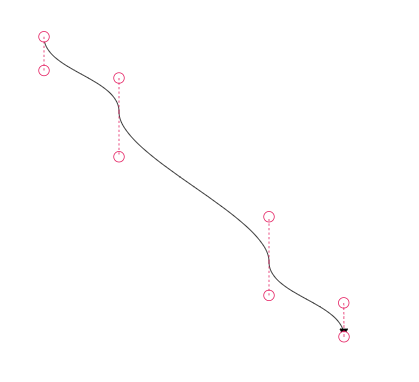 |