Annotation Interactions in TypeScript Diagram control
Diagram allows annotation to be interacted by selecting, dragging, rotating, and resizing. Annotation interaction is disabled, by default. You can enable annotation interaction with the constraints property of annotation. You can also curtail the services of interaction by enabling either selecting, dragging, rotating, or resizing individually with the respective constraints property of annotation. The following code illustrates how to enable interactive mode.
import { Diagram, NodeModel, AnnotationConstraints } from '@syncfusion/ej2-diagrams';
// A node is created and stored in nodes array.
let node: NodeModel = {
    id: 'node1',
    // Position of the node
    offsetX: 100,
    offsetY: 100,
    // Size of the node
    width: 100,
    height: 100,
    style: {
        fill: '#6BA5D7',
        strokeColor: 'white'
    },
    // Sets the annotation for the node
    annotations: [{
        content: 'Annotation Text',
        //Sets the constraints as Interaction
        constraints: AnnotationConstraints.Interaction
    }]
};
// initialize diagram component
let diagram: Diagram = new Diagram({
    width: '100%',
    height: '600px',
    // Add node
    nodes: [node]
});
// render initialized diagram
diagram.appendTo('#element');
<!DOCTYPE html>
<html lang="en">
<head>
<title>EJ2 Diagram</title>
<meta charset="utf-8" />
<meta name="viewport" content="width=device-width, initial-scale=1.0" />
<meta name="description" content="Typescript UI Controls" />
<meta name="author" content="Syncfusion" />
<link href="index.css" rel="stylesheet" />
<script src="https://cdnjs.cloudflare.com/ajax/libs/systemjs/0.19.38/system.js"></script>
<link href="https://cdn.syncfusion.com/ej2/33.2.3/ej2-base/styles/tailwind3.css" rel="stylesheet" />
<link href="https://cdn.syncfusion.com/ej2/33.2.3/ej2-buttons/styles/tailwind3.css" rel="stylesheet" />
<link href="https://cdn.syncfusion.com/ej2/33.2.3/ej2-popups/styles/tailwind3.css" rel="stylesheet" />
<link href="https://cdn.syncfusion.com/ej2/33.2.3/ej2-splitbuttons/styles/tailwind3.css" rel="stylesheet" />
<link href="https://cdn.syncfusion.com/ej2/33.2.3/ej2-diagrams/styles/tailwind3.css" rel="stylesheet" />
<link href="https://cdn.syncfusion.com/ej2/33.2.3/ej2-navigations/styles/fabric.css" rel="stylesheet" />
<script src="systemjs.config.js"></script>
</head>
<body>
<div id='loader'>Loading....</div>
<div id='container'>
<div id='element'></div>
</div>
</body>
</html>Constraints
The constraints property of annotation allows you to enable/disable certain annotation behaviors.
Annotation rotation
The rotationReference property of an annotation allows you to control whether the text should rotate relative to its parent node or the Page. The following code examples illustrate how to configure rotationReference for an annotation.
import { Diagram, NodeModel, ShapeAnnotationModel } from '@syncfusion/ej2-diagrams';
// A node is created and stored in nodes array.
let node: NodeModel = {
    offsetX: 250,
    offsetY: 250,
    width: 100,
    height: 100,
    style: {
        fill: '#6BA5D7',
        strokeColor: 'white'
    },
    // Sets the annotation for the node
    annotations: [{
        content: 'Annotation',
        //set rotationReference to "page" to disable rotation
        rotationReference: 'Page'
    }]
};
// initialize diagram component
let diagram: Diagram = new Diagram({
    width: '100%',
    height: '600px',
    // Add node
    nodes: [node]
});
// render initialized diagram
diagram.appendTo('#element');
diagram.dataBind();
<!DOCTYPE html>
<html lang="en">
<head>
<title>EJ2 Diagram</title>
<meta charset="utf-8" />
<meta name="viewport" content="width=device-width, initial-scale=1.0" />
<meta name="description" content="Typescript UI Controls" />
<meta name="author" content="Syncfusion" />
<link href="index.css" rel="stylesheet" />
<script src="https://cdnjs.cloudflare.com/ajax/libs/systemjs/0.19.38/system.js"></script>
<link href="https://cdn.syncfusion.com/ej2/33.2.3/ej2-base/styles/tailwind3.css" rel="stylesheet" />
<link href="https://cdn.syncfusion.com/ej2/33.2.3/ej2-buttons/styles/tailwind3.css" rel="stylesheet" />
<link href="https://cdn.syncfusion.com/ej2/33.2.3/ej2-popups/styles/tailwind3.css" rel="stylesheet" />
<link href="https://cdn.syncfusion.com/ej2/33.2.3/ej2-splitbuttons/styles/tailwind3.css" rel="stylesheet" />
<link href="https://cdn.syncfusion.com/ej2/33.2.3/ej2-diagrams/styles/tailwind3.css" rel="stylesheet" />
<link href="https://cdn.syncfusion.com/ej2/33.2.3/ej2-navigations/styles/fabric.css" rel="stylesheet" />
<script src="systemjs.config.js"></script>
</head>
<body>
<div id='loader'>Loading....</div>
<div id='container'>
<div id='element'></div>
</div>
</body>
</html>| Value | Description | Image |
|---|---|---|
| Page | When this option is set, the annotation remains fixed in its original orientation even if its parent node is rotated. | 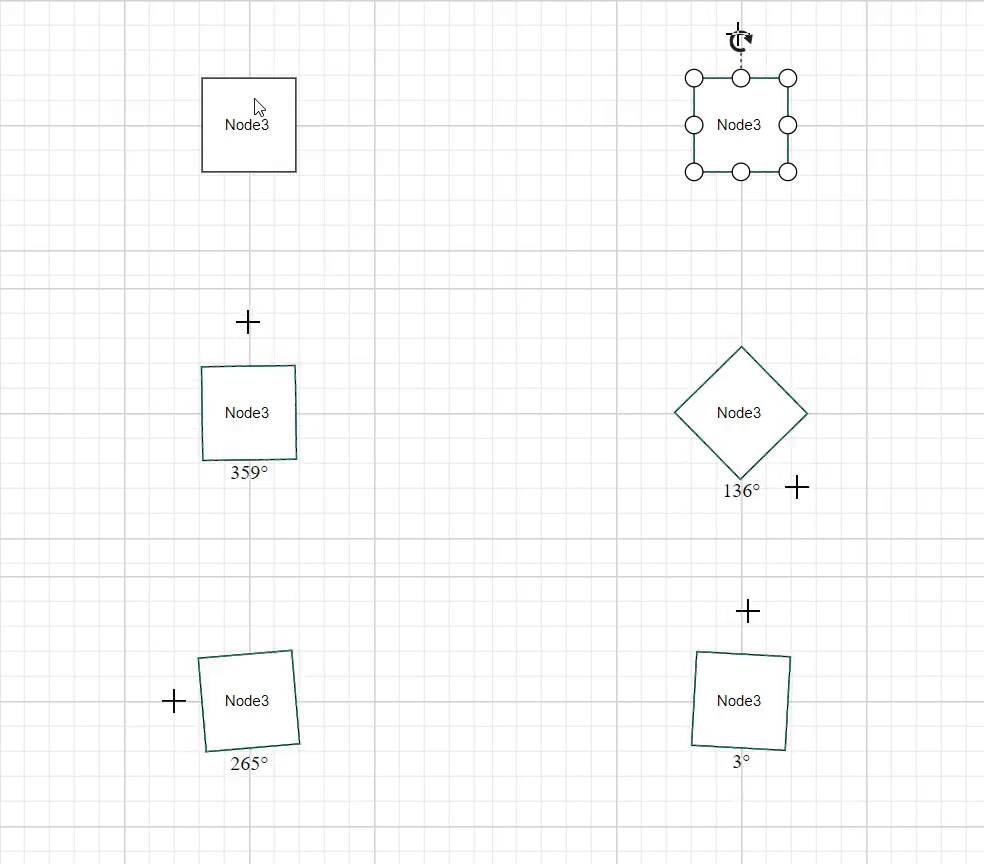 |
| Parent | In this case, the annotation rotates along with its parent node. | 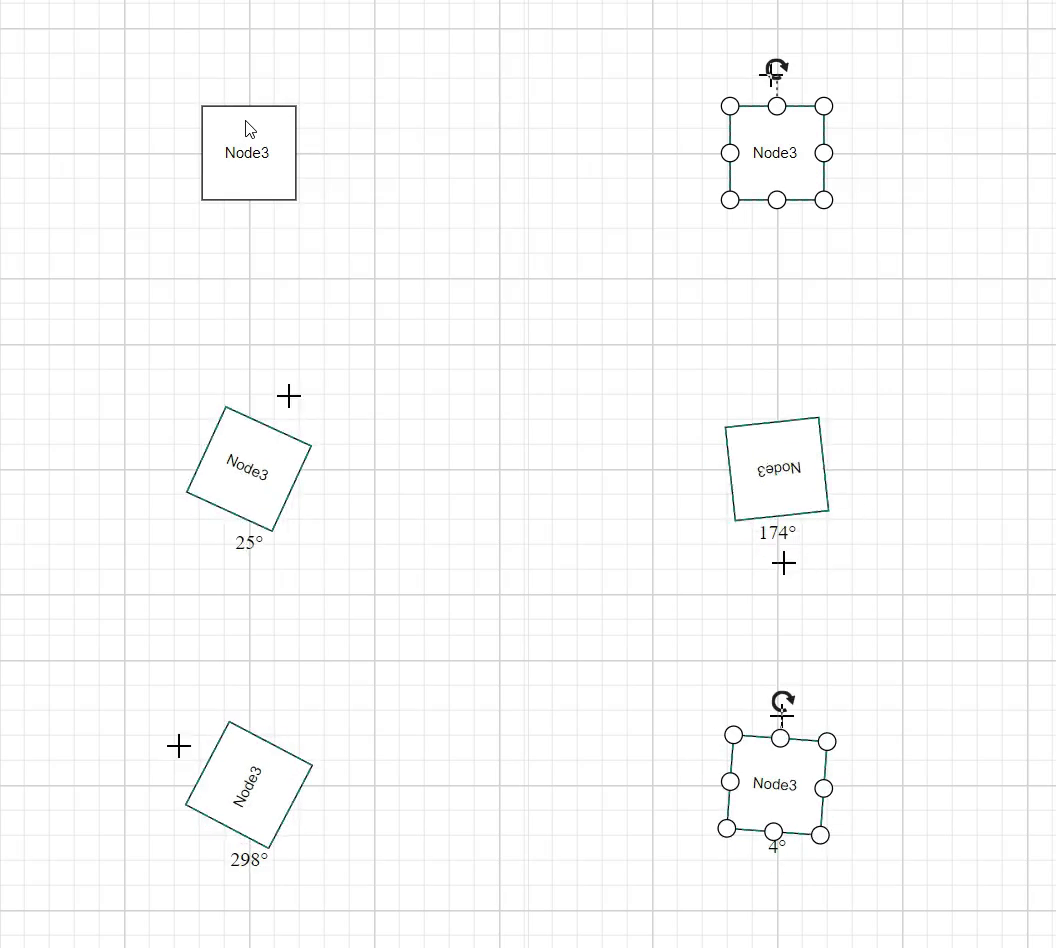 |
Read-only annotations
Diagram allows to create read-only annotations. You have to set the read-only constraints to the annotation’s constraints. property. The following code illustrates how to enable read-only mode.
import { Diagram, NodeModel, AnnotationConstraints } from '@syncfusion/ej2-diagrams';
// A node is created and stored in nodes array.
let node: NodeModel = {
    id: 'node1',
    // Position of the node
    offsetX: 100,
    offsetY: 100,
    // Size of the node
    width: 100,
    height: 100,
    style: {
        fill: '#6BA5D7',
        strokeColor: 'white'
    },
    // Sets the annotation for the node
    annotations: [{
        content: 'Annotation Text',
        //Sets the constraints as Read only
        constraints: AnnotationConstraints.ReadOnly
    }]
};
// initialize diagram component
let diagram: Diagram = new Diagram({
    width: '100%',
    height: '600px',
    // Add node
    nodes: [node]
});
// render initialized diagram
diagram.appendTo('#element');
<!DOCTYPE html>
<html lang="en">
<head>
<title>EJ2 Diagram</title>
<meta charset="utf-8" />
<meta name="viewport" content="width=device-width, initial-scale=1.0" />
<meta name="description" content="Typescript UI Controls" />
<meta name="author" content="Syncfusion" />
<link href="index.css" rel="stylesheet" />
<script src="https://cdnjs.cloudflare.com/ajax/libs/systemjs/0.19.38/system.js"></script>
<link href="https://cdn.syncfusion.com/ej2/33.2.3/ej2-base/styles/tailwind3.css" rel="stylesheet" />
<link href="https://cdn.syncfusion.com/ej2/33.2.3/ej2-buttons/styles/tailwind3.css" rel="stylesheet" />
<link href="https://cdn.syncfusion.com/ej2/33.2.3/ej2-popups/styles/tailwind3.css" rel="stylesheet" />
<link href="https://cdn.syncfusion.com/ej2/33.2.3/ej2-splitbuttons/styles/tailwind3.css" rel="stylesheet" />
<link href="https://cdn.syncfusion.com/ej2/33.2.3/ej2-diagrams/styles/tailwind3.css" rel="stylesheet" />
<link href="https://cdn.syncfusion.com/ej2/33.2.3/ej2-navigations/styles/fabric.css" rel="stylesheet" />
<script src="systemjs.config.js"></script>
</head>
<body>
<div id='loader'>Loading....</div>
<div id='container'>
<div id='element'></div>
</div>
</body>
</html>Edit
Diagram provides support to edit an annotation at runtime, either programmatically or interactively. By default, annotation is in view mode. But it can be brought to edit mode in two ways;
Programmatically
By using startTextEdit method, edit the text through programmatically.
import {
    Diagram,
    NodeModel,
    AnnotationConstraints,
    ConnectorModel,
  } from '@syncfusion/ej2-diagrams';
  // A node is created and stored in nodes array.
  let node: NodeModel = {
    id: 'node1',
    // Position of the node
    offsetX: 100,
    offsetY: 100,
    // Size of the node
    width: 100,
    height: 100,
    style: {
      fill: '#6BA5D7',
      strokeColor: 'white',
    },
    // Sets the multiple annotation for the node
    annotations: [
      {
        content: 'Center',
      },
    ],
  };
  // initialize diagram component
  let diagram: Diagram = new Diagram({
    width: '100%',
    height: '600px',
    // Add node
    nodes: [node],
  });
  // render initialized diagram
  diagram.appendTo('#element');

  (document.getElementById('startTextEdit') as HTMLInputElement).onclick = () => {
    //Pass the node which you want to edit
    diagram.startTextEdit(diagram.nodes[0]);
  };
<!DOCTYPE html>
<html lang="en">
<head>
<title>EJ2 Diagram</title>
<meta charset="utf-8" />
<meta name="viewport" content="width=device-width, initial-scale=1.0" />
<meta name="description" content="Typescript UI Controls" />
<meta name="author" content="Syncfusion" />
<link href="index.css" rel="stylesheet" />
<script src="https://cdnjs.cloudflare.com/ajax/libs/systemjs/0.19.38/system.js"></script>
<link href="https://cdn.syncfusion.com/ej2/33.2.3/ej2-base/styles/tailwind3.css" rel="stylesheet" />
<link href="https://cdn.syncfusion.com/ej2/33.2.3/ej2-buttons/styles/tailwind3.css" rel="stylesheet" />
<link href="https://cdn.syncfusion.com/ej2/33.2.3/ej2-popups/styles/tailwind3.css" rel="stylesheet" />
<link href="https://cdn.syncfusion.com/ej2/33.2.3/ej2-splitbuttons/styles/tailwind3.css" rel="stylesheet" />
<link href="https://cdn.syncfusion.com/ej2/33.2.3/ej2-diagrams/styles/tailwind3.css" rel="stylesheet" />
<link href="https://cdn.syncfusion.com/ej2/33.2.3/ej2-navigations/styles/fabric.css" rel="stylesheet" />
<script src="systemjs.config.js"></script>
</head>
<body>
<div id='loader'>Loading....</div>
<div id='container'>
<input type="button" value="startTextEdit" id="startTextEdit" />
<div id='element'></div>
</div>
</body>
</html>Interactively
1. By double-clicking the annotation.
2. By selecting the item and pressing the F2 key.
Double-clicking any annotation will enables editing mode. When the focus of editor is lost, the annotation for the node is updated. When you double-click on the node/connector/diagram model, the doubleClick event gets triggered.
Drag Limit
-
The diagram control now supports defining the
dragLimitto the label while dragging from the connector and also update the position to the nearest segment offset. -
You can set the value to dragLimit
left,right,top, andbottomproperties which allow the dragging of connector labels to a certain limit based on the user defined values. -
By default, drag limit will be disabled for the connector. It can be enabled by setting connector constraints as drag.
-
The following code illustrates how to set a dragLimit for connector annotations.
import { Diagram, ConnectorModel, AnnotationConstraints } from '@syncfusion/ej2-diagrams';
let connector: ConnectorModel[] = {
    id: 'connector',
   type: 'Orthogonal',
   sourcePoint: { x: 200, y: 200 },
   targetPoint: { x: 300, y: 300 },
    // Sets the multiple annotation for the node
    annotations: [{
        content: 'connector1', offset:0.5,
        constraints:AnnotationConstraints.Interaction | AnnotationConstraints.Drag,
        //Set drag limit for a connector annotation.
        dragLimit:{left:20,right:20,top:20,bottom:20}
    }]
};
// initialize diagram component
let diagram: Diagram = new Diagram({
    width: '100%',
    height: '600px',
    // Add node
    connectors: [connector]
});
// render initialized diagram
diagram.appendTo('#element');
<!DOCTYPE html>
<html lang="en">
<head>
<title>EJ2 Diagram</title>
<meta charset="utf-8" />
<meta name="viewport" content="width=device-width, initial-scale=1.0" />
<meta name="description" content="Typescript UI Controls" />
<meta name="author" content="Syncfusion" />
<link href="index.css" rel="stylesheet" />
<script src="https://cdnjs.cloudflare.com/ajax/libs/systemjs/0.19.38/system.js"></script>
<link href="https://cdn.syncfusion.com/ej2/33.2.3/ej2-base/styles/tailwind3.css" rel="stylesheet" />
<link href="https://cdn.syncfusion.com/ej2/33.2.3/ej2-buttons/styles/tailwind3.css" rel="stylesheet" />
<link href="https://cdn.syncfusion.com/ej2/33.2.3/ej2-popups/styles/tailwind3.css" rel="stylesheet" />
<link href="https://cdn.syncfusion.com/ej2/33.2.3/ej2-splitbuttons/styles/tailwind3.css" rel="stylesheet" />
<link href="https://cdn.syncfusion.com/ej2/33.2.3/ej2-diagrams/styles/tailwind3.css" rel="stylesheet" />
<link href="https://cdn.syncfusion.com/ej2/33.2.3/ej2-navigations/styles/fabric.css" rel="stylesheet" />
<script src="systemjs.config.js"></script>
</head>
<body>
<div id='loader'>Loading....</div>
<div id='container'>
<div id='element'></div>
</div>
</body>
</html>Multiple annotations
You can add any number of annotations to a node or connector. The following code illustrates how to add multiple annotations to a node and connector.
import {
    Diagram,
    NodeModel,
    AnnotationConstraints,
    ConnectorModel,
  } from '@syncfusion/ej2-diagrams';
  // A node is created and stored in nodes array.
  let node: NodeModel = {
    id: 'node1',
    // Position of the node
    offsetX: 100,
    offsetY: 100,
    // Size of the node
    width: 100,
    height: 100,
    style: {
      fill: '#6BA5D7',
      strokeColor: 'white',
    },
    // Sets the multiple annotation for the node
    annotations: [
      {
        content: 'Left',
        offset: {
          x: 0.12,
          y: 0.1,
        },
      },
      {
        content: 'Center',
        offset: {
          x: 0.5,
          y: 0.5,
        },
      },
      {
        content: 'Right',
        offset: {
          x: 0.82,
          y: 0.9,
        },
      },
    ],
  };
  let connector: ConnectorModel = {
    id: 'connector',
    type: 'Orthogonal',
    sourcePoint: { x: 200, y: 200 },
    targetPoint: { x: 300, y: 300 },
    // Sets the multiple annotation for the node
    annotations: [
      {
        content: 'connector1',
        offset: 0.2,
      },
      {
        content: 'connector1',
        offset: 0.6,
      },
      {
        content: 'connector1',
        offset: 0.8,
      },
    ],
  };
  // initialize diagram component
  let diagram: Diagram = new Diagram({
    width: '100%',
    height: '600px',
    // Add node
    nodes: [node],
    connectors: [connector],
  });
  // render initialized diagram
  diagram.appendTo('#element');
<!DOCTYPE html>
<html lang="en">
<head>
<title>EJ2 Diagram</title>
<meta charset="utf-8" />
<meta name="viewport" content="width=device-width, initial-scale=1.0" />
<meta name="description" content="Typescript UI Controls" />
<meta name="author" content="Syncfusion" />
<link href="index.css" rel="stylesheet" />
<script src="https://cdnjs.cloudflare.com/ajax/libs/systemjs/0.19.38/system.js"></script>
<link href="https://cdn.syncfusion.com/ej2/33.2.3/ej2-base/styles/tailwind3.css" rel="stylesheet" />
<link href="https://cdn.syncfusion.com/ej2/33.2.3/ej2-buttons/styles/tailwind3.css" rel="stylesheet" />
<link href="https://cdn.syncfusion.com/ej2/33.2.3/ej2-popups/styles/tailwind3.css" rel="stylesheet" />
<link href="https://cdn.syncfusion.com/ej2/33.2.3/ej2-splitbuttons/styles/tailwind3.css" rel="stylesheet" />
<link href="https://cdn.syncfusion.com/ej2/33.2.3/ej2-diagrams/styles/tailwind3.css" rel="stylesheet" />
<link href="https://cdn.syncfusion.com/ej2/33.2.3/ej2-navigations/styles/fabric.css" rel="stylesheet" />
<script src="systemjs.config.js"></script>
</head>
<body>
<div id='loader'>Loading....</div>
<div id='container'>
<div id='element'></div>
</div>
</body>
</html>