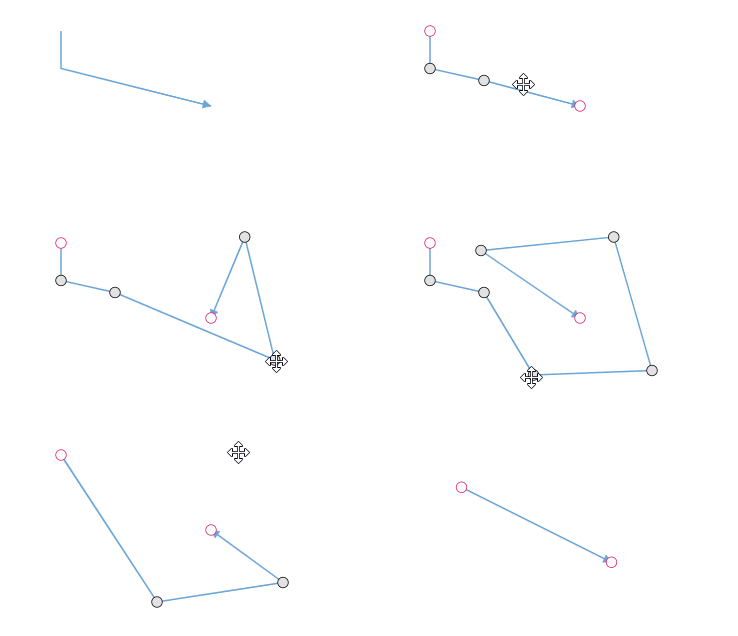
Straight connector in TypeScript Diagram control
To create a straight line, specify the type of the segment as straight and add a straight segment to segments collection and need to specify type for the connector. The following code example illustrates how to create a default straight segment.
import {Diagram,ConnectorModel,StraightSegmentModel} from '@syncfusion/ej2-diagrams';

let connectors: ConnectorModel = {
    id: "connector1",
    type: 'Straight',
    segments: [{
        // Defines the segment type of the connector
        type: 'Straight'
    }],
    style: {
        strokeColor: '#6BA5D7',
        fill: '#6BA5D7',
        strokeWidth: 2
    },
    targetDecorator: {
        style: {
            fill: '#6BA5D7',
            strokeColor: '#6BA5D7'
        }
    },
    sourcePoint: {
        x: 100,
        y: 100
    },
    targetPoint: {
        x: 200,
        y: 200
    }
}

let diagram: Diagram = new Diagram({
    width: '100%',
    height: '600px',
    connectors: [connectors],
});

diagram.appendTo('#element');
<!DOCTYPE html>
<html lang="en">
<head>
<title>EJ2 Diagram</title>
<meta charset="utf-8" />
<meta name="viewport" content="width=device-width, initial-scale=1.0" />
<meta name="description" content="Typescript UI Controls" />
<meta name="author" content="Syncfusion" />
<link href="index.css" rel="stylesheet" />
<script src="https://cdnjs.cloudflare.com/ajax/libs/systemjs/0.19.38/system.js"></script>
<link href="https://cdn.syncfusion.com/ej2/33.2.3/ej2-base/styles/tailwind3.css" rel="stylesheet" />
<link href="https://cdn.syncfusion.com/ej2/33.2.3/ej2-buttons/styles/tailwind3.css" rel="stylesheet" />
<link href="https://cdn.syncfusion.com/ej2/33.2.3/ej2-popups/styles/tailwind3.css" rel="stylesheet" />
<link href="https://cdn.syncfusion.com/ej2/33.2.3/ej2-splitbuttons/styles/tailwind3.css" rel="stylesheet" />
<link href="https://cdn.syncfusion.com/ej2/33.2.3/ej2-diagrams/styles/tailwind3.css" rel="stylesheet" />
<link href="https://cdn.syncfusion.com/ej2/33.2.3/ej2-navigations/styles/fabric.css" rel="stylesheet" />
<script src="systemjs.config.js"></script>
</head>
<body>
<div id='loader'>Loading....</div>
<div id='container'>
<div id='element'></div>
</div>
</body>
</html>The point property of straight segment allows you to define the end point of it. The following code example illustrates how to define the end point of a straight segment.
import {Diagram,ConnectorModel,StraightSegmentModel} from '@syncfusion/ej2-diagrams';

let connectors: ConnectorModel = {
    id: "connector1",
    // Defines the segment type of the connector
    segments: [{
        type: 'Straight',
        // Defines the point of the segment
        point: {
            x: 100,
            y: 150
        }
    }],
    style: {
        strokeColor: '#6BA5D7',
        fill: '#6BA5D7',
        strokeWidth: 2
    },
    targetDecorator: {
        style: {
            fill: '#6BA5D7',
            strokeColor: '#6BA5D7'
        }
    },
    type: 'Straight',
    sourcePoint: {
        x: 100,
        y: 100
    },
    targetPoint: {
        x: 200,
        y: 200
    }
}

let diagram: Diagram = new Diagram({
    width: '100%',
    height: '600px',
    connectors: [connectors],
});

diagram.appendTo('#element');
<!DOCTYPE html>
<html lang="en">
<head>
<title>EJ2 Diagram</title>
<meta charset="utf-8" />
<meta name="viewport" content="width=device-width, initial-scale=1.0" />
<meta name="description" content="Typescript UI Controls" />
<meta name="author" content="Syncfusion" />
<link href="index.css" rel="stylesheet" />
<script src="https://cdnjs.cloudflare.com/ajax/libs/systemjs/0.19.38/system.js"></script>
<link href="https://cdn.syncfusion.com/ej2/33.2.3/ej2-base/styles/tailwind3.css" rel="stylesheet" />
<link href="https://cdn.syncfusion.com/ej2/33.2.3/ej2-buttons/styles/tailwind3.css" rel="stylesheet" />
<link href="https://cdn.syncfusion.com/ej2/33.2.3/ej2-popups/styles/tailwind3.css" rel="stylesheet" />
<link href="https://cdn.syncfusion.com/ej2/33.2.3/ej2-splitbuttons/styles/tailwind3.css" rel="stylesheet" />
<link href="https://cdn.syncfusion.com/ej2/33.2.3/ej2-diagrams/styles/tailwind3.css" rel="stylesheet" />
<link href="https://cdn.syncfusion.com/ej2/33.2.3/ej2-navigations/styles/fabric.css" rel="stylesheet" />
<script src="systemjs.config.js"></script>
</head>
<body>
<div id='loader'>Loading....</div>
<div id='container'>
<div id='element'></div>
</div>
</body>
</html>Straight segment editing
End point of each straight segment is represented by a thumb that enables to edit the segment.
Any number of new segments can be inserted into a straight line by clicking when Shift and Ctrl keys are pressed (Ctrl+Shift+Click).
Straight segments can be removed by clicking the segment end point when Ctrl and Shift keys are pressed (Ctrl+Shift+Click). You can also add/remove segments by using the editSegment method of diagram.
The following example shows how to add segments at runtime for the straight connector.
import {
    Diagram,
    ConnectorModel,
    ConnectorConstraints,
    ConnectorEditing,
    IEditSegmentOptions,
  } from '@syncfusion/ej2-diagrams';
  Diagram.Inject(ConnectorEditing);
  let connectors: ConnectorModel = {
    id: 'connector1',
    constraints:
      ConnectorConstraints.Default | ConnectorConstraints.DragSegmentThumb,
    // Defines the segment type of the connector
    segments: [
      {
        type: 'Straight',
        // Defines the point of the segment
        point: {
          x: 100,
          y: 150,
        },
      },
    ],
    style: {
      strokeColor: '#6BA5D7',
      fill: '#6BA5D7',
      strokeWidth: 2,
    },
    targetDecorator: {
      style: {
        fill: '#6BA5D7',
        strokeColor: '#6BA5D7',
      },
    },
    type: 'Straight',
    sourcePoint: { x: 150, y: 100 },
    targetPoint: { x: 340, y: 200 },
  };

  let diagram: Diagram = new Diagram({
    width: '100%',
    height: '600px',
    connectors: [connectors],
  });

  diagram.appendTo('#element');

  diagram.select(diagram.connectors);

  (document.getElementById('addOrRemoveSegment') as HTMLInputElement).onclick = () => {
    let options: IEditSegmentOptions = {};
    options.SegmentEditing = 'Toggle';
    options.point = { x: 220, y: 150 };
    options.connector = diagram.connectors[0];
    options.hitPadding = diagram.connectors[0].hitPadding;

    diagram.editSegment(options);
  };
<!DOCTYPE html>
<html lang="en">
<head>
<title>EJ2 Diagram</title>
<meta charset="utf-8" />
<meta name="viewport" content="width=device-width, initial-scale=1.0" />
<meta name="description" content="Typescript UI Controls" />
<meta name="author" content="Syncfusion" />
<link href="index.css" rel="stylesheet" />
<script src="https://cdnjs.cloudflare.com/ajax/libs/systemjs/0.19.38/system.js"></script>
<link href="https://cdn.syncfusion.com/ej2/33.2.3/ej2-base/styles/tailwind3.css" rel="stylesheet" />
<link href="https://cdn.syncfusion.com/ej2/33.2.3/ej2-buttons/styles/tailwind3.css" rel="stylesheet" />
<link href="https://cdn.syncfusion.com/ej2/33.2.3/ej2-popups/styles/tailwind3.css" rel="stylesheet" />
<link href="https://cdn.syncfusion.com/ej2/33.2.3/ej2-splitbuttons/styles/tailwind3.css" rel="stylesheet" />
<link href="https://cdn.syncfusion.com/ej2/33.2.3/ej2-diagrams/styles/tailwind3.css" rel="stylesheet" />
<link href="https://cdn.syncfusion.com/ej2/33.2.3/ej2-navigations/styles/fabric.css" rel="stylesheet" />
<script src="systemjs.config.js"></script>
</head>
<body>
<div id='loader'>Loading....</div>
<div id='container'>
<input type="button" value="addOrRemoveSegment" id="addOrRemoveSegment" />
<div id='element'></div>
</div>
</body>
</html>