Symbol palette in .NET MAUI Diagram
The Symbol Palette is a UI element that displays reusable symbols. Users drag symbols from the palette onto the diagram surface to create new nodes.
A symbol palette organizes symbols into one or more palettes. Each palette belongs to a logical category, such as Basic Shapes or Flow Shapes.
Prerequisites
Refer to the Getting started page to create a project, install the package, and register the handler. Symbol examples assume that an SfDiagram instance is available.
SymbolPalette control
The SymbolPalette control exposes the implemented members listed below.
| Property | Description | Status |
|---|---|---|
| EnableSearch |
true to display a search box above the palettes. |
Implemented. |
| SymbolHeight | Height applied to symbols in the palette. | Implemented. |
| SymbolWidth | Width applied to symbols in the palette. | Implemented. |
| Palettes | Collection of Palette items. | Implemented. |
Width |
Width of the Symbol Palette. | Not implemented in the current release. |
Height |
Height of the Symbol Palette. | Not implemented in the current release. |
| ExpandMode | Specifies whether one or multiple palettes can be expanded at a time. Default is DiagramPaletteExpandMode.Multiple. | Implemented. |
Note:
WidthRequestandHeightRequestare still available because they are inherited from the MAUIViewbase class. TheWidthandHeightproperties listed in legacy documents are not implemented onSymbolPalettedirectly. Verify the supported layout properties in the API reference for your package.
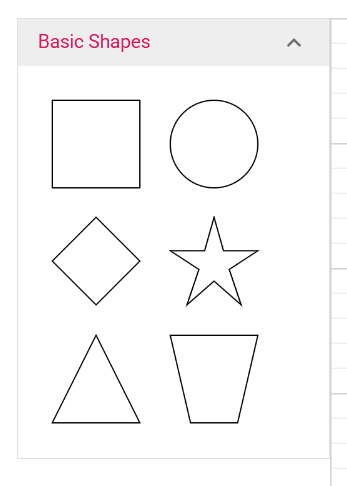
Palette class
A Palette represents a category of symbols within the Symbol Palette.
| Property | Description | Status |
|---|---|---|
| Id | Unique identifier for the palette. | Implemented. |
| Title | Header text displayed for the palette. | Implemented. |
| Symbols | Collection of nodes shown as symbols. | Implemented. |
| IsExpanded | Whether the palette is initially expanded. | Implemented. |
| IconCss | Icon associated with the palette. | Implemented. |
Height |
Height of the palette. | Not implemented in the current release. |
Add symbols
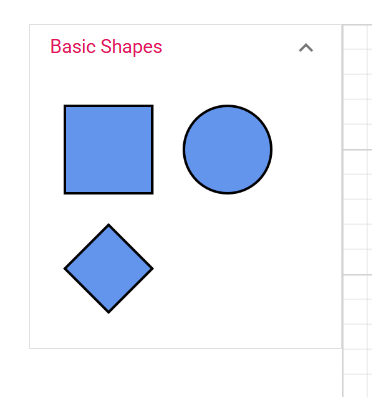
Symbols are added through the Palette.Symbols collection. Each symbol is typically a Node configured with the desired shape and size.
var basicPalette = new Palette
{
    Id = "basicShapes",
    Title = "Basic Shapes"
};

ShapeStyle style = new ShapeStyle();
style.Fill = Colors.CornflowerBlue;
style.StrokeColor = Colors.Black;
style.StrokeWidth = 2;
style.StrokeDashArray = "0,0";


basicPalette.Symbols.Add(
    new Node
    {
        Id = "Rectangle",
        Shape = new BasicShape { Shape = NodeBasicShapes.Rectangle },
        Height = 70,
        Width = 70,
        Style = style
    });

basicPalette.Symbols.Add(
    new Node
    {
        Id = "Ellipse",
        Shape = new BasicShape { Shape = NodeBasicShapes.Ellipse },
        Height = 70, Width = 70,
        Style = style
    });

basicPalette.Symbols.Add(
    new Node
    {
        Id = "Diamond",
        Shape = new BasicShape { Shape = NodeBasicShapes.Diamond },
        Height = 70,
        Width = 70,
        Style = style
    });
—
Multiple palettes
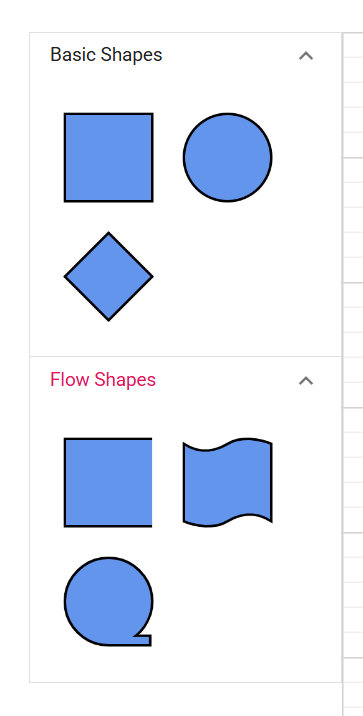
The Palettes collection holds the palettes that are exposed by the Symbol Palette.
// First palette
var basicPalette = new Palette
{
    Id = "basicShapes",
    Title = "Basic Shapes"
};
ShapeStyle style = new ShapeStyle();
style.Fill = Colors.CornflowerBlue;
style.StrokeColor = Colors.Black;
style.StrokeWidth = 2;
style.StrokeDashArray = "0,0";


basicPalette.Symbols.Add(
    new Node
    {
        Id = "Rectangle",
        Shape = new BasicShape { Shape = NodeBasicShapes.Rectangle },
        Height = 70,
        Width = 70,
        Style = style
    });

basicPalette.Symbols.Add(
    new Node
    {
        Id = "Ellipse",
        Shape = new BasicShape { Shape = NodeBasicShapes.Ellipse },
        Height = 70, Width = 70,
        Style = style
    });

basicPalette.Symbols.Add(
    new Node
    {
        Id = "Diamond",
        Shape = new BasicShape { Shape = NodeBasicShapes.Diamond },
        Height = 70,
        Width = 70,
        Style = style
    });

// First palette
var flowPalette = new Palette
{
    Id = "flowPalette",
    Title = "Flow Shapes"
};

flowPalette.Symbols.Add(
    new Node
    {
        Id = "Rectangle",
        Shape = new FlowShape { Shape = NodeFlowShapes.Annotation },
        Height = 70,
        Width = 70,
        Style = style
    });

flowPalette.Symbols.Add(
    new Node
    {
        Id = "Ellipse",
        Shape = new FlowShape { Shape = NodeFlowShapes.PaperTap },
        Height = 70,
        Width = 70,
        Style = style
    });

flowPalette.Symbols.Add(
    new Node
    {
        Id = "Diamond",
        Shape = new FlowShape { Shape = NodeFlowShapes.SequentialAccessStorage },
        Height = 70,
        Width = 70,
        Style = style
    });

symbolPalette.Palettes = new ObservableCollection<Palette>
{
    basicPalette, flowPalette

};
—
Search
Enable search to help users locate a symbol quickly when a palette contains many entries.
symbolPalette.EnableSearch = true;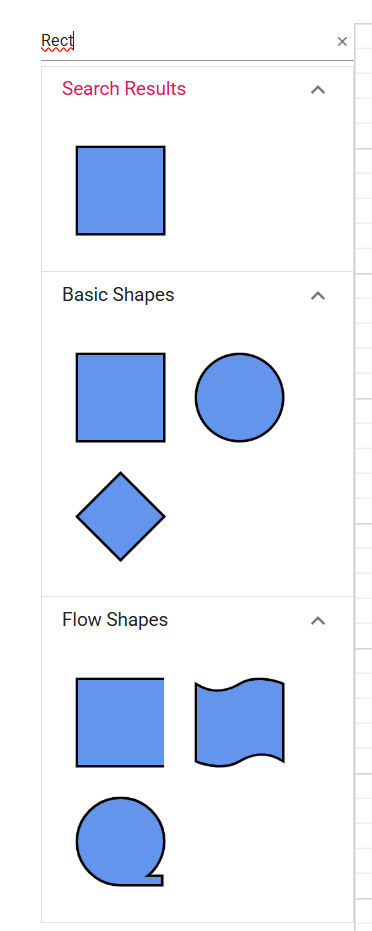
Supported symbol dimensions such as SymbolWidth and SymbolHeight control how each symbol is rendered inside the palette.
Layout the palette
Because the SymbolPalette.Width and SymbolPalette.Height properties are not implemented, use MAUI layout properties to size the control.
<diagram:SymbolPalette
    x:Name="symbolPalette"
    WidthRequest="250" />
If SymbolPalette is hosted inside a layout container such as Grid, set the row or column size to control the height.