Lable Appearance
«««< HEAD
You can change the font style of the annotations with the font specific properties fontSize, fontFamily, color.
=======
You can change the font style of the annotations with the font specific properties fontSize, fontFamily,color.
6d423ae3a72932cc7a70f3b683cc6314d695c6cf
The label’sbold,italic, andtextDecorationproperties are used to style the label’s text.
The label’s fill, strokeColor, and strokeWidth properties are used to define the background color and border color of the annotation and the opacity property is used to define the transparency of the annotations.
The visible property of the annotation enables or disables the visibility of annotation.
The following code illustrates how to customize the appearance of the annotation.
var node =  {
    // Position of the node
    offsetX: 250,
    offsetY: 250,
    // Size of the node
    width: 100,
    height: 100,
    style: { fill: '#6BA5D7', strokeColor: 'white' },
    annotations: [
      {
        content: 'Annotation    T e x t',
        style: {
          color: 'blue',
          bold: true,
          italic: true,
          fontSize: 15,
          fontFamily: 'TimesNewRoman',
          fill: 'orange',
          whiteSpace: 'PreserveAll',
          opacity: 0.6,
        },
        visibility:true
      },
      {
        content: 'Annotation    T e x t',
        offset: { x: 0.5, y: 1 },
        style: {
          color: 'blue',
          bold: true,
          italic: true,
          fontSize: 15,
          fontFamily: 'TimesNewRoman',
          fill: 'orange',
          whiteSpace: 'PreserveAll',
          opacity: 0.6,
        },
        visibility: false,
      },
    ],
  };

  // initialize Diagram component

  var diagram = new ej.diagrams.Diagram({
    width: '100%', height: '600px', nodes: [node]
    }, '#element');
<!DOCTYPE html><html lang="en"><head>
<title>EJ2 Diagram</title>
<meta charset="utf-8">
<meta name="viewport" content="width=device-width, initial-scale=1.0">
<meta name="description" content="Typescript UI Controls">
<meta name="author" content="Syncfusion">
<link href="index.css" rel="stylesheet">
<link href="https://cdn.syncfusion.com/ej2/33.2.3/ej2-base/styles/tailwind3.css" rel="stylesheet">
<link href="https://cdn.syncfusion.com/ej2/33.2.3/ej2-buttons/styles/tailwind3.css" rel="stylesheet">
<link href="https://cdn.syncfusion.com/ej2/33.2.3/ej2-popups/styles/tailwind3.css" rel="stylesheet">
<link href="https://cdn.syncfusion.com/ej2/33.2.3/ej2-splitbuttons/styles/tailwind3.css" rel="stylesheet">
<link href="https://cdn.syncfusion.com/ej2/33.2.3/ej2-diagrams/styles/tailwind3.css" rel="stylesheet">
<link href="https://cdn.syncfusion.com/ej2/33.2.3/ej2-navigations/styles/tailwind3.css" rel="stylesheet">
<script src="https://cdn.syncfusion.com/ej2/33.2.3/dist/ej2.min.js" type="text/javascript"></script>
</head>
<body>
<div id="container">
<div id="element"></div>
</div>
<script>
var ele = document.getElementById('container');
if(ele) {
ele.style.visibility = "visible";
}
</script>
<script src="index.js" type="text/javascript"></script>
</body></html>Horizontal and vertical alignment
The following tables illustrates all the possible alignments visually with offset (0, 0).
| Horizontal Alignment | Vertical Alignment | Output with Offset(0,0) |
|---|---|---|
| Left | Top | 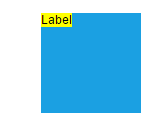 |
| Center | Top | 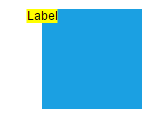 |
| Right | Top | 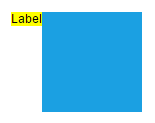 |
| Left | Center | 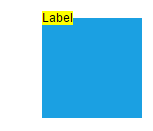 |
| Center | Center | 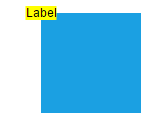 |
| Right | Center | 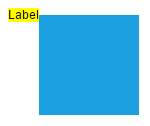 |
| Left | Bottom | 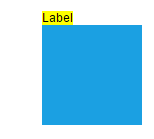 |
| Center | Bottom | 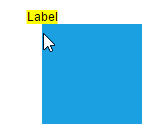 |
| Right | Bottom | 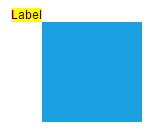 |
The following codes illustrates how to align annotations.
var node = {
    // Position of the node
    offsetX: 250,
    offsetY: 250,
    // Size of the node
    width: 100,
    height: 100,
    style: { fill: '#6BA5D7', strokeColor: 'white' },
    annotations: [{ content: 'Annotation',  horizontalAlignment: 'Left' , verticalAlignment: 'Top' }]
        };

// initialize Diagram component

var diagram = new ej.diagrams.Diagram({
    width: '100%', height: '600px', nodes: [node]
    }, '#element');
<!DOCTYPE html><html lang="en"><head>
<title>EJ2 Diagram</title>
<meta charset="utf-8">
<meta name="viewport" content="width=device-width, initial-scale=1.0">
<meta name="description" content="Typescript UI Controls">
<meta name="author" content="Syncfusion">
<link href="index.css" rel="stylesheet">
<link href="https://cdn.syncfusion.com/ej2/33.2.3/ej2-base/styles/tailwind3.css" rel="stylesheet">
<link href="https://cdn.syncfusion.com/ej2/33.2.3/ej2-buttons/styles/tailwind3.css" rel="stylesheet">
<link href="https://cdn.syncfusion.com/ej2/33.2.3/ej2-popups/styles/tailwind3.css" rel="stylesheet">
<link href="https://cdn.syncfusion.com/ej2/33.2.3/ej2-splitbuttons/styles/tailwind3.css" rel="stylesheet">
<link href="https://cdn.syncfusion.com/ej2/33.2.3/ej2-diagrams/styles/tailwind3.css" rel="stylesheet">
<link href="https://cdn.syncfusion.com/ej2/33.2.3/ej2-navigations/styles/tailwind3.css" rel="stylesheet">
<script src="https://cdn.syncfusion.com/ej2/33.2.3/dist/ej2.min.js" type="text/javascript"></script>
</head>
<body>
<div id="container">
<div id="element"></div>
</div>
<script>
var ele = document.getElementById('container');
if(ele) {
ele.style.visibility = "visible";
}
</script>
<script src="index.js" type="text/javascript"></script>
</body></html>Annotation Margin
Margin is an absolute value used to add some blank space in any one of its four sides. The annotations can be displaced with the margin property. The following code example illustrates how to align a annotation based on its offset, horizontalAlignment, verticalAlignment, and margin values.
var nodes = [
    {
        id: 'Start', width: 100, height: 100, offsetX: 100, offsetY: 100,
         style: { fill: '#6BA5D7', strokeColor: 'white' },
    annotations: [{ content: 'Task1', margin: { top: 20}, horizontalAlignment: 'Center' , verticalAlignment: 'Top', offset: { x: 0.5, y: 1} }]
    },
];
var connectors = [
    {
        sourcePoint: { x: 200, y: 100 },
        targetPoint: { x: 500, y: 300 },
        type: 'Orthogonal',
        //Path annotation offset
        annotations: [
          {
            content: 'annotation',
            offset: 0.2,
            margin: { left: 40 },
          },
        ],
      },
]


// initialize Diagram component

var diagram = new ej.diagrams.Diagram({
    width: '100%', height: '600px', nodes: nodes,
    connectors:connectors
    }, '#element');
<!DOCTYPE html><html lang="en"><head>
<title>EJ2 Diagram</title>
<meta charset="utf-8">
<meta name="viewport" content="width=device-width, initial-scale=1.0">
<meta name="description" content="Typescript UI Controls">
<meta name="author" content="Syncfusion">
<link href="index.css" rel="stylesheet">
<link href="https://cdn.syncfusion.com/ej2/33.2.3/ej2-base/styles/tailwind3.css" rel="stylesheet">
<link href="https://cdn.syncfusion.com/ej2/33.2.3/ej2-buttons/styles/tailwind3.css" rel="stylesheet">
<link href="https://cdn.syncfusion.com/ej2/33.2.3/ej2-popups/styles/tailwind3.css" rel="stylesheet">
<link href="https://cdn.syncfusion.com/ej2/33.2.3/ej2-splitbuttons/styles/tailwind3.css" rel="stylesheet">
<link href="https://cdn.syncfusion.com/ej2/33.2.3/ej2-diagrams/styles/tailwind3.css" rel="stylesheet">
<link href="https://cdn.syncfusion.com/ej2/33.2.3/ej2-navigations/styles/tailwind3.css" rel="stylesheet">
<script src="https://cdn.syncfusion.com/ej2/33.2.3/dist/ej2.min.js" type="text/javascript"></script>
</head>
<body>
<div id="container">
<div id="element"></div>
</div>
<script>
var ele = document.getElementById('container');
if(ele) {
ele.style.visibility = "visible";
}
</script>
<script src="index.js" type="text/javascript"></script>
</body></html>Hyperlink
Diagram provides a support to add a hyperlink for the nodes/connectors annotation. It can also be customized with the below properties.
A User can open the hyperlink in the new window, the same tab and the new tab by using the hyperlinkOpenState property.
The content property of hyperlink is used to display the content of the hyper link display text. The color property of the hyperlink is used to display the color of the hyper link.
The textDecoration property is used to decorate the hyper link text with Underline, LineThrough, Overline. The following example illustrates how to define and customize hyper link in both node and connector.
var node = {
    // Position of the node
    offsetX: 100,
    offsetY: 100,
    // Size of the node
    width: 100,
    height: 100,
    style: { fill: '#6BA5D7', strokeColor: 'white' },
    annotations: [
      {
        hyperlink: {
          link: 'https://hr.syncfusion.com/home',
          hyperlinkOpenState: 'NewWindow',
        },
      },
    ],
  };
  let connectors = [
    {
      sourcePoint: { x: 300, y: 200 },
      targetPoint: { x: 500, y: 300 },
      type: 'Orthogonal',
      //Path annotation offset
      annotations: [
        {
          hyperlink: {
            link: 'https://google.com',
            hyperlinkOpenState: 'NewWindow',
            content: 'Google',
            color: 'orange',
            textDecoration: 'Underline',
          },
        },
      ],
    },
  ];

  var diagram = new ej.diagrams.Diagram(
    {
      width: '100%',
      height: '600px',
      nodes: [node],
      connectors: connectors,
    },
    '#element'
  );
<!DOCTYPE html><html lang="en"><head>
<title>EJ2 Diagram</title>
<meta charset="utf-8">
<meta name="viewport" content="width=device-width, initial-scale=1.0">
<meta name="description" content="Typescript UI Controls">
<meta name="author" content="Syncfusion">
<link href="index.css" rel="stylesheet">
<link href="https://cdn.syncfusion.com/ej2/33.2.3/ej2-base/styles/tailwind3.css" rel="stylesheet">
<link href="https://cdn.syncfusion.com/ej2/33.2.3/ej2-buttons/styles/tailwind3.css" rel="stylesheet">
<link href="https://cdn.syncfusion.com/ej2/33.2.3/ej2-popups/styles/tailwind3.css" rel="stylesheet">
<link href="https://cdn.syncfusion.com/ej2/33.2.3/ej2-splitbuttons/styles/tailwind3.css" rel="stylesheet">
<link href="https://cdn.syncfusion.com/ej2/33.2.3/ej2-diagrams/styles/tailwind3.css" rel="stylesheet">
<link href="https://cdn.syncfusion.com/ej2/33.2.3/ej2-navigations/styles/tailwind3.css" rel="stylesheet">
<script src="https://cdn.syncfusion.com/ej2/33.2.3/dist/ej2.min.js" type="text/javascript"></script>
</head>
<body>
<div id="container">
<div id="element"></div>
</div>
<script>
var ele = document.getElementById('container');
if(ele) {
ele.style.visibility = "visible";
}
</script>
<script src="index.js" type="text/javascript"></script>
</body></html>Rotate Annotation
Annotation can be rotated by setting the rotateAngle property of the annotation. The following example shows how to rotate annotation text.
var node = {
  id: 'node1',
  // Position of the node
  offsetX: 100,
  offsetY: 100,
  // Size of the node
  width: 100,
  height: 100,
  style: {
    fill: '#6BA5D7',
    strokeColor: 'white',
  },
  // Sets the annotation for the node
  annotations: [
    {
      content: 'Annotation Text',
      rotateAngle: 45,
    },
  ],
};

// initialize Diagram component

var diagram = new ej.diagrams.Diagram(
  {
    width: '100%',
    height: '600px',
    nodes: [node],
  },
  '#element'
);
<!DOCTYPE html><html lang="en"><head>
<title>EJ2 Diagram</title>
<meta charset="utf-8">
<meta name="viewport" content="width=device-width, initial-scale=1.0">
<meta name="description" content="Typescript UI Controls">
<meta name="author" content="Syncfusion">
<link href="index.css" rel="stylesheet">
<link href="https://cdn.syncfusion.com/ej2/33.2.3/ej2-base/styles/tailwind3.css" rel="stylesheet">
<link href="https://cdn.syncfusion.com/ej2/33.2.3/ej2-buttons/styles/tailwind3.css" rel="stylesheet">
<link href="https://cdn.syncfusion.com/ej2/33.2.3/ej2-popups/styles/tailwind3.css" rel="stylesheet">
<link href="https://cdn.syncfusion.com/ej2/33.2.3/ej2-splitbuttons/styles/tailwind3.css" rel="stylesheet">
<link href="https://cdn.syncfusion.com/ej2/33.2.3/ej2-diagrams/styles/tailwind3.css" rel="stylesheet">
<link href="https://cdn.syncfusion.com/ej2/33.2.3/ej2-navigations/styles/tailwind3.css" rel="stylesheet">
<script src="https://cdn.syncfusion.com/ej2/33.2.3/dist/ej2.min.js" type="text/javascript"></script>
</head>
<body>
<div id="container">
<div id="element"></div>
</div>
<script>
var ele = document.getElementById('container');
if(ele) {
ele.style.visibility = "visible";
}
</script>
<script src="index.js" type="text/javascript"></script>
</body></html>Template support for annotation
Diagram provides template support for annotation. You can either define a string template and assign it to template property of annotation or define a annotation template in html file and assign it to the annotationTemplate property of the diagram.
String template
For string template you should define a SVG/HTML content as string in the annotation’s template property.
The following code illustrates how to define a template in annotation.
var node = {
    id: 'node1',
    // Position of the node
    offsetX: 100,
    offsetY: 100,
    // Size of the node
    width: 100,
    height: 100,
    style: {
      fill: '#6BA5D7',
      strokeColor: 'white',
    },
    annotations: [
      { template: '<div><input type="button" value="Submit"></div>' },
    ],
  };
  let connector = {
    id: 'connector1',
    sourcePoint: {
      x: 300,
      y: 100,
    },
    targetPoint: {
      x: 400,
      y: 300,
    },
    type: 'Orthogonal',
    //Sets the annotation for the node
    annotations: [
      {
        width: 100,
        height: 50,
        id: 'annotation1',
        // Sets the template for a node
        template: '<div><input type="button" value="Submit"></div>',
      },
    ],
  };
  // initialize Diagram component

  var diagram = new ej.diagrams.Diagram(
    {
      width: '100%',
      height: '600px',
      nodes: [node],
      connectors: [connector],
    },
    '#element'
  );
<!DOCTYPE html><html lang="en"><head>
<title>EJ2 Diagram</title>
<meta charset="utf-8">
<meta name="viewport" content="width=device-width, initial-scale=1.0">
<meta name="description" content="Typescript UI Controls">
<meta name="author" content="Syncfusion">
<link href="index.css" rel="stylesheet">
<link href="https://cdn.syncfusion.com/ej2/33.2.3/ej2-base/styles/tailwind3.css" rel="stylesheet">
<link href="https://cdn.syncfusion.com/ej2/33.2.3/ej2-buttons/styles/tailwind3.css" rel="stylesheet">
<link href="https://cdn.syncfusion.com/ej2/33.2.3/ej2-popups/styles/tailwind3.css" rel="stylesheet">
<link href="https://cdn.syncfusion.com/ej2/33.2.3/ej2-splitbuttons/styles/tailwind3.css" rel="stylesheet">
<link href="https://cdn.syncfusion.com/ej2/33.2.3/ej2-diagrams/styles/tailwind3.css" rel="stylesheet">
<link href="https://cdn.syncfusion.com/ej2/33.2.3/ej2-navigations/styles/tailwind3.css" rel="stylesheet">
<script src="https://cdn.syncfusion.com/ej2/33.2.3/dist/ej2.min.js" type="text/javascript"></script>
</head>
<body>
<div id="container">
<div id="element"></div>
</div>
<script>
var ele = document.getElementById('container');
if(ele) {
ele.style.visibility = "visible";
}
</script>
<script src="index.js" type="text/javascript"></script>
</body></html>NOTE
For the proper alignment of template, we need to mention width and height for the annotation while using template.
Annotation template
For annotation template you should define a template in html file which you want to render in annotation and assign it to the annotationTemplate property of diagram. This template can be applied to both nodes and connectors within the diagram.
The following code illustrates how to define a annotationTemplate in annotation for nodes and connectors.
var node = {
  id: 'node1',
  // Position of the node
  offsetX: 100,
  offsetY: 100,
  // Size of the node
  width: 100,
  height: 100,
  style: {
    fill: '#6BA5D7',
    strokeColor: 'white',
  },
  annotations: [
    {
      width: 100,
      height: 50,
      id: 'Node',
    },
  ],
};
let connector = {
  id: 'connector1',
  sourcePoint: {
    x: 300,
    y: 100,
  },
  targetPoint: {
    x: 400,
    y: 300,
  },
  type: 'Orthogonal',
  //Sets the annotation for the node
  annotations: [
    {
      width: 100,
      height: 50,
      id: 'connector',
    },
  ],
};
// initialize Diagram component

var diagram = new ej.diagrams.Diagram(
  {
    width: '100%',
    height: '600px',
    nodes: [node],
    connectors: [connector],
    annotationTemplate: '#annotationTemplate',
  },
  '#element'
);
<!DOCTYPE html><html lang="en"><head>
<title>EJ2 Diagram</title>
<meta charset="utf-8">
<meta name="viewport" content="width=device-width, initial-scale=1.0">
<meta name="description" content="Typescript UI Controls">
<meta name="author" content="Syncfusion">
<link href="index.css" rel="stylesheet">
<link href="https://cdn.syncfusion.com/ej2/33.2.3/ej2-base/styles/tailwind3.css" rel="stylesheet">
<link href="https://cdn.syncfusion.com/ej2/33.2.3/ej2-buttons/styles/tailwind3.css" rel="stylesheet">
<link href="https://cdn.syncfusion.com/ej2/33.2.3/ej2-popups/styles/tailwind3.css" rel="stylesheet">
<link href="https://cdn.syncfusion.com/ej2/33.2.3/ej2-splitbuttons/styles/tailwind3.css" rel="stylesheet">
<link href="https://cdn.syncfusion.com/ej2/33.2.3/ej2-diagrams/styles/tailwind3.css" rel="stylesheet">
<link href="https://cdn.syncfusion.com/ej2/33.2.3/ej2-navigations/styles/tailwind3.css" rel="stylesheet">
<script src="https://cdn.syncfusion.com/ej2/33.2.3/dist/ej2.min.js" type="text/javascript"></script>
</head>
<body>
<div id="container">
<script id="annotationTemplate" type="text/x-template">
<div style="width:100%;height:100%;overflow:hidden"><input type="button" value="${id}"
style="width:100px;" /></div>
</script>
<div id="element"></div>
</div>
<script>
var ele = document.getElementById('container');
if(ele) {
ele.style.visibility = "visible";
}
</script>
<script src="index.js" type="text/javascript"></script>
</body></html>Functional template
We can define a function which would return a string template and assign that method to the annotationTemplate property of diagram. Inside that function we can do customizations based on the id of the annotation.
The following code illustrates how to define a functional template.
var node = {
  id: 'node1',
  // Position of the node
  offsetX: 100,
  offsetY: 100,
  // Size of the node
  width: 100,
  height: 100,
  style: {
    fill: '#6BA5D7',
    strokeColor: 'white',
  },
  annotations: [
    {
      id: 'Node',
      width: 100,
      height: 20,
    },
  ],
};
let connector = {
  id: 'connector1',
  sourcePoint: {
    x: 300,
    y: 100,
  },
  targetPoint: {
    x: 400,
    y: 300,
  },
  type: 'Orthogonal',
  //Sets the annotation for the node
  annotations: [
    {
      id: 'connector',
      width: 100,
      height: 50,
    },
  ],
};

function getTemplate(obj) {
  let background = 'yellow';
  let height = '50%';
  if (obj.id === 'Node') {
    background = 'red';
    height = '100%';
  }
  let template = `<div style="width:100%;height:${height};overflow:hidden; background:${background}"><input type="button" value="${obj.id}"
  style="width:100px;" /></div>`;
  return template;
}
// initialize Diagram component

var diagram = new ej.diagrams.Diagram(
  {
    width: '100%',
    height: '600px',
    nodes: [node],
    connectors: [connector],
    annotationTemplate: getTemplate.bind(this),
  },
  '#element'
);
<!DOCTYPE html><html lang="en"><head>
<title>EJ2 Diagram</title>
<meta charset="utf-8">
<meta name="viewport" content="width=device-width, initial-scale=1.0">
<meta name="description" content="Typescript UI Controls">
<meta name="author" content="Syncfusion">
<link href="index.css" rel="stylesheet">
<link href="https://cdn.syncfusion.com/ej2/33.2.3/ej2-base/styles/tailwind3.css" rel="stylesheet">
<link href="https://cdn.syncfusion.com/ej2/33.2.3/ej2-buttons/styles/tailwind3.css" rel="stylesheet">
<link href="https://cdn.syncfusion.com/ej2/33.2.3/ej2-popups/styles/tailwind3.css" rel="stylesheet">
<link href="https://cdn.syncfusion.com/ej2/33.2.3/ej2-splitbuttons/styles/tailwind3.css" rel="stylesheet">
<link href="https://cdn.syncfusion.com/ej2/33.2.3/ej2-diagrams/styles/tailwind3.css" rel="stylesheet">
<link href="https://cdn.syncfusion.com/ej2/33.2.3/ej2-navigations/styles/tailwind3.css" rel="stylesheet">
<script src="https://cdn.syncfusion.com/ej2/33.2.3/dist/ej2.min.js" type="text/javascript"></script>
</head>
<body>
<div id="container">
<script id="annotationTemplate" type="text/x-template">
<div style="width:100%;height:100%;overflow:hidden"><input type="button" value="${id}"
style="width:100px;" /></div>
</script>
<div id="element"></div>
</div>
<script>
var ele = document.getElementById('container');
if(ele) {
ele.style.visibility = "visible";
}
</script>
<script src="index.js" type="text/javascript"></script>
</body></html>Text align
The textAlign property of annotation allows you to set how the text should be aligned (left, right, center, or justify) inside the text block. The following codes illustrate how to set textAlign for an annotation.
var nodes = [
    {
      id: 'node1',
      // Position of the node
      offsetX: 100,
      offsetY: 100,
      // Size of the node
      width: 100,
      height: 100,
      style: {
        fill: '#6BA5D7',
        strokeColor: 'white',
      },
      // Sets the annotation for the NOde
      annotations: [
        {
          content: 'Text align is set as Right',
          // Sets the textAlign as left for the content
          style: {
            textAlign: 'Right',
          },
        },
      ],
    },
    {
      id: 'node2',
      // Position of the node
      offsetX: 300,
      offsetY: 100,
      // Size of the node
      width: 100,
      height: 100,
      style: {
        fill: '#6BA5D7',
        strokeColor: 'white',
      },
      // Sets the annotation for the NOde
      annotations: [
        {
          content: 'Text align is set as Center',
          // Sets the textAlign as left for the content
          style: {
            textAlign: 'Center',
          },
        },
      ],
    },
    {
      id: 'node3',
      // Position of the node
      offsetX: 500,
      offsetY: 100,
      // Size of the node
      width: 100,
      height: 100,
      style: {
        fill: '#6BA5D7',
        strokeColor: 'white',
      },
      // Sets the annotation for the NOde
      annotations: [
        {
          content: 'Text align is set as Left',
          // Sets the textAlign as left for the content
          style: {
            textAlign: 'Left',
          },
        },
      ],
    },
    {
      id: 'node4',
      // Position of the node
      offsetX: 700,
      offsetY: 100,
      // Size of the node
      width: 100,
      height: 100,
      style: {
        fill: '#6BA5D7',
        strokeColor: 'white',
      },
      // Sets the annotation for the NOde
      annotations: [
        {
          content: 'Text align is set as Justify',
          // Sets the textAlign as left for the content
          style: {
            textAlign: 'Justify',
          },
        },
      ],
    },
  ];
  var connectors = [
    {
      sourcePoint: { x: 100, y: 200 },
      targetPoint: { x: 300, y: 300 },
      type: 'Orthogonal',
      //Path annotation offset
      annotations: [
        {
          content: 'long annotation content for connector anntoation',
          width: 100,
          offset: 0.2,
          style: { textAlign: 'Right' },
        },
      ],
    },
    {
      sourcePoint: { x: 300, y: 200 },
      targetPoint: { x: 500, y: 300 },
      type: 'Orthogonal',
      //Path annotation offset
      annotations: [
        {
          content: 'long annotation content for connector anntoation',
          width: 100,
          offset: 0.2,
          style: { textAlign: 'Center' },
        },
      ],
    },
    {
      sourcePoint: { x: 500, y: 200 },
      targetPoint: { x: 700, y: 300 },
      type: 'Orthogonal',
      //Path annotation offset
      annotations: [
        {
          content: 'long annotation content for connector anntoation',
          width: 100,
          offset: 0.2,
          style: { textAlign: 'Left' },
        },
      ],
    },
    {
      sourcePoint: { x: 700, y: 200 },
      targetPoint: { x: 900, y: 300 },
      type: 'Orthogonal',
      //Path annotation offset
      annotations: [
        {
          content: 'long annotation content for connector anntoation',
          width: 100,
          offset: 0.2,
          style: { textAlign: 'Justify' },
        },
      ],
    },
  ];
  var diagram = new ej.diagrams.Diagram(
    {
      width: '100%',
      height: '600px',
      nodes: nodes,
      connectors: connectors,
      snapSettings: { constraints: 0 },
    },
    '#element'
  );
<!DOCTYPE html><html lang="en"><head>
<title>EJ2 Diagram</title>
<meta charset="utf-8">
<meta name="viewport" content="width=device-width, initial-scale=1.0">
<meta name="description" content="Typescript UI Controls">
<meta name="author" content="Syncfusion">
<link href="index.css" rel="stylesheet">
<link href="https://cdn.syncfusion.com/ej2/33.2.3/ej2-base/styles/tailwind3.css" rel="stylesheet">
<link href="https://cdn.syncfusion.com/ej2/33.2.3/ej2-buttons/styles/tailwind3.css" rel="stylesheet">
<link href="https://cdn.syncfusion.com/ej2/33.2.3/ej2-popups/styles/tailwind3.css" rel="stylesheet">
<link href="https://cdn.syncfusion.com/ej2/33.2.3/ej2-splitbuttons/styles/tailwind3.css" rel="stylesheet">
<link href="https://cdn.syncfusion.com/ej2/33.2.3/ej2-diagrams/styles/tailwind3.css" rel="stylesheet">
<link href="https://cdn.syncfusion.com/ej2/33.2.3/ej2-navigations/styles/tailwind3.css" rel="stylesheet">
<script src="https://cdn.syncfusion.com/ej2/33.2.3/dist/ej2.min.js" type="text/javascript"></script>
</head>
<body>
<div id="container">
<div id="element"></div>
</div>
<script>
var ele = document.getElementById('container');
if(ele) {
ele.style.visibility = "visible";
}
</script>
<script src="index.js" type="text/javascript"></script>
</body></html>The following table shows the different text alignment.
| Text Align | Output image |
|---|---|
| Right | 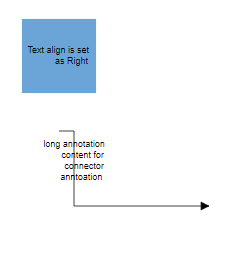 |
| Left | 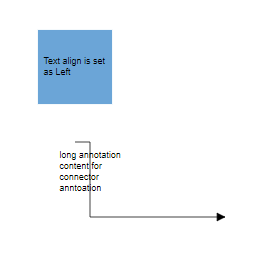 |
| Center | 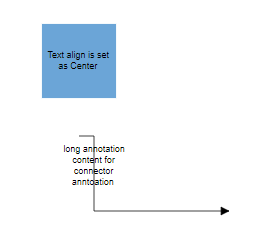 |
| Justify | 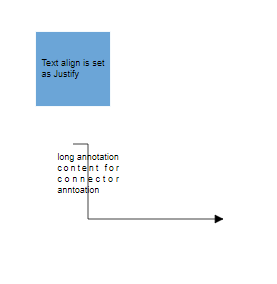 |
Text Wrapping
When text overflows node boundaries, you can control it by using text wrapping. So, it is wrapped into multiple lines. The wrapping property of annotation defines how the text should be wrapped. The following code illustrates how to wrap a text in a node.
var nodes = [
    {
      id: 'node1',
      // Position of the node
      offsetX: 100,
      offsetY: 100,
      // Size of the node
      width: 100,
      height: 100,
      style: {
        fill: '#6BA5D7',
        strokeColor: 'white',
      },
      //Sets the annotation for the node
      annotations: [
        {
          content: 'Annotation Text WrapWithOverflow',
          // Sets the style for the text wrapping
          style: {
            textWrapping: 'WrapWithOverflow',
          },
        },
      ],
    },
    {
      id: 'node2',
      // Position of the node
      offsetX: 300,
      offsetY: 100,
      // Size of the node
      width: 100,
      height: 100,
      style: {
        fill: '#6BA5D7',
        strokeColor: 'white',
      },
      //Sets the annotation for the node
      annotations: [
        {
          content: 'Annotation Text Wrap',
          // Sets the style for the text wrapping
          style: {
            textWrapping: 'Wrap',
          },
        },
      ],
    },
    {
      id: 'node3',
      // Position of the node
      offsetX: 500,
      offsetY: 100,
      // Size of the node
      width: 100,
      height: 100,
      style: {
        fill: '#6BA5D7',
        strokeColor: 'white',
      },
      //Sets the annotation for the node
      annotations: [
        {
          content: 'Annotation Text NoWrap',
          // Sets the style for the text wrapping
          style: {
            textWrapping: 'NoWrap',
          },
        },
      ],
    },
  ];

  // initialize Diagram component

  var diagram = new ej.diagrams.Diagram(
    {
      width: '100%',
      height: '600px',
      nodes: nodes,
    },
    '#element'
  );
<!DOCTYPE html><html lang="en"><head>
<title>EJ2 Diagram</title>
<meta charset="utf-8">
<meta name="viewport" content="width=device-width, initial-scale=1.0">
<meta name="description" content="Typescript UI Controls">
<meta name="author" content="Syncfusion">
<link href="index.css" rel="stylesheet">
<link href="https://cdn.syncfusion.com/ej2/33.2.3/ej2-base/styles/tailwind3.css" rel="stylesheet">
<link href="https://cdn.syncfusion.com/ej2/33.2.3/ej2-buttons/styles/tailwind3.css" rel="stylesheet">
<link href="https://cdn.syncfusion.com/ej2/33.2.3/ej2-popups/styles/tailwind3.css" rel="stylesheet">
<link href="https://cdn.syncfusion.com/ej2/33.2.3/ej2-splitbuttons/styles/tailwind3.css" rel="stylesheet">
<link href="https://cdn.syncfusion.com/ej2/33.2.3/ej2-diagrams/styles/tailwind3.css" rel="stylesheet">
<link href="https://cdn.syncfusion.com/ej2/33.2.3/ej2-navigations/styles/tailwind3.css" rel="stylesheet">
<script src="https://cdn.syncfusion.com/ej2/33.2.3/dist/ej2.min.js" type="text/javascript"></script>
</head>
<body>
<div id="container">
<div id="element"></div>
</div>
<script>
var ele = document.getElementById('container');
if(ele) {
ele.style.visibility = "visible";
}
</script>
<script src="index.js" type="text/javascript"></script>
</body></html>| Value | Description | Image |
|---|---|---|
| No Wrap | Text will not be wrapped. | 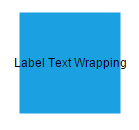 |
| Wrap | Text-wrapping occurs, when the text overflows beyond the available node width. | 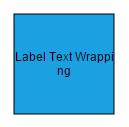 |
| WrapWithOverflow (Default) | Text-wrapping occurs, when the text overflows beyond the available node width. However, the text may overflow beyond the node width in the case of a very long word. | 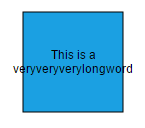 |
Text overflow
The label’s TextOverflow property is used control whether to display the overflowed content in node or not.
-
Clip- The text which overflowing node’s bounds will be removed. -
Ellipsis- The text which overflowing nodes’s bounds will be replaced by three dots. -
Wrap- Entire text will be rendered overflowing in y-axis and wrapped in x-axis.
Types of text overflow are shown in below table.
| TextOverflow | output image |
|---|---|
| Clip | 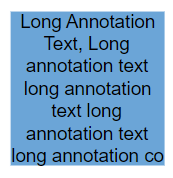 |
| Ellipsis | 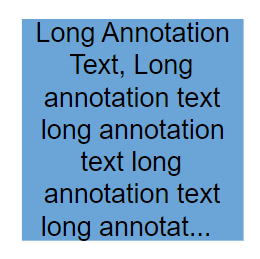 |
| Wrap(Default) | 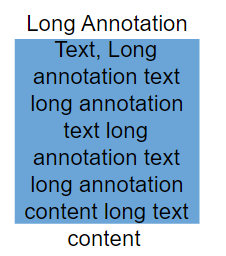 |
var nodes = [
    {
      // Position of the node
      offsetX: 100,
      offsetY: 100,
      // Size of the node
      width: 100,
      height: 100,
      style: { fill: '#6BA5D7', strokeColor: 'white' },
      annotations: [
        {
          content: 'Clip Wrap',
          offset: { x: 0.5, y: 1.4 },
        },
        {
          content:
            'Long Annotation Text, Long annotation text long annotation text long annotation text long annotation text long annotation text long annotation text',
          style: { textOverflow: 'Clip', textWrapping: 'Wrap' },
        },
      ],
    },
    {
      // Position of the node
      offsetX: 300,
      offsetY: 100,
      // Size of the node
      width: 100,
      height: 100,
      style: { fill: '#6BA5D7', strokeColor: 'white' },
      annotations: [
        {
          content: 'Clip NoWrap',
          offset: { x: 0.5, y: 1.4 },
        },
        {
          content:
            'Long Annotation Text, Long annotation text long annotation text long annotation text long annotation text',
          style: { textOverflow: 'Clip', textWrapping: 'NoWrap' },
        },
      ],
    },
    {
      // Position of the node
      offsetX: 500,
      offsetY: 100,
      // Size of the node
      width: 100,
      height: 100,
      style: { fill: '#6BA5D7', strokeColor: 'white' },
      annotations: [
        {
          content: 'Clip WrapWithOverflow',
          offset: { x: 0.5, y: 1.4 },
        },
        {
          content:
            'Long Annotation Text, Long annotation text long annotation text long annotation text long annotation text',
          style: { textOverflow: 'Clip', textWrapping: 'WrapWithOverflow' },
        },
      ],
    },

    {
      // Position of the node
      offsetX: 100,
      offsetY: 300,
      // Size of the node
      width: 100,
      height: 100,
      style: { fill: '#6BA5D7', strokeColor: 'white' },
      annotations: [
        {
          content: 'Ellipsis Wrap',
          offset: { x: 0.5, y: 1.4 },
        },
        {
          content:
            'Long Annotation Text, Long annotation text long annotation text long annotation text long annotation text long annotation text long annotation text',
          style: { textOverflow: 'Ellipsis', textWrapping: 'Wrap' },
        },
      ],
    },
    {
      // Position of the node
      offsetX: 300,
      offsetY: 300,
      // Size of the node
      width: 100,
      height: 100,
      style: { fill: '#6BA5D7', strokeColor: 'white' },
      annotations: [
        {
          content: 'Ellipsis NoWrap',
          offset: { x: 0.5, y: 1.4 },
        },
        {
          content:
            'Long Annotation Text, Long annotation text long annotation text long annotation text long annotation text',
          style: { textOverflow: 'Ellipsis', textWrapping: 'NoWrap' },
        },
      ],
    },
    {
      // Position of the node
      offsetX: 500,
      offsetY: 300,
      // Size of the node
      width: 100,
      height: 100,
      style: { fill: '#6BA5D7', strokeColor: 'white' },
      annotations: [
        {
          content: 'Ellipsis WrapWithOverflow',
          offset: { x: 0.5, y: 1.4 },
        },
        {
          content:
            'Long Annotation Text, Long annotation text long annotation text long annotation text long annotation text',
          style: { textOverflow: 'Ellipsis', textWrapping: 'WrapWithOverflow' },
        },
      ],
    },

    {
      // Position of the node
      offsetX: 100,
      offsetY: 700,
      // Size of the node
      width: 100,
      height: 100,
      style: { fill: '#6BA5D7', strokeColor: 'white' },
      annotations: [
        {
          content: 'Wrap Wrap',
          offset: { x: 0.5, y: 1.4 },
        },
        {
          content:
            'Long Annotation Text, Long annotation text long annotation text long annotation text long annotation text long annotation text long annotation text',
          style: { textOverflow: 'Wrap', textWrapping: 'Wrap' },
        },
      ],
    },
    {
      // Position of the node
      offsetX: 300,
      offsetY: 500,
      // Size of the node
      width: 100,
      height: 100,
      style: { fill: '#6BA5D7', strokeColor: 'white' },
      annotations: [
        {
          content: 'Wrap NoWrap',
          offset: { x: 0.5, y: 1.4 },
        },
        {
          content:
            'Long Annotation Text, Long annotation text long annotation text long annotation text long annotation text',
          style: { textOverflow: 'Wrap', textWrapping: 'NoWrap' },
        },
      ],
    },
    {
      // Position of the node
      offsetX: 500,
      offsetY: 700,
      // Size of the node
      width: 100,
      height: 100,
      style: { fill: '#6BA5D7', strokeColor: 'white' },
      annotations: [
        {
          content: 'Wrap WrapWithOverflow',
          offset: { x: 0.5, y: 1.4 },
        },
        {
          content:
            'Long Annotation Text, Long annotation text long annotation text long annotation text long annotation text',
          style: { textOverflow: 'Wrap', textWrapping: 'WrapWithOverflow' },
        },
      ],
    },
  ];

  // initialize Diagram component

  var diagram = new ej.diagrams.Diagram(
    {
      width: '100%',
      height: '600px',
      nodes: nodes,
    },
    '#element'
  );
<!DOCTYPE html><html lang="en"><head>
<title>EJ2 Diagram</title>
<meta charset="utf-8">
<meta name="viewport" content="width=device-width, initial-scale=1.0">
<meta name="description" content="Typescript UI Controls">
<meta name="author" content="Syncfusion">
<link href="index.css" rel="stylesheet">
<link href="https://cdn.syncfusion.com/ej2/33.2.3/ej2-base/styles/tailwind3.css" rel="stylesheet">
<link href="https://cdn.syncfusion.com/ej2/33.2.3/ej2-buttons/styles/tailwind3.css" rel="stylesheet">
<link href="https://cdn.syncfusion.com/ej2/33.2.3/ej2-popups/styles/tailwind3.css" rel="stylesheet">
<link href="https://cdn.syncfusion.com/ej2/33.2.3/ej2-splitbuttons/styles/tailwind3.css" rel="stylesheet">
<link href="https://cdn.syncfusion.com/ej2/33.2.3/ej2-diagrams/styles/tailwind3.css" rel="stylesheet">
<link href="https://cdn.syncfusion.com/ej2/33.2.3/ej2-navigations/styles/tailwind3.css" rel="stylesheet">
<script src="https://cdn.syncfusion.com/ej2/33.2.3/dist/ej2.min.js" type="text/javascript"></script>
</head>
<body>
<div id="container">
<div id="element"></div>
</div>
<script>
var ele = document.getElementById('container');
if(ele) {
ele.style.visibility = "visible";
}
</script>
<script src="index.js" type="text/javascript"></script>
</body></html>