Node Annotations in Angular Diagram Component
The Angular Diagram component allows precise customization of node annotations (also called labels) for positioning and appearance. Node annotations can be aligned relative to node boundaries using four key positioning properties that work together to provide comprehensive control over annotation placement.
Annotation positioning properties
Node annotations support the following positioning properties through the ShapeAnnotation class:
- Offset - Controls fractional positioning within the node bounds
- HorizontalAlignment - Sets horizontal alignment at the calculated position
- VerticalAlignment - Sets vertical alignment at the calculated position
- Margin - Adds spacing around the annotation
These properties can be combined to achieve precise annotation positioning for various design requirements.
Set annotation offset and size
The offset property positions annotations using fractional values between 0 and 1. The offset represents the relative position within the node boundaries, where (0,0) is the top-left corner and (1,1) is the bottom-right corner. The default offset is (0.5, 0.5), which centers the annotation.
The annotation size is automatically calculated based on its content. To specify custom dimensions, use the width and height properties.
The following example demonstrates how to configure offset, width, and height for node annotations:
import { Component, ViewEncapsulation, ViewChild } from '@angular/core';
import { DiagramModule, DiagramComponent, PointModel } from '@syncfusion/ej2-angular-diagrams';

@Component({
imports: [
         DiagramModule
    ],

providers: [ ],
standalone: true,
    selector: "app-container",
    template: `<ejs-diagram #diagram id="diagram" width="100%" height="580px" >
        <e-nodes>
            <e-node id='node1' [offsetX]=150 [offsetY]=150 [width]=100 [height]=100>
                <e-node-annotations>
                    <e-node-annotation id="label1" content="Annotation" [offset]="offset">
                    </e-node-annotation>
                </e-node-annotations>
            </e-node>
        </e-nodes>
    </ejs-diagram>`,
    encapsulation: ViewEncapsulation.None
})
export class AppComponent {
    @ViewChild("diagram")
    public diagram?: DiagramComponent;
    public offset?: PointModel;
    ngOnInit(): void {
        //Sets the offset for the content
        this.offset = { x: 0, y: 1}
    }
}
import { bootstrapApplication } from '@angular/platform-browser';
import { AppComponent } from './app.component';
import 'zone.js';
bootstrapApplication(AppComponent).catch((err) => console.error(err));Update annotation offset at runtime
Annotation offset values can be modified dynamically during application execution. To update the offset, access the target annotation and modify its offset properties, then call the dataBind() method to apply changes immediately.
import { Component, ViewEncapsulation, ViewChild } from '@angular/core';
import { DiagramModule, DiagramComponent, Diagram, PointModel, ShapeAnnotationModel } from '@syncfusion/ej2-angular-diagrams';

@Component({
imports: [
         DiagramModule
    ],

providers: [ ],
standalone: true,
    selector: "app-container",
    template: `
    <div class="button">
        <button id="UpdateOffset" (click)='onClick($event)'>Update Offset</button>
    </div>
    <ejs-diagram #diagram id="diagram" width="100%" height="580px">
        <e-nodes>
            <e-node id='node1' [offsetX]=150 [offsetY]=150 [width]=100 [height]=100>
                <e-node-annotations>
                    <e-node-annotation id="label1" content="Annotation" [offset]="offset">
                    </e-node-annotation>
                </e-node-annotations>
            </e-node>
        </e-nodes>
    </ejs-diagram>`,
    encapsulation: ViewEncapsulation.None
})
export class AppComponent {
    @ViewChild("diagram")
    public diagram?: DiagramComponent;
    public offset?: PointModel;
    onClick = (args: MouseEvent) => {
        ((this.diagram as Diagram).nodes[0].annotations as ShapeAnnotationModel[])[0].offset = {x:0, y:0.5};
       (this.diagram as Diagram).dataBind();
   }
}
import { bootstrapApplication } from '@angular/platform-browser';
import { AppComponent } from './app.component';
import 'zone.js';
bootstrapApplication(AppComponent).catch((err) => console.error(err));NOTE
Call
dataBind()after property changes to reflect updates instantly.
Annotation offset positions
The following table demonstrates annotation positioning with different offset values:
| Offset | Image |
|---|---|
| Top Left {x:0,y:0} | 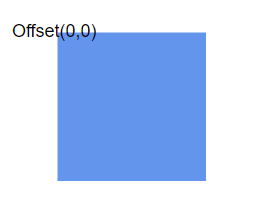 |
| Middle Left {x:0,y:0.5} | 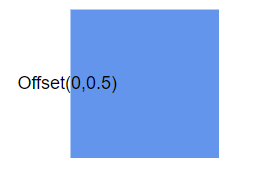 |
| Bottom Left {x:0,y:1} | 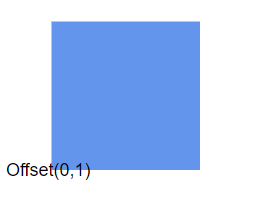 |
| Middle Top {x:0.5,y:0} | 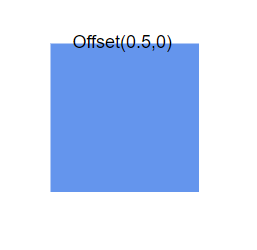 |
| Center {x:0.5,y:0.5} | 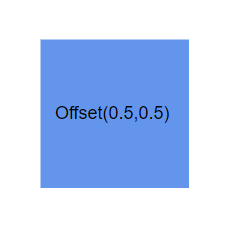 |
| Middle Bottom {x:0.5,y:1} | 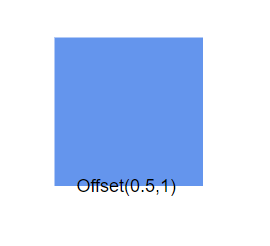 |
| Top Right {x:1,y:0} | 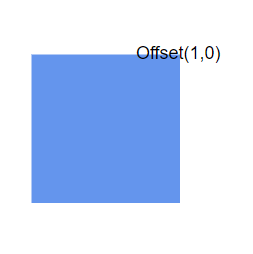 |
| Middle Right {x:1,y:0.5} | 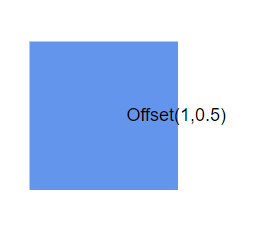 |
| Bottom Right {x:1,y:1} | 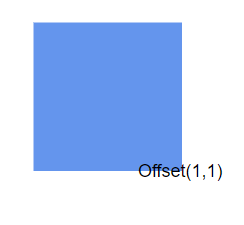 |
Annotation alignment
After determining the annotation position using offset values, the horizontalAlignment and verticalAlignment properties control how the annotation aligns at that calculated position.
The horizontal alignment determines the annotation’s horizontal positioning relative to the calculated point, while vertical alignment controls the vertical positioning. This two-step positioning system (offset calculation followed by alignment) provides precise control over annotation placement.
The following example shows how to configure annotation alignment properties:
import { Component, ViewEncapsulation, ViewChild } from '@angular/core';
import { DiagramModule, DiagramComponent, VerticalAlignment, HorizontalAlignment } from '@syncfusion/ej2-angular-diagrams';

@Component({
imports: [
         DiagramModule
    ],

providers: [ ],
standalone: true,
    selector: "app-container",
    template: `<ejs-diagram #diagram id="diagram" width="100%" height="580px">
        <e-nodes>
            <e-node id='node1' [offsetX]=150 [offsetY]=150 [width]=100 [height]=100>
                <e-node-annotations>
                    <e-node-annotation id="label1" content="Annotation" [horizontalAlignment]="horizontalAlignment" [verticalAlignment]="verticalAlignment">
                    </e-node-annotation>
                </e-node-annotations>
            </e-node>
        </e-nodes>
    </ejs-diagram>`,
    encapsulation: ViewEncapsulation.None
})
export class AppComponent {
    @ViewChild("diagram")
    public diagram?: DiagramComponent;
    public verticalAlignment?: VerticalAlignment;
    public horizontalAlignment?: HorizontalAlignment;
    ngOnInit(): void {
        // Sets the horizontal alignment as left
        this.horizontalAlignment = 'Left';
        // Sets the vertical alignment as Center
        this.verticalAlignment = 'Center';
    }
}
import { bootstrapApplication } from '@angular/platform-browser';
import { AppComponent } from './app.component';
import 'zone.js';
bootstrapApplication(AppComponent).catch((err) => console.error(err));Alignment combinations
The following table shows all possible alignment combinations with offset (0,0) to demonstrate the alignment behavior:
| Horizontal Alignment | Vertical Alignment | Output with Offset(0,0) |
|---|---|---|
| Left | Top | 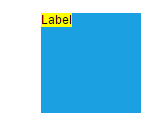 |
| Center | Top | 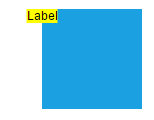 |
| Right | Top | 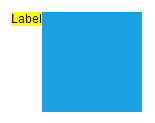 |
| Left | Center | 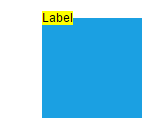 |
| Center | Center | 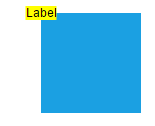 |
| Right | Center | 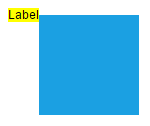 |
| Left | Bottom | 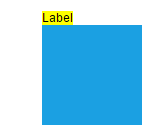 |
| Center | Bottom | 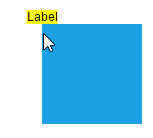 |
| Right | Bottom | 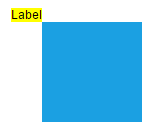 |
Update annotation alignment at runtime
Annotation alignment properties can be modified dynamically during application execution. The following example demonstrates updating alignment properties at runtime:
import { Component, ViewEncapsulation, ViewChild } from '@angular/core';
import { DiagramModule, DiagramComponent, Diagram, VerticalAlignment, HorizontalAlignment, ShapeAnnotationModel } from '@syncfusion/ej2-angular-diagrams';

@Component({
imports: [
         DiagramModule
    ],

providers: [ ],
standalone: true,
    selector: "app-container",
    template: `
    <div class="button">
        <button id="UpdateAlignment" (click)='onClick($event)'>Update Alignment</button>
    </div>
    <ejs-diagram #diagram id="diagram" width="100%" height="580px">
        <e-nodes>
            <e-node id='node1' [offsetX]=150 [offsetY]=150 [width]=100 [height]=100>
                <e-node-annotations>
                    <e-node-annotation id="label1" content="Annotation" [horizontalAlignment]="horizontalAlignment" [verticalAlignment]="verticalAlignment">
                    </e-node-annotation>
                </e-node-annotations>
            </e-node>
        </e-nodes>
    </ejs-diagram>`,
    encapsulation: ViewEncapsulation.None
})
export class AppComponent {
    @ViewChild("diagram")
    public diagram?: DiagramComponent;
    public verticalAlignment?: VerticalAlignment;
    public horizontalAlignment?: HorizontalAlignment;
    onClick = (args: MouseEvent) => {
        ((this.diagram as Diagram).nodes[0].annotations as ShapeAnnotationModel[])[0].horizontalAlignment = 'Right';
        ((this.diagram as Diagram).nodes[0].annotations as ShapeAnnotationModel[])[0].verticalAlignment  = 'Bottom';
        (this.diagram as Diagram).dataBind();
    }
}
import { bootstrapApplication } from '@angular/platform-browser';
import { AppComponent } from './app.component';
import 'zone.js';
bootstrapApplication(AppComponent).catch((err) => console.error(err));NOTE
Looking for the full Angular Diagram component overview, features, pricing, and documentation? Visit the Angular Diagram page.