Interactive Label Features
The Angular Diagram component allows labels to be interactive through selecting, dragging, rotating, and resizing operations. Label interaction is disabled by default. Enable label interaction using the constraints property of the label. You can also control specific interaction types by enabling individual constraints for selecting, dragging, rotating, or resizing. The following code demonstrates how to enable interactive mode.
import { Component, ViewEncapsulation, ViewChild } from '@angular/core';
import { DiagramModule, DiagramComponent, AnnotationConstraints } from '@syncfusion/ej2-angular-diagrams';

@Component({
imports: [
         DiagramModule
    ],

providers: [ ],
standalone: true,
    selector: "app-container",
    template: `<ejs-diagram #diagram id="diagram" width="100%" height="580px">
        <e-nodes>
            <e-node id='node1' [offsetX]=150 [offsetY]=150 [width]=100 [height]=100>
                <e-node-annotations>
                    <e-node-annotation id="label1" content="Annotation Text" [constraints]="constraints">
                    </e-node-annotation>
                </e-node-annotations>
            </e-node>
        </e-nodes>
    </ejs-diagram>`,
    encapsulation: ViewEncapsulation.None
})
export class AppComponent {
    @ViewChild("diagram")
    public diagram?: DiagramComponent;
    public constraints?: AnnotationConstraints;
    ngOnInit(): void {
        this.constraints = AnnotationConstraints.Interaction
    }
}
import { bootstrapApplication } from '@angular/platform-browser';
import { AppComponent } from './app.component';
import 'zone.js';
bootstrapApplication(AppComponent).catch((err) => console.error(err));Constraints
The constraints property of labels allows enabling or disabling specific label behaviors. Use these constraints to control which interaction types are available for each label.
Label Editing
The Diagram component supports editing labels at runtime, both programmatically and interactively. By default, labels are in view mode. Labels can be switched to edit mode using two approaches:
Programmatic Editing
Use the startTextEdit method to programmatically enter edit mode for a specific label.
import { Component, ViewEncapsulation, ViewChild } from '@angular/core';
import { DiagramModule, DiagramComponent, Diagram } from '@syncfusion/ej2-angular-diagrams';

@Component({
imports: [
         DiagramModule
    ],

providers: [ ],
standalone: true,
    selector: "app-container",
    template: `
    <div class="button">
        <button id="textEdit" (click)='onClick($event)'>Start Text Edit</button>
    </div>
    <ejs-diagram #diagram id="diagram" width="100%" height="580px">
        <e-nodes>
            <e-node id='node1' [offsetX]=150 [offsetY]=150 [width]=100 [height]=100>
                <e-node-annotations>
                    <e-node-annotation id="label1" content="Annotation Text">
                    </e-node-annotation>
                </e-node-annotations>
            </e-node>
        </e-nodes>
    </ejs-diagram>`,
    encapsulation: ViewEncapsulation.None
})
export class AppComponent {
    @ViewChild("diagram")
    public diagram?: DiagramComponent;
    onClick = (args: MouseEvent) => {
        //Pass the node which you want to edit
        (this.diagram as Diagram).startTextEdit((this.diagram as Diagram).nodes[0]);
    }
}
import { bootstrapApplication } from '@angular/platform-browser';
import { AppComponent } from './app.component';
import 'zone.js';
bootstrapApplication(AppComponent).catch((err) => console.error(err));Interactive Editing
Labels can be edited interactively through user actions:
- Double-clicking the label
- Selecting the item and pressing the F2 key
Double-clicking any label enables editing mode. When the editor loses focus, the label content is updated. The doubleClick event triggers when double-clicking on nodes, connectors, or the diagram canvas.
Label Rotation
The rotationReference property controls whether labels rotate relative to their parent node or remain fixed relative to the page. The following code examples demonstrate how to configure rotationReference for labels.
import { Component, ViewEncapsulation, ViewChild } from '@angular/core';
import { DiagramModule, DiagramComponent } from '@syncfusion/ej2-angular-diagrams';

@Component({
imports: [
         DiagramModule
    ],

providers: [ ],
standalone: true,
    selector: "app-container",
    template: `<ejs-diagram #diagram id="diagram" width="100%" height="580px">
        <e-nodes>
            <e-node id='node1' [offsetX]=150 [offsetY]=150 [width]=100 [height]=100>
                <e-node-annotations>
                    <e-node-annotation content="Annotation" rotationReference='Page'>
                    </e-node-annotation>
                </e-node-annotations>
            </e-node>
        </e-nodes>
    </ejs-diagram>`,
    encapsulation: ViewEncapsulation.None
})
export class AppComponent {
    @ViewChild("diagram")
    public diagram?: DiagramComponent;
}
import { bootstrapApplication } from '@angular/platform-browser';
import { AppComponent } from './app.component';
import 'zone.js';
bootstrapApplication(AppComponent).catch((err) => console.error(err));| Value | Description | Image |
|---|---|---|
| Page | The label maintains its original orientation even when the parent node rotates. | 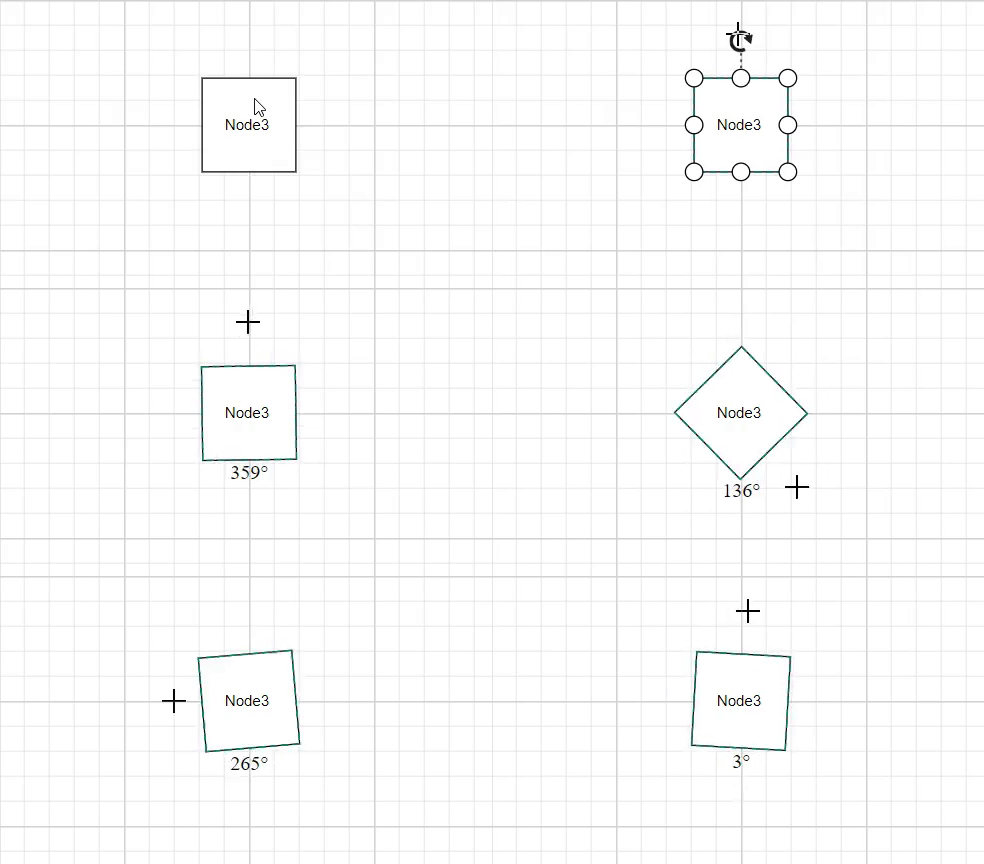 |
| Parent | The label rotates along with its parent node. | 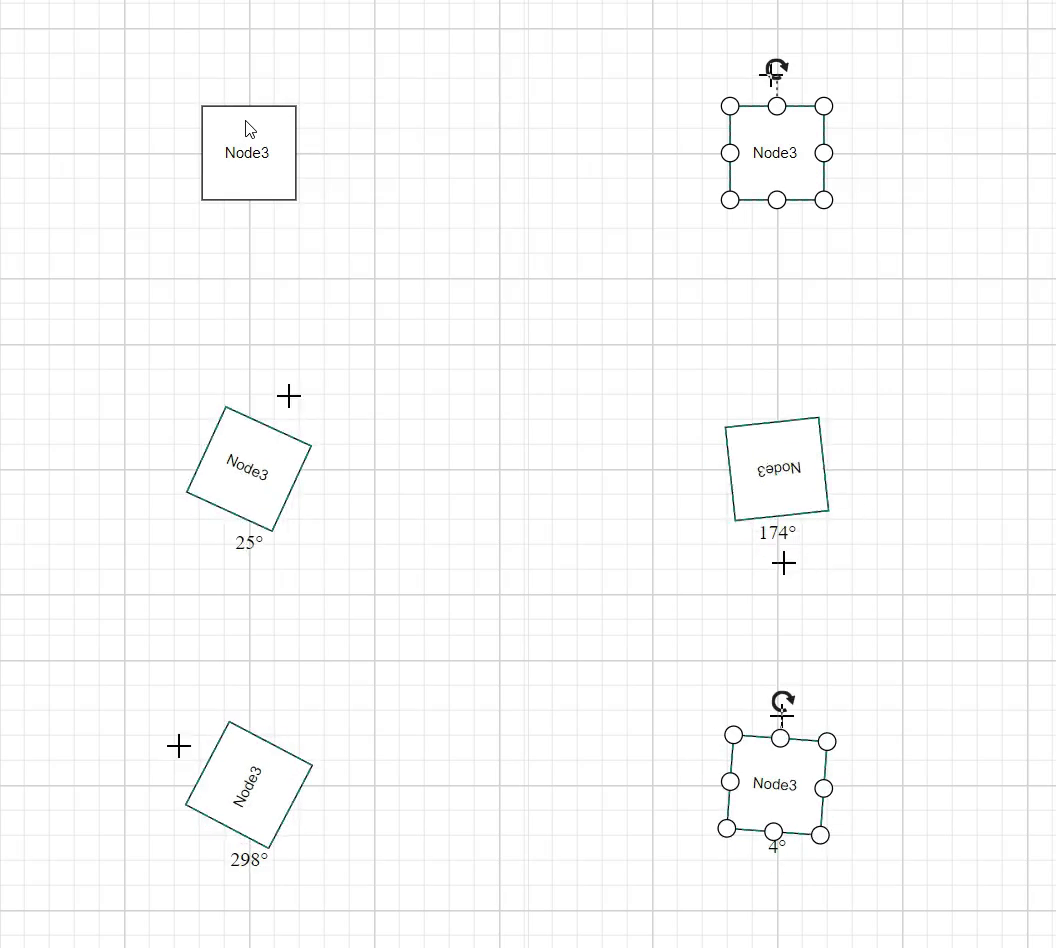 |
Read-only Labels
The Diagram component supports creating read-only labels that cannot be edited by users. Set the read-only constraint in the label’s constraints property. The following code demonstrates how to enable read-only mode.
import { Component, ViewEncapsulation, ViewChild } from '@angular/core';
import { DiagramModule, DiagramComponent, AnnotationConstraints } from '@syncfusion/ej2-angular-diagrams';

@Component({
imports: [
         DiagramModule
    ],

providers: [ ],
standalone: true,
    selector: "app-container",
    template: `<ejs-diagram #diagram id="diagram" width="100%" height="580px">
        <e-nodes>
            <e-node id='node1' [offsetX]=150 [offsetY]=150 [width]=100 [height]=100>
                <e-node-annotations>
                    <e-node-annotation id="label1" content="Annotation Text" [constraints]="constraints">
                    </e-node-annotation>
                </e-node-annotations>
            </e-node>
        </e-nodes>
    </ejs-diagram>`,
    encapsulation: ViewEncapsulation.None
})
export class AppComponent {
    @ViewChild("diagram")
    public diagram?: DiagramComponent;
    public constraints?: AnnotationConstraints;
    ngOnInit(): void {
        this.constraints = AnnotationConstraints.ReadOnly
    }
}
import { bootstrapApplication } from '@angular/platform-browser';
import { AppComponent } from './app.component';
import 'zone.js';
bootstrapApplication(AppComponent).catch((err) => console.error(err));Drag Limits
The diagram control supports defining dragLimit properties for connector labels to restrict dragging within specified boundaries. The drag limit automatically updates the label position to the nearest segment offset when dragging.
Configure drag limit boundaries using the left, right, top, and bottom properties. These properties limit connector label dragging based on user-defined values.
Drag limits are disabled by default for connectors. Enable drag limits by setting the connector constraints to include drag functionality.
The following code demonstrates how to configure dragLimit for connector labels:
import { Component, ViewEncapsulation, ViewChild } from '@angular/core';
import { DiagramModule, DiagramComponent, AnnotationConstraints, MarginModel } from '@syncfusion/ej2-angular-diagrams';

@Component({
imports: [
         DiagramModule
    ],

providers: [ ],
standalone: true,
    selector: "app-container",
    template: `
    <ejs-diagram #diagram id="diagram" width="100%" height="580px">
        <e-connectors>
            <e-connector id='connector' type='Orthogonal' [sourcePoint]='{ x: 300, y: 100 }' [targetPoint]='{ x: 400, y: 300 }'>
                <e-connector-annotations>
                    <e-connector-annotation content='connector' [constraints]="constraints" [dragLimit]="dragLimit">
                    </e-connector-annotation>
                </e-connector-annotations>
            </e-connector>
        </e-connectors>
    </ejs-diagram>`,
    encapsulation: ViewEncapsulation.None
})
export class AppComponent {
    @ViewChild("diagram")
    public diagram?: DiagramComponent;
    public constraints?: AnnotationConstraints;
    public dragLimit?: MarginModel;
    ngOnInit(): void {
        //Enables drag constraints for a connector.
        this.constraints = AnnotationConstraints.Interaction | AnnotationConstraints.Drag;
        //Set drag limit for a connector annotation.
        this.dragLimit = {left:20,right:20,top:20,bottom:20};
    }
}
import { bootstrapApplication } from '@angular/platform-browser';
import { AppComponent } from './app.component';
import 'zone.js';
bootstrapApplication(AppComponent).catch((err) => console.error(err));Multiple Labels
Nodes and connectors support multiple labels. Each label can have independent properties and constraints. The following code demonstrates how to add multiple labels to nodes and connectors.
import { Component, ViewEncapsulation, ViewChild } from '@angular/core';
import { DiagramModule, DiagramComponent, PointModel } from '@syncfusion/ej2-angular-diagrams';

@Component({
imports: [
         DiagramModule
    ],

providers: [ ],
standalone: true,
    selector: "app-container",
    template: `<ejs-diagram #diagram id="diagram" width="100%" height="580px">
        <e-nodes>
            <e-node id='node1' [offsetX]=150 [offsetY]=150 [width]=100 [height]=100>
                <e-node-annotations>
                    <e-node-annotation id="label1" content="Left" [offset]="offset1">
                    </e-node-annotation>
                    <e-node-annotation id="label2" content="Center" [offset]="offset2">
                    </e-node-annotation>
                    <e-node-annotation id="label3" content="Right" [offset]="offset3">
                    </e-node-annotation>
                </e-node-annotations>
            </e-node>
        </e-nodes>
        <e-connectors>
            <e-connector id='connector' type='Orthogonal' [sourcePoint]='{ x: 300, y: 100 }' [targetPoint]='{ x: 400, y: 300 }'>
                <e-connector-annotations>
                    <e-connector-annotation content='connector Top' [offset]='0.2'>
                    </e-connector-annotation>
                    <e-connector-annotation content='connector Center' [offset]='0.6'>
                    </e-connector-annotation>
                    <e-connector-annotation content='connector Bottom' [offset]='0.8'>
                    </e-connector-annotation>
                </e-connector-annotations>
            </e-connector>
        </e-connectors>
    </ejs-diagram>`,
    encapsulation: ViewEncapsulation.None
})
export class AppComponent {
    @ViewChild("diagram")
    public diagram?: DiagramComponent;
    public offset1?: PointModel;
    public offset2?: PointModel;
    public offset3?: PointModel;
    ngOnInit(): void {
        this.offset1 = { x: 0.12, y: 0.1}
        this.offset2 = { x: 0.5, y: 0.5}
        this.offset3 = { x: 0.82, y: 0.9}
    }
}
import { bootstrapApplication } from '@angular/platform-browser';
import { AppComponent } from './app.component';
import 'zone.js';
bootstrapApplication(AppComponent).catch((err) => console.error(err));