Bezier Segment Edit Orientation
Bezier connectors in diagrams provide smooth, curved connections between nodes with customizable control points. The segment edit orientation feature allows interactive modification of bezier connector segments to achieve the desired visual flow and connection paths.
Interactive Editing of Bezier Segments
The intermediate control points between adjacent bezier segments can be edited interactively during runtime based on the segmentEditOrientation property within the bezierSettings configuration. This property determines the directional constraints applied when users drag the intermediate points to reshape the connector.
Segment Edit Orientation Options
The following table describes the available orientation modes and their interactive behavior:
| SegmentEditOrientation Value | Description | Interactive Behavior | Visual Example |
|---|---|---|---|
| Bidirectional | Constrains intermediate point movement to either vertical or horizontal directions only. Users can drag points along a single axis at a time, providing precise alignment control. | 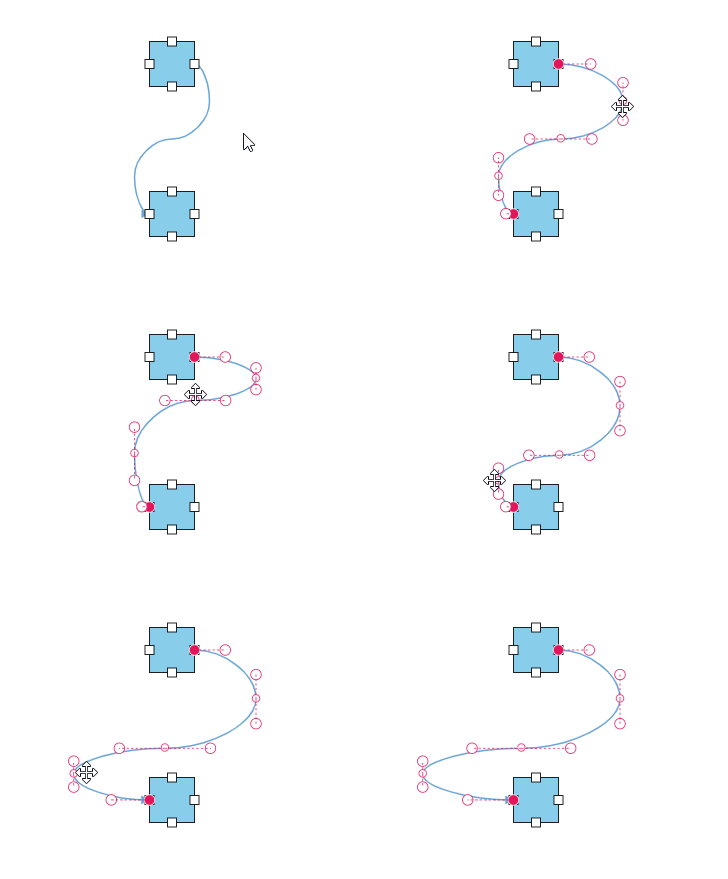 |
|
| Freeform | Allows unrestricted movement of intermediate points in any direction. Users can drag points freely to create custom curves and complex path shapes. | 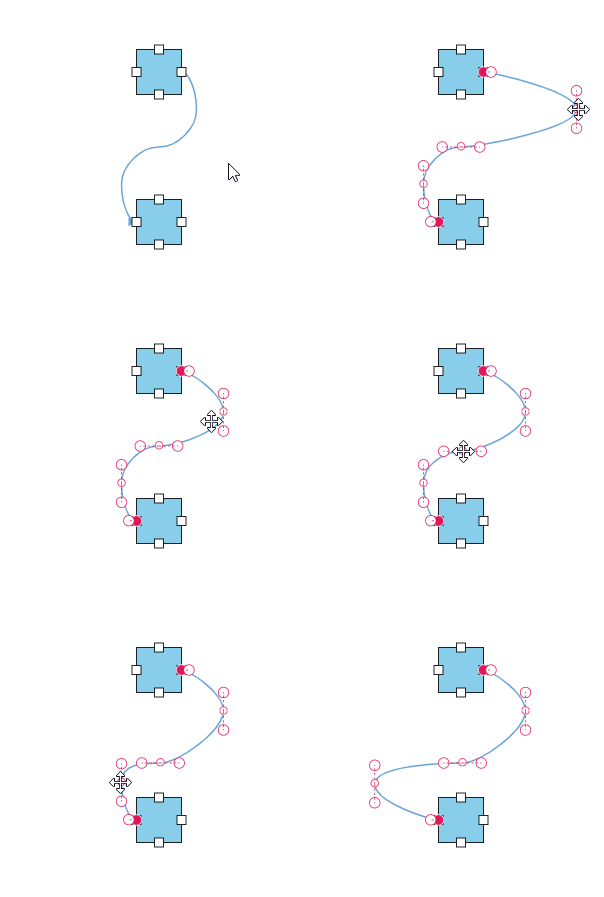 |
Implementation Example
The following code demonstrates how to configure bezier connectors with interactive segment editing using both the smoothness property for curve refinement and the segmentEditOrientation property for interaction control:
import { Component, ViewEncapsulation, OnInit, ViewChild } from '@angular/core';
import { DiagramModule, DiagramComponent, Diagram, NodeModel, ConnectorModel, ConnectorEditing, ConnectorConstraints,
    PointPortModel, BezierSmoothness, PortVisibility, ShapeStyleModel } from '@syncfusion/ej2-angular-diagrams';
Diagram.Inject(ConnectorEditing);
@Component({
imports: [
         DiagramModule
    ],

providers: [ ],
standalone: true,
    selector: "app-container",
    template: `<ejs-diagram #diagram id="diagram" width="100%" height="600px" [getNodeDefaults]='getNodeDefaults' [getConnectorDefaults] ='getConnectorDefaults'>
    <e-nodes>
        <e-node id='Start' [offsetX]=250 [offsetY]=150 [ports]='StartPort'>
            <e-node-annotations>
                <e-node-annotation content="Start">
                </e-node-annotation>
            </e-node-annotations>
        </e-node>
        <e-node id='End' [offsetX]=250 [offsetY]=350 [ports]='EndPort'>
            <e-node-annotations>
                <e-node-annotation content="End">
                </e-node-annotation>
            </e-node-annotations>
        </e-node>
    </e-nodes>
    <e-connectors>
        <e-connector id='connector1' type='Bezier' sourceID='Start' targetID='End'  sourcePortID='StartPort' targetPortID='EndPort'>
        </e-connector>
    </e-connectors>
</ejs-diagram>`,
encapsulation: ViewEncapsulation.None,
})
export class AppComponent {
    @ViewChild('diagram')
    public diagram?: DiagramComponent;
    public StartPort?: PointPortModel[];
    public EndPort?: PointPortModel[];

    ngOnInit(): void {
        this.StartPort = [{
            id: 'StartPort',
            visibility: PortVisibility.Visible,
            shape: 'Circle',
            offset: { x: 1, y: 0.5 },
            style: { strokeColor: '#366F8C', fill: '#366F8C' },
        }];
        this.EndPort = [{
            id: 'EndPort',
            visibility: PortVisibility.Visible,
            shape: 'Circle',
            offset: { x: 0, y: 0.5 },
            style: { strokeColor: '#366F8C', fill: '#366F8C' },
        }];
    };

    public getNodeDefaults(node: NodeModel): void {
        node.height = 100;
        node.width = 100;
        node.shape = { type: 'Basic', shape: 'Rectangle' };
        ((node as NodeModel).style as ShapeStyleModel).fill = '#6BA5D7';
        ((node as NodeModel).style as ShapeStyleModel).strokeColor = 'White';
    };

    public getConnectorDefaults(connector: ConnectorModel): void {
        connector.targetDecorator = { shape: 'None' };
        connector.constraints = ConnectorConstraints.Default | ConnectorConstraints.DragSegmentThumb;
        connector.bezierSettings = {
            smoothness: BezierSmoothness.SymmetricAngle,
            segmentEditOrientation: 'BiDirectional',
        };
    };
}
import { bootstrapApplication } from '@angular/platform-browser';
import { AppComponent } from './app.component';
import 'zone.js';
bootstrapApplication(AppComponent).catch((err) => console.error(err));